With Sweo’s multi-brand support for Zendesk, you can deliver personalized AI experiences based on brand context. This feature automatically syncs your brands from Zendesk and applies brand data to incoming conversations handled by Sweo (including Zendesk tickets, Zendesk messaging, and Sweo Messenger).
Key benefits / use cases
Sync brands automatically when you connect your Zendesk API (no manual setup required).
Tag every conversation with a brand to power tailored automation, reporting, and experiences.
Create brand-specific AI content using audiences, workflows, and guidance.
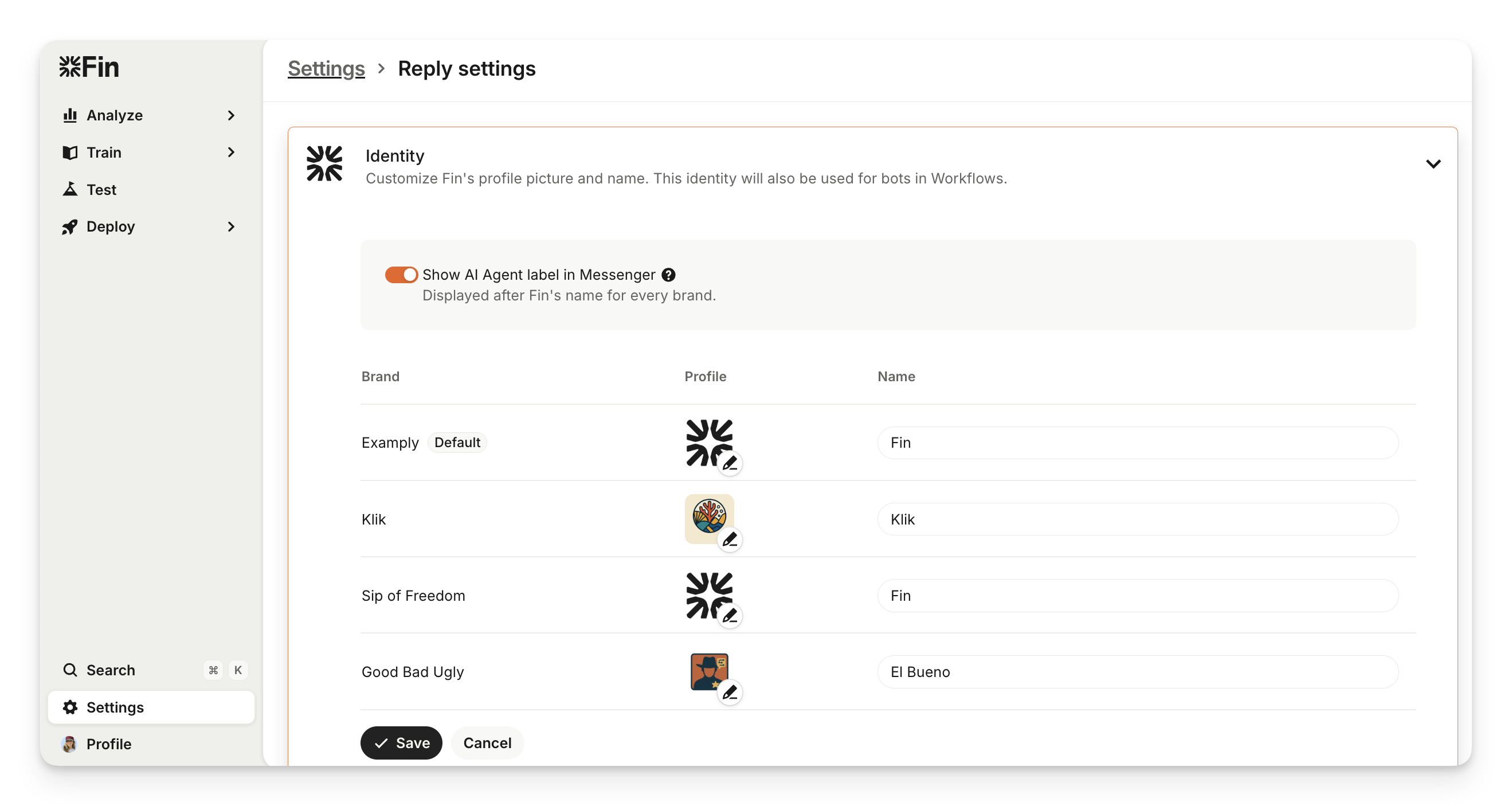
Customize Sweo's identity by brand to maintain consistency across all customer interactions.
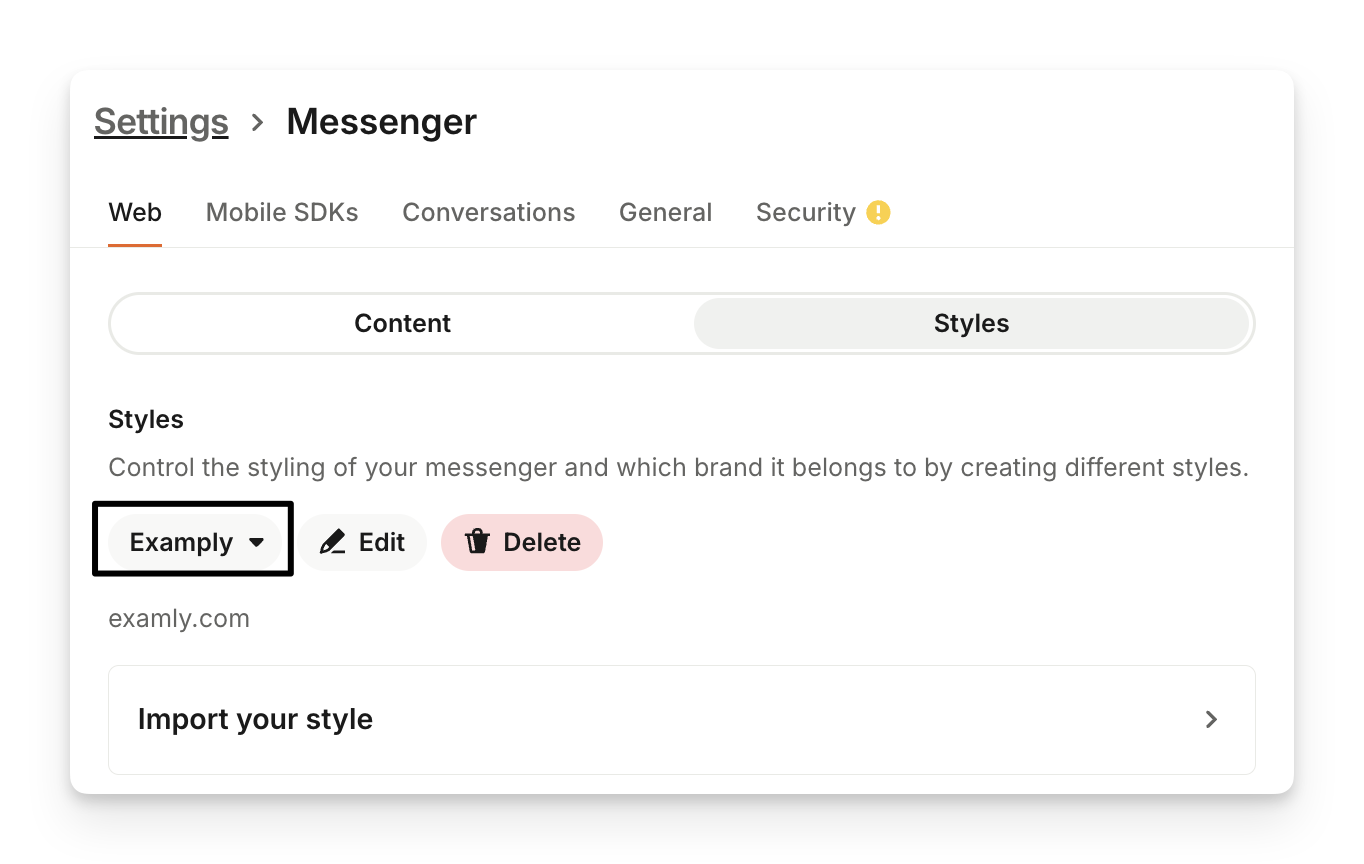
Customize Sweo Messenger styles by brand to keep things on-brand for every customer interaction.
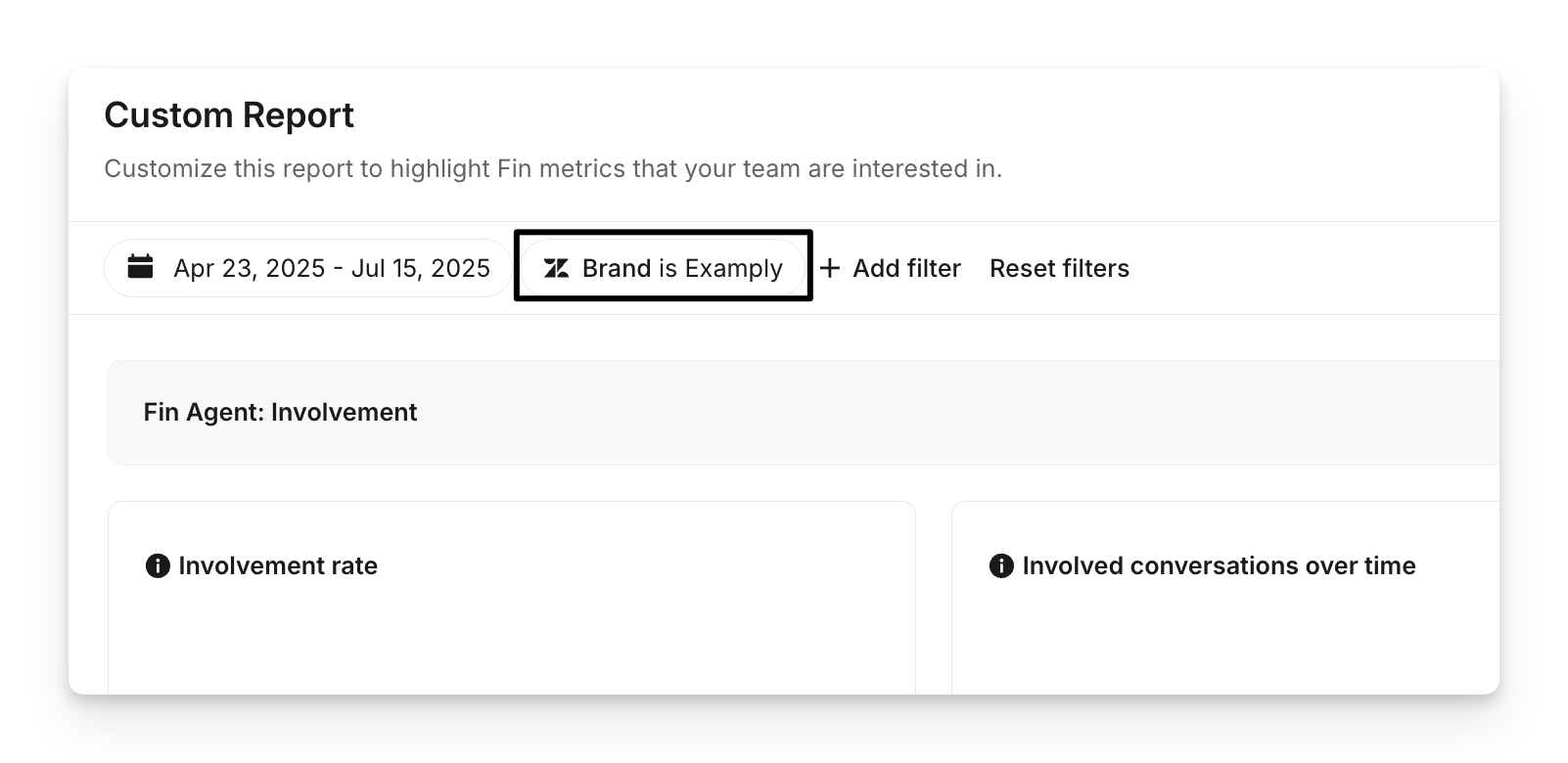
Track performance by brand in Reporting.
How to use multi-brand for Zendesk
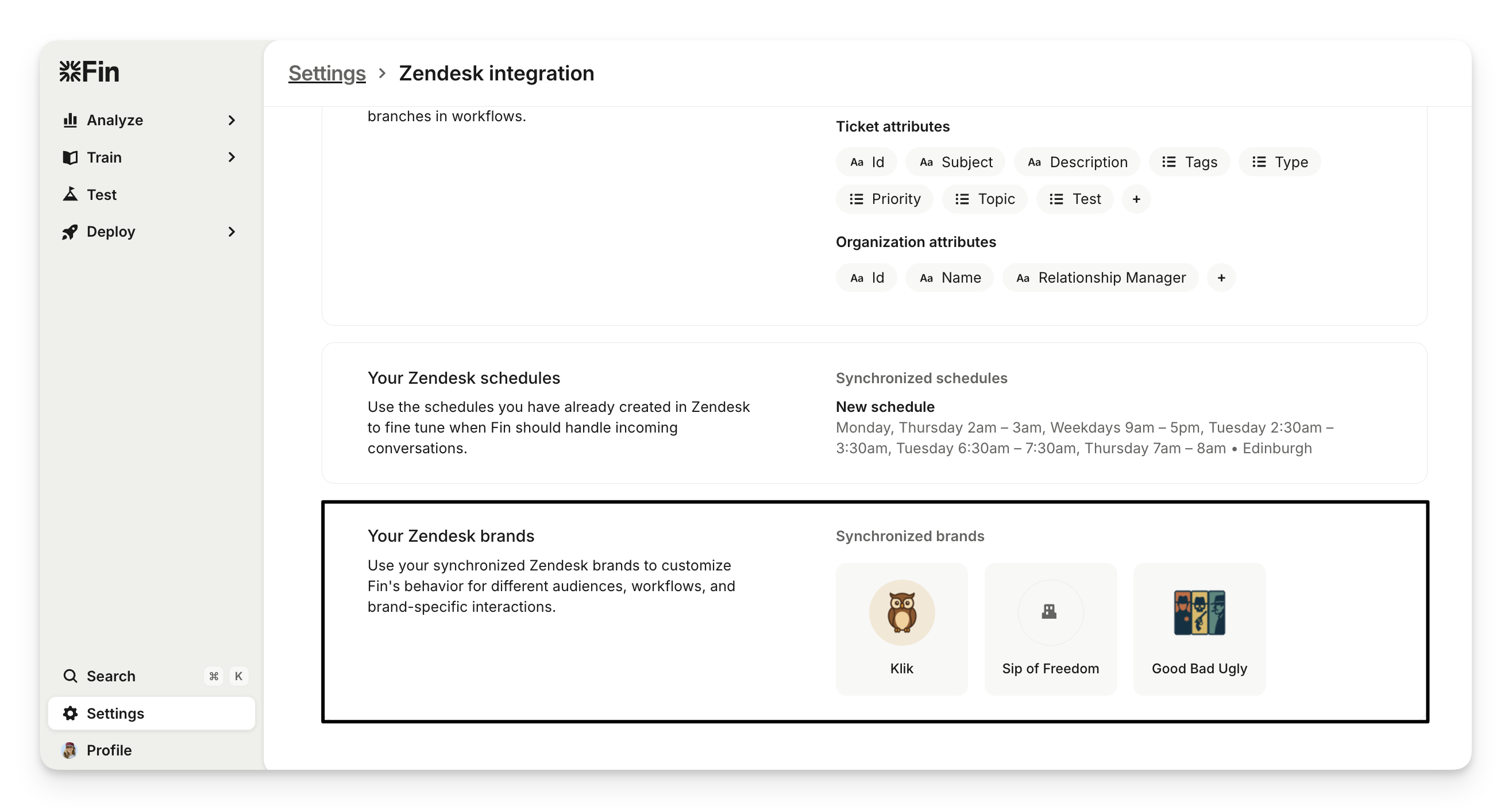
1. Connect to Zendesk API
Brand synchronization happens automatically when you connect your Zendesk API.
Note:
All existing brands in your Zendesk account will sync with your Sweo workspace. These can't be removed later.
Historical conversations may lack brand context if imported before July 2, 2025.
2. Handle new brands dynamically
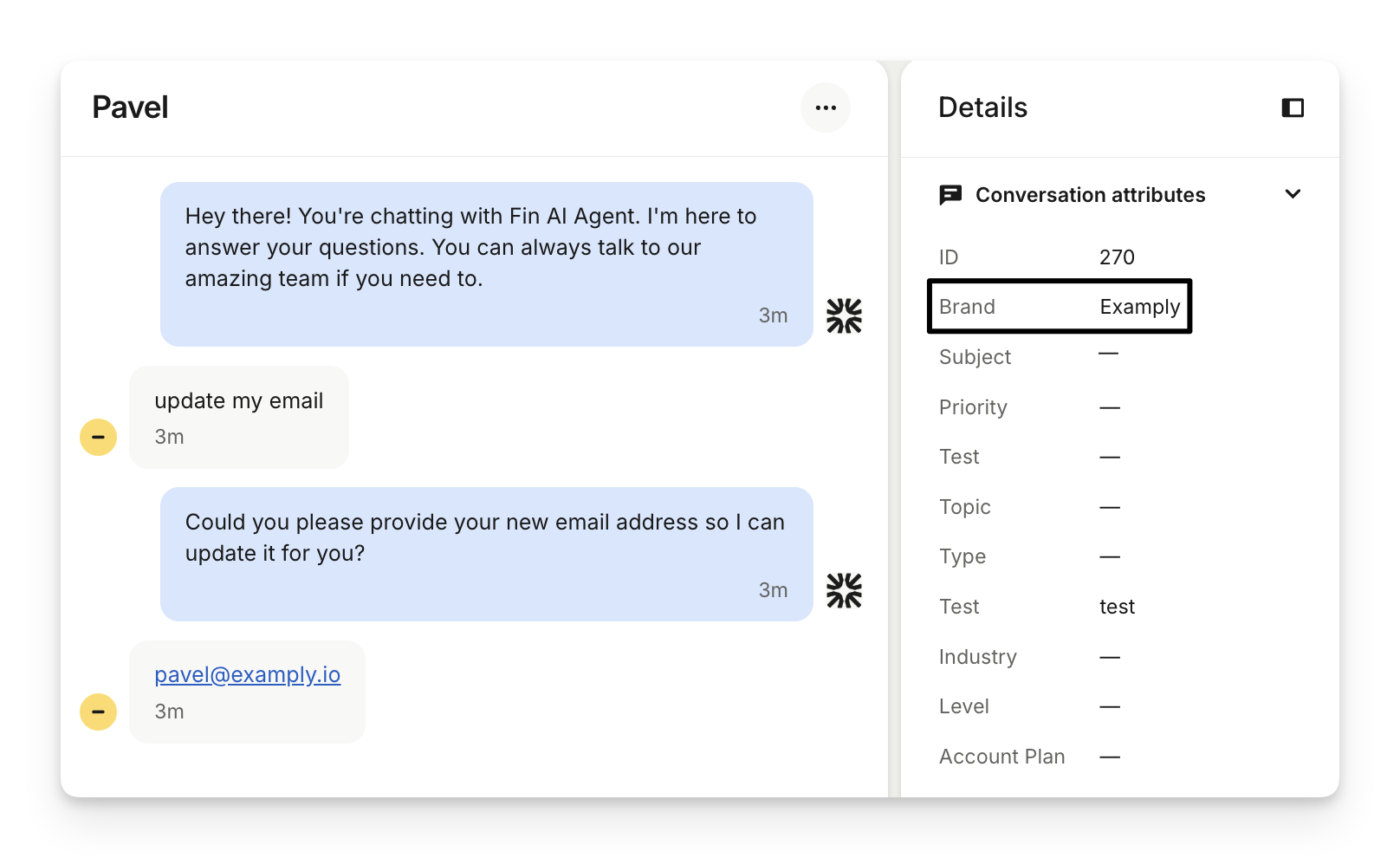
If a conversation comes in from a brand that hasn’t been seen before, Sweo will automatically sync it and apply the correct brand. Brand information is applied to all Zendesk conversation types (Zendesk tickets, Zendesk Messaging, and Sweo Messenger).
3. Use brand context
Brand information is stored as an attribute in your Sweo workspace, so you can use it to:
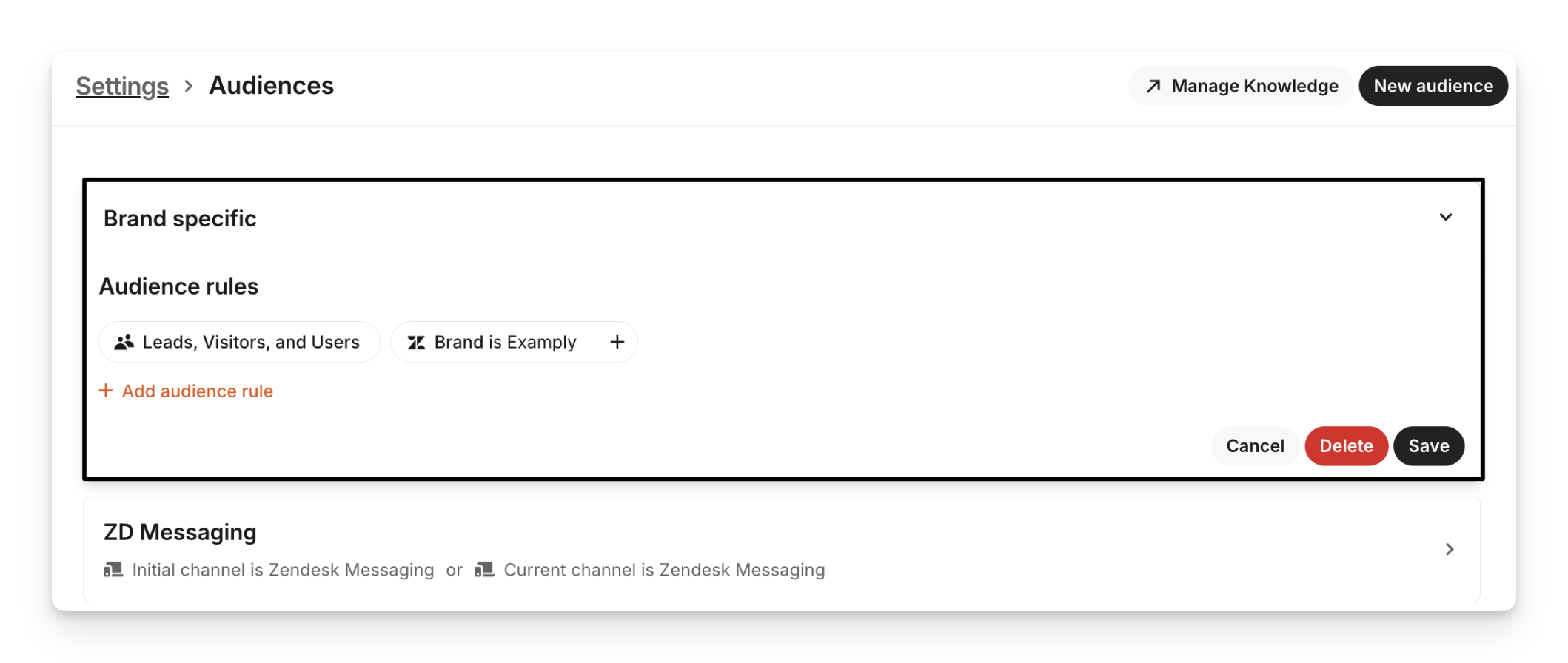
Create audiences for content and guidance using the brand attribute to segment users or leads.
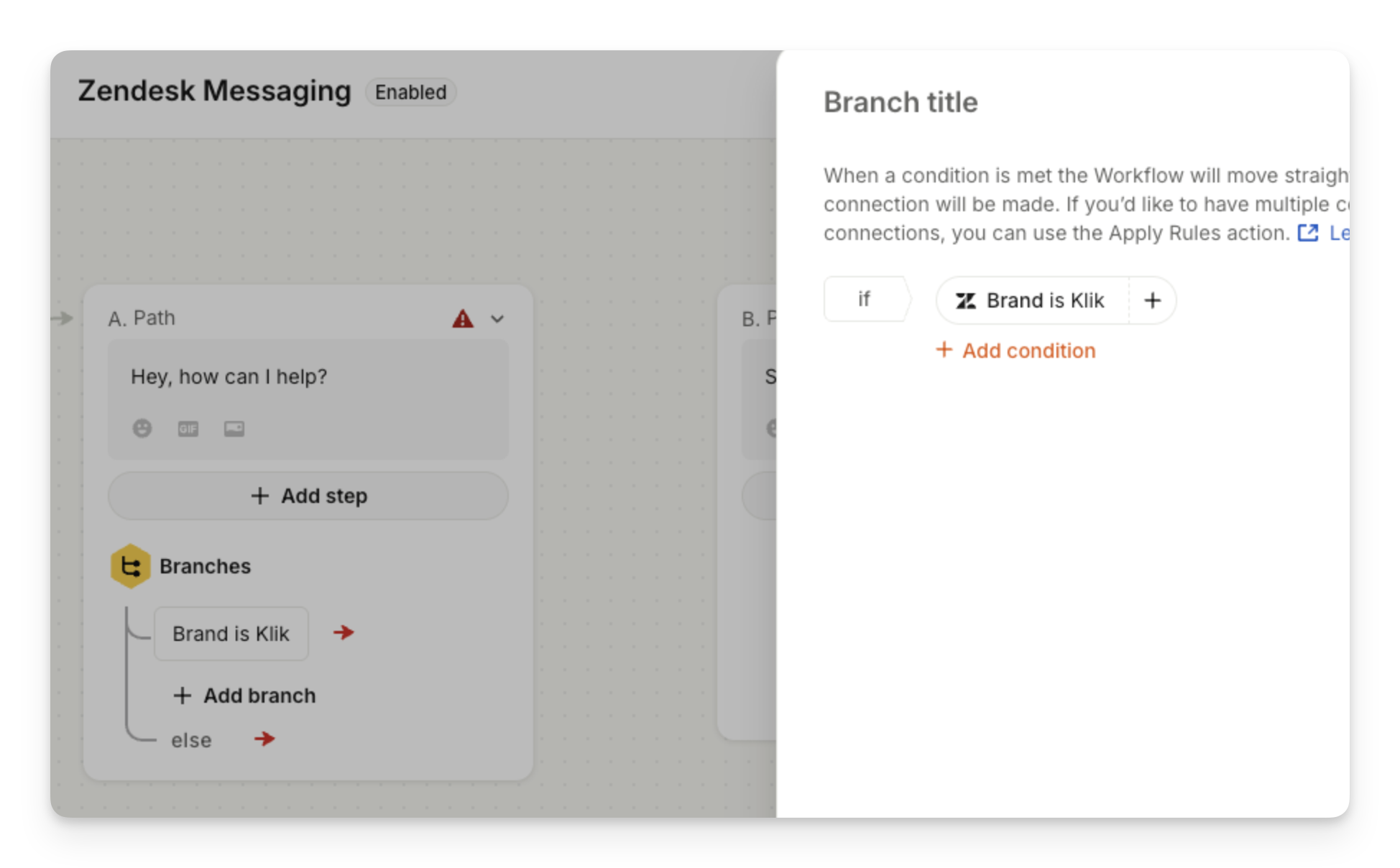
Configure workflows to route conversations based on brand.
Customize Sweo's identity for each brand.
Customize Sweo Messenger styles for each brand.
Build a custom report that filters performance metrics by brand.
FAQs
Do I need to manually sync brands?
No, brands sync automatically when you connect your Zendesk API and whenever new brands appear in conversations.
Can I use different content for different brands?
Yes, use audiences to create brand-specific segments and configure different content for each brand, by assigning the audience.
Will existing conversations get brand information?
Only new conversations from July 2, 2025 will automatically include brands. Historical ones won’t be updated retroactively.
How do I create brand-specific Messenger styles?
Go to Settings > Sweo Messenger > Styles and select the brand you want to style.
How does Sweo detect and use the correct brand?
Sweo automatically selects the appropriate brand based on the URL where the conversation started. For example, if your Examply brand is associated with examply.io, then any conversation that starts on examply.io will use that brand.
Why doesn’t the correct brand appear for imported or existing conversations in Sweo?
Brand settings in Sweo do not apply retroactively. Once a brand is set up, it will only be applied to new conversations that start from the associated Sweo Messenger URLs going forward.
This means:
Imported conversations won’t automatically inherit brand information.
Conversations that existed before a brand was configured will keep their original setup.
Brand information is applied only when a new conversation begins after the brand is set up.
As long as your brand is configured before new conversations start, Sweo will correctly associate those conversations with the right brand.