Syncing your Zendesk help center allows you to use your existing articles to power Sweo Agent and Sweo Copilot.
This integration is designed to prioritize data privacy by utilizing only publicly accessible content specifically synced to Sweo, ensuring customer and organizational security throughout the process.
Note: You must have access to Zendesk Guide to use this feature. Your help center will remain on Zendesk; this process only syncs the content into Sweo
Set up sync with Zendesk help center
To set up your Zendesk help center sync, go to Train > Content and click See all then choose From Zendesk.
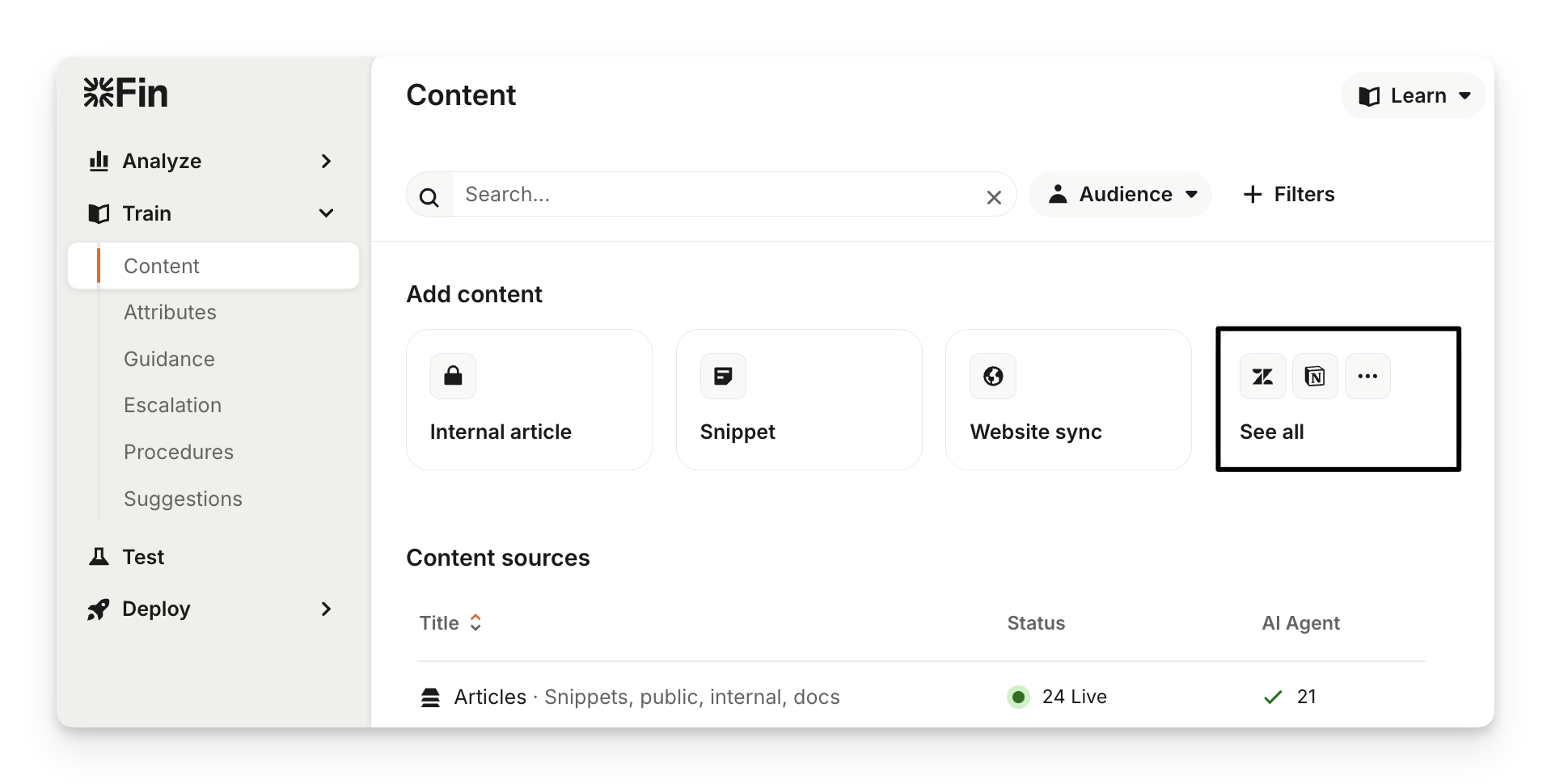
This will open the "Sync content from Zendesk" window.

Enter your unique Zendesk subdomain. This is the part of your Zendesk URL that comes before
.zendesk.com. For example, if your URL ishttps://yoursubdomain.zendesk.com, your subdomain isyoursubdomain.For the authentication method, select "API key".
Enter the "Email address" associated with your Zendesk admin account.
Enter your Zendesk "API token". You can generate this from your Zendesk admin settings.
Choose which articles to sync using the toggles:
Sync articles for signed-in users: This allows Sweo to access articles with viewing permissions set to "Signed in users" in Zendesk.
Sync articles for staff members: This allows Sweo to access articles with viewing permissions set to "Staff" in Zendesk.
Finally, click Sync to begin the process.
Note:
Articles synced with "Staff" permissions are only enabled for Sweo Copilot by default and won't be used by Sweo Agent in answers to customers.
The first sync cannot be stopped once it has started. You can only remove the integration after the initial sync is complete.
The API-based connection utilized by the advanced importer ensures faster and more reliable syncing compared to older scraping methods.
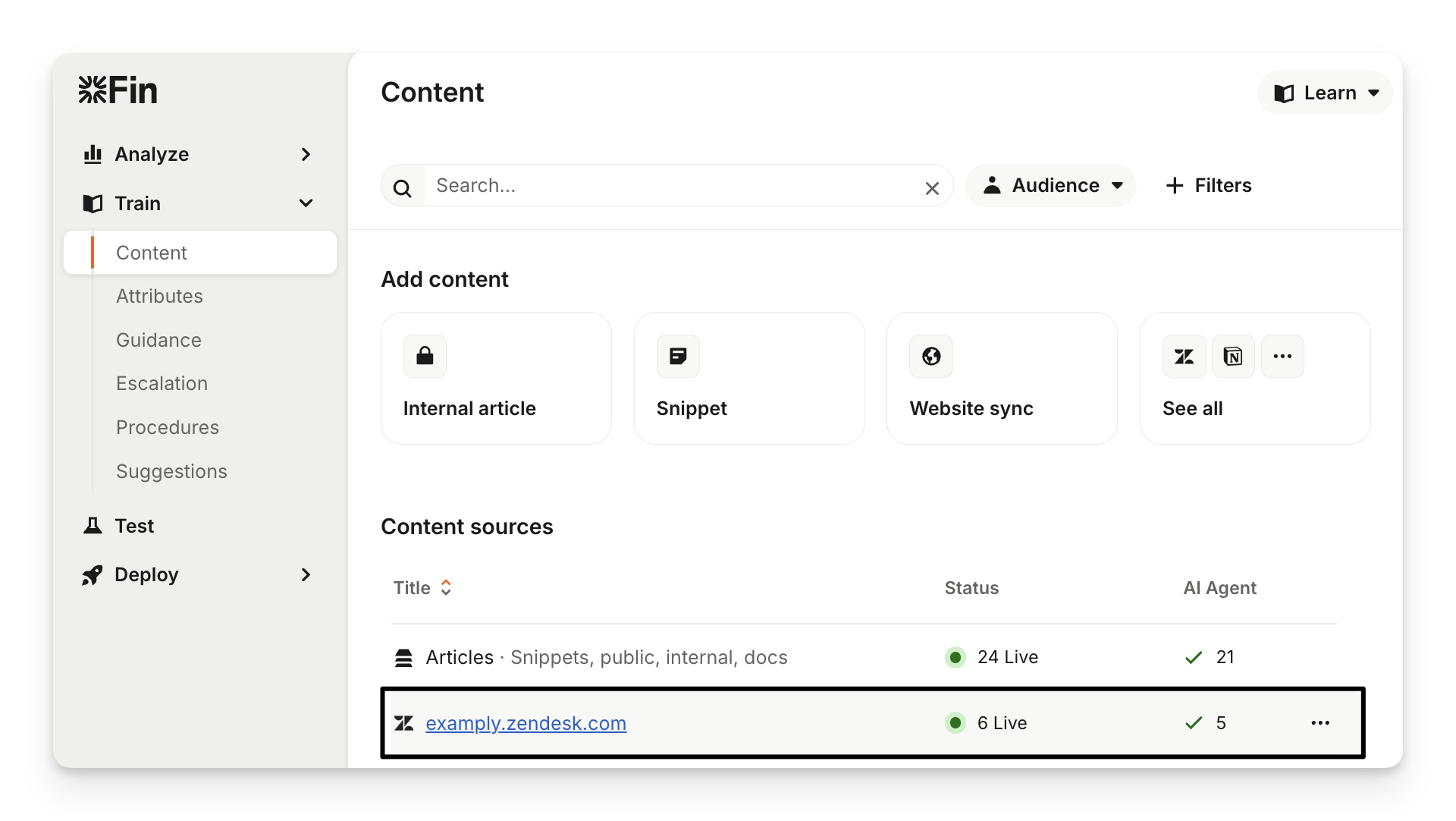
After the first sync is complete, you’ll receive an email confirmation listing how many articles were synchronized. The content will appear in Train > Content under the "Content sources" section.
Manage sync with Zendesk help center
When your content is synced with Zendesk, it will be accessible from Train > Content under the "Content sources" section.
Configure the settings
Synced articles are view-only within Sweo and cannot be edited directly in the content library. All changes to article content must be made in Zendesk. These changes will automatically be updated in Sweo during the next sync.
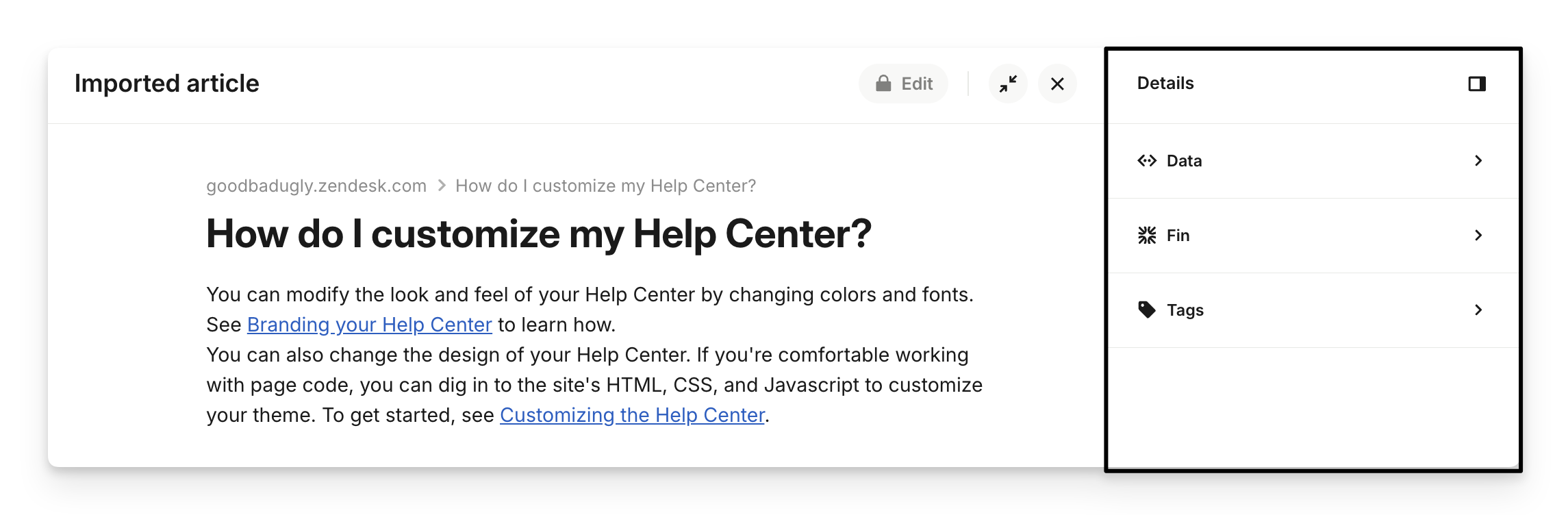
However, you can manage settings for each article. Go to Train > Content and click on your Zendesk source under the "Content sources" section, then open the article you want to manage.
There's a "Details" panel on the right which contains:
Data: View the content type, language, creation date, last updated (date it was last synced with Zendesk).
Sweo: Enable/disable for Sweo Agent and Sweo Copilot. When enabled, the content becomes available to customers and teammates, respectively.
Audience: Target your content at a specific audience, so Sweo Agent only shares content that is relevant for them.
Tags: Add a tag to group articles together and keep content organized.
How Zendesk metadata is managed
The importer automatically brings the structure of your Zendesk knowledge base into your Sweo workspace to save you time.
Zendesk metadata like labels, categories, and content tags are all imported and converted into tags on your Sweo workspace. With these tags automatically applied, you can:
Filter your content to see all articles from a certain category.
Exclude irrelevant content from Sweo.
Create specific Sweo audiences based on article tags to route answers to the right customers.
The advanced importer further optimizes this by enabling precise filtering and configuring audience-specific content delivery through mapped tags.
Pro tip: For example, if you have content in Zendesk labeled "EMEA-only," that label becomes a tag in your Sweo workspace. You can then create an audience for your European customers and configure Sweo to only use articles with the "EMEA-only" tag for that audience.
Automatic Zendesk content re-syncs
Sweo automatically re-syncs with your Zendesk help center every hour to pull in any changes. This includes new articles, content edits, and article deletions. You won't receive an email for these automatic syncs.
Manually re-sync or remove Zendesk content
If you need to manually trigger a re-sync or remove the Zendesk content entirely, go to Train > Content. Click the three-dot menu next to the Zendesk source and select Re-sync or Remove this source.
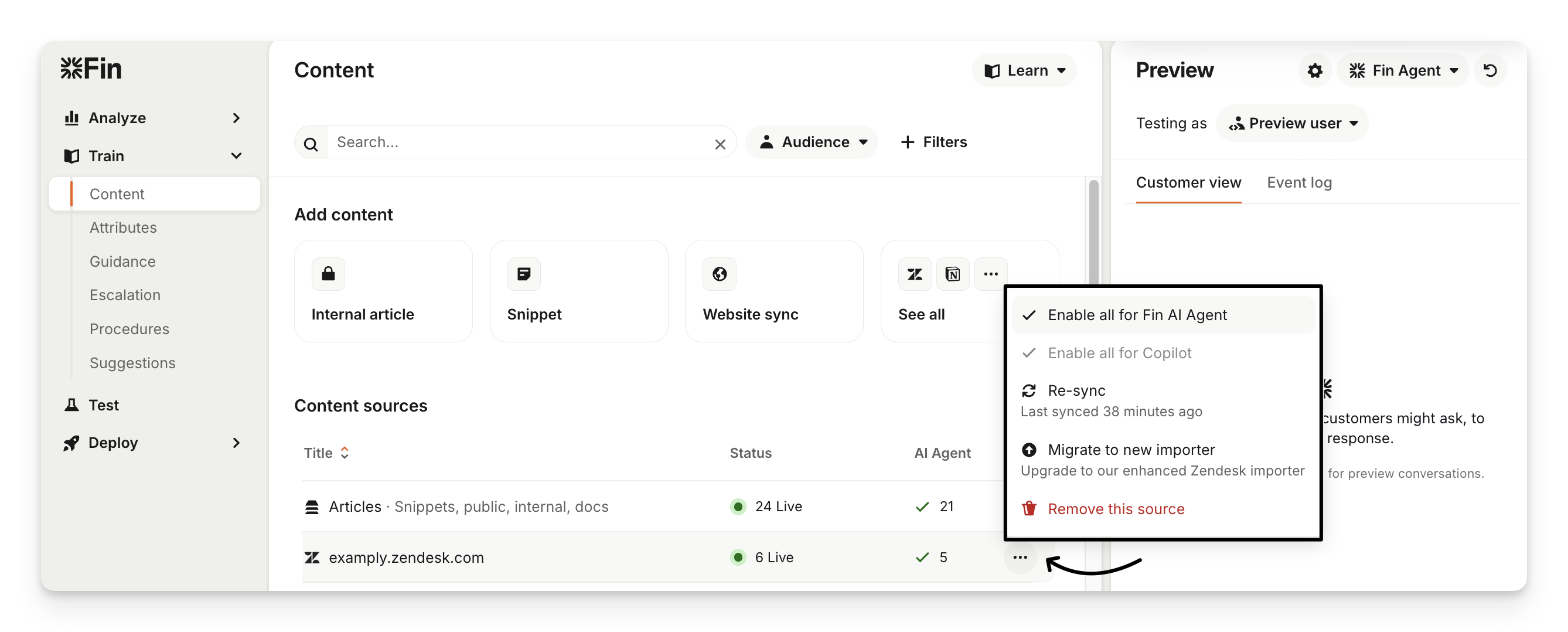
When removing a source, you’ll see a green confirmation banner indicating the removal has been successful and synced articles will be deleted from Sweo.
Using synced articles with Sweo
After syncing your Zendesk articles with Sweo, you can use them to power the following:
AI answers
AI answers
Browsing articles in the "Help" space
Searching for articles in the "Help" space
Important differences between your articles in Zendesk and the Sweo Messenger
There are slight differences with how synced articles look in the Sweo Messenger compared to your Zendesk help center. Differences can include:
Content formats such as, additional headings, text styling, table formatting, etc.
If a customer clicks the “Open in Help Center” link at the bottom of a synced article in the Sweo Messenger, this will open a new tab with the article in your Zendesk help center.
We exclusively support videos added through Zendesk's 'Add video' button, typically embedded via
iframe, and compatible with all providers available in Zendesk's article editor (e.g., YouTube, Vimeo, Wistia, JWPlayer, Brightcove, Vidyard, Loom, Guidde). Custom HTML, CSS, or JavaScript-based video embeds are not supported.If articles appear blank in the Sweo Messenger, it could be due to your site's Content Security Policy (CSP) blocking third-party resources required for proper loading, such as external images or scripts.
FAQs
What data does Sweo use when integrated with Zendesk?
What data does Sweo use when integrated with Zendesk?
Sweo integrates seamlessly with Zendesk to provide customer-facing answers. However, it is important to understand the specific data sources Sweo utilizes to ensure both operational effectiveness and data privacy.
Content for answer generation
When integrated with Zendesk, Sweo exclusively uses support content that is explicitly synced to your Sweo workspace. This includes:
Public articles from the Zendesk Help Center
Other synced public content like website syncs
Uploaded documents
Snippets
Response guidance that has been configured by your team
This ensures that Sweo's responses are based on verified information you have selectively enabled for Sweo.
Exclusion of private data
Sweo does not utilize private data from Zendesk, ensuring customer and organizational privacy. Specifically, the following data is not used by Sweo when responding to customers:
Internal (private) comments within Zendesk
Historical Zendesk tickets or customer conversation data
By excluding these data sources, Sweo ensures that only approved public and explicitly synced content is referenced for AI-generated answers.
Will tables from my Zendesk articles also be synced?
Will tables from my Zendesk articles also be synced?
Yes, if you have a table in your Zendesk article, it will be synced and used by Sweo. You will be able to see the table synced in the content of your Sweo workspace, exactly as it is in your Zendesk help center.