This article will guide you through integrating and customizing Sweo for Zendesk messaging, including the customer experience and hand-offs to your support team in Zendesk when a conversation needs to be escalated to a human.
Connect Sweo with Zendesk
Connect to Zendesk using OAuth
OAuth is the primary method for connecting Sweo to Zendesk. It provides a secure, token-free setup and ensures compatibility with Zendesk’s platform changes.
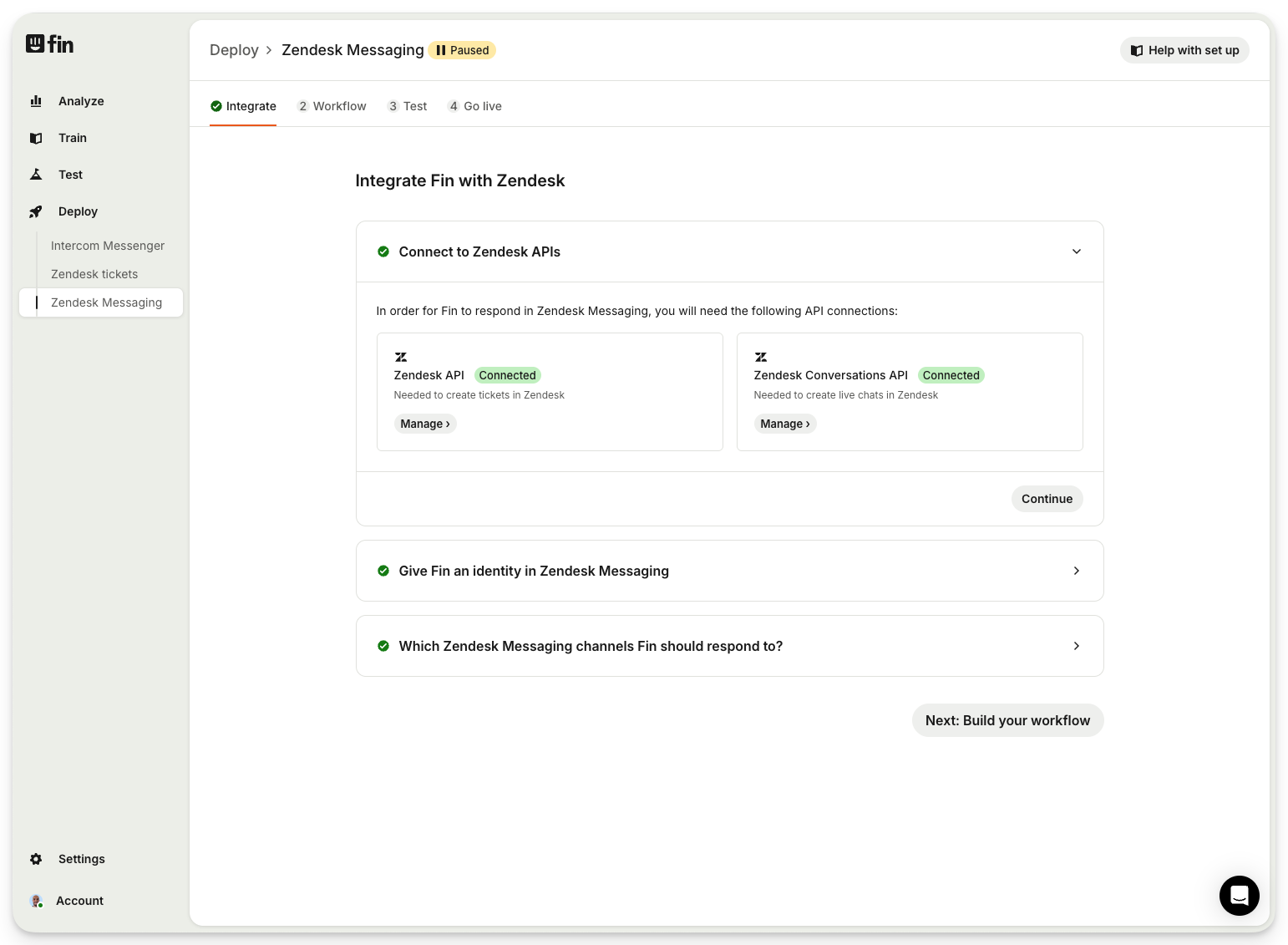
Go to Deploy > Zendesk Messaging.
Click Connect.
A Zendesk authentication window will open. Sign in and approve access.
You’ll be redirected back to Sweo with your connection marked as Connected.
Note: Zendesk is deprecating API token authentication. All new customers must connect using OAuth.
New non-contracted customers: OAuth is required.
New contracted customers: OAuth becomes required once your workspace is OAuth-enabled.
Existing customers: API connections continue to work, but if disconnected, you must reconnect with OAuth. You’ll see a persistent banner in your Sweo workspace until OAuth is enabled.
Connect to the Zendesk Sunshine API
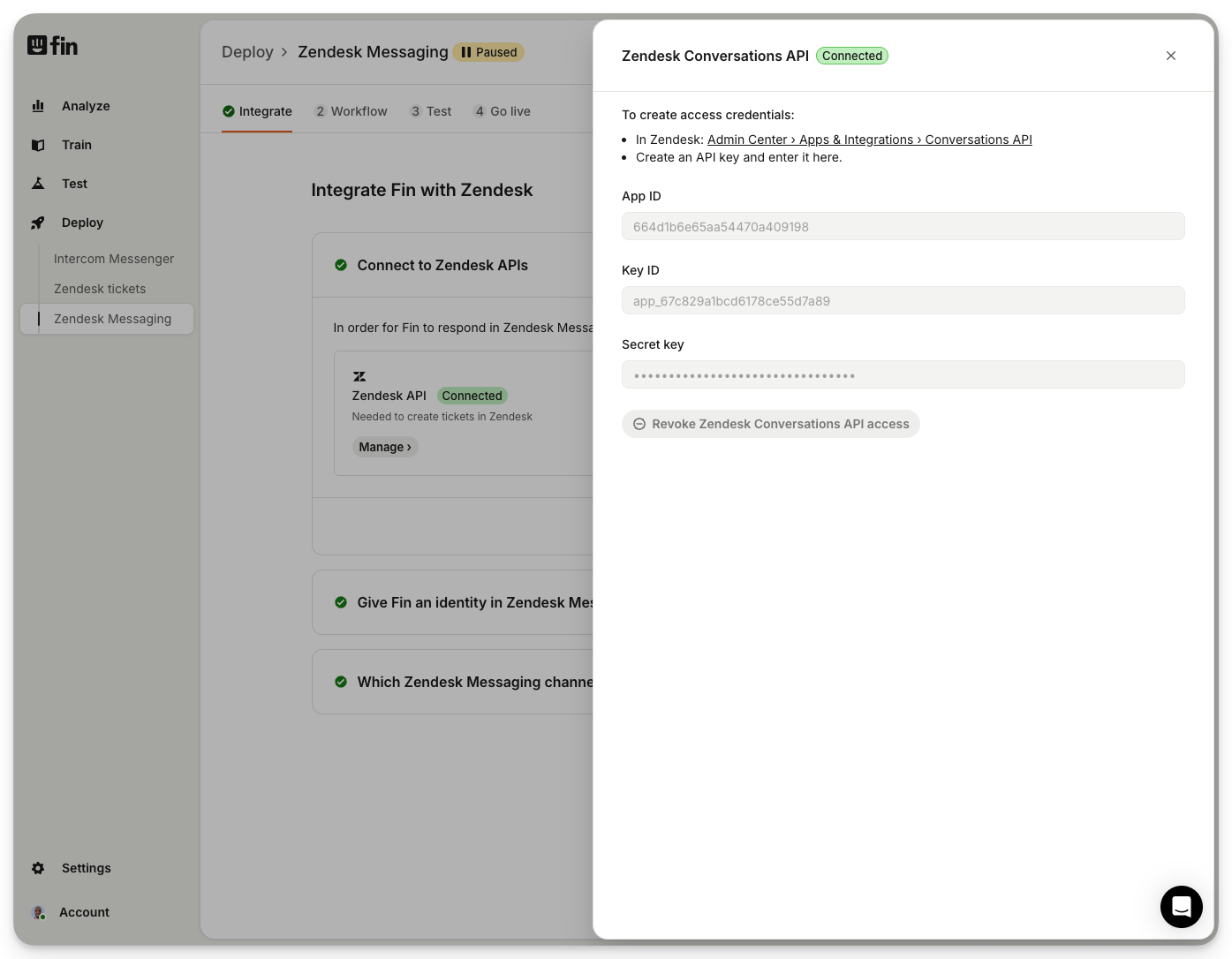
The Zendesk Sunshine API is required to create real-time live chats in Zendesk. You’ll be prompted to enter:
App ID
Key ID
Secret Key
These are found in Zendesk Admin Center > Apps & Integrations > APIs > Conversations API.
Note: This API is separate from the deprecated ticketing API and still requires key-based credentials.
Note: The Zendesk Conversations API has been deprecated in favor of their Sunshine API. You will need to have a Sunshine licence in order connect the conversations API.
If you do not see the option for "Conversations API" in your Zendesk admin settings under Apps and integrations > APIs > Conversations API, then you likely do not have a Sunshine licence and will need to reach out to Zendesk support to obtain one.
When integrated with Zendesk via the Sunshine API, Sweo performs ongoing API calls to sync messages and conversation states in real time. This ensures data parity between Sweo and Zendesk, whether the conversation starts in Zendesk Messenger or Sweo Messenger.
The Sunshine API is specifically suited for real-time integrations, such as handing off chats from Sweo to live agents, whereas the regular Zendesk API focuses on simpler tasks like ticket creation and updates. Both APIs have distinct functionalities and require consideration based on integration goals and licensing.
Give Sweo an identity
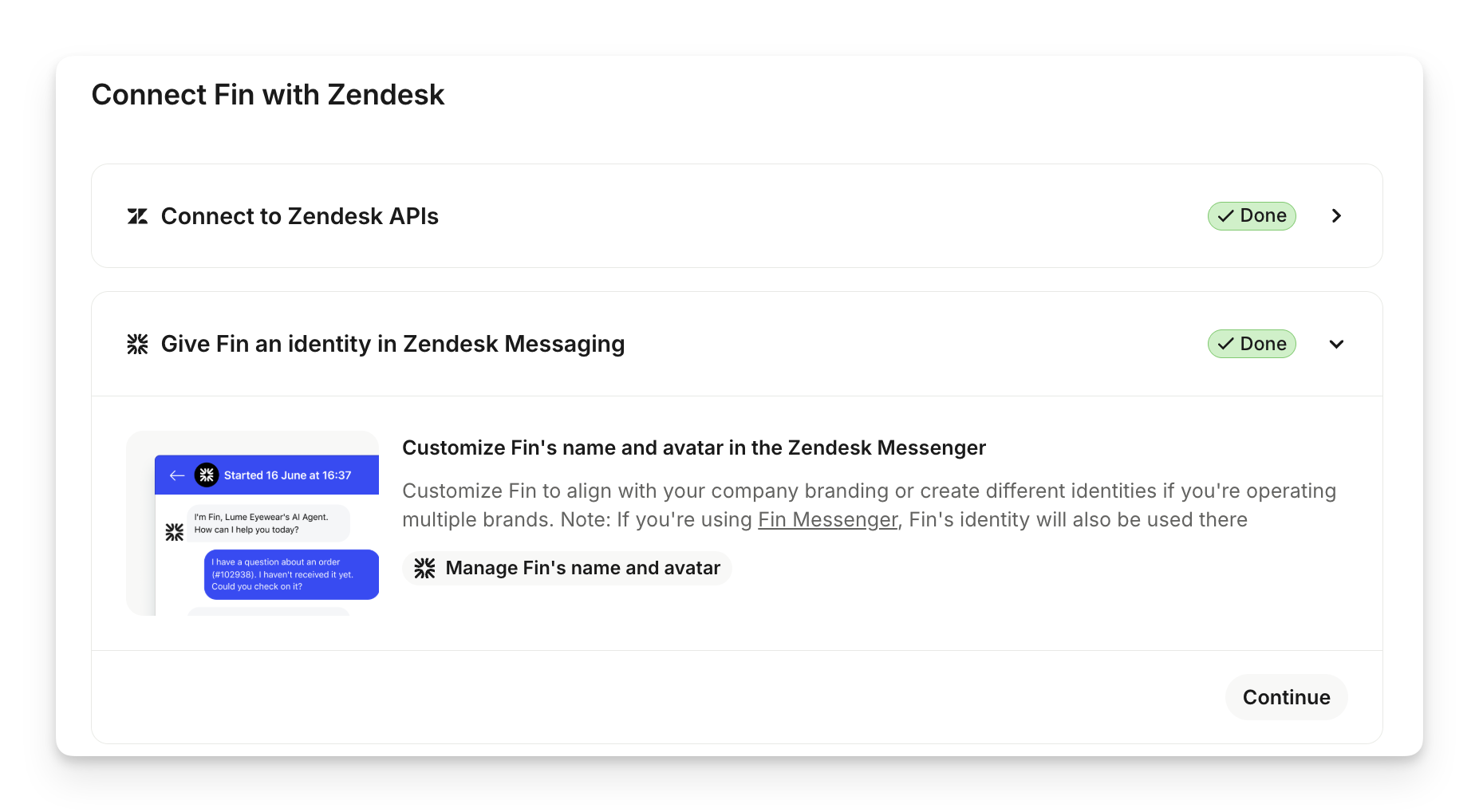
Next, you will need to give Give Sweo an identity in Zendesk Messaging. Click Manage Sweo's name and avatar.
Select which Zendesk Messaging channels Sweo should respond to
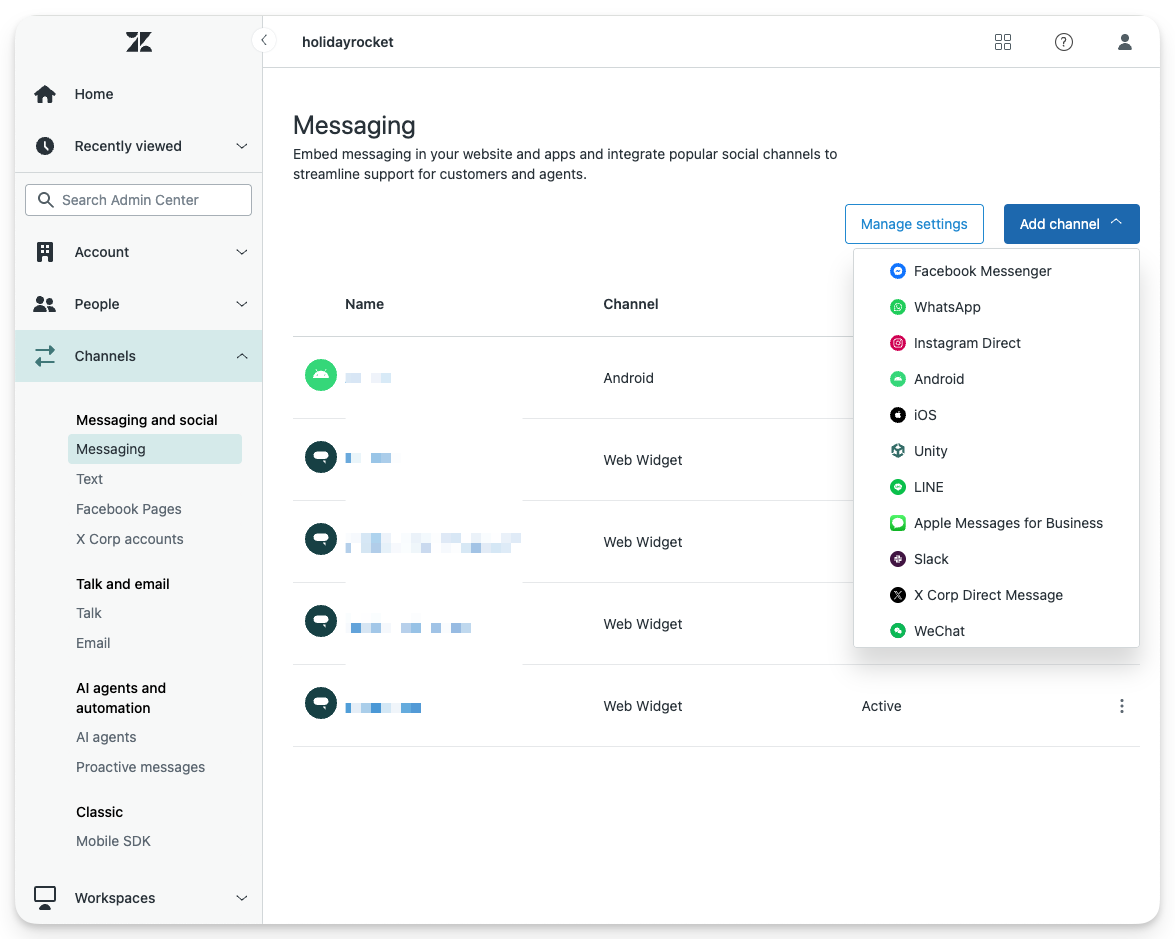
Zendesk Messaging can include WhatsApp, Instagram, Facebook, mobile SDKs, and more.
Go to Zendesk > Channels > Messaging to view available channels.
Enable toggles in Sweo to decide which messaging channels it should handle.
Note: To start using SMS messaging, you need to configure it within Zendesk under the Channels > Text section. SMS functionality is managed in this specific area, not under the Messaging setup. Follow the prompts to configure and connect SMS channels specific to your business requirements.
After configuring messaging channels in Zendesk, you can tell Sweo which of those channels you'd like it to respond to on this step, by activating the toggles next to each channel.
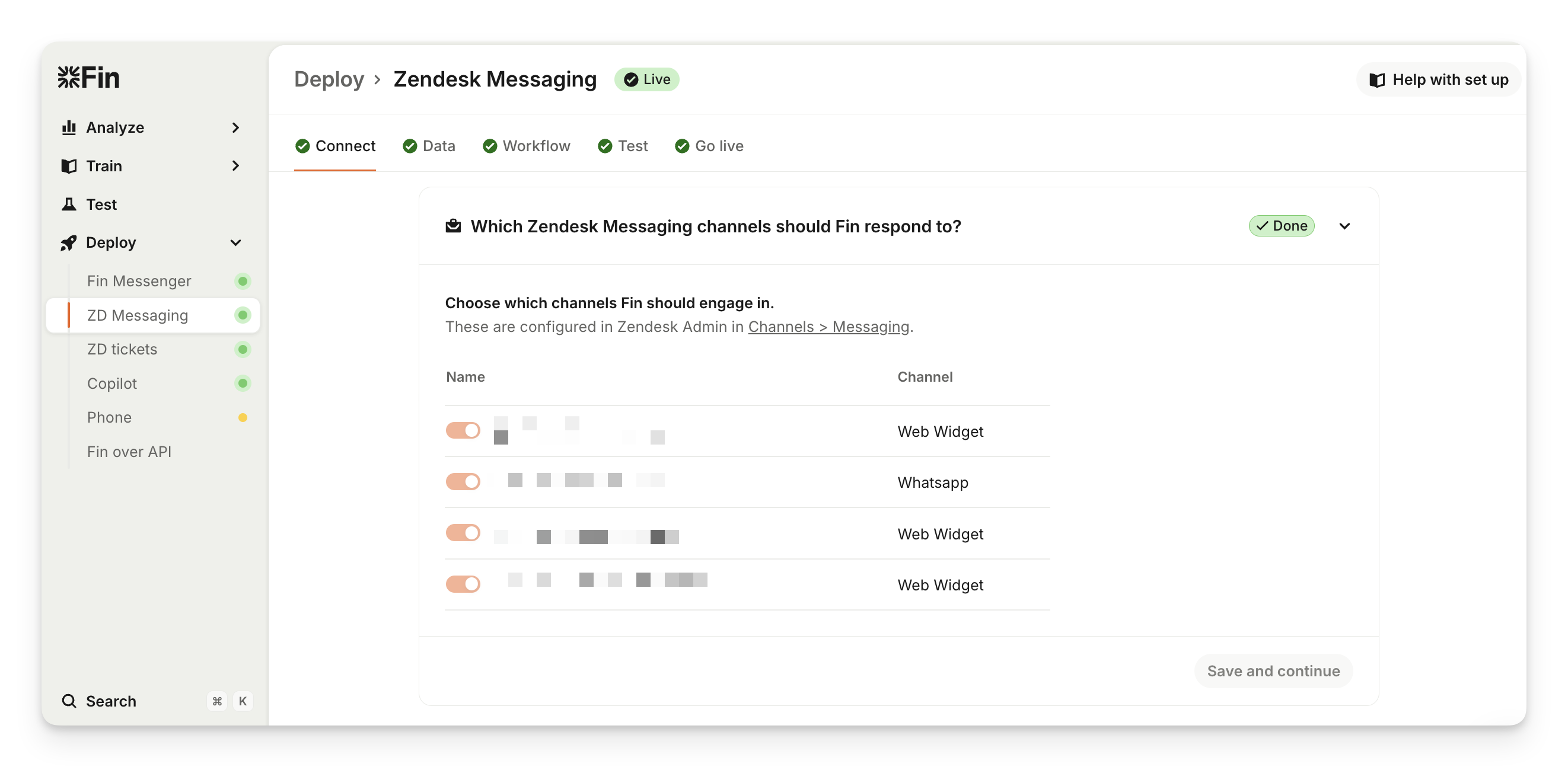
Once Sweo is deployed, messages will appear in your Sweo workspace. These conversations remain manageable within Sweo until a handover point occurs, after which they will exclusively be handled in Zendesk.
Build your workflow
Configure greeting and hand-off workflow
Once you've integrated with Zendesk, click Next: Build your workflow > Manage workflow.
Use the workflow builder to define how Sweo should greet customers, respond, and escalate.
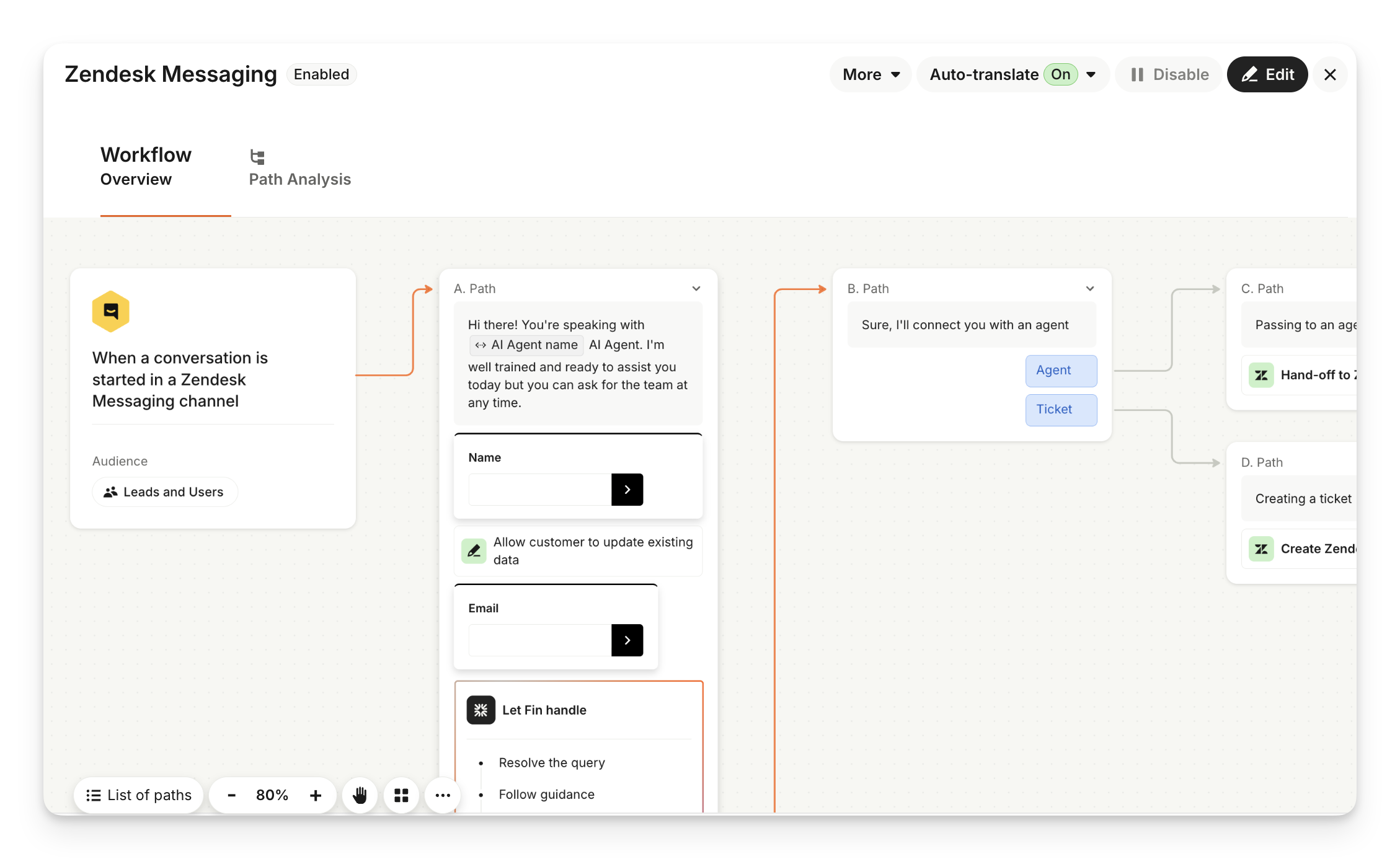
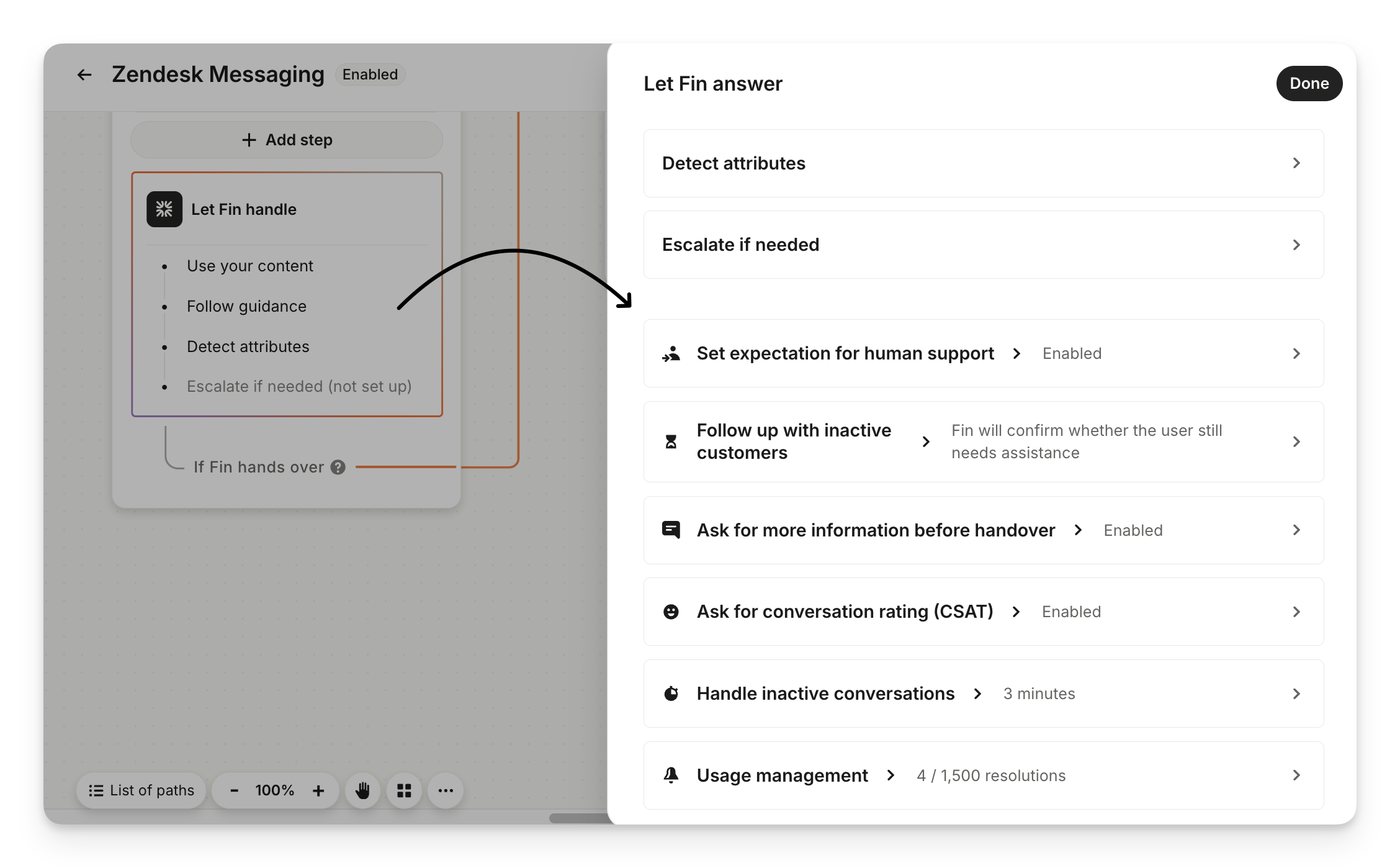
Click the Let Sweo handle step in your workflow to customize the following:
Set expectation for human support - Show teammates presence in a messenger conversation. Disable this if your team all work in another tool or no one is monitoring the inbox.
Follow up with inactive customers - Decide what happens if the customer doesn’t respond after Sweo answers.
Ask for more information before handover - Collect more information when a customer asks to speak to the team. When collecting more information Sweo may provide an additional answer—increasing the likelihood of a resolution.
Create Zendesk ticket when Sweo answers - This feature has been deprecated and is no longer available. Zendesk now provides "AI Agent Tickets" for all customers, which automatically creates visibility into AI-only conversations. On February 18, 2026, this feature will be turned on in Zendesk by default but can still be turned off. On May 4, 2026, this feature will be turned on by default and can't be turned off. Learn more about Zendesk AI Agent Tickets.
Ask for conversation rating (CSAT) - Choose to send a CSAT survey after customers interact with Sweo.
Handle inactive conversations - Decide how long Sweo should wait before a customer is considered inactive, when to close inactive conversations, and customize what Sweo says when closing the conversation.
You can tailor the experience further by:
Creating different branches based on your conditions.
Choosing when Sweo answers.
Having Sweo send a message.
Collecting data.
Providing reply buttons.
Collecting the customer reply.
Adding internal notes.
Adding an AI generated summary of the conversation.
Auto-classifying ticket attributes based on what the customer said.
Collecting names and email addresses prior to handoff to ensure that ticket creation is seamless and customer support teams are better informed.
Customizing greeting messages and specify the language used in a handover to ensure the conversation aligns seamlessly with your brand identity and organizational tone.
Offering alternative contact methods, such as providing a phone number for support, by updating the Messenger configuration to include a handover option that presents the phone number to customers when their queries remain unresolved. This can enhance customer satisfaction by giving more options for assistance.
Note: You must be in Edit mode to be able to make changes to your workflow. Select Edit in the top right of the workflow editor screen.
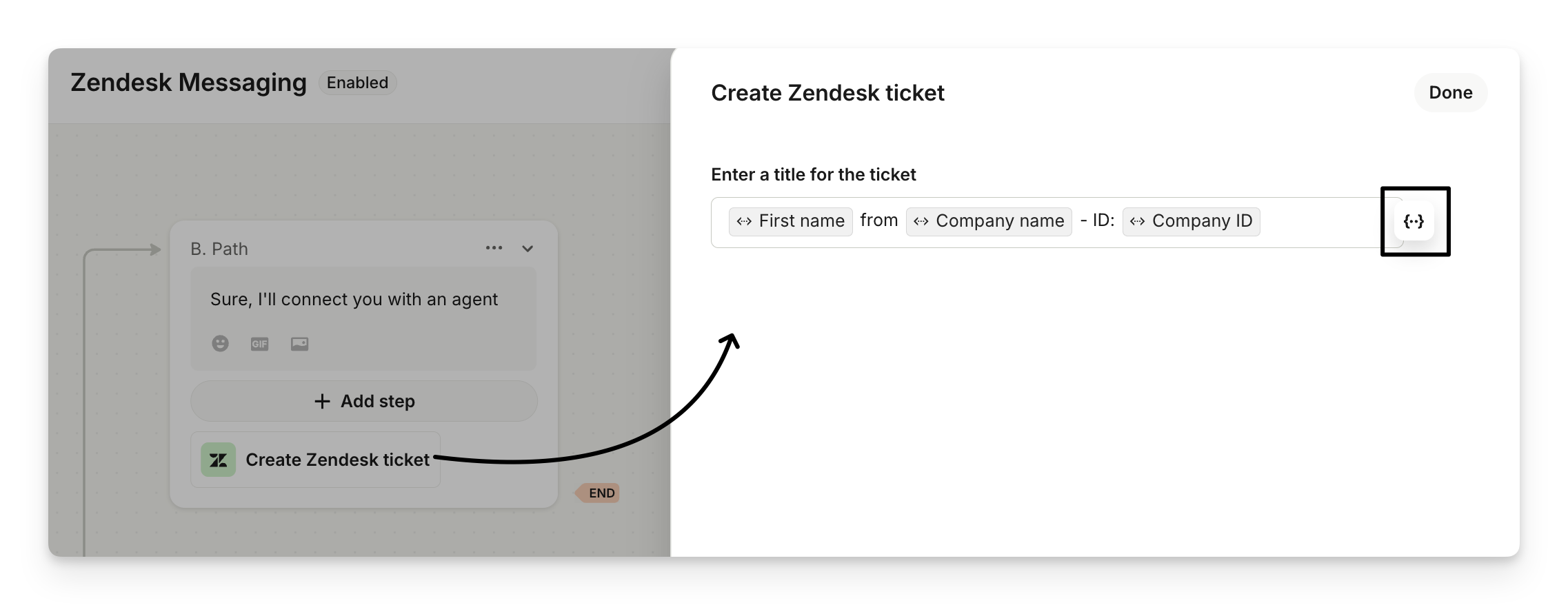
Customise Zendesk ticket subjects using attributes
If your hand-off creates a Zendesk ticket, you can click on the Create Zendesk ticket action to customize the ticket subject using attributes in your Sweo workspace.
At the end of all paths (except when Sweo resolves a query), Sweo will un-assign itself and apply the “routed-to-the-team” tag. Collecting user information such as name and email during this phase is important.
Integrating data collection ensures that customer details are forwarded along with tickets your agents can see in Zendesk. To ensure that all critical customer attributes, such as phone numbers, sync into Zendesk tickets, confirm that the attributes collected are mapped to Zendesk-synced fields before executing the "Create Zendesk Ticket" action.
Once you’ve finished customizing the greeting and hand-off to your team, click Save, or Set live to enable this for your messenger (you can also come back to set this live at a later stage).
Tip: You can create and manage multiple Sweo workflows directly within your Sweo workspace. This enables you to tailor customer experiences for different messaging scenarios and to set up separate “test” workflows that are only triggered for your team.
Test
Ensure Sweo is ready
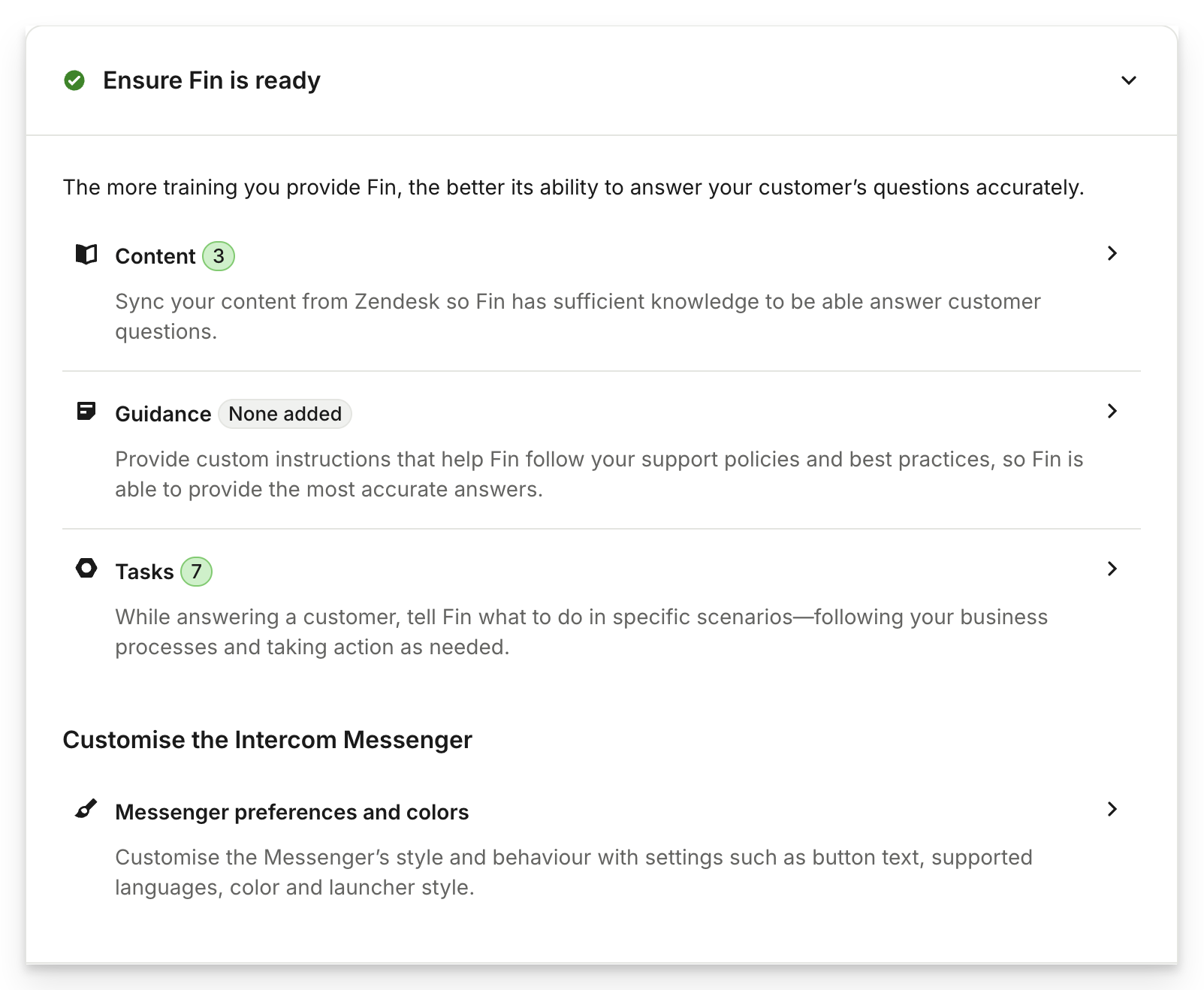
First you'll be asked to ensure you've given Sweo sufficient training. This is important before starting live testing.
We recommend reading our complete guide on all of the ways you can train Sweo so its able to answer your customers questions as accurately as possible.
Test Sweo
To test Sweo over Zendesk Messenger, you'll need to enter the URL where you have it installed.
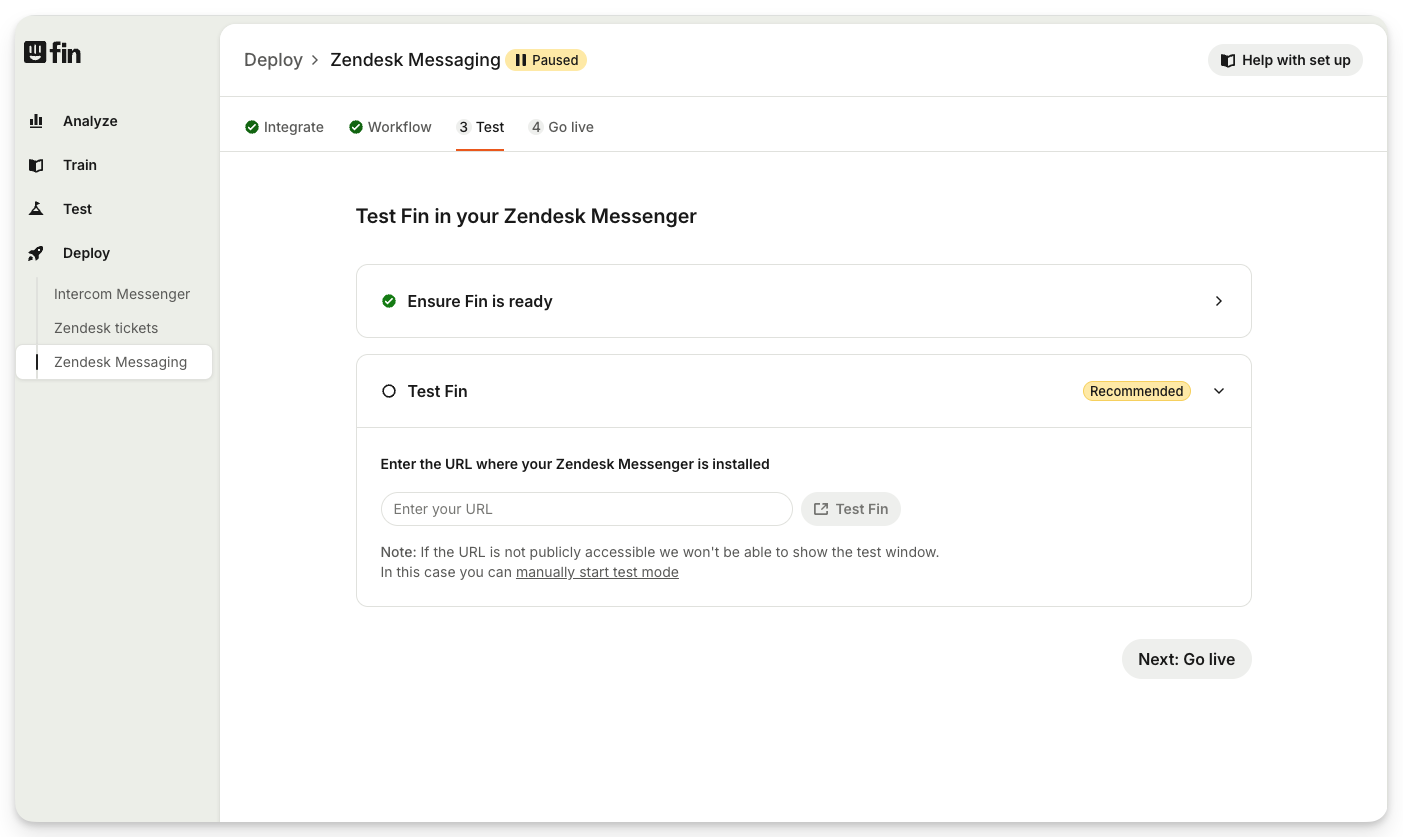
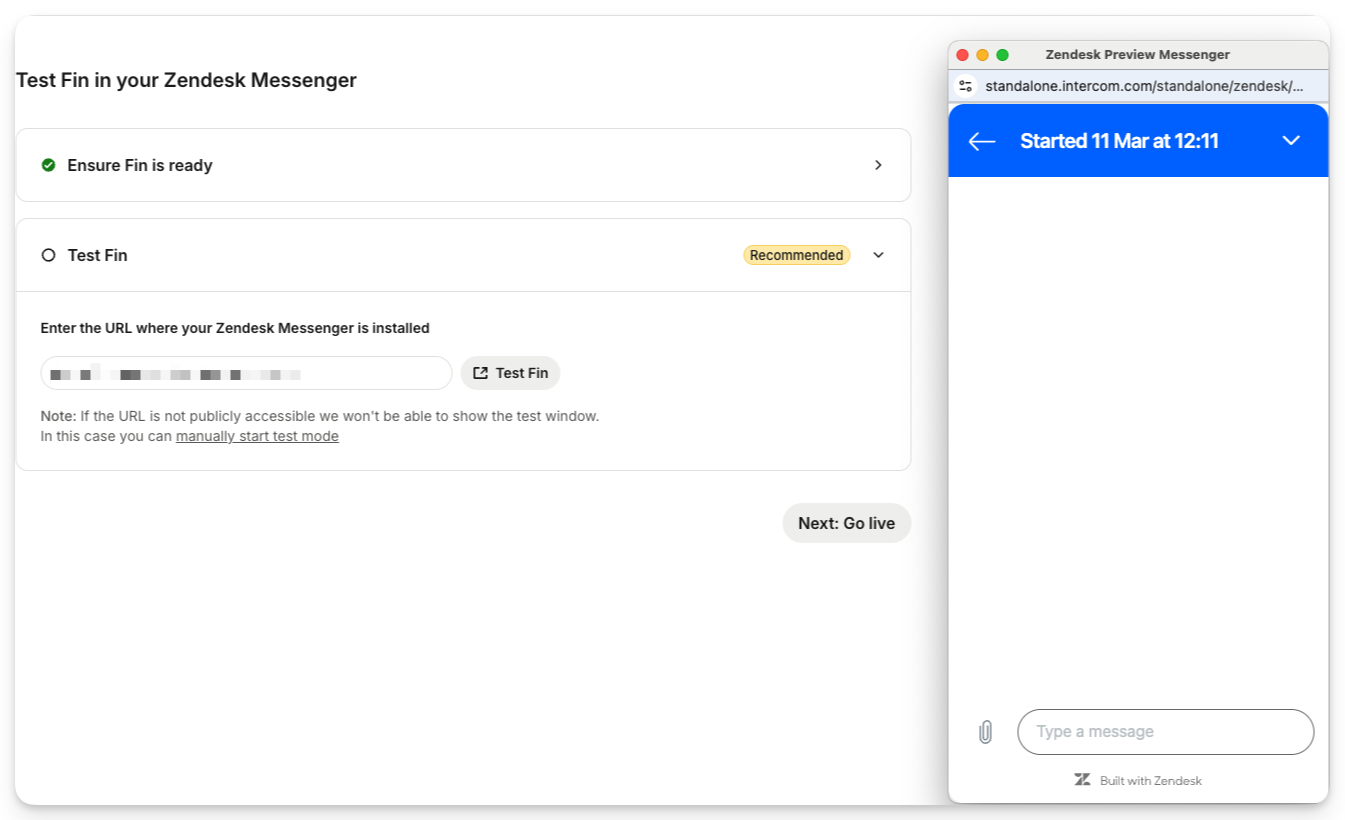
Once you've entered your URL, hit "Test" Sweo and new window will launch which shows you how Sweo will work in your Zendesk Messenger
You can also deploy Sweo live with audience targeting rules to a designated test group, such as internal team members. For instance, you could configure audience filters in your Sweo workflow using domain-specific criteria like your company’s email domain.
Turn Sweo on
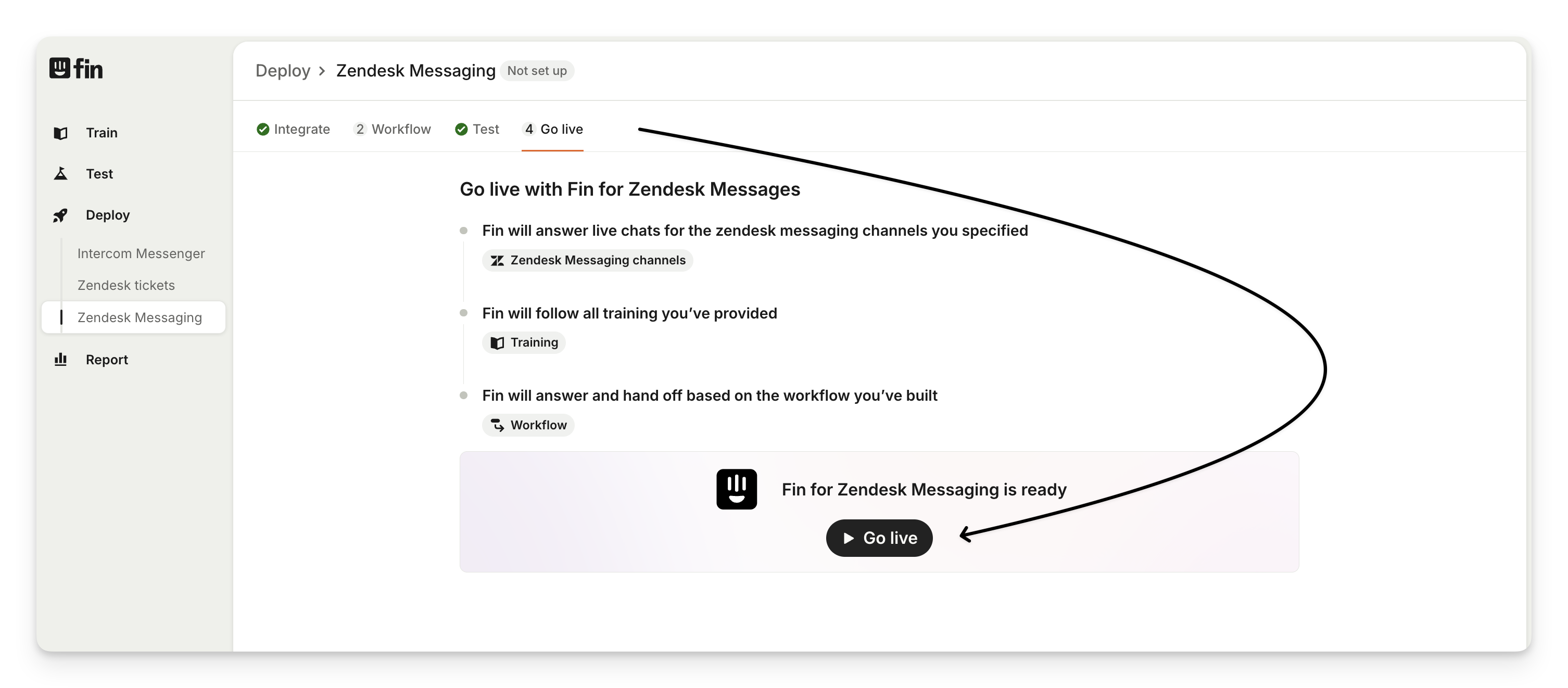
Now you’re ready to set Sweo live for your customers. Go to Deploy > Zendesk messaging > Go Live and select Go Live.
Customer experience
When a customer opens the Zendesk Messenger they'll see a greeting from Sweo (this can be customized).
After the customer asks a question:
Sweo will attempt to answer, citing sources from the knowledge you’ve given Sweo access to.
If the question is ambiguous, Sweo will ask clarifying questions.
If Sweo is unable to resolve the conversation, it'll hand-off the ticket to the team.
This conversation won't be visible to agents in Zendesk until the customer asks to talk to a person.
After the customer asks to talk to the team, a new messaging ticket will be created in Zendesk and show up in the queue. When an agent takes the conversation, they’ll see the entire conversation history in the thread and can continue the conversation from there.
Note: If the customer is offline and their email is known, an email notification will be sent allowing them to continue the conversation over email.
How it works
Sweo connects to Zendesk Messaging via Zendesk’s Sunshine Messaging API, allowing compatibility with Zendesk Messenger—not the classic Chat widget.
When connected, Sweo mirrors conversations from Zendesk to your Sweo workspace, along with user data such as name, email, page URL, and geolocation. Sweo works on all channels that are available to you in Zendesk Messaging (e.g. Zendesk Messenger, WhatsApp, mobile SDKs, etc.).
Sweo will replace the Zendesk Answerbot, only handling new conversations and avoiding intervention in ongoing ones. Conversations with Sweo follow Zendesk's standard rules, remaining hidden from the agent workspace unless explicitly handed over or if the workflow ends.
For users who prefer not to sync customer data, Sweo can operate in a limited capacity by submitting tickets without accessing stored customer details, although this will reduce personalization.
This is the same behavior as Zendesk’s Answerbot flow:
When a conversation is handed over, it will appear in your support team’s queue. Once opened it will create a ticket. Sweo will no longer interact in the conversation after it has been handed over.
If the ticket is closed by the support agent, control will be passed back to Sweo. If the user asks more questions, the messaging workflow powering Sweo will run again.
Sweo can also collect name and email data and pass this to Zendesk.
Tip: Sweo can control authentication and identity verification through JWTs. When JWT is implemented, Sweo ensures that user and organization fields from Zendesk are automatically synced to your Sweo workspace when a new message is received through the Zendesk Messenger. This real-time data synchronization supports more tailored and effective customer support workflows.
If an authenticated user does not have a verified email address, Sweo will attempt to retrieve the user's email from Zendesk using their external ID. This ensures that tickets are still created successfully when handing off from a Sunshine conversation to Zendesk. To enable this functionality, ensure that JWT authentication is properly set up.
FAQs
How can I view changes made to Zendesk Messaging channels?
How can I view changes made to Zendesk Messaging channels?
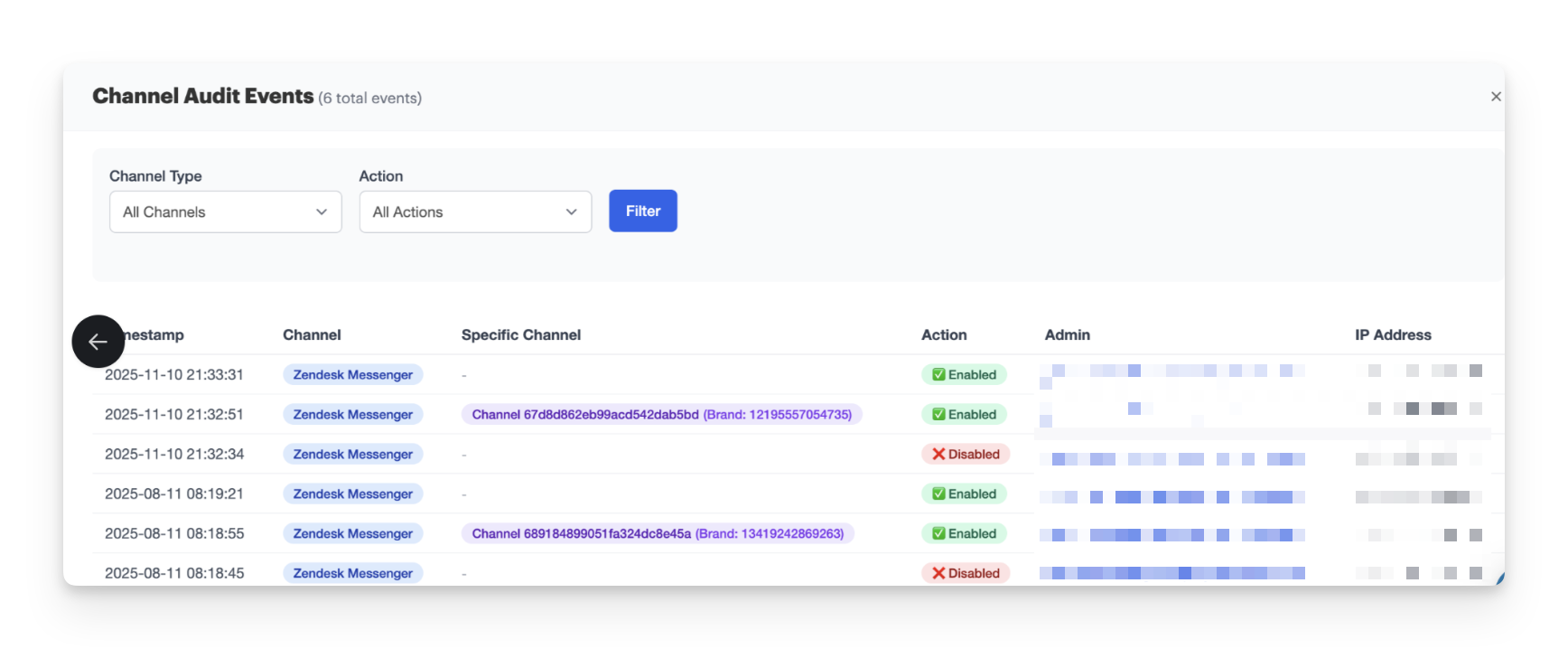
To review all Zendesk Messaging channel-related changes:
Navigate to the Customer Healthcheck page in Zendesk.
Open Channel audit events.
Here, you can view:
Timestamp of each change
Channel that was updated
Action taken (enabled or disabled)
Admin who performed the action
How can I ensure customer attributes, such as phone numbers, sync into Zendesk tickets?
How can I ensure customer attributes, such as phone numbers, sync into Zendesk tickets?
To guarantee that attributes like phone numbers populate in Zendesk tickets:
Confirm whether the Phone attribute is labeled as a Zendesk-synced attribute in Sweo settings (e.g., indicated by a Z icon).
Use the "Collect Data" action in workflows to gather this information.
Map the attribute to the Zendesk-synced field before the ticket creation action.
Can I provide alternative contact options within the Messenger?
Can I provide alternative contact options within the Messenger?
Yes, you can adjust your workflow to offer an alternative contact method, like presenting a customer support phone number, through a handover configuration step in the workflow.
How can I export conversation data, such as user email addresses or user IDs, in Sweo for Zendesk Messaging?
How can I export conversation data, such as user email addresses or user IDs, in Sweo for Zendesk Messaging?
You can export conversation data, including user email addresses, by leveraging Sweo's reporting interface. Follow these steps:
Open your Sweo workspace and go to Analyze > Custom Report.
Locate the chart titled "Involved conversations over time".
Hover over the chart and click the Chart drill-in button to get a detailed list of conversations Sweo was involved in.
Click the three-bars icon located in the upper-right corner of the chart. Use this to include additional data attributes, such as "user's email". (Note: Email addresses will only appear if customers have provided them.)
Once the necessary fields are visible, select the Export CSV button to download the data in CSV format.
Tip: The reporting system supports filters for conversations by various parameters like dates, statuses, users, and keywords to refine your data export. Ensure to apply filters as per your requirements.
For exporting data linked with specific user IDs without using APIs, a tagging workflow can be implemented. Here's how:
Create a Rules step within your Sweo workflow. Configure this rule to check whether the user ID matches your target list and apply a specific tag to these conversations.
Use conversation reporting tools to filter and export conversations marked with the designated tag. This ensures you capture all conversations associated with specific user IDs.
Note:
Conversation-related data (e.g., email addresses) will be displayed only if provided explicitly by users.
For Zendesk Messaging, certain conversation details may remain hidden unless users have chosen to escalate or explicitly request human assistance.
How can I make sure Sweo keeps responding after a human takes over?
How can I make sure Sweo keeps responding after a human takes over?
To keep Sweo available after a handoff in Zendesk Messaging:
When a conversation is escalated to a teammate, Sweo pauses until the ticket is closed.
Once the teammate closes the ticket, control passes back to Sweo. If the customer sends another message, Sweo becomes active again and your messaging workflow restarts.
If a solved messaging conversation is reopened with a new question, Sweo will also resume responding—as long as your workflow routes these messages back to Sweo.
To avoid delays, you can add a Message step before routing to Sweo that prompts the customer to ask their question. This helps trigger Sweo immediately once the handoff or closure occurs.
This ensures Sweo is always present when the customer re-engages.
How do I prevent conversations from being handed off without a name or email?
How do I prevent conversations from being handed off without a name or email?
To avoid escalation without customer details:
Collect essential data before handoff. Add a Collect data step in your workflow to request the customer’s name and email if they haven’t already provided it.
Capture attributes from logged-in users automatically. Make sure your Messenger installation is configured to pass user attributes (like email) to Zendesk so teammates receive complete information without manual entry.
This setup ensures every escalated conversation includes the customer details your team needs.
How can I search for Zendesk tickets or conversations in Sweo and address missing ticket data?
How can I search for Zendesk tickets or conversations in Sweo and address missing ticket data?
While you cannot search for conversations in Sweo using the Zendesk Ticket ID specifically, there are several alternative ways to locate conversations. You can search using:
Keywords
Tags
User or company name
Creation date
Other available data attributes
Navigate to Analyze > Conversations within Sweo to apply these filters and locate the conversation you need.
Locating Zendesk Tickets Using Sweo's External ID
To locate the Zendesk ticket corresponding to a conversation in Sweo:
Open the relevant conversation in the Analyze > Conversations.
In the Details panel on the right-hand side, look under Conversation attributes for the field labeled "External ID." This value corresponds to the Zendesk ticket number.
Copy the External ID and paste it into Zendesk's global search bar to access the corresponding ticket directly.
If you don’t have the ticket number immediately:
Use the requester's email address, displayed at the top of the Sweo conversation, to search for related tickets in Zendesk.
Alternatively, browse Zendesk Views (e.g., All tickets, Open tickets) and filter by requester name or subject line.
Troubleshooting: Missing External ID in Sweo
If the External ID is not visible in the conversation details:
Verify that the ticket was created in Zendesk during the conversation handoff. If not, wait for a few minutes and refresh the page.
Ensure that the Details panel in Sweo is expanded fully to display all conversation attributes.
Check whether the Sweo-to-Zendesk handoff integration is properly configured. This configuration is necessary for ticket creation in Zendesk to populate the External ID back in Sweo.