A ticket is created
Tickets in Zendesk can be created in several different ways such as through web forms or via emails. Sweo can respond to any of those tickets; you can also choose which ones Sweo should answer.
Your workflow
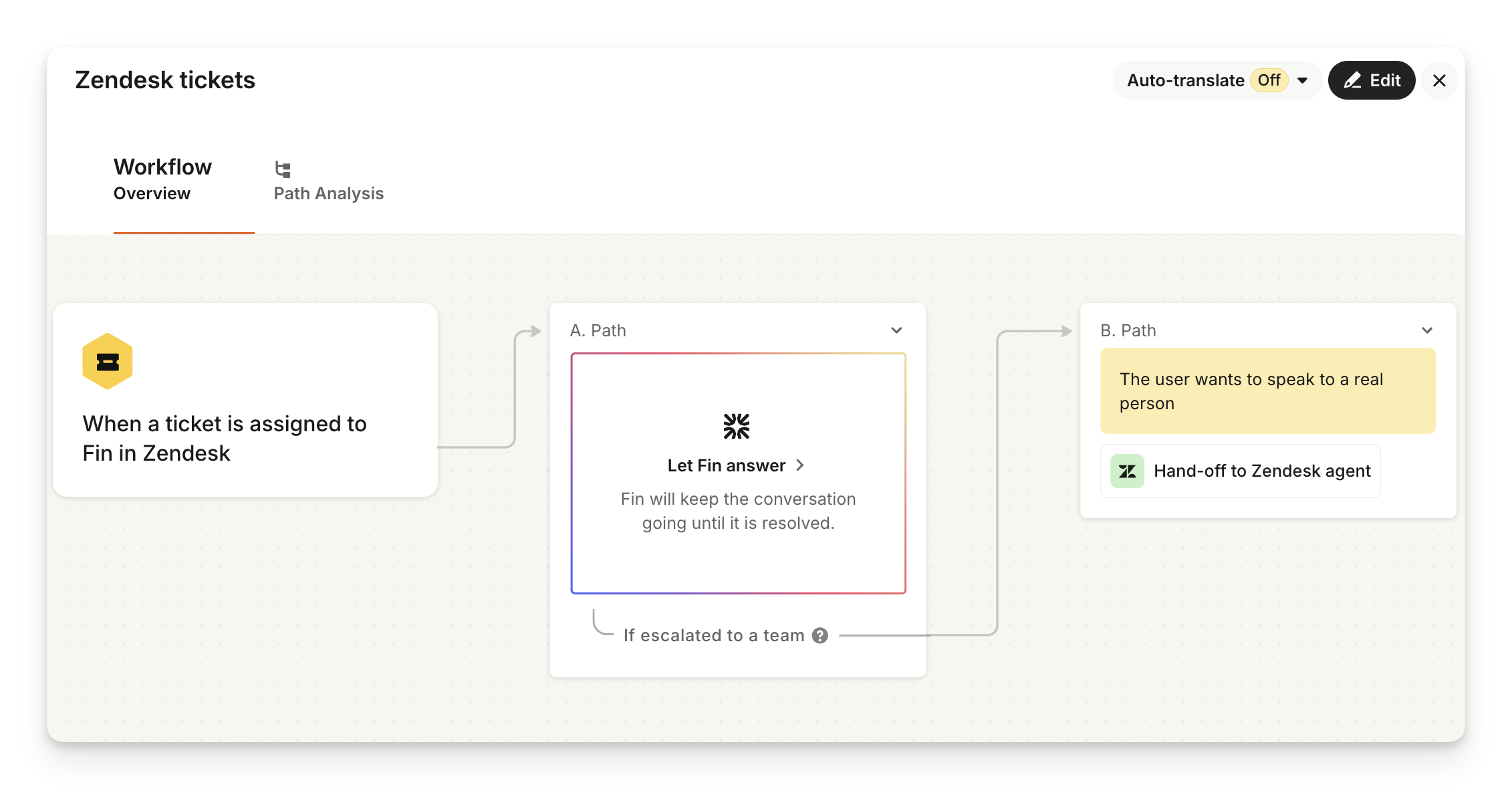
When a ticket gets assigned to Sweo, we're using the "Let Sweo answer" step, which is the point where Sweo will start responding to the ticket.
The experience
Description | Visual |
Let's take an example of an customer who sends an email, which becomes a ticket in Zendesk. | 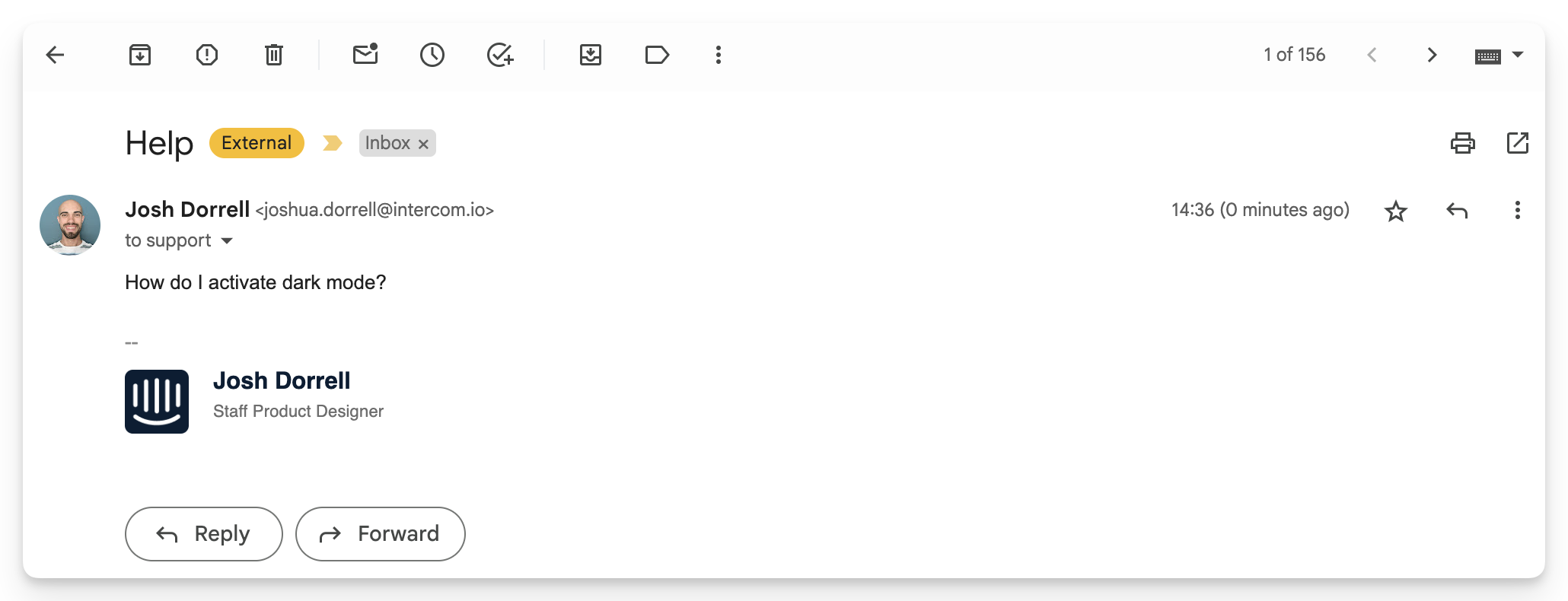
|
| 
|
Sweo can't answer
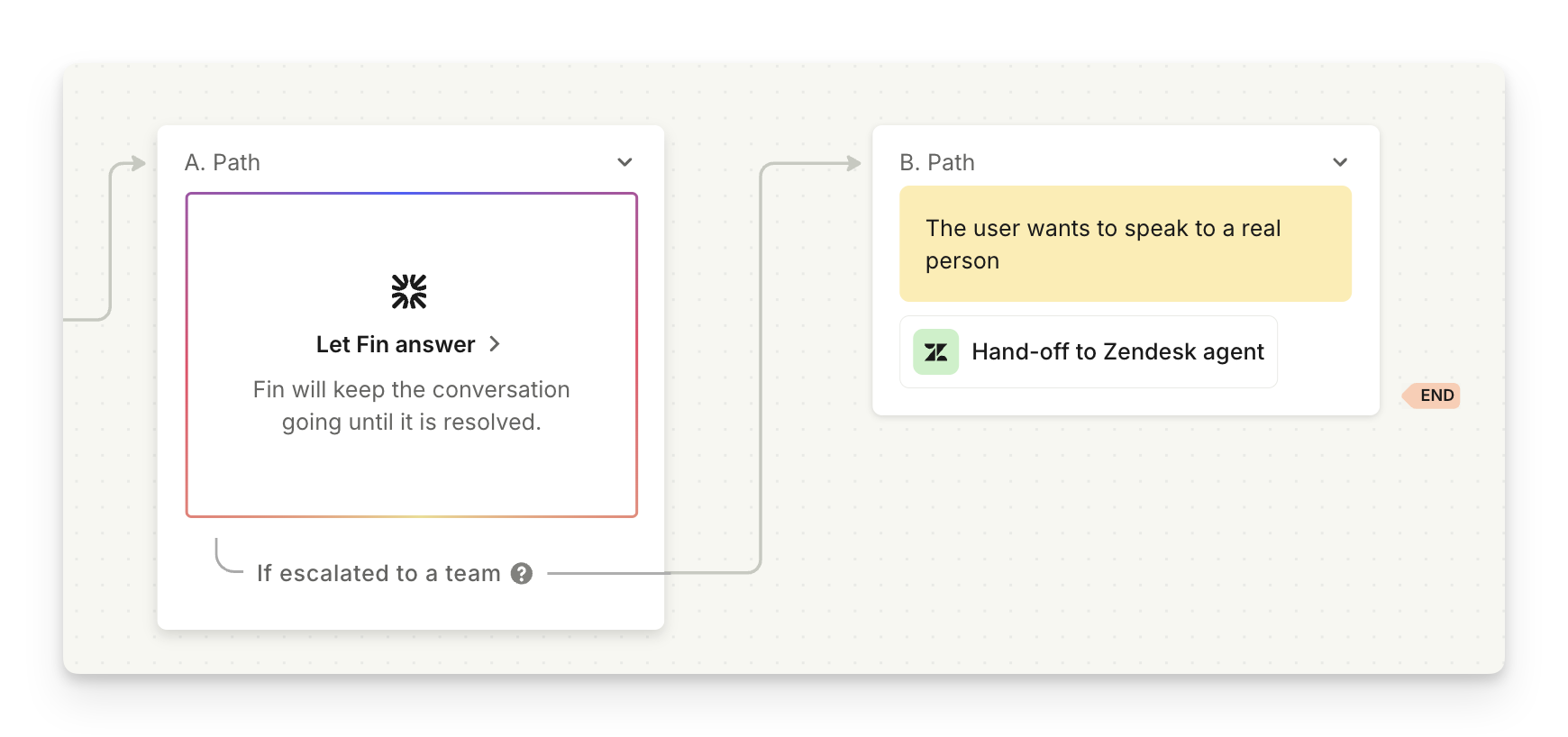
When the customer isn't happy with Sweo's response, you can add the "Hand-off to Zendesk agent" step to your workflow.
The experience
Description | Visual |
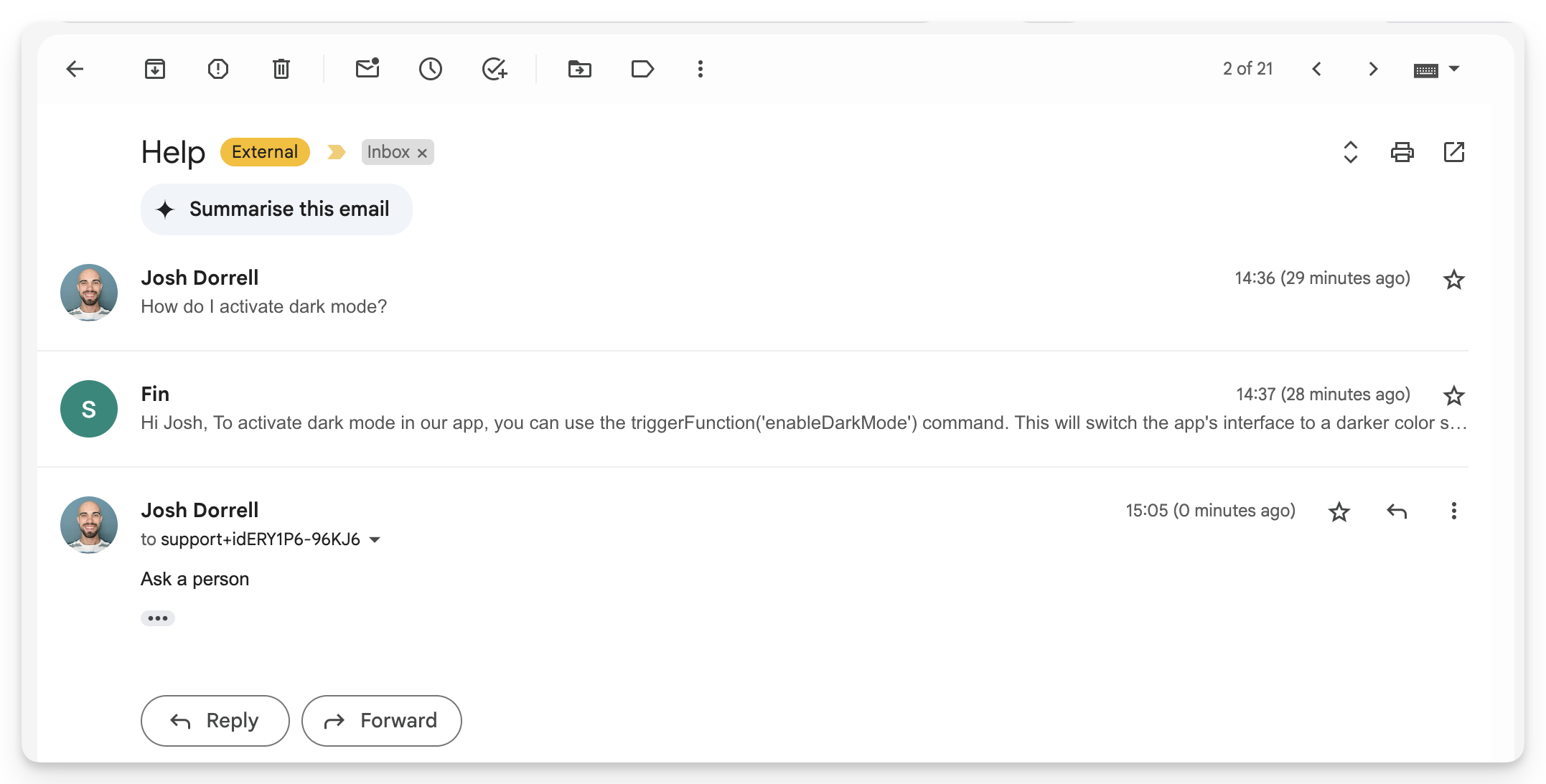
End-user experience
|  
|
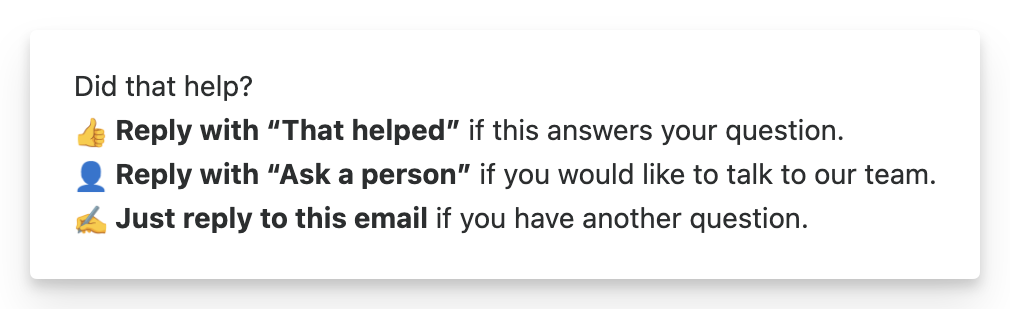
End-user experience Sweo replies with whatever message you chose in your workflow, to let the customer know that they're being passed to an agent | 
|
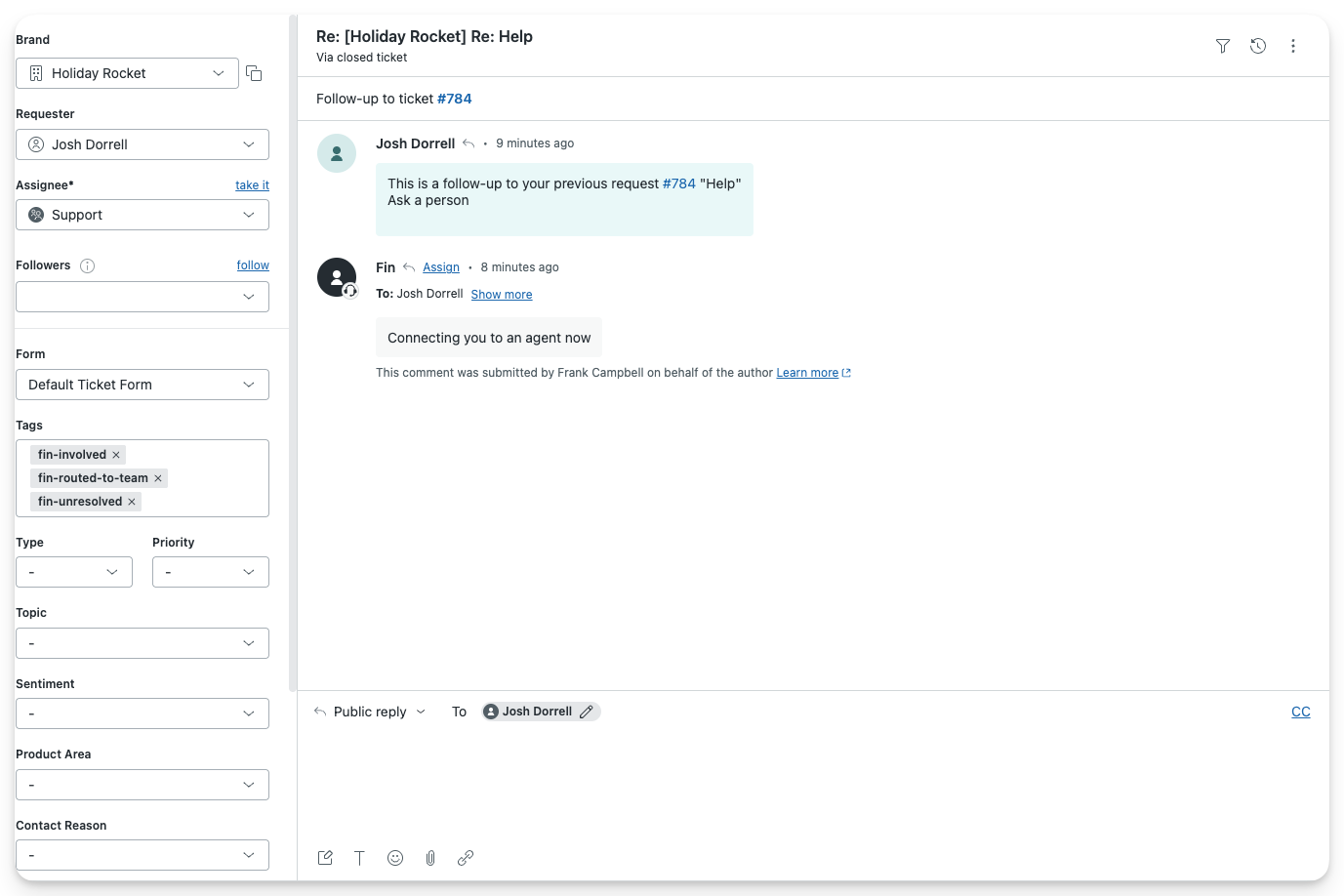
Your team's experience
| 
|
Agent experience
Learn more about populating data in Zendesk. | 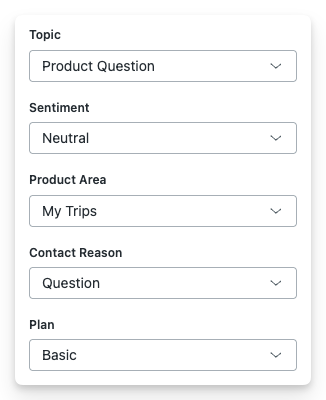
|
Agent experience An agent on your team picks up the ticket and responds | 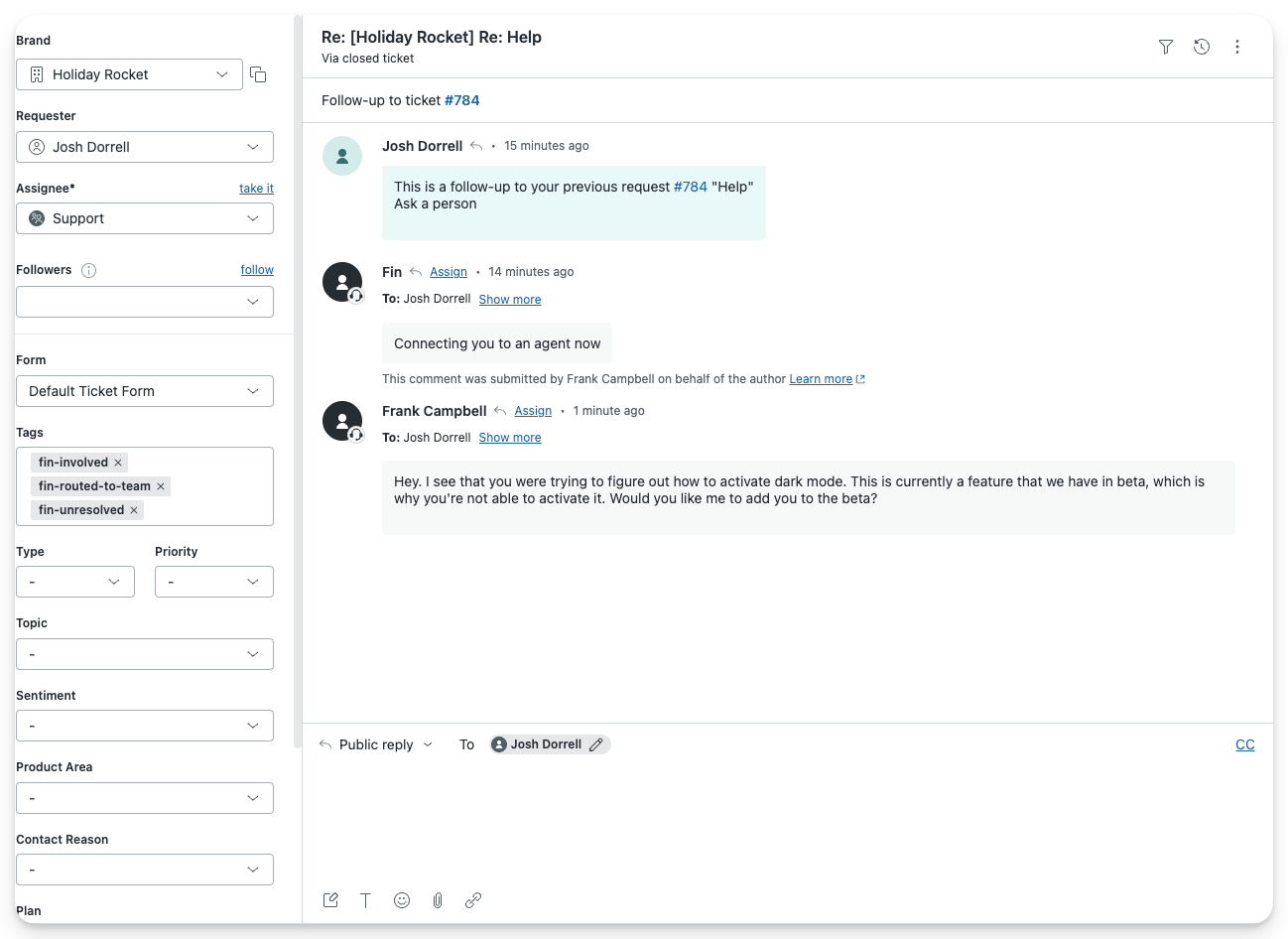
|
End-user experience The end-user receives responses in their email | 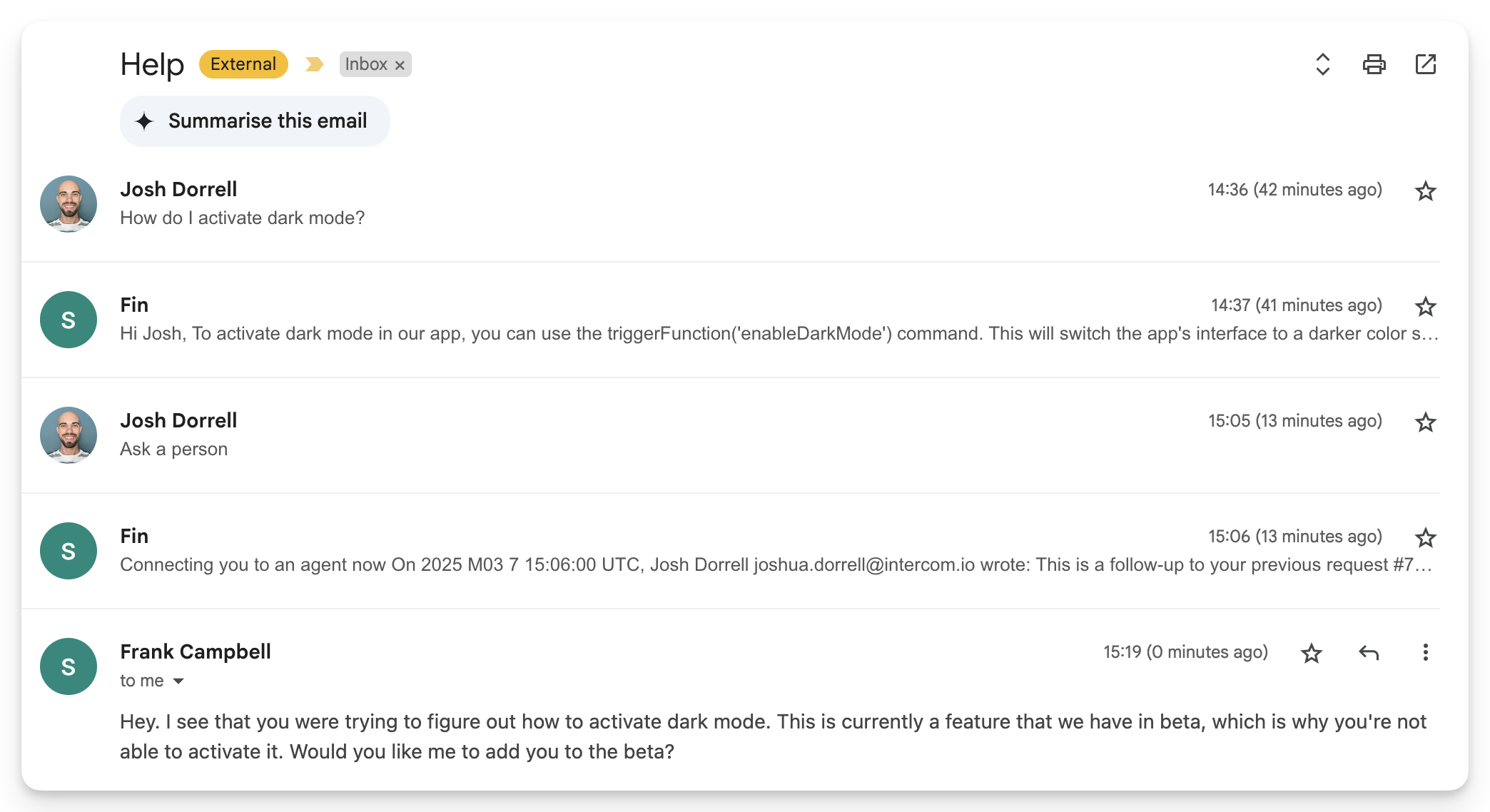
|