Sweo can help you handle your Zendesk tickets more efficiently. By following the steps outlined in this guide, you can integrate and customize Sweo to best suit your ticket workflows and support.
Integrate Sweo with Zendesk
Connect to Zendesk using OAuth
OAuth is the primary and most secure connection method. It removes the need for manual API token creation and keeps your Zendesk integration compliant with platform updates.
Go to Deploy > Zendesk tickets.
Select Connect.
Sign in to Zendesk using OAuth and approve access.
Return to Sweo, where your connection will show as Connected.
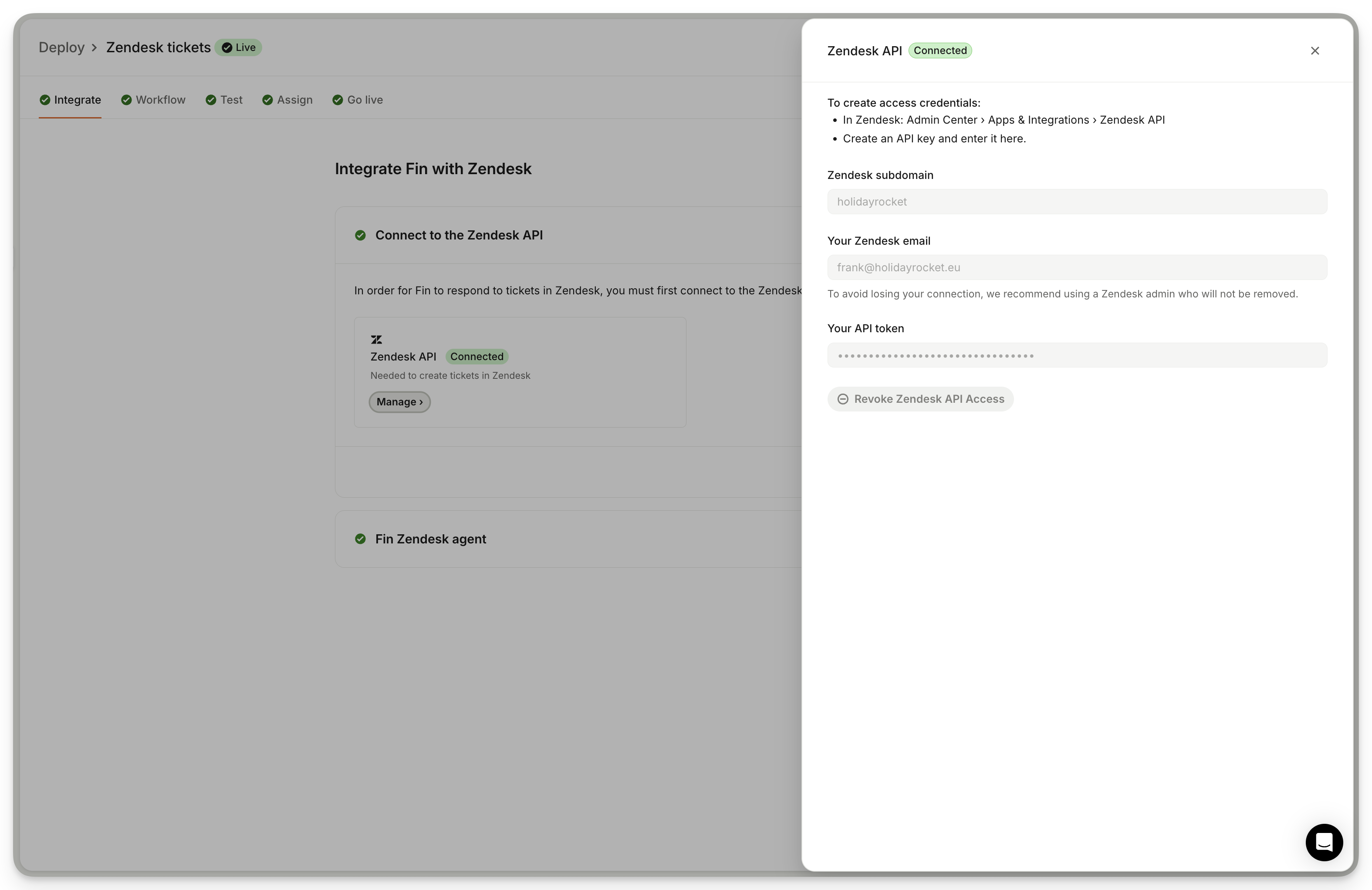
Note: Zendesk API token authentication is being deprecated. All new customers must connect using OAuth.
New non-contracted customers: OAuth is required.
New contracted customers: OAuth is required once enabled for your workspace.
Existing customers: API-token connections continue working, but if you disconnect the API connection, you must reconnect using OAuth. A persistent banner will appear in your Sweo workspace until OAuth is enabled.
AI Agent identity
After connecting via OAuth, you will need to select an identity for the AI agent on Zendesk. Sweo will reply as this agent when a ticket is assigned to it in Zendesk.
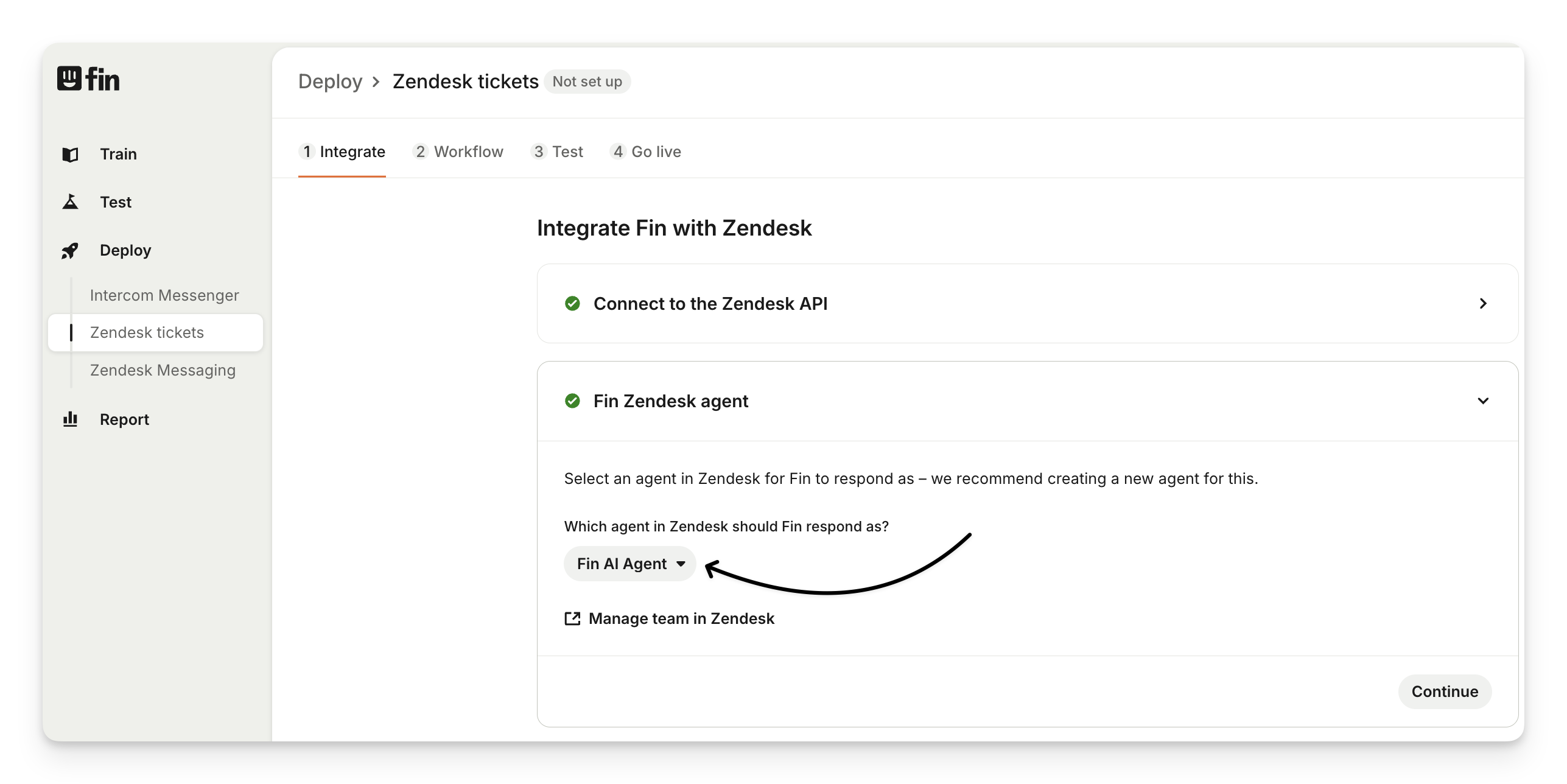
We suggest creating a new agent for Sweo in your Zendesk account and making it explicit that it's an AI agent, rather than a human.
You can create a new agent from Zendesk Admin Center by going to People › Team members > Create team member. You can use your own email address by appending “+fin” to the name (e.g. dean+fin@examply.io).
You need to use a real email address because you'll need to verify the email address in Zendesk. Make sure to select “Agent” as the role since this account needs to be able to reply to tickets.
Once you've created a new agent account and verified it, you can select it under “Sweo Zendesk agent” in Deploy > Zendesk tickets.
Build your workflow
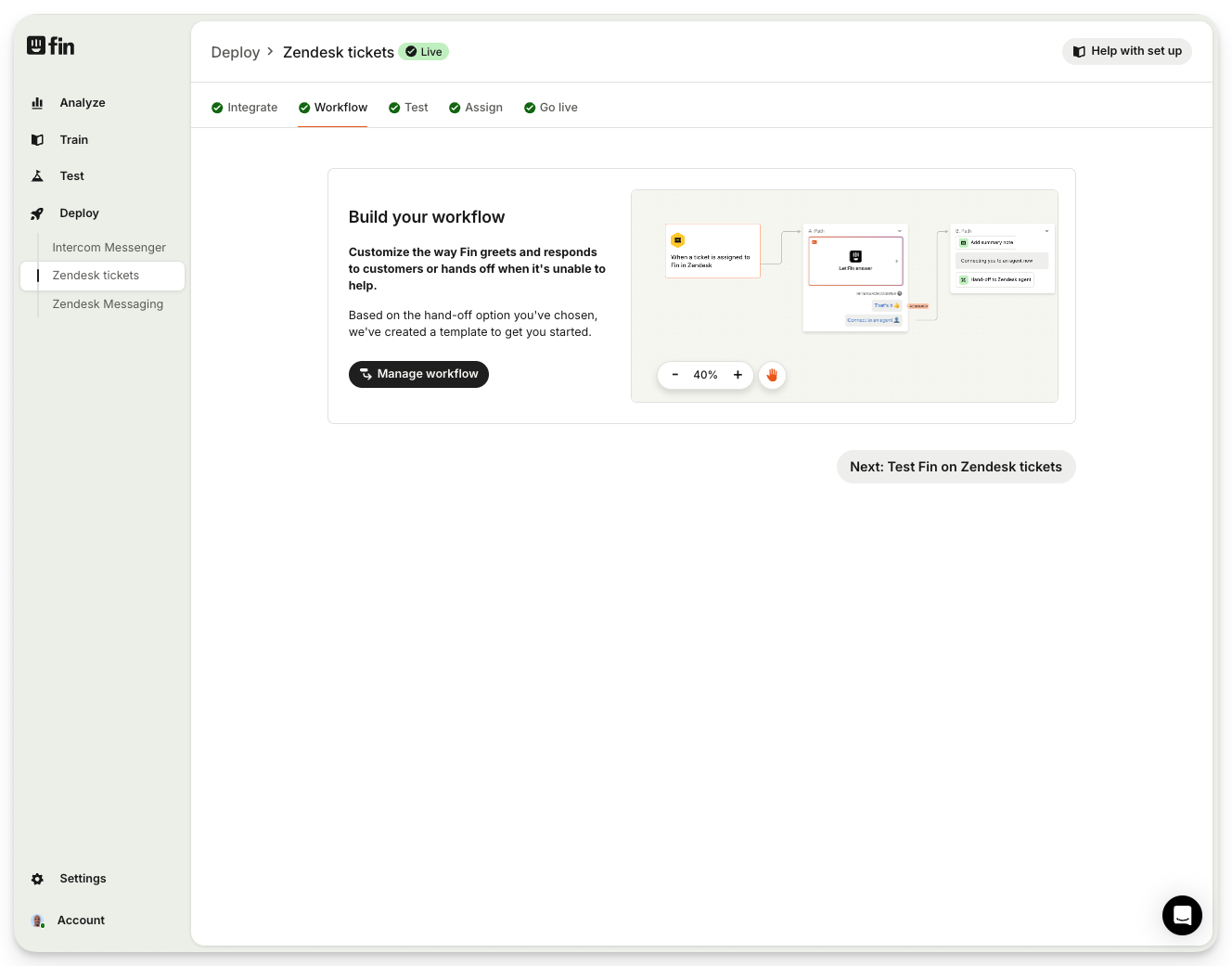
In the Workflow step, a default workflow is created for you. Click Manage workflow to edit it.
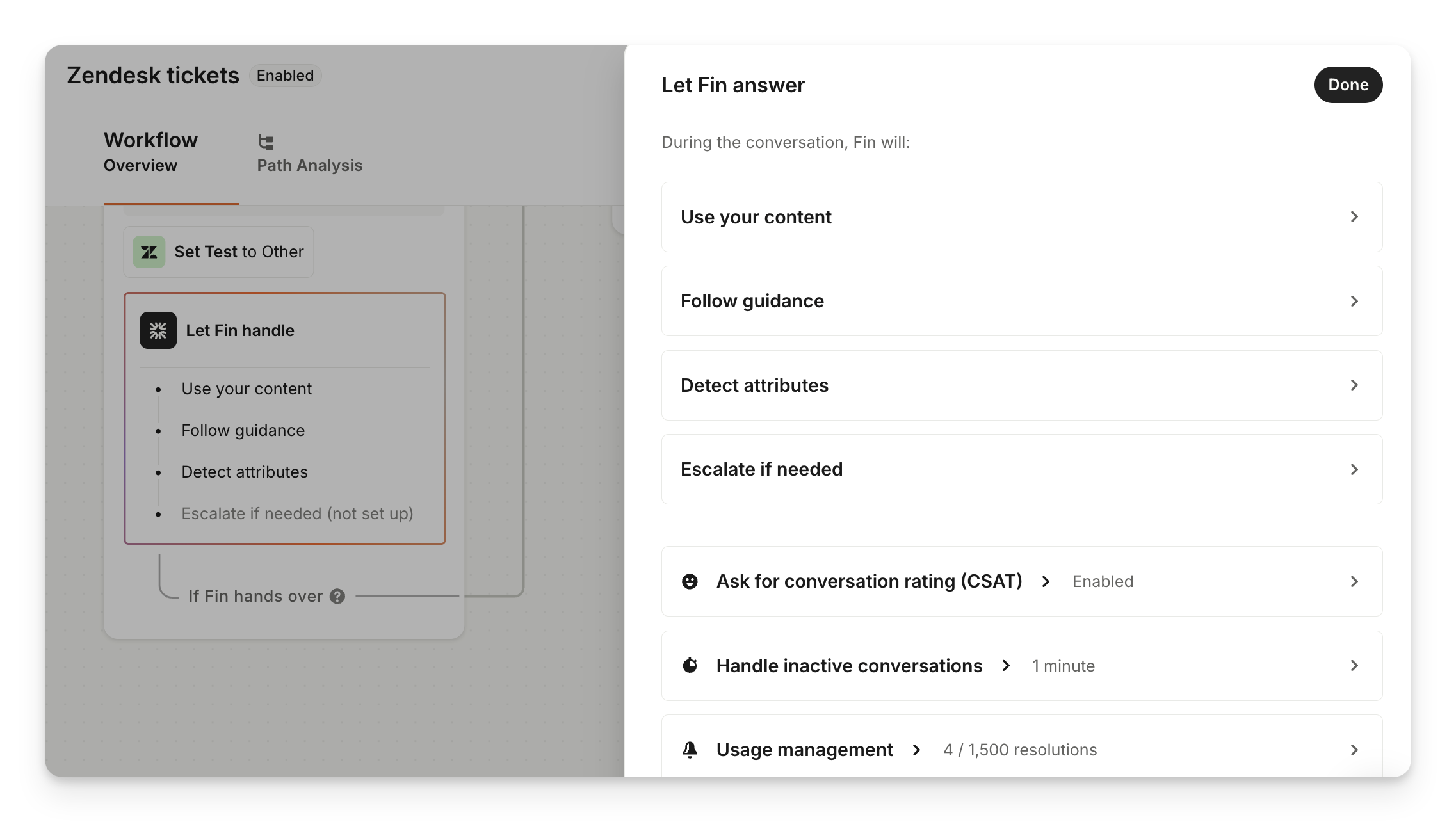
Click the Let Sweo handle step in your workflow to customize the following:
Ask for conversation rating (CSAT) - Choose to send a CSAT survey after customers interact with Sweo.
Handle inactive conversations - Decide how long Sweo should wait before a customer is considered inactive, when to close inactive conversations, and customize what Sweo says when closing the conversation.
At the end of all paths (except when Sweo resolves a conversation), Sweo will un-assign itself from the ticket and apply the “routed-to-the-team” tag.
You can tailor the experience further by:
Creating different branches based on your conditions.
Choosing when Sweo answers.
Having Sweo send a message.
Providing reply buttons.
Collecting data.
Collecting the customer reply.
Adding internal notes.
Adding an AI generated summary of the conversation.
Use Sweo Attributes to classify conversations based on what the customer said.
Once you’ve finished tailoring your workflow, click Save.
Tips:
You can create and manage multiple Sweo workflows directly within your Sweo workspace. This enables you to tailor customer experiences for different messaging scenarios and to set up separate “test” workflows that are only triggered for your team.
Test how Sweo answers your tickets
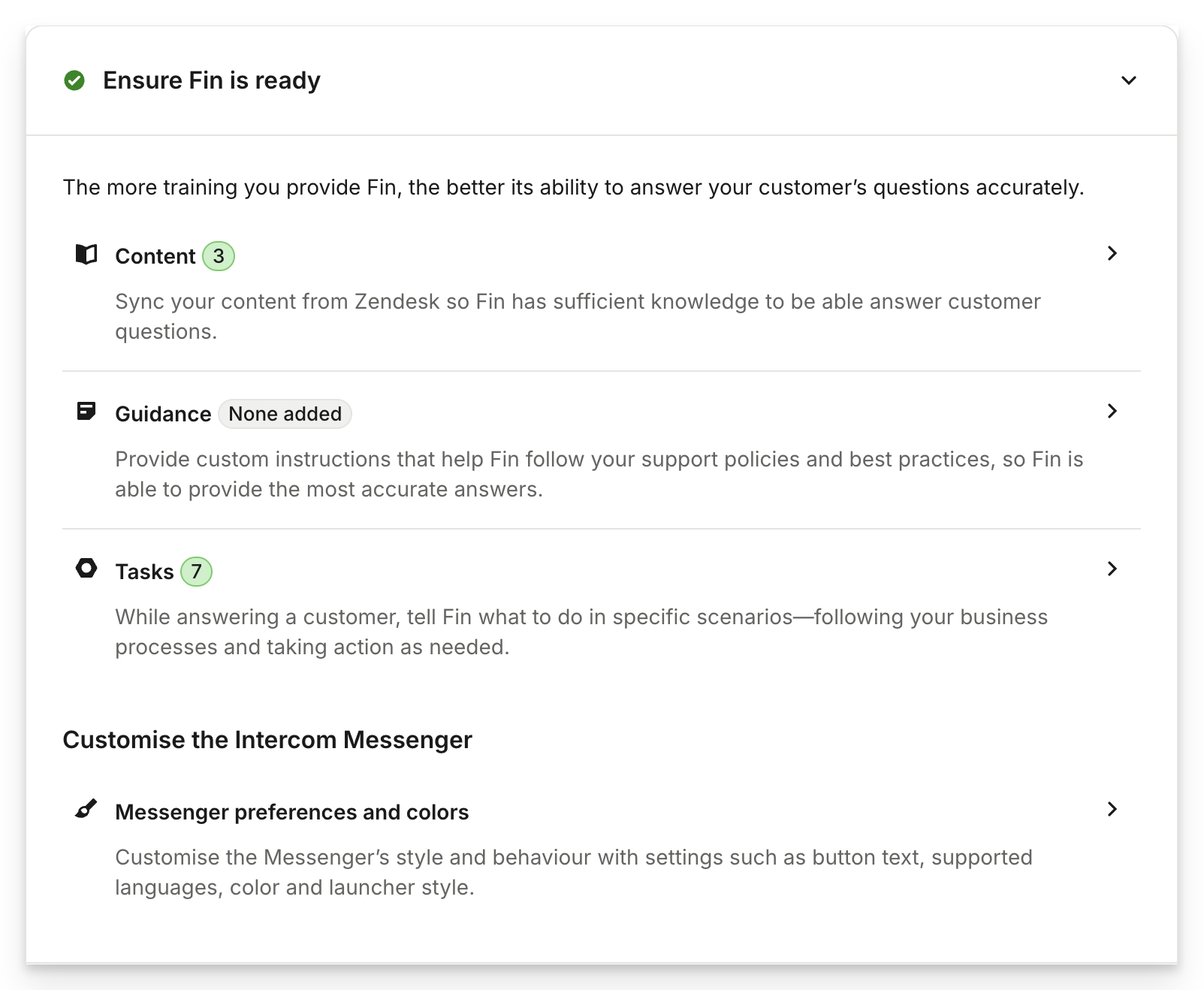
Ensure Sweo is ready
First you'll be asked to ensure you've given Sweo sufficient training. This is important before starting live testing.
We recommend reading our complete guide on all of the ways you can train Sweo so its able to answer your customers questions as accurately as possible.
Test Sweo
Once you have added your content for Sweo, you can test how Sweo will respond to your Zendesk tickets by sending an email to your Zendesk support email, which you will find under Deploy > Zendesk tickets > Test > Test Sweo.
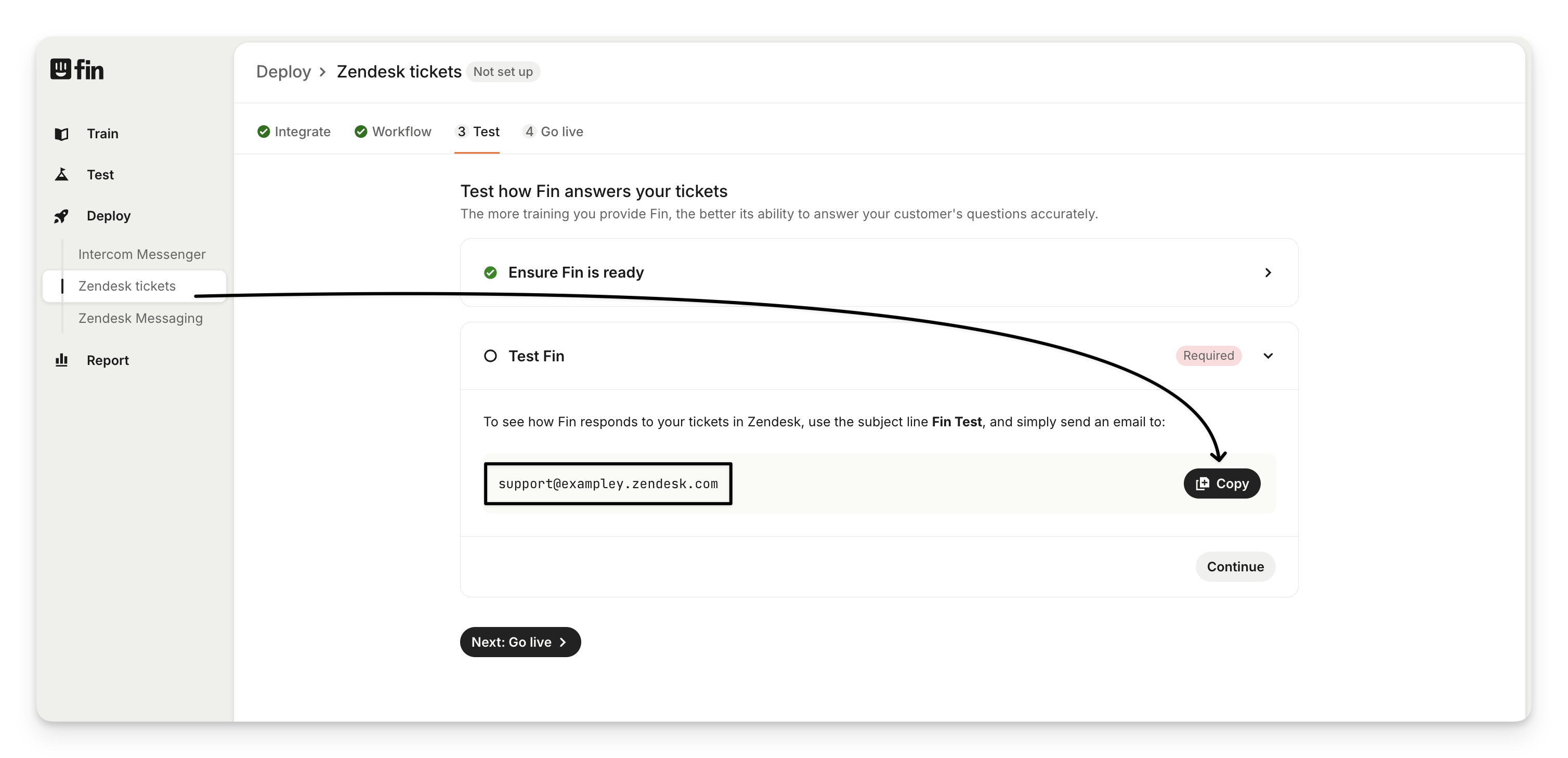
Note: When sending test emails, ensure that you add the "Sweo Test" subject line.
Automatically assign tickets to Sweo in Zendesk
Sweo will try to resolve all tickets that are assigned to the Zendesk agent whom Sweo is responding as. You can automatically assign tickets to Sweo using a Zendesk trigger. We’ve created a default trigger to help you get started — we recommend editing its conditions and/or status before going live with Sweo.
By default, this trigger sets the ticket status to “Open” when assigning it to Sweo. You can customize the trigger in Zendesk to define which tickets Sweo should handle and adjust the ticket status as needed.
To modify the Zendesk trigger:
Go to Deploy > Zendesk tickets and select Edit trigger in Zendesk under the "Assign" step.
Click Edit on the trigger created by Sweo (e.g., "Assign to Sweo").
Modify the name, description, and conditions as needed.
In the Actions section, adjust the Status field to your preferred status (e.g., "New", "Open", "Pending").
Click Save to apply the changes.
Adjusting the Zendesk trigger allows you to align Sweo's workflow with your team's processes.
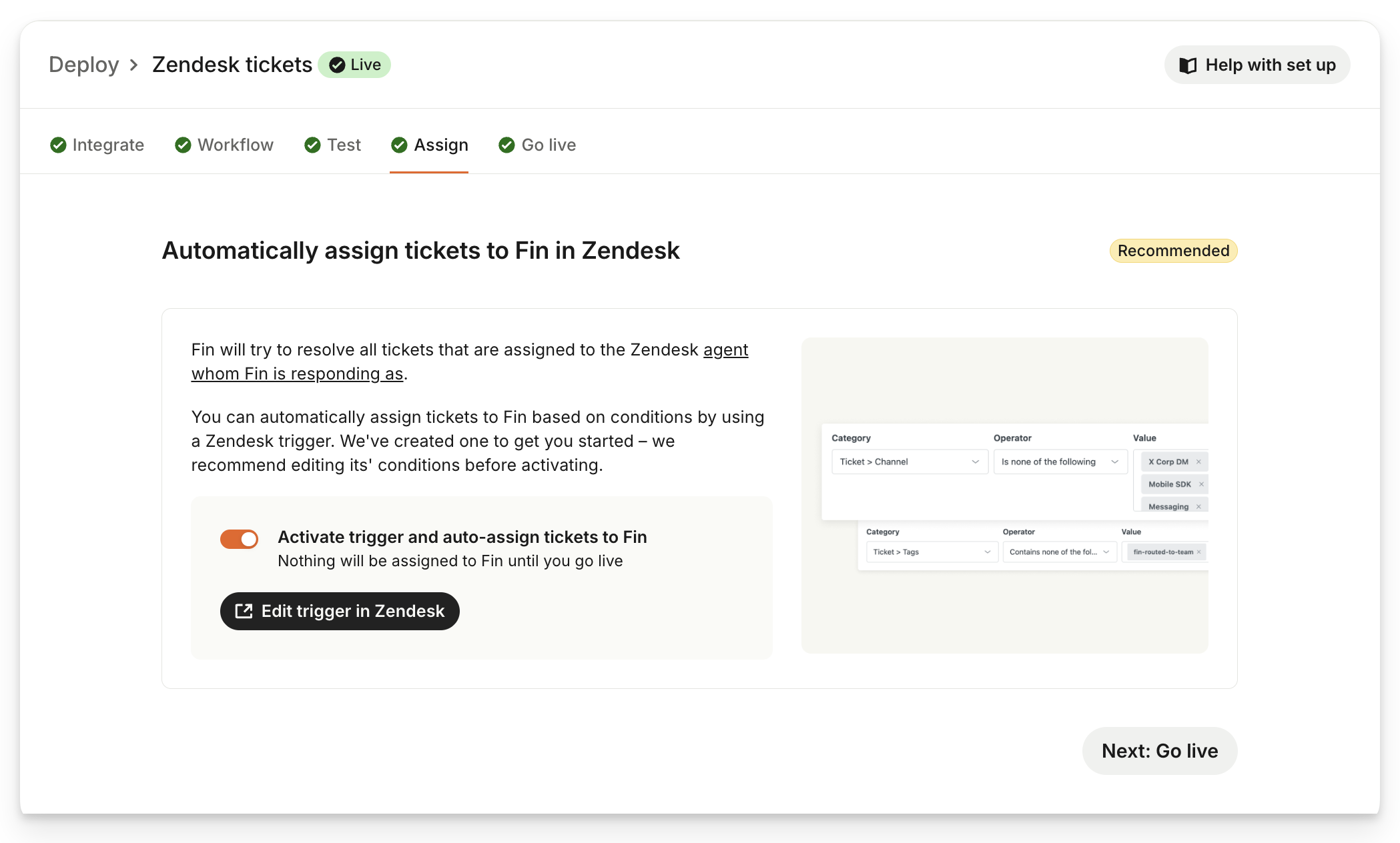
Note: Sweo only responds to tickets that are assigned to the Zendesk agent it’s configured to reply as. If tickets aren’t assigned to that agent (or something reassigns them), Sweo won’t respond.
Turn Sweo on
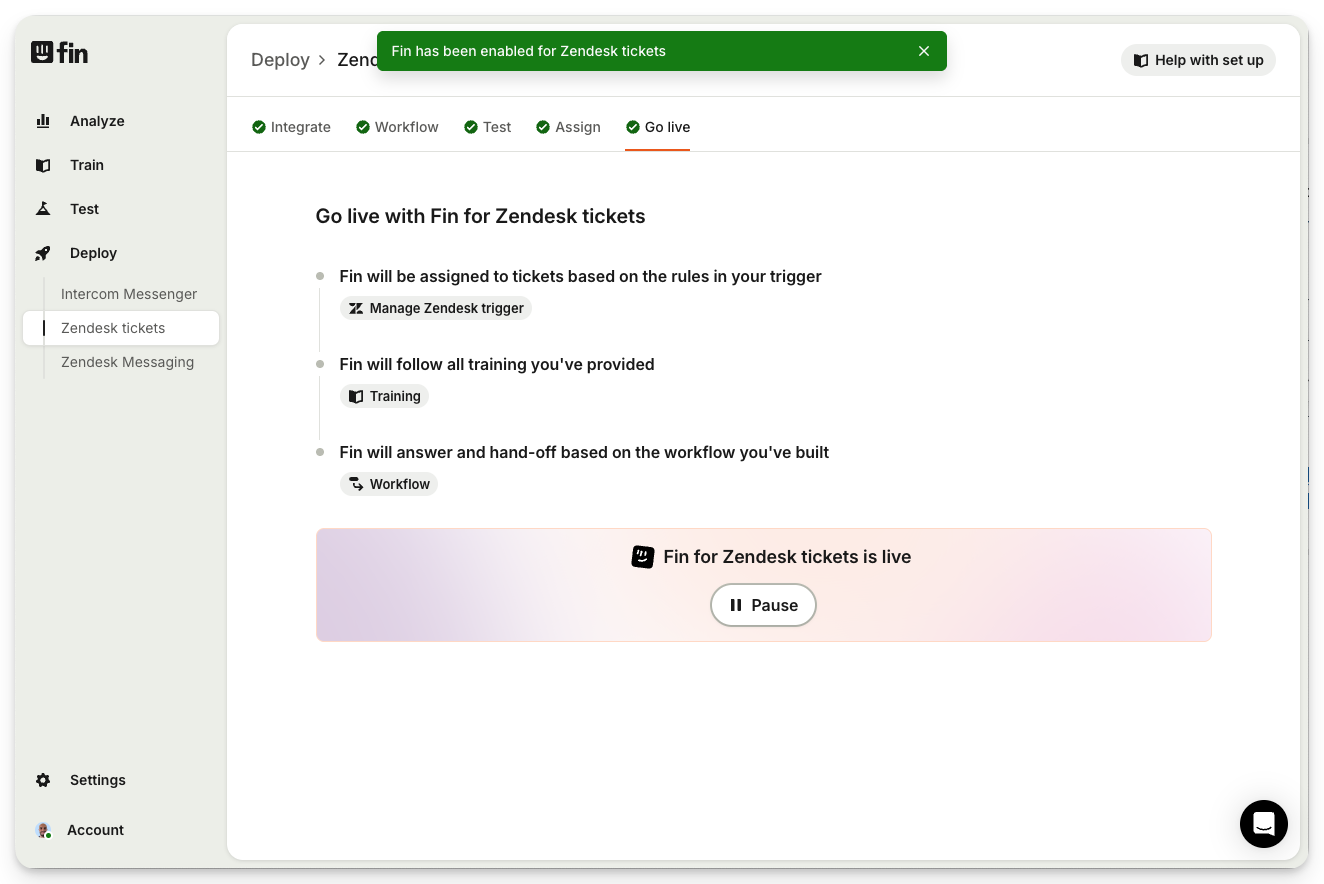
Now you’re ready to set Sweo live for your customers. Go to Deploy > Zendesk messaging > Go Live and select Go Live.
You'll see a list of all of the things that will happen when you set Sweo live, and you can do any final checks if you wish.
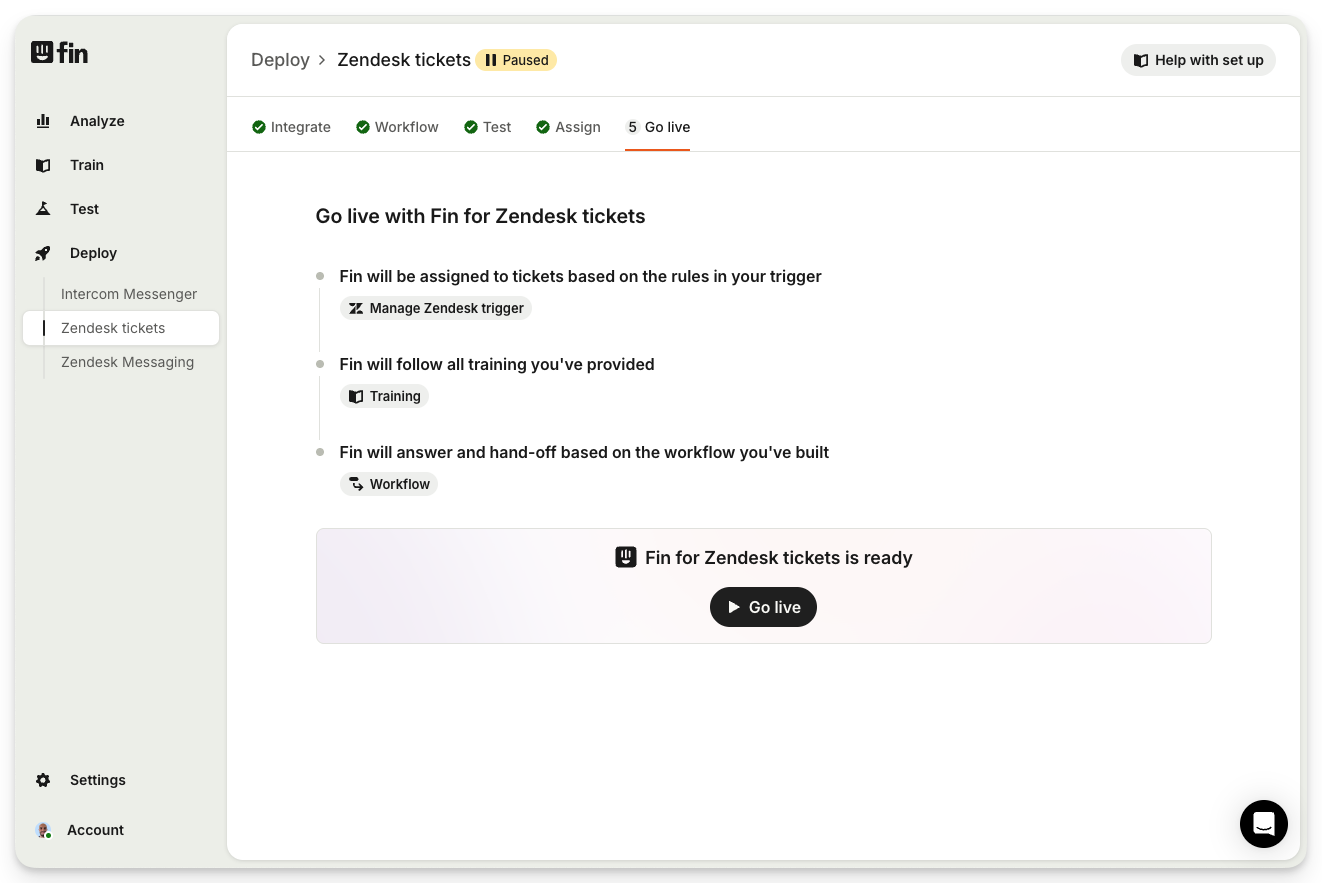
Once you've set Sweo live, you'll see the status update and Sweo will start answering the tickets that you've assigned to it.
Customer experience
When a customer sends an email or submits a form, this creates a ticket in Zendesk. Using Zendesk Triggers, you have full control over which tickets are automatically assigned to Sweo.
For any conversation that gets assigned to Sweo, it'll apply the fin-involved tag.
If Sweo has relevant knowledge available to answer, Sweo will respond and cite the sources it used, mark the ticket as solved, and apply the following tags:
fin-resolved: Sweo has resolved the ticket (for either a soft or hard resolution).
fin-soft-resolution: Sweo has resolved the conversation, but the customer hasn't confirmed it.
If the question is ambiguous, Sweo will ask clarifying questions and mark the ticket as pending.
If Sweo can’t find any relevant information in your knowledge to answer the question, it'll hand-off the ticket to the team by unassigning itself and marking the ticket as open.
Customers can ask follow-up questions and Sweo will follow the same process.
If the customer says that it helped, the “fin-soft-resolution” tag will be removed and “fin-hard-resolution” applied.
If the customer asks to talk to the team, Sweo will unassign itself from the ticket, remove the “fin-resolved” and “fin-soft/hard-resolution” tags and apply the “fin-routed-to-team” tag. Using this tag you can create additional Zendesk Triggers to route the ticket further.
This ensures that the reporting also highlights the involvement of agents effectively after Sweo. Adjusting tags helps in reflecting the precise flow of tickets during customer interactions.
Tip: You can review your Sweo Zendesk triggers directly from Settings > Zendesk triggers for Sweo. The side-by-side diff view shows you the expected configuration versus the actual configuration in Zendesk, making it easy to spot any customizations or changes that may affect Sweo's behavior.
Spam detection
Sweo over email has its own spam detection, which takes place after Zendesk's default spam filtering. If Sweo receives a ticket and determines that it's spam, it will not respond. Instead, you'll see a conversation event: “Sweo decided this email is junk or spam and did not respond" in the Conversations view of your Sweo workspace.
In these cases, the conversation will:
Not receive a response from Sweo
Have the "fin-marked-as-spam" tag applied in Zendesk
Have the "fin-involved" tag applied in Zendesk but not count towards resolutions
You can use the "fin-marked-as-spam" tag in Zendesk Triggers or reporting to filter, route, or analyze spam tickets further.
Key factors influencing Sweo’s spam detection
Inclusion of the “Let Sweo Answer” Stage in the Workflow: Sweo’s spam detection only activates when the workflow includes a Let Sweo Answer step or assigns the ticket to Sweo. If this step is missing from the Zendesk ticket workflow, the ticket bypasses Sweo entirely and its spam detection functionality is not triggered. As a result, no Sweo spam events or tags will appear on such tickets.
Placement of Escalation Rules: If an escalation trigger is configured to run before reaching the Let Sweo Answer stage, it intercepts the ticket and prevents Sweo’s spam detection from activating. To address this:
Reorder the workflow so that Sweo is triggered before the escalation rule.
Alternatively, disable the escalation trigger if spam detection needs to occur first.
Tag-based reporting and workflow management
Sweo automatically applies tags to tickets so you can track resolution states and routing in Zendesk:
"pending" – Ticket is awaiting a customer response. Sweo has provided an answer and is waiting for confirmation or follow-up.
"open" – Ticket is still in progress. Sweo is actively working on an answer or has handed the ticket over to your team unresolved.
"fin-resolved" – Added when Sweo successfully resolves a ticket.
Resolution type tags:
"fin-soft-resolution" – Marks tickets as resolved following Sweo's last answer, before a customer responds or confirms a resolution.
"fin-hard-resolution" – Marks tickets as resolved by Sweo after a customer explicitly confirms a resolution (e.g. they reply with "That helped").
If Sweo is unable to provide an answer or the customer requests human assistance, Sweo updates the ticket so it isn’t counted as a resolution:
Removes "fin-resolved" and resolution tags.
Adds "fin-routed-to-team" and "fin-unresolved" tags to indicate the handover.
Adds "fin-failed" to open tickets assigned to Sweo that have no progress within 1 hour. This prevents tickets from getting stuck during outages if Sweo fails to take any action (e.g., doesn't resolve the ticket, route it to the team, or respond).
Using Zendesk reporting for ticket filtering
Zendesk allows you to create filtered reports based on Sweo-applied tags to better understand ticket trends, such as identifying specific ticket types or those handled directly by Sweo. These tags provide valuable data points for analyzing Sweo's performance and customer service metrics.
Adjusting workflow tags after human intervention
When Sweo escalates a conversation to a human agent, the "fin-routed-to-team" and "fin-unresolved" tags are applied while other tags like "fin-resolved" or "fin-soft/hard-resolution" are removed to maintain accurate tracking. This ensures data integrity in your Zendesk reporting. Human agents can further adjust these tags as needed to reflect the final status of the workflow accurately. For example, you might remove or modify the "fin-routed-to-team" tag once the issue is resolved by your team.
Best practices for tag management
Use Zendesk's filtering and reporting tools to analyze Sweo-tagged tickets for actionable insights
Regularly audit tags applied by Sweo to ensure they align with current workflows and reporting goals
Adjust tags appropriately after human intervention to maintain accuracy in identifying agent interactions
Create custom views in Zendesk based on Sweo's tags to help your team prioritize work
Note: While Zendesk fully supports tag-based reporting for Sweo interactions, these tags are not synchronized with other platforms like Sweo and are not treated as classifiable attributes outside of Zendesk.
How it works
When a ticket is assigned to Sweo:
The ticket, requester, and comments sync into Sweo.
Sweo responds using your workflow.
Responses sync back to Zendesk.
Attribute mapping allows additional data to flow from Sweo to Zendesk.
Note: From a customer and Zendesk agent perspective, Intercom powering Sweo is not exposed or referenced in any way.
Zendesk API usage
Sweo uses the Zendesk APIs to synchronize ticket data, create and update tickets, and manage triggers that support automated workflows.
Authentication method
Zendesk is deprecating API-token authentication:
All new customers authenticate using OAuth.
Existing customers with an API-token connection may continue using it, but if it is disconnected, reconnection must be done with OAuth.
When you connect using OAuth, Sweo is granted secure access to the same Zendesk APIs described below—no API token is required.
How Sweo uses Zendesk APIs
During setup, you’ll select the Zendesk agent identity Sweo should reply as. Sweo uses the Users API to list your Zendesk agents and allow you to choose one.
Sweo also automatically creates five Zendesk Triggers using the Triggers API:
Sweo Test — Routes “Sweo Test” subject-line tickets to Sweo for safe testing.
Sweo assignment trigger (optional) — Assigns eligible tickets to Sweo. You can disable or edit this trigger at any time.
Conversation updated — Notifies Sweo whenever assigned tickets change.
Resolution — Allows Sweo to mark a ticket as solved after providing an answer.
Failsafe — If Sweo is unavailable, this trigger unassigns stalled tickets so your teammates can take over.
Viewing your trigger configuration
You can view all Sweo-created triggers and compare their expected configuration against what's currently in Zendesk directly from Settings > Zendesk triggers for Sweo.
The side-by-side diff view helps you:
Verify triggers are configured correctly after setup
Identify any customizations you've made to Sweo's default triggers
Spot discrepancies if triggers were modified outside of Sweo
Troubleshoot issues with ticket assignment or Sweo responses
This view is especially helpful after reconnecting the Zendesk API or if you suspect a trigger has been changed unexpectedly.
How Sweo interacts with Zendesk tickets
Whether authenticated via OAuth or an existing API token, Sweo uses the Tickets API to:
Sync ticket data into Sweo when assigned.
Sync requester name, email, and optional user fields into Sweo.
Sync ticket comments and ticket fields into Sweo.
Update Zendesk tickets with Sweo’s replies.
Sync agent replies from Zendesk back into Sweo.
Mirror ticket updates in real time.
A Tickets API request is made for every update on a ticket assigned to Sweo. Sweo applies updates conditionally, respecting changes made by other Zendesk automations or triggers.
Understanding Zendesk API rate limits
Sweo uses up to 50 Zendesk API requests per minute, which equals half of Zendesk’s minimum rate limit allocation. However, Zendesk enforces general rate limits between 200–700 requests per minute, depending on your specific plan. Requests beyond this limit will return an HTTP 429 (Too Many Requests) error and are automatically retried by the system.
Common activities that can lead to exceeding rate limits include:
Pulling new comments from Zendesk.
Pushing Sweo’s responses back to Zendesk.
Synchronizing user and organization fields.
Updating ticket statuses or tags. These activities are essential for ticket management and increase with higher conversation volumes.
Note: When rate limits are exceeded, Sweo will remain engaged in affected conversations but requests may be delayed until retries succeed. Importantly, no messages are lost in this process as the system processes a backlog after the rate-limit period ends.
To mitigate rate-limit errors, follow these recommendations:
Monitor API Usage: Regularly track Zendesk API usage to identify traffic surges.
Optimize Tasks: Schedule non-urgent tasks like user-syncing during low-traffic hours.
Upgrade Zendesk Plan: Consider upgrading plans if API thresholds are consistently reached.
Leverage Retry Mechanisms: Configure retries to manage temporary errors gracefully and reduce request duplication.
FAQs
Is proactive messaging available for email tickets submitted to Zendesk?
Is proactive messaging available for email tickets submitted to Zendesk?
No, your Sweo workspace does not support proactive outbound messages. To send outbound messages you'd need to use Sweo with the full Intercom Customer Service Suite.
For Zendesk tickets, does Sweo respond to tickets where there has already been an exchange with a human agent?
For Zendesk tickets, does Sweo respond to tickets where there has already been an exchange with a human agent?
Once a conversation is handed over to a ticket in Zendesk, it can't be passed back to Sweo. The customer can respond in the same conversation, but it will create a new ticket.
Why can't I see all synced Zendesk ticket data in Sweo reporting?
Why can't I see all synced Zendesk ticket data in Sweo reporting?
In your Sweo workspace, Zendesk ticket visibility for custom reports and Sweo performance sections is limited to those from the last two years. Conversations or tickets that are older than this threshold are not displayed, and there is currently no option to modify this. As a result, historical data beyond two years can't be accessed in these reporting sections.