A customer sends a message
Sweo works in all supported Zendesk messaging channels from web, mobile to WhatsApp. When setting up Sweo for Zendesk Messaging, you can choose which channels you'd like Sweo to respond in.
Your workflow
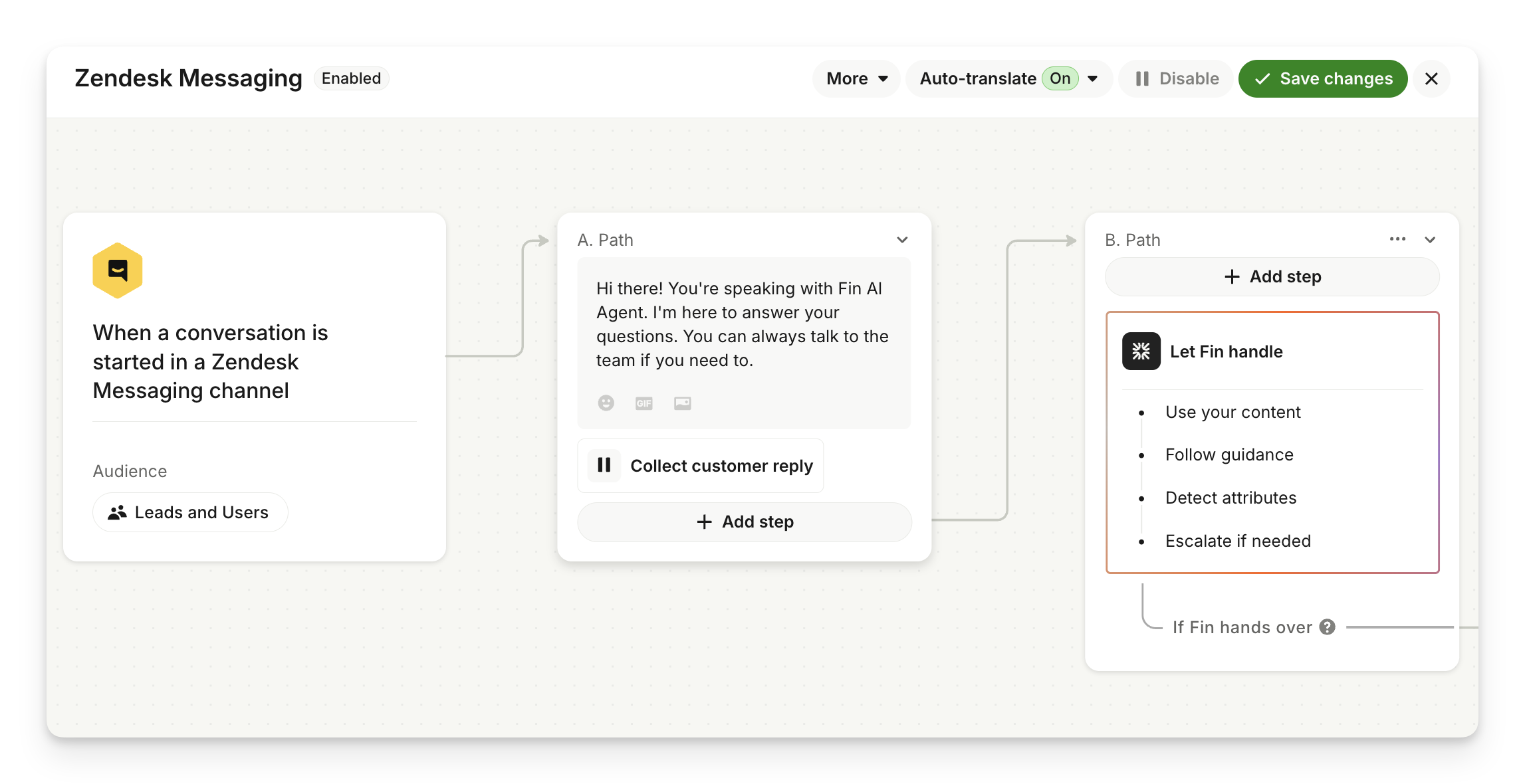
The experience
Description | Visual |
Let's take an example of a customer who sends a message in the Zendesk Messenger | 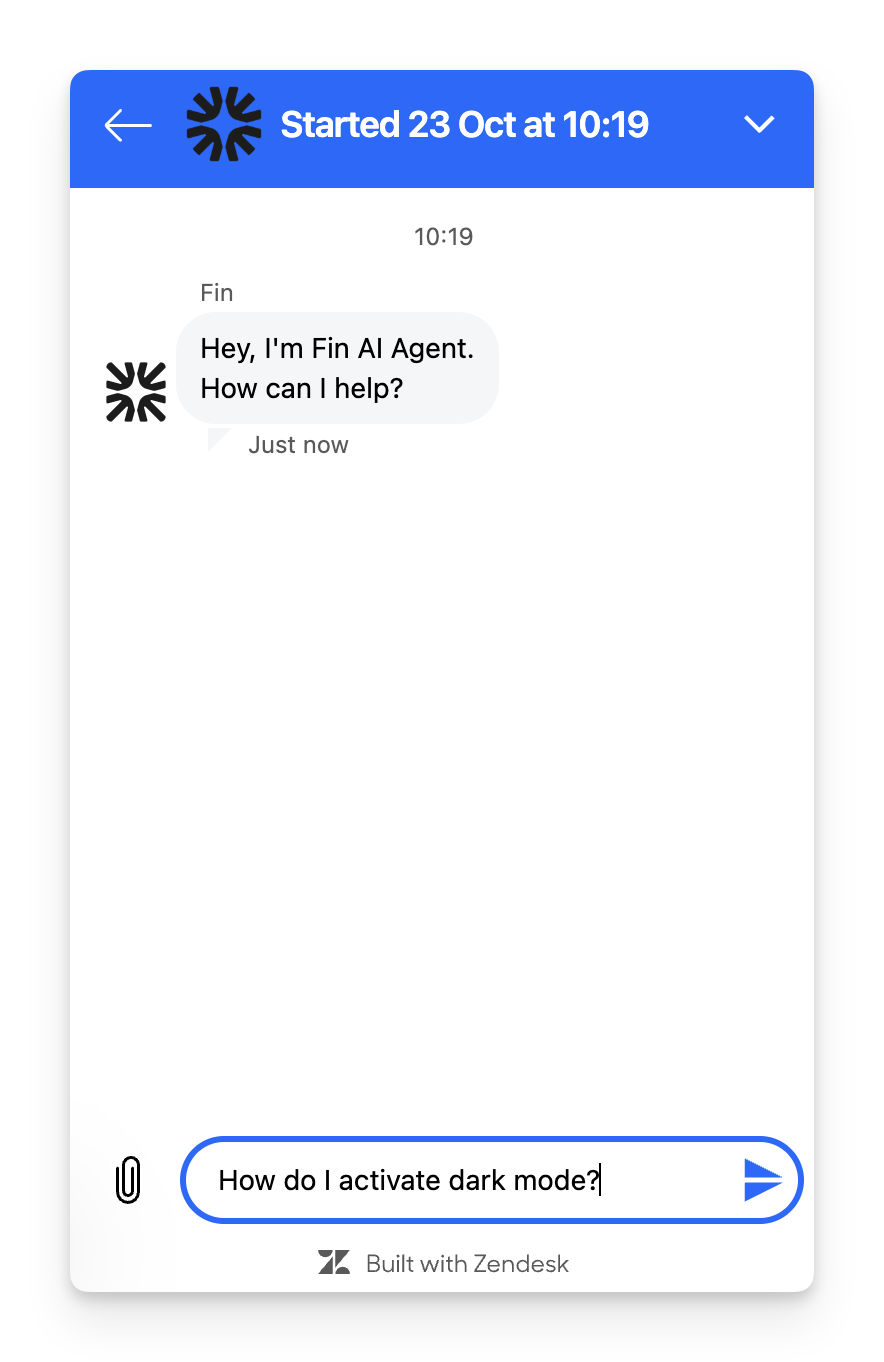
|
Customer experience With the right training, Sweo should be able to resolve their query. | 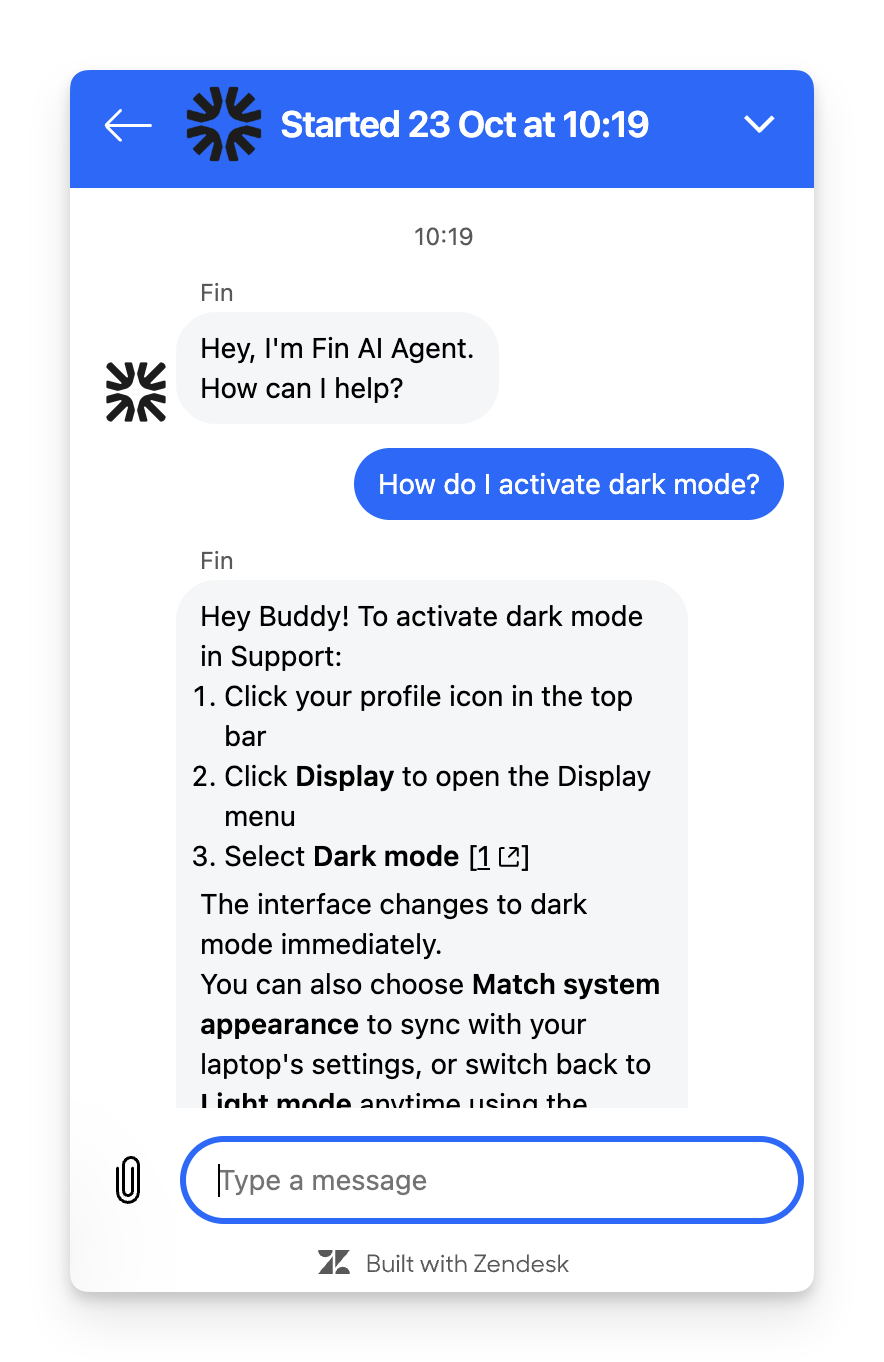
|
Your team's experience Previously, only conversations that were escalated from Sweo to a live teammate appeared in your Zendesk workspace.
Now, Sweo conversations that were never escalated can also appear as tickets in Zendesk Support and Agent Workspace.
This means you may start seeing new tickets in your Zendesk workspace that represent customer chats with Sweo that didn’t require escalation.
Note: You can manage whether these Sweo resolved conversations appear in Zendesk Support and Agent Workspace by adjusting your Zendesk view settings. (For more details, see Zendesk’s announcement). | 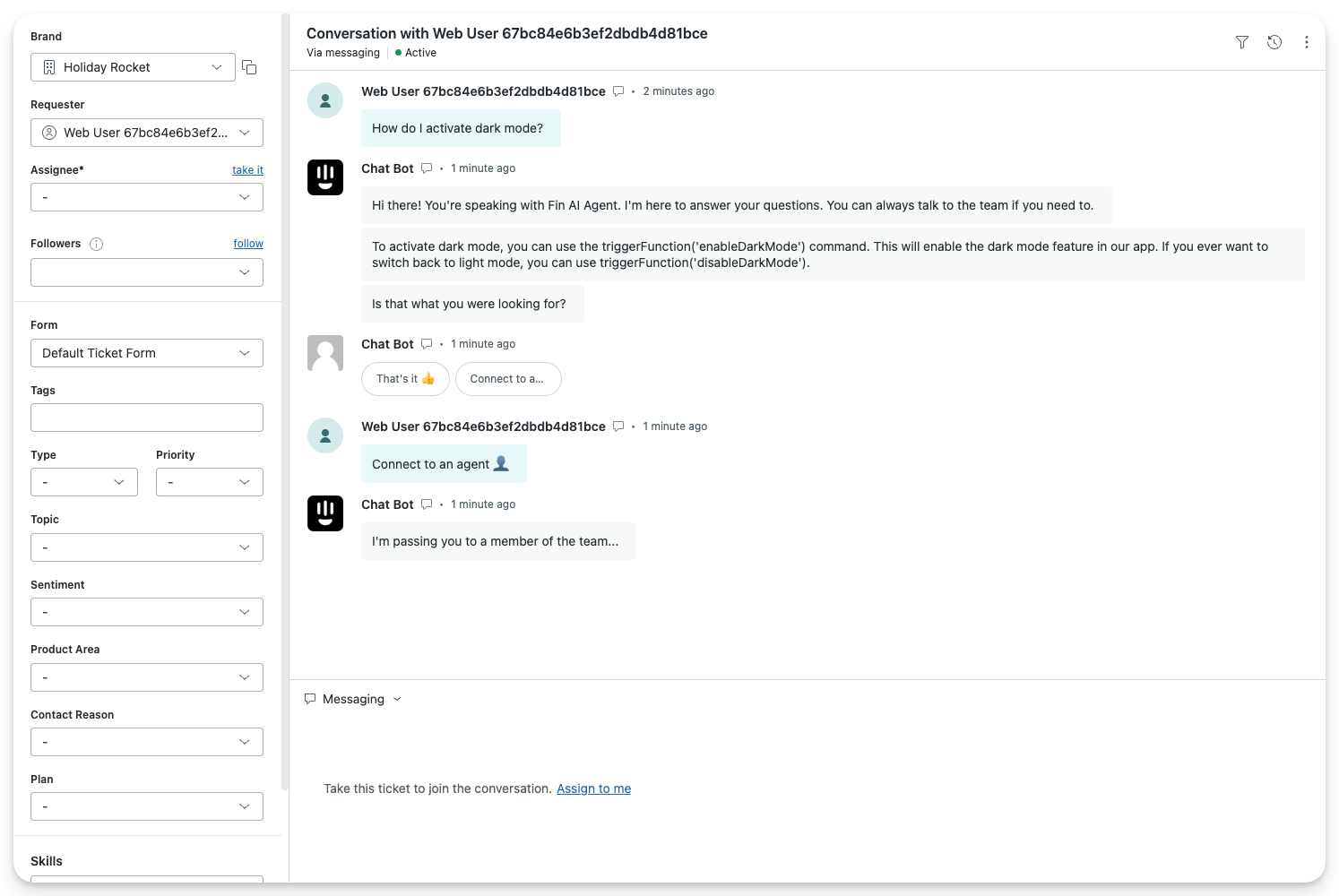
|
Sweo's behavior in Zendesk Messaging
When a conversation is redirected to Sweo within Zendesk Messaging, Sweo will only respond if the customer explicitly asks a question after the conversation is routed to Sweo. Providing the required nudge from the customer is necessary to trigger responses.
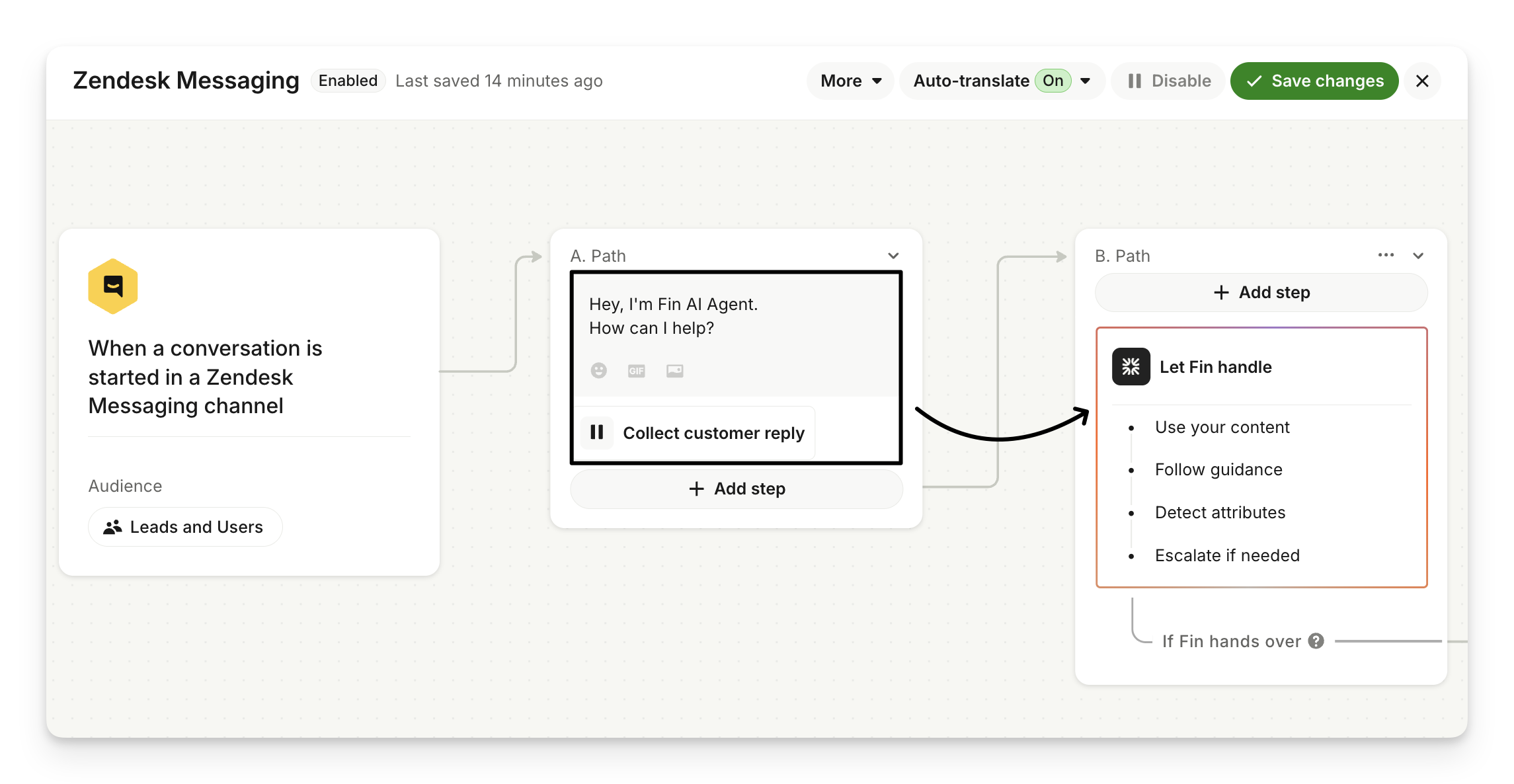
To avoid delays caused by requiring an additional user input after the handoff, you should introduce a step in your Zendesk Messaging workflow to encourage immediate prompts from the customer. Here’s how you can do it:
Add a Message step preceding Sweo: In your Zendesk workflow, include a message immediately before routing the conversation to Sweo.
Encourage customer interaction: Use this message step to display a short instruction, such as: - "What would you like help with?" - "Please ask your question below."
Route the customer to Sweo: After the instructional message, route the user to Sweo with the "Let Sweo handle" step. This ensures Sweo is prompted and ready to respond as soon as the customer sends their first question.
Hand off to Zendesk agent
When should I use this?
Best when you want to resolve customer queries as quickly as possible and have support agents available to answer.
Companies commonly use this during their office hours.
Your workflow
Add the "Hand-off to Zendesk agent" step.

The experience
Description | Visual |
Customer experience When Sweo is unable to answer a customer's question, Sweo can assign to an agent in Zendesk who can continue talking to the end-user in the Zendesk Messenger. | 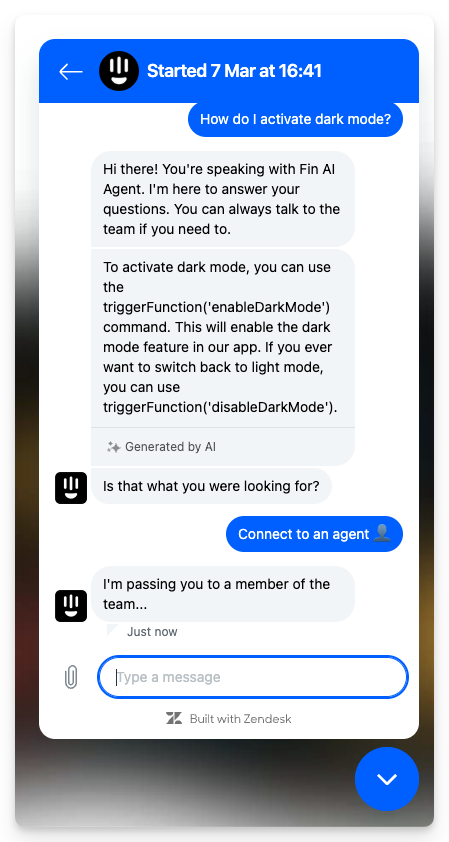
|
Your team's experience This creates a conversation in Zendesk for one of your agents to pick up and continue chatting to the end-user. | 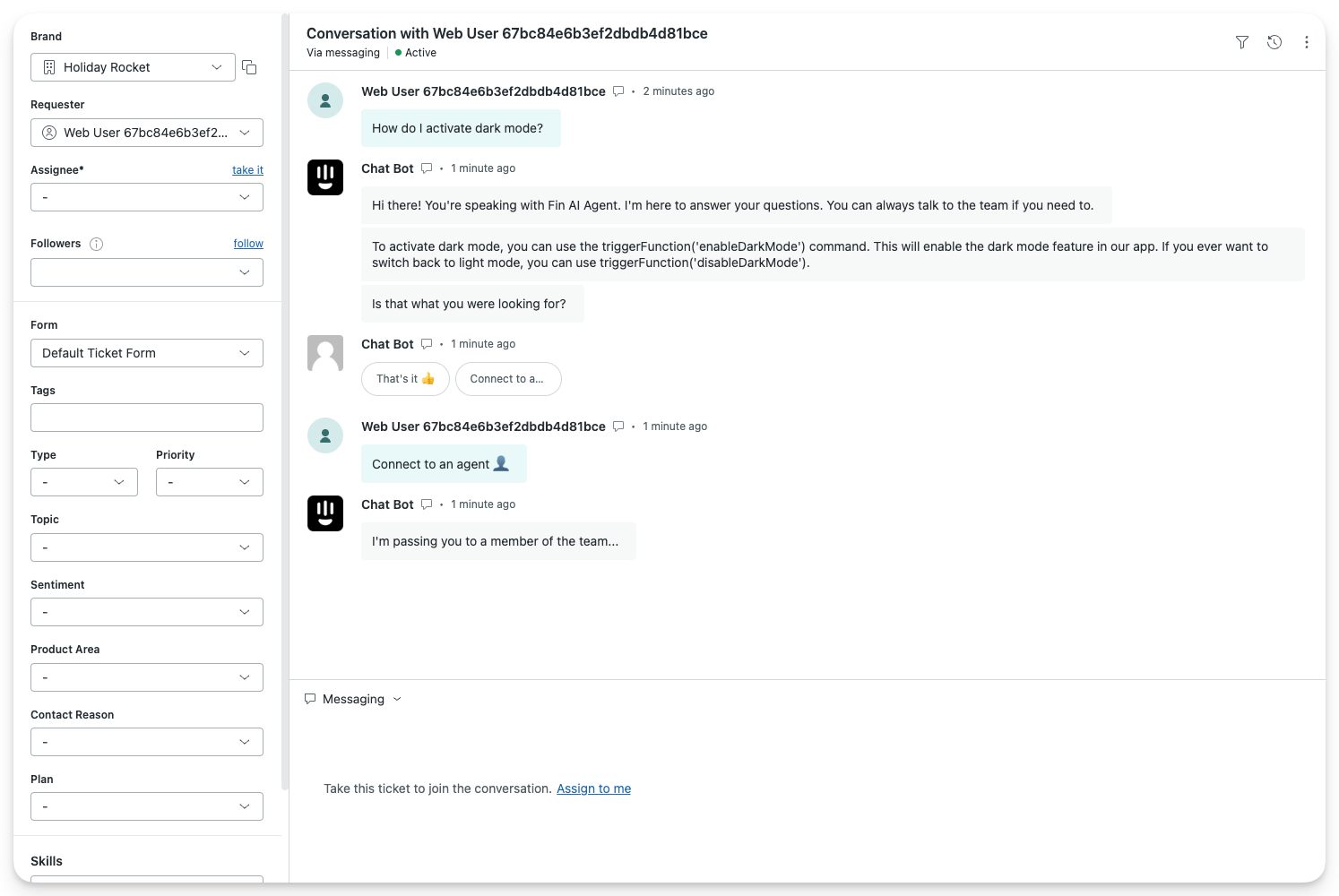
|
Customer experience When your agent replies to the conversation, their replies appear in the Zendesk Messenger creating a seamless experience for the end-user. | 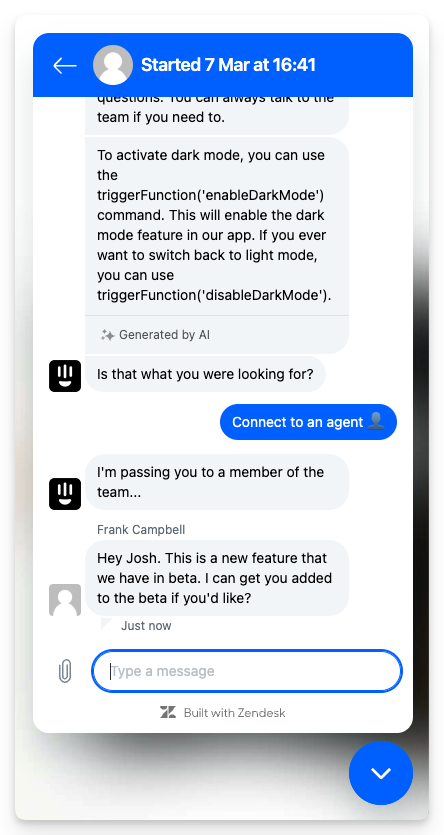
|
Create Zendesk ticket
When should I use this?
Best when you have a small support team, or your team won't be immediately available to pick up the end-user query.
This is also commonly used outside of office hours, so your team can follow up with an end-user via email when they return.
Your workflow
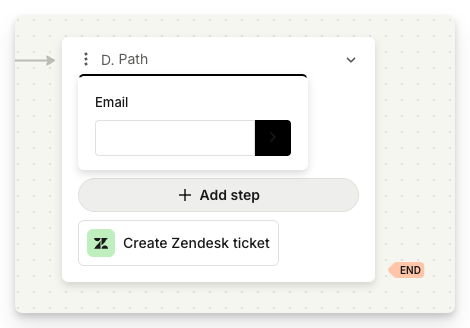
Add the "Create Zendesk ticket" step
The experience
Description | Visual |
End-user experience Sweo can create a ticket for an agent to pick up when they're ready. This closes the chat in the Zendesk Messenger, and your team can continue talking to the end-user via email. | 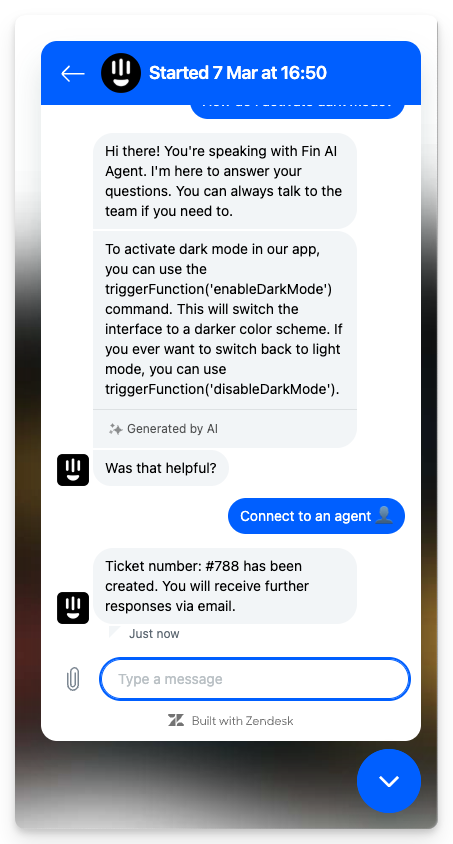
|
Your team's experience A ticket gets created in Zendesk, that an agent can pick up when they're ready. | 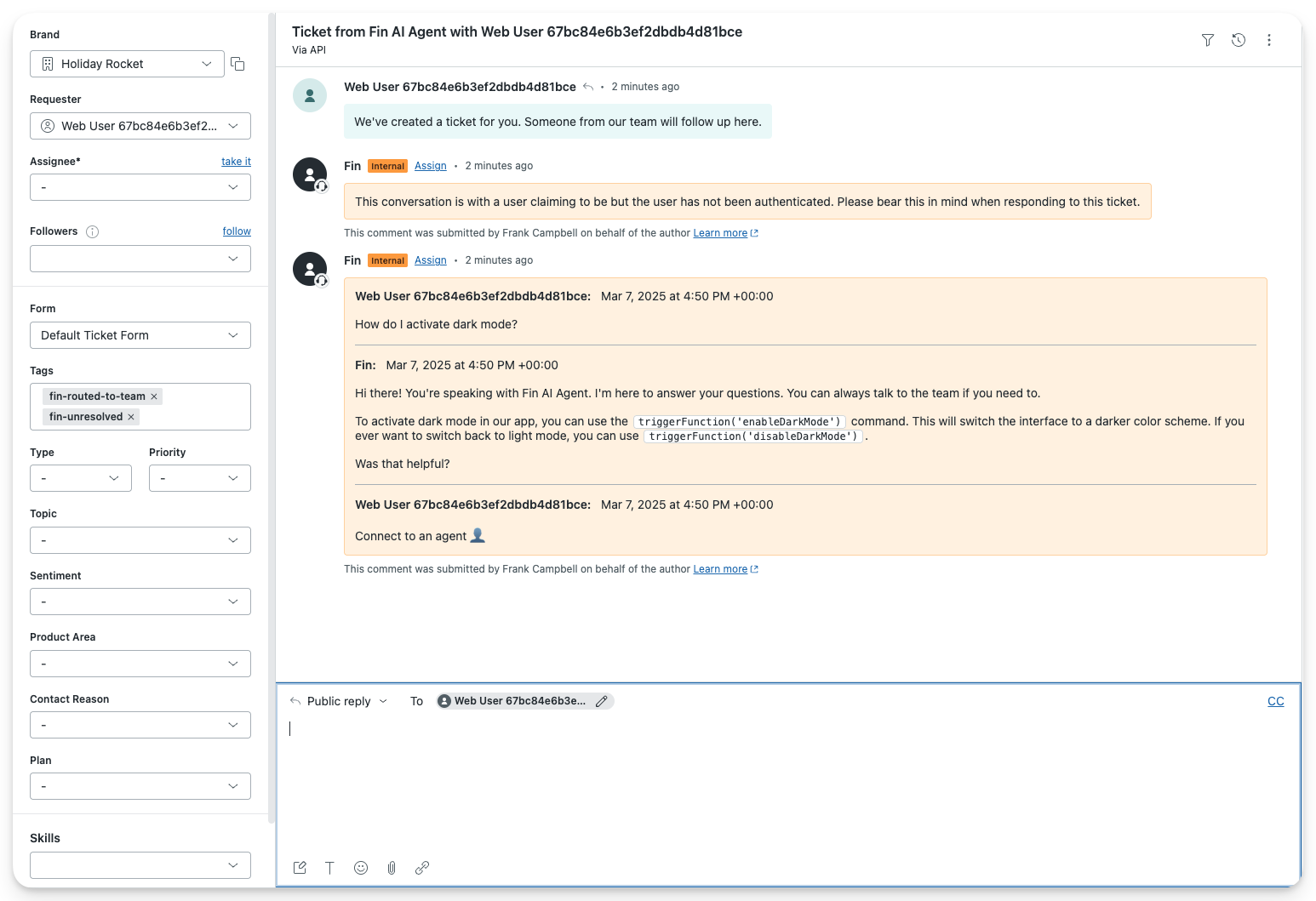
|