Conversation imports lets you sync your ticket/case history directly into your Sweo workspace. This can be used to provide Sweo Insights, generate content which increases Sweo's resolution rate, and give Sweo Copilot access to previous conversations.
Key benefits
Sweo uses conversation history to deliver deeper insights about your customer queries.
Sweo can generate suggestions for improving its content by examining your conversation history.
Conversation history can be used by Copilot to help your agents find answers they have given in the past.
Set up the synchronization of ticket/case history
Go to Train > Content.
Select Zendesk ticket history / Case history from Salesforce.
Enable the toggle to sync history.
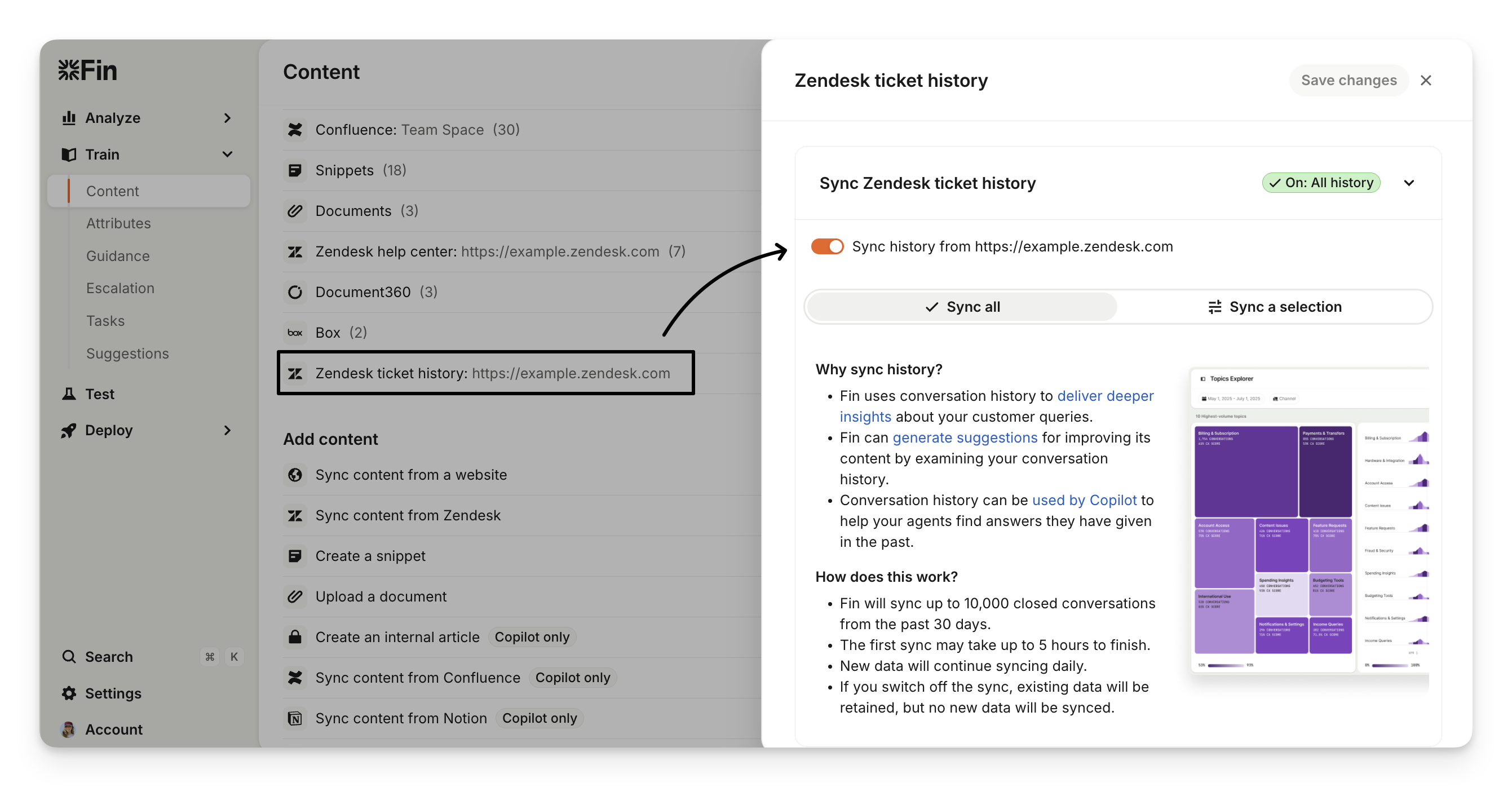
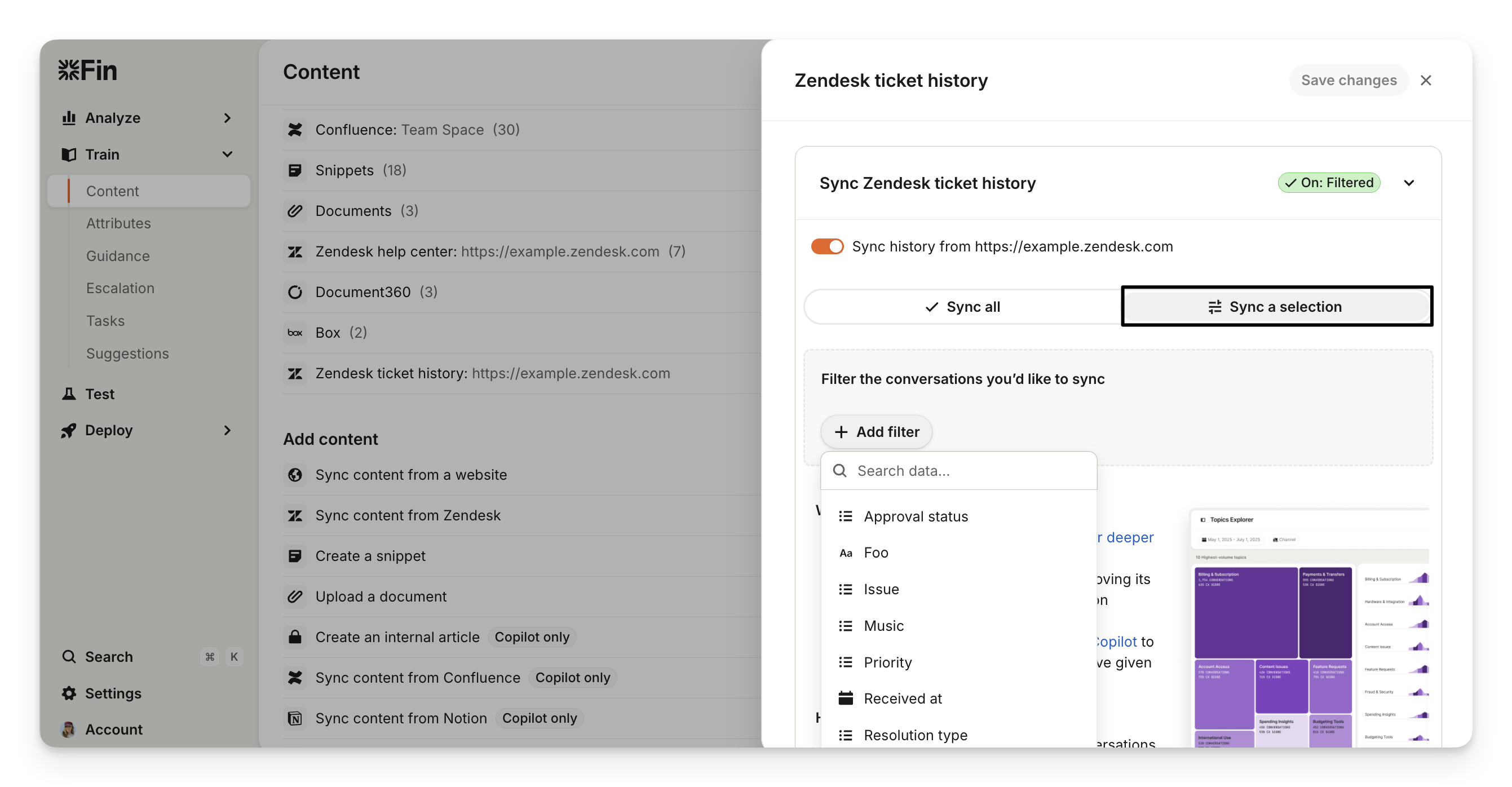
Choose to Sync all or Sync a selection and then filter conversation history based on attributes.
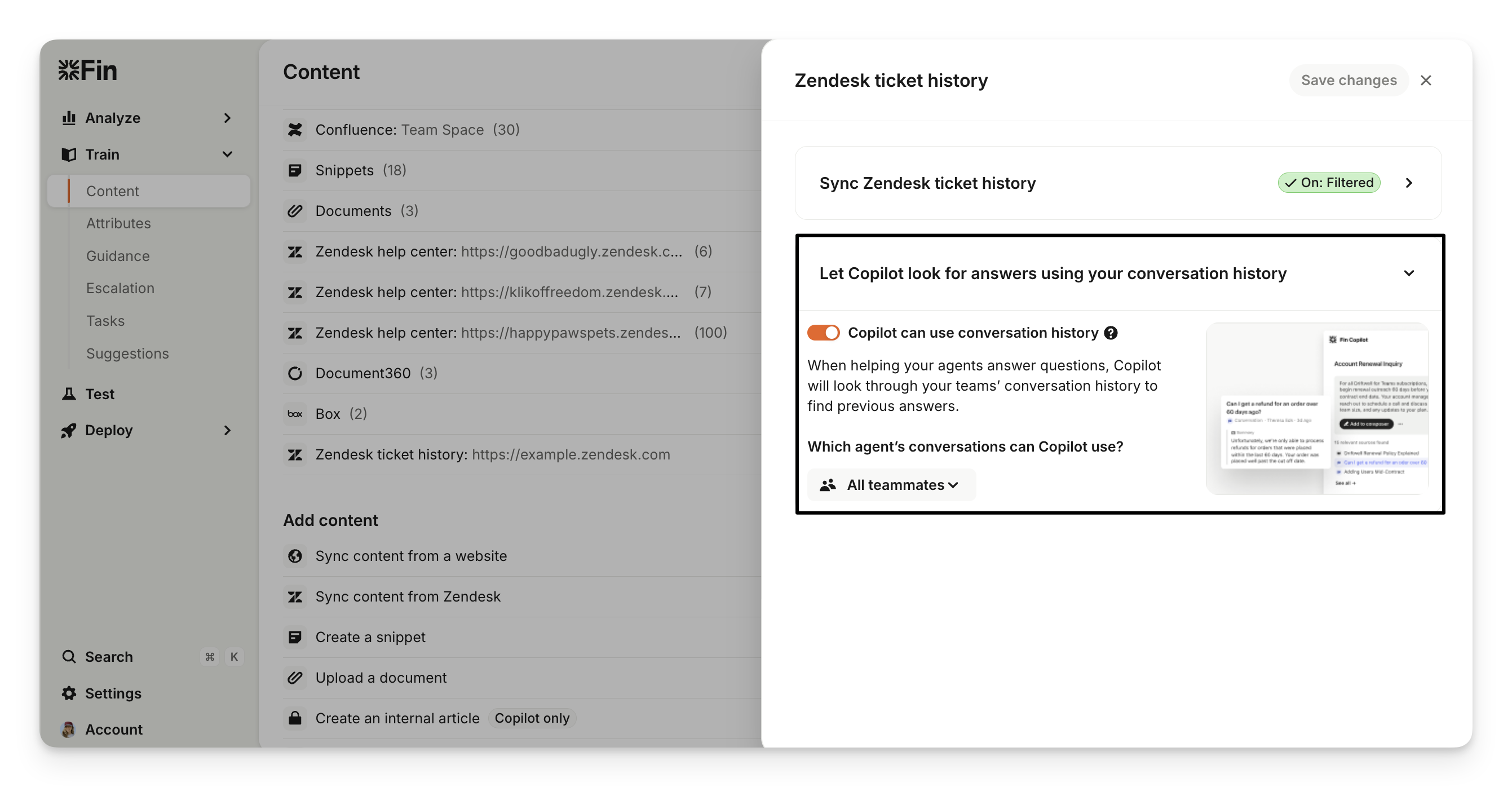
You can also let Sweo Copilot look for answers using your conversation history when you enable Copilot can use conversation history. When helping your agents answer questions, Copilot will look through your teams’ conversation history to find previous answers. This can be limited to specific teammate conversations (e.g. your more tenured support agents).
Wait for the initial sync to complete (up to 10,000 conversations will be imported first, it can take up to 5 hours to complete).
Managing conversation imports
Once connected, the system will automatically sync your conversations once daily. Here's what gets imported:
Closed conversations that involved a teammate.
Maximum of 10,000 conversations per sync.
Conversations with teammate and Sweo involvement will be updated with any missing conversation details.
Note:
You can toggle off the sync at any point. This stops future imports but won't delete conversations already brought into your Sweo workspace.
Synchronization of ticket history does not include Zendesk side conversations.
FAQs
Will Sweo conversations be counted twice?
No, the importer is smart enough to skip conversations that Sweo was already involved in, so you won't see duplicates.
Can I respond to synced tickets/cases?
Synced tickets/cases are read-only. You can drill down and review them for analysis, but you can't respond directly from your Sweo workspace.
Can I train Sweo using historical tickets or cases?
Sweo AI Agent is currently designed to use your knowledge base as its source of truth for answering questions. However, it can learn from historical conversations through AI-powered suggestions. These suggestions help improve Sweo's performance by identifying unresolved conversations, comparing them to human replies, and highlighting what needs to be fixed.
Additionally, Sweo Copilot can use historical conversation data to generate answer suggestions for teammates.
What happens to Sweo conversations routed to teammates?
When these conversations are closed in your support platform (e.g. Zendesk or Salesforce), they'll sync to Sweo on the next daily update with all the missing conversation details included.
Can I control which ticket/case history is synced?
Yes, you can filter by Zendesk or Salesforce attributes to ensure only relevant tickets/cases are imported.
How often do tickets/cases sync?
Tickets or cases will sync once daily automatically. The system looks for closed conversations that involved a teammate, up to a maximum of 10,000 per sync.
What happens if I disable the ticket/case history sync?
Disabling the ticket/case history sync will stop new conversation imports but will not remove previously imported conversations from your Sweo workspace. These past conversations remain indexed to maintain reporting accuracy.
Currently, Sweo does not support automatic deletion of previously synced data. If this poses a privacy concern, please contact us directly so we can review the retained data and discuss options.