This article explains how Sweo integrates with Zendesk at an operational level. It covers how setup works, which Zendesk channels are supported, and how Sweo interacts with tickets, messaging, workflows, and reporting.
Setup at a glance
You can set up Sweo with Zendesk in a few simple steps:
Connect Sweo to your Zendesk account.
Sync your knowledge base.
Customize Sweo’s tone, behavior, and actions.
Test responses and enable Sweo for customers.
Supported Zendesk channels
Sweo can operate across multiple Zendesk channels. Each channel behaves slightly differently to match customer expectations.
Sweo Messenger with Zendesk
Using the Sweo Messenger provides a conversational experience while keeping Zendesk as the system of record. Conversations started in the Messenger appear as tickets in Zendesk, allowing your team to manage everything in one place. Learn more.
Zendesk messaging
Sweo works across Zendesk messaging channels, including web, iOS, Android, WhatsApp, Facebook, and Instagram. Sweo responds to incoming messages and escalates to a teammate when needed. Learn more.
Zendesk tickets
Sweo can be assigned as an agent on Zendesk tickets created from email or contact forms. Sweo uses conversation history for context and structures answers appropriately for each channel. Sweo can also apply Sweo-specific tags to tickets to support routing and reporting. Learn more.
Zendesk requirements
To use Sweo with Zendesk messaging, your Zendesk plan must include access to the Sunshine API.
The Sunshine API is included in Zendesk Suite Professional, Enterprise, and Enterprise Plus plans.
If needed, Sunshine API access can be purchased separately through Zendesk.
Contact Zendesk directly to confirm licensing and plan eligibility.
Workflows and automations
Sweo is used in conjunction with powerful drag-and-drop workflow automations:
Determine how Sweo greets a customer
Route questions with AI by topic, sentiment, and more
Triage new cases
Collect customer information like email, name, etc.
Use Custom Answers for specific questions
Summarize the conversation with AI
Hand over to your team
And more
Reporting and performance insights
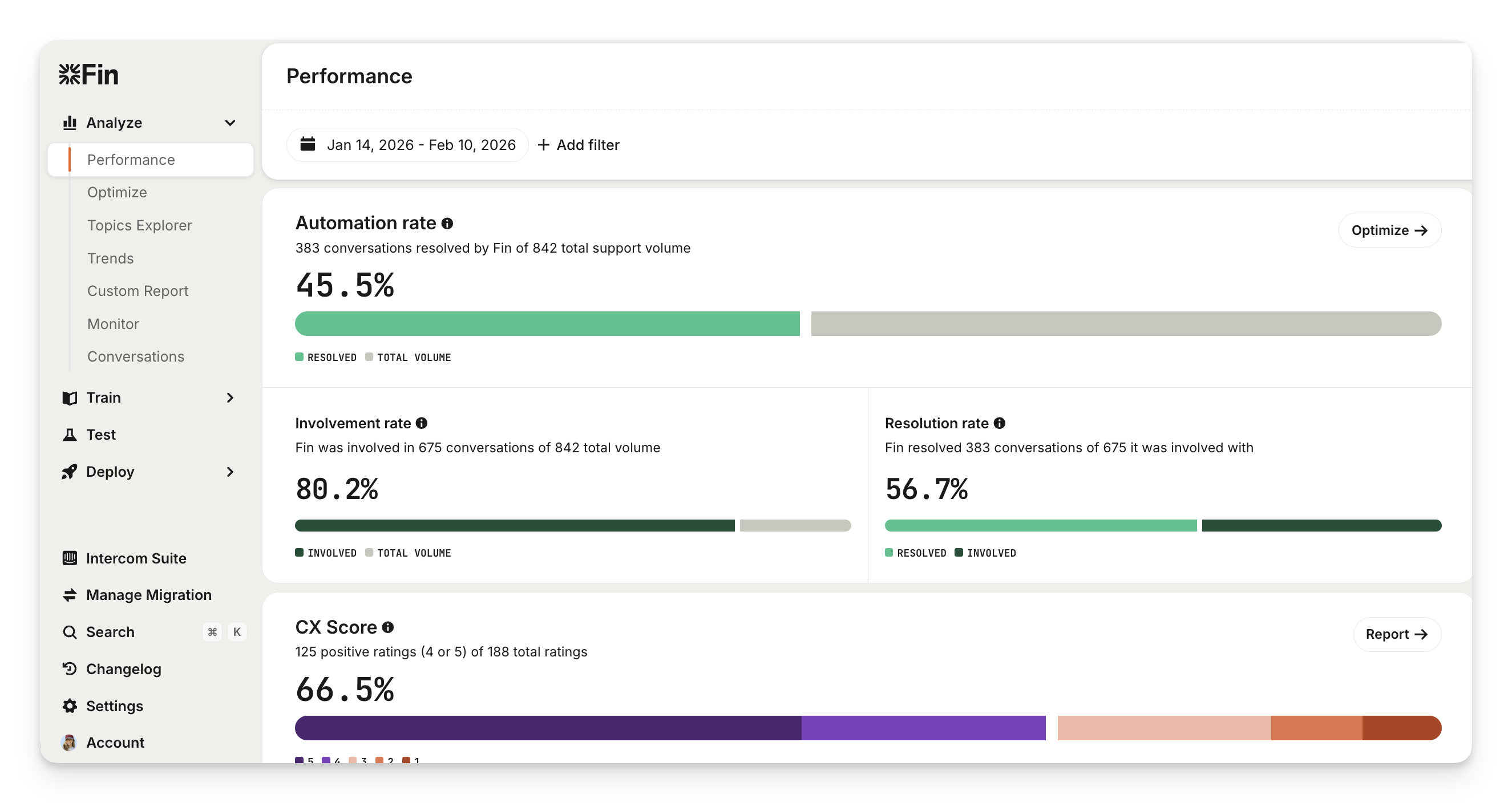
Since all tickets that Sweo is involved in are captured on Zendesk, you can report on them using your reporting tools directly in Zendesk.
You can also track Sweo’s performance and receive targeted improvements to optimize Sweo using Insights.