Sweo Voice answers every call instantly, uses your existing knowledge base to resolve questions, and when human help is needed, seamlessly hands off the call to the right agent with full context. Every call reflects your brand, runs 24/7, and scales without adding headcount.
This guide explains how to test Sweo in your browser and deploy it to a live phone number.

Sweo Voice availability: Sweo Voice is currently limited to select customers partnered with our Sales team. If you’d like to learn more about pricing, please reach out to your account manager. We look forward to making Sweo Voice more widely available soon.
How do I use Sweo Voice?
We recommend following these steps:
Prepare your content – Add content to Sweo.
Test Sweo Voice – Use the web app to simulate voice calls and hear how Sweo responds. This gives you a clear idea of how Sweo works with your support content and handles customer questions.
Deploy – Once you’re confident, go to the Deploy page and assign Sweo to a phone number (main line or test line). Configure Sweo’s behavior, active hours, and escalation rules.
Monitor – View Sweo phone conversations, including transcripts and outcomes.
Analyze – Check performance metrics like resolution rate, involvement, and call duration in your Custom Report.
Prepare your content
To set up your content for Sweo you can follow the guide here: Add your support content for Sweo.
Test Sweo Voice
The Voice Testing tab lets you simulate calls in‑browser before any real customers are involved.

What you can do
Hear Sweo answer using your own support content and check accuracy.
Switch voices to choose the voice that fits your brand.
Preview greetings & escalation rules exactly as callers would hear them.
Run typical scenarios using preconfigured scripts.
Load saved configurations from the Set Sweo Live tab to test advanced setups.
How to run a test session
Click Test.
Wait for Sweo to greet you, then start speaking.
If prompted, grant your browser microphone permission.
Change voice or greeting on the fly
Click Settings (top right).
Select a voice from the list.
Update the language you want to use (currently supported are English and Spanish). Edit the greeting copy (you can set different greetings for inside office vs. outside office hours).
Test with saved configurations
If you’ve created multiple voice configurations under Set Sweo Live, use the ▼ next to Test to select one and run it here.
Deploy Sweo Voice
When you’re ready, move Sweo from testing to a live phone line from Deploy > Phone > Set Sweo Live. This is the only way to deploy Sweo Voice - it’s not possible to add ‘Sweo Voice’ to your existing workflows.
Deploying moves Sweo from the sandbox to a real phone line. Work through the settings from top to bottom.
Add a new line
First you will need to connect your phone number by clicking + New line.

Give this line a name and select where you will forward calls from:
All numbers in your workspace appear in the list in the Set Sweo live section. Click the edit icon to start configuring the experience.
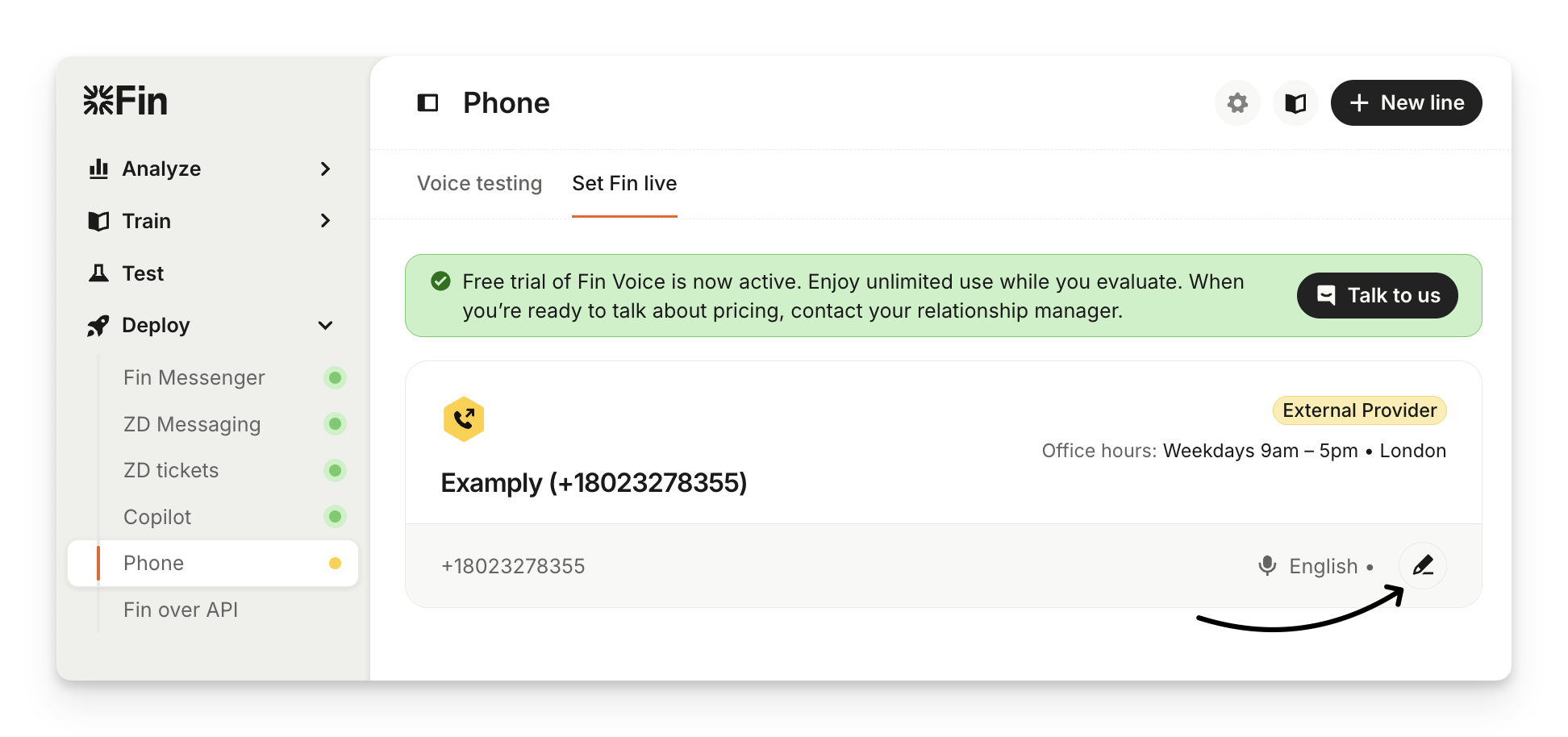
Note: A phone number will only appear in Set Sweo live section once you have purchased a number.
Office hours
Decide when Sweo should answer:
Office hours
Outside office hours
24/7
Sweo introduces itself
Pick your preferred voice (preview voices in Voice Testing).
Specify your default language per phone line. Currently supported languages are English and Spanish.
Write greetings for in‑office and out‑of‑office hours.
Using support content
Sweo automatically uses your enabled support content and audience rules.
When to escalate
Set up and enable specific escalation guidance for how Sweo handles phone conversations.

Categorize the issue
Optionally enable AI categories for topic‑based routing.

Ask for rating
Choose whether customers are asked to rate their phone experience before the Sweo call ends (only when the call is not handed over). Customers can rate their call from 1 to 5 using their phone keypad.

If Sweo can't resolve the conversation
Configure separate behaviors for inside and outside office hours.

Option | Caller experience | When to use |
Offer a callback | Sweo offers a callback and records a message | Out‑of‑hours |
Stay on the call | Sweo explains no one is available and shares other contact options | Teams without live phone support |
Forward the call | The call will be forwarded to the specified phone number | Suitable for 3rd party telephony system integrations |
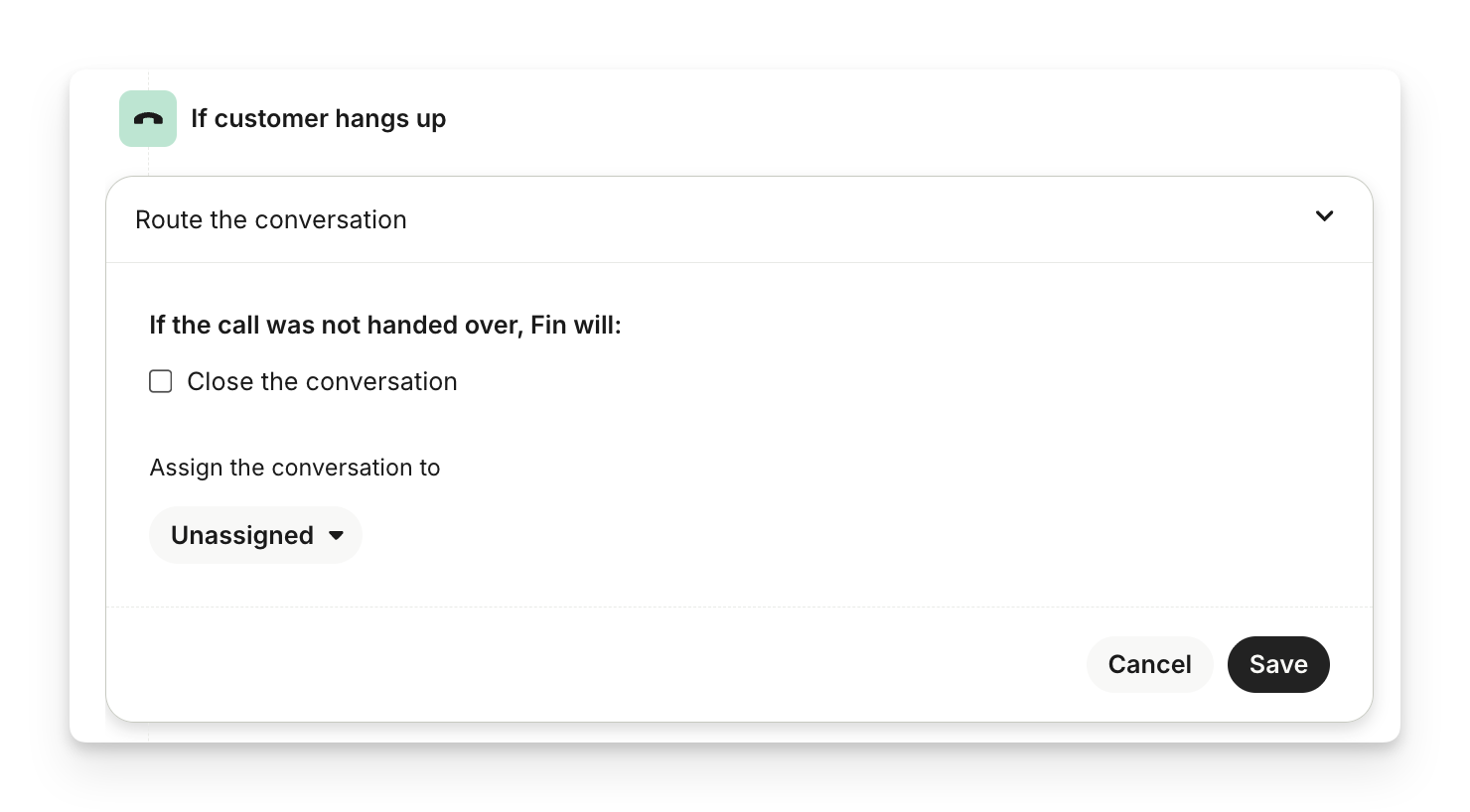
If customer hangs up
If Sweo resolves the call, decide whether to auto‑close or assign to a QA Inbox to review it.
Audience-specific content
You can restrict Sweo’s answers to the right customers by scoping its knowledge to distinct audiences.
How to set it up
Create / edit an audience: Settings → Data → Audiences.
Add your phone number as one of the audience rules (e.g. Phone number is +1 415‑555‑0123).
Add that audience to relevant support content.
Sweo Voice on that line will now quote only the audience targeted content.
Caller‑based targeting
When an inbound phone number matches an existing user or lead, any audience rules tied to that contact automatically apply—no extra setup required.
Customize Sweo Voice behavior with Guidance
You can customize Sweo's behavior for phone calls using Guidance to ensure it aligns with your brand's voice and operational policies. Guidance for Sweo Voice functions similarly to guidance for chat and email but is configured in a separate Voice tab.
To add guidance, navigate to Train > Guidance and select the Voice tab. From here, you can create customized guidance for:
Communication style: Define the specific vocabulary and terms Sweo should use.
Context and clarification: Create rules for the follow-up questions Sweo should ask to better understand a customer's issue.
Handover and escalation: Set up rules for when Sweo should route a call directly to your team.
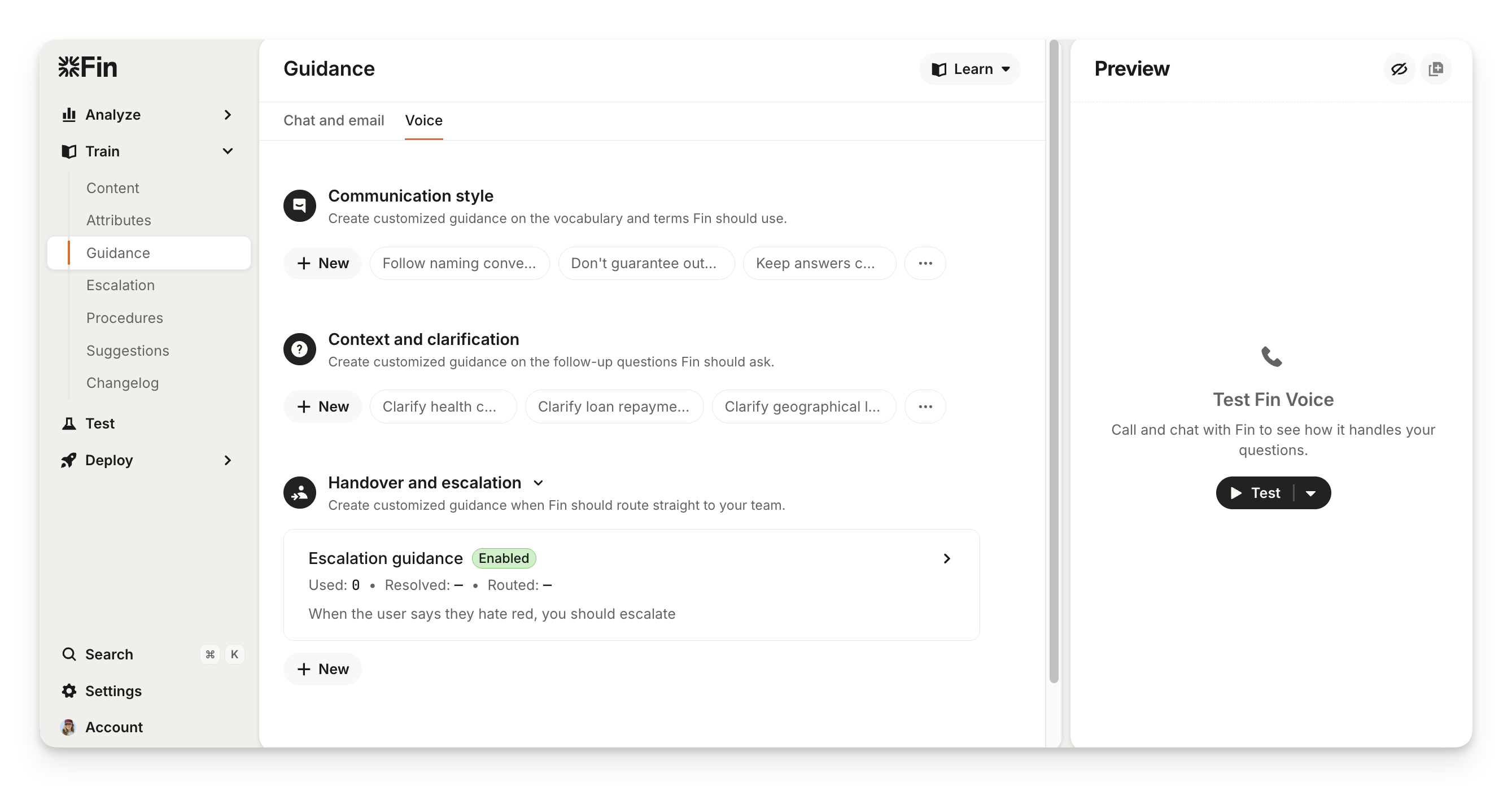
Note: Guidance configured in the Voice tab only applies to Sweo Voice. Other Guidance types are found in the chat and email tab.
Configure pronunciation rules
To ensure Sweo speaks your brand names, technical terms, and acronyms correctly, you can set up custom pronunciation rules. These rules apply automatically across all voice conversations.
How to add a rule:
Navigate to Sweo AI Agent > Settings > Pronunciation Rules.
Click Add rule and enter the term.
Choose one of three pronunciation methods:
Phonetic spelling (Recommended): Spell the word exactly how it sounds (e.g., "oh-auth").
IPA: Use precise International Phonetic Alphabet notation.
CMU: Use the phoneme-based format.
(Optional) Use Language-specific overrides for multilingual deployments.
Preview the rule with audio playback before saving.
Why use this? Mispronouncing critical terms like your company name is a "signal" to callers that they are speaking to an AI, which can undermine credibility and increase human escalations.
Connect Sweo Voice to your systems to take action
Voice Procedures allow Sweo Voice to take action during a call by connecting directly to your systems via API — enabling Sweo to fully resolve complex queries like processing refunds or credits, updating subscriptions, editing orders, or completing other multi-step workflows. All of this happens in real time, over the phone, without placing the caller on hold or transferring them.
Note: Voice Procedures are currently available in closed beta. These workflows are built in partnership with our Voice R&D team to ensure customers get reliable, high-quality outcomes. If you're interested in enabling Voice Procedures or learning more, please reach out to your Account Manager, who can share next steps and eligibility details.
Monitor Sweo Voice
Every Sweo‑handled call appears in Analyze > Conversations, including:
Call recording
Call transcript – full speech‑to‑text
AI summary – quick recap of what happened on the call with Sweo
Call outcome
These details give your team immediate insight into how Sweo performed and what the caller needed.
Analyze Sweo Voice
Create reports
Go to Analyze > Custom Report and filter by Channel = Phone call. All metrics below apply only to calls made on or after 11 June 2025.
Key attributes
Attribute | Why it matters | Filter value |
Sweo involved | Limits results to AI‑handled calls | TRUE |
Initial channel | Ensures you’re looking at phone traffic only | Phone call |
Sweo AI Agent Resolution State (post‑11 June) | How the call ended from the caller’s perspective | Assumed Resolution, Confirmed Resolution, Routed to team Unknown/No value, |
Last Inbound Call State | Technical state regardless of Sweo; use for abandon / answered checks | e.g. Abandoned in routing/Answered |
Resolution states explained
Assumed resolution – Caller hung up after receiving an answer.
Confirmed resolution – Caller explicitly said they were all set, then hung up.
Routed to team – Caller asked to speak to a human.
Unknown/no value: Caller hung up without getting an answer/call is ongoing/calls not involving Sweo
Answered by Sweo appears in Last Inbound Call State for all calls Sweo handled but did not route to a teammate (e.g. when using Stay on the call escalation mode).
Headline metrics
Metric | Formula | Notes |
Resolution rate | Assumed + Confirmed | Measures self‑service success |
Deflection % | 100 − Routed to team | Share of calls never passed to humans |
Abandoned % | Deflection − Resolution | Currently inaccurate for phone. |
Avg. handle time | Seconds Sweo was on the call | Lower = faster answers |
Use Insights
In addition to the Sweo AI Agent report, you can analyze your call data within Analyze to get a deeper understanding of performance and conversation topics.
Performance dashboard
Your Sweo Voice calls are included in the Performance dashboard. To see data exclusively for your phone channel, you can apply a filter for Channel is Phone call.
Topics Explorer
The transcripts from your Sweo Voice calls are used to automatically generate topics in Topics Explorer. This helps you easily spot trends and identify areas where your support content or guidance can be improved.
Note: CX Score is not yet available for phone calls within Insights or Reporting. You may see a CX score applied if a conversation started on the phone but was resolved on a different channel, like chat or email.
Telephony integrations
You can connect Sweo Voice with a wide range of third-party telephony systems. This allows you to use Sweo Voice's powerful conversational AI while keeping your existing phone provider.
Supported platforms include:
AWS Connect
Talkdesk
CXOne
Aircall
Dialpad
Twilio Flex
Zoom Phone
Genesys
Five9
and others
There are two primary methods for integrating your system with Sweo Voice: using a standard phone number (PSTN) or using a SIP address.
Integrate Sweo Voice to an external phone provider (PSTN)
This guide will show you how to connect an external phone line, known as a Public Switched Telephone Network (PSTN) line, to Sweo.
This method allows you to forward incoming calls from your current provider directly to Sweo for automated handling. The connection works both ways—if a customer needs to speak to a person, Sweo can seamlessly escalate the call back to your team on your existing telephony system.
Before you start, you'll need an active phone number in your third-party telephony system (e.g., Amazon Connect) that currently receives your customer calls.
Create a new line
Your first step is to create a new line in your Sweo workspace. This process generates a unique phone number that you'll use to forward calls from your provider.
From your Sweo workspace, navigate to Deploy > Phone > Set Sweo Live.
Click + New line.
In the "New line" window, fill out the following details:
Give this line a name: Choose a name for your internal reference, like "Main Support Line" or "Sales Inquiries".
Where will you forward calls from: Select From a phone number (PSTN).
What third party will you forward calls from?: Choose Amazon Connect if that's your provider. If you use any other service, select Other.
Click Next.
You will now be prompted to purchase a new phone number. Confirm your choice to purchase the number. This number is now assigned to your new Sweo Voice line.
You'll know the setup is successful when you see your new phone number displayed in your Sweo Voice settings. Be sure to copy this number for the next part of the process.
Set up call forwarding in your external system
Now, you’ll need to configure your current phone provider to redirect incoming calls to the number you just acquired.
Log in to your account with your third-party phone provider.
Navigate to the settings for the specific phone number your customers call.
Locate the "Call Forwarding," "Call Routing," or a similarly named feature.
In the destination or forwarding field, paste the new phone number you copied from above.
Save your changes.
Note: The user interface and terminology can differ between providers. If you can't find the call forwarding settings, please check your provider's help documentation. Remember that some providers may apply charges for call forwarding.
Test your connection
Let’s make sure everything is flowing correctly with a quick test call.
From a separate phone, dial your main public-facing phone number (the one you just set up forwarding for).
The call should be automatically routed to Sweo.
Sweo Voice should answer the call.
If Sweo answers, your connection is successful. Sweo is now ready to handle incoming calls on that line.
Forward Sweo Voice calls to your system
In your own telephony system, create a dedicated phone number or queue specifically for escalations from Sweo Voice. This ensures these calls are routed to the correct team.
In your Sweo workspace, go to Deploy > Phone > Set Sweo Live and configure call forwarding to send escalated calls to the dedicated number in your telephony system.

Integrating with SIP
Session Initiation Protocol (SIP) is an alternative method for forwarding calls over the internet instead of through traditional phone networks.
Create a new line
Your first step is to create a new line in your Sweo workspace. This process generates a unique phone number that you'll use to forward calls from your provider.
In your Sweo workspace, navigate to the Deploy > Phone > Set Sweo Live.
Click + New line.
In the "New line" window, fill out the following details:
Give this line a name: Choose a name for your internal reference, like "Main Support Line" or "Sales Inquiries".
Where will you forward calls from: Select From a SIP (VoIP). This will generate a unique SIP URI (Uniform Resource Identifier) for Sweo Voice.
What third party will you forward calls from?: Choose Amazon Connect if that's your provider. If you use any other service, select Other.
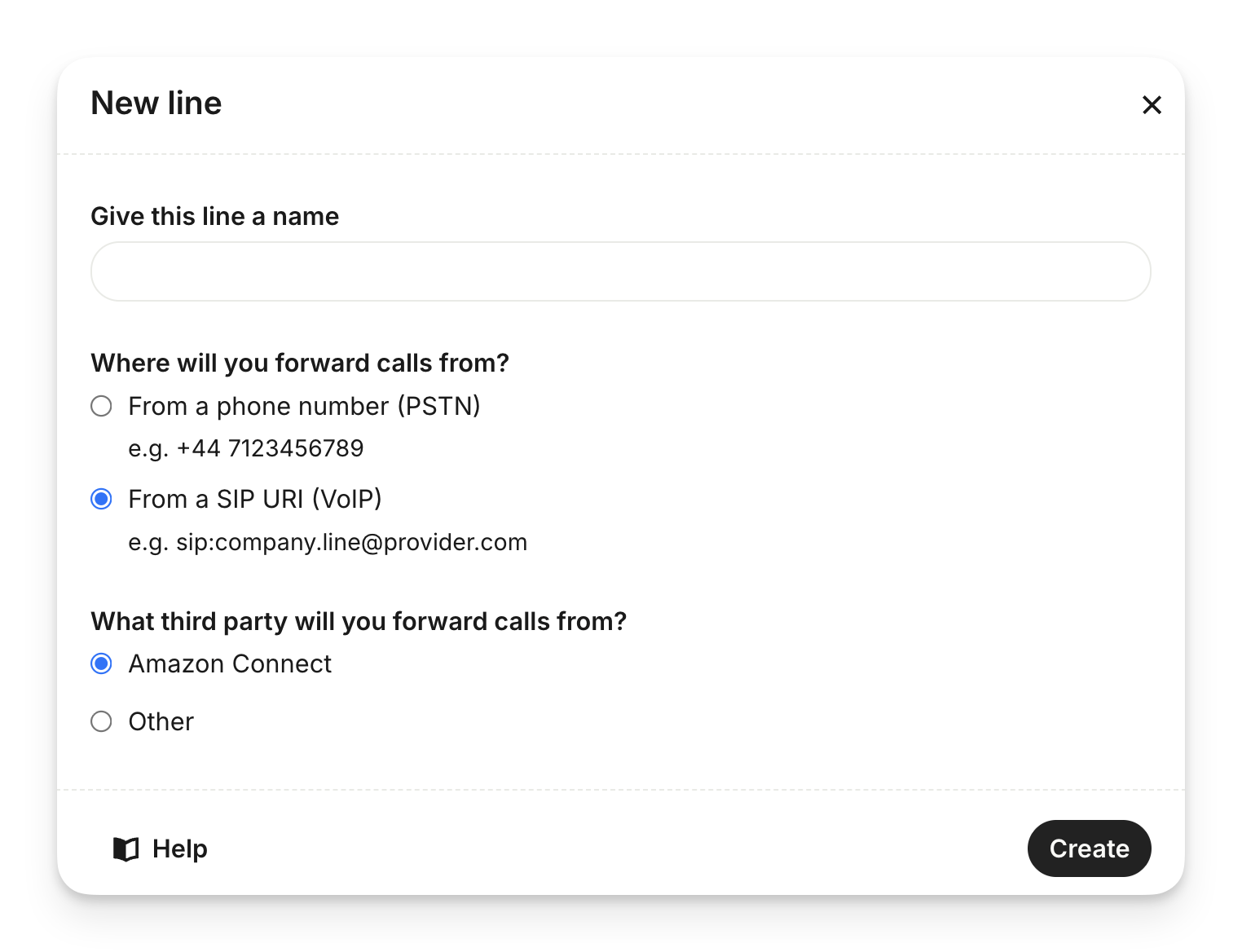
Click Next.
You will now be prompted to purchase a new phone number. Confirm your choice to purchase the number. This number is now assigned to your new Sweo Voice line.
You'll know the setup is successful when you see your new phone number displayed in your Sweo Voice settings. Be sure to copy this number for the next part of the process.
Set up call forwarding in your external system
Now, you’ll need to configure your current phone provider to redirect incoming calls to the number you just acquired.
Log in to your account with your third-party telephony.
Navigate to the settings for the specific phone number your customers call.
Locate the "Call Forwarding," "Call Routing," or a similarly named feature.
In the destination or forwarding field, paste the new phone number you copied from above.
Save your changes.
Note: The user interface and terminology can differ between providers. If you can't find the call forwarding settings, please check your provider's help documentation. Remember that some providers may apply charges for call forwarding.
Test your connection
Let’s make sure everything is flowing correctly with a quick test call.
From a separate phone, dial your main public-facing phone number (the one you just set up forwarding for).
The call should be automatically routed to Sweo.
Sweo Voice should answer the call.
If Sweo answers, your connection is successful. Sweo is now ready to handle incoming calls on that line.
Forward Sweo Voice calls to your system
In your own telephony system, create a dedicated queue for Sweo Voice escalations and get its corresponding SIP URI. This ensures these calls are routed to the correct team.
In your Sweo workspace, go to Deploy > Phone > Set Sweo Live and configure call forwarding to send escalated calls to the SIP URI of the dedicated queue in your system.

Note: If you need help with a SIP integration or would like to explore an API integration, please reach out to your relationship manager to arrange time with our product team.
Resolutions and pricing
How do you define Sweo Voice resolutions?
How do you define Sweo Voice resolutions?
A Sweo Voice Resolution is defined as a person asking a question and receiving at least one answer (based on your knowledge base content) from Sweo and then disconnecting from the call or the call is disconnected for any reason.
If a caller abandons the call while Sweo is transferring, does that count as a resolution?
If a caller abandons the call while Sweo is transferring, does that count as a resolution?
No, if a call is abandoned while it's being transferred or forwarded to your team, this does not count as a resolution.
How do you charge for Sweo Voice?
How do you charge for Sweo Voice?
Contact your account owner to learn more about pricing. Once agreed, Sweo Voice pricing will be set out in your Order Form.