Sweo now responds in a way that feels even more natural, human, and effective. These improvements enhance how Sweo interacts with your customers, when and how it escalates to your team, and how answer sources are presented.
These improvements don't impact your Sweo settings or existing handover rules and escalation guidance.
Sweo is conversational
Sweo now uses more natural, text-message–like language that feels friendly, empathetic, and helpful. It answers in its own words, rather than quoting your articles verbatim. This conversational style has also been extended to Sweo's email responses, aligning the email experience more closely with Messenger interactions for a consistent user experience.
These updates help conversations feel more open and human, encouraging customers to share additional context so Sweo can give better, more tailored answers.
In addition:
Sweo is now ~10% less verbose, giving customers shorter, more efficient answers.
Sweo will occasionally ask follow-up questions to clarify the customer's situation. Additionally, Sweo's feedback requests (asking if the answer was helpful) are now generated dynamically by its language model, allowing for more natural and contextual prompts that follow your Guidance settings.
Customers can still:
Indicate that Sweo has answered their question by responding positively (e.g., “That helped,” “Yes,” or “OK, thanks”).
Indicate that Sweo has not answered their question by responding negatively (e.g., “No”). When customers reply “No,” Sweo will ask for more information and refine its answer. If the issue remains unresolved, Sweo will offer to connect them with a human agent.
See the FAQs for further information on how resolutions are counted.
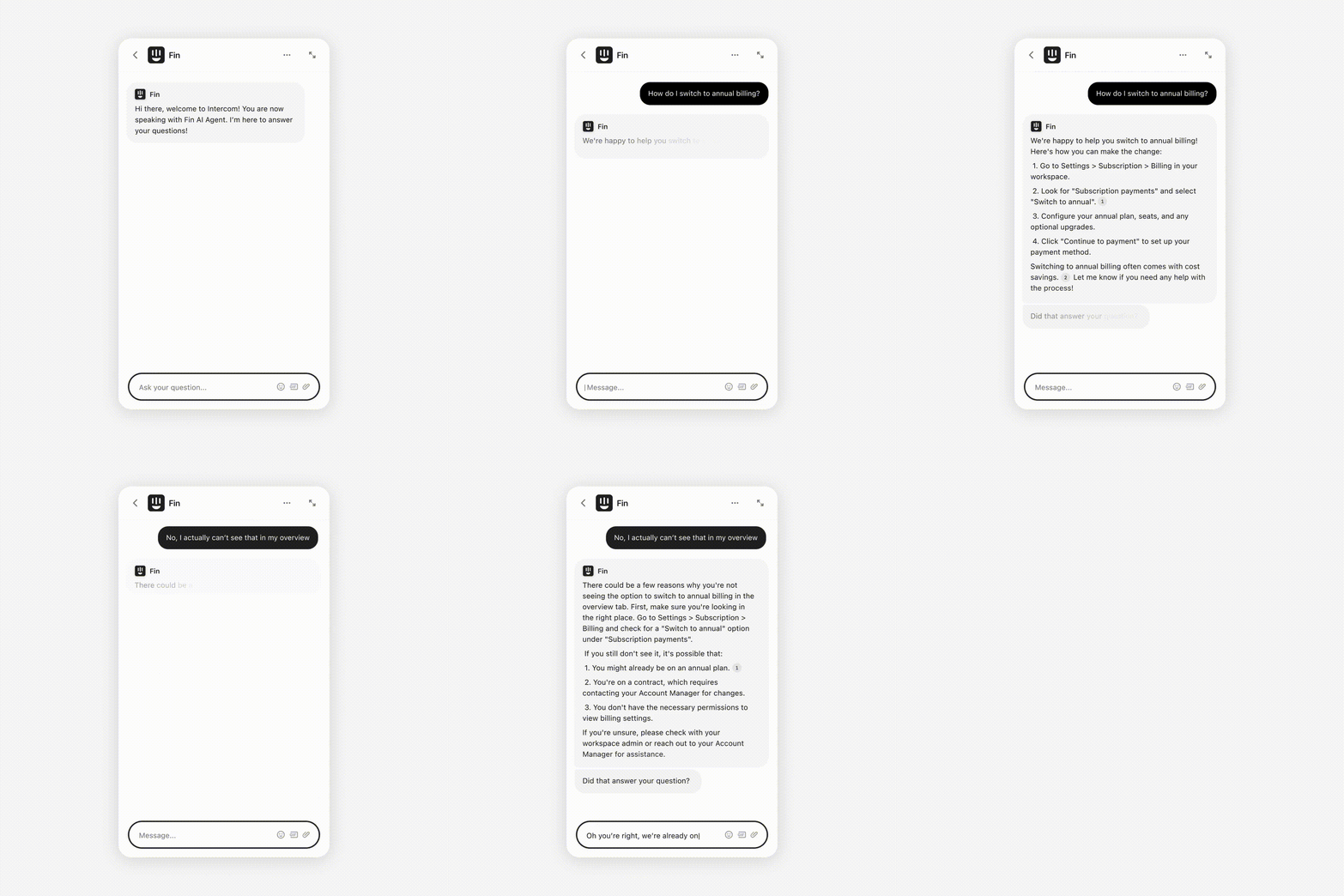
Feedback requests follow Guidance
Sweo's feedback requests after direct answers are now generated by its language model rather than using hardcoded strings. This means:
Feedback questions can be contextual and varied (e.g., "Did that solve the knowledge bases issue?" or "Was that helpful for getting back to work?")
They automatically follow your Guidance settings, including tone of voice and language formality.
Sweo won't send a feedback request if the direct answer already contains an inline question.
You can still use the "question mark trick" in Guidance to customize or replace these feedback requests.
By default, Sweo biases toward asking "Is that what you were looking for?" on the first attempt and "Did that answer your question?" on subsequent attempts, but can adapt based on conversation context.
Escalation uses natural language
Sweo now uses conversational language to handle escalations smoothly and intuitively. Customers can simply say things like “Can I talk to someone?”, and Sweo will guide them through a friendly, natural handoff.
Sweo may also proactively offer escalation when it detects frustration, repeated loops, or a request for human support.
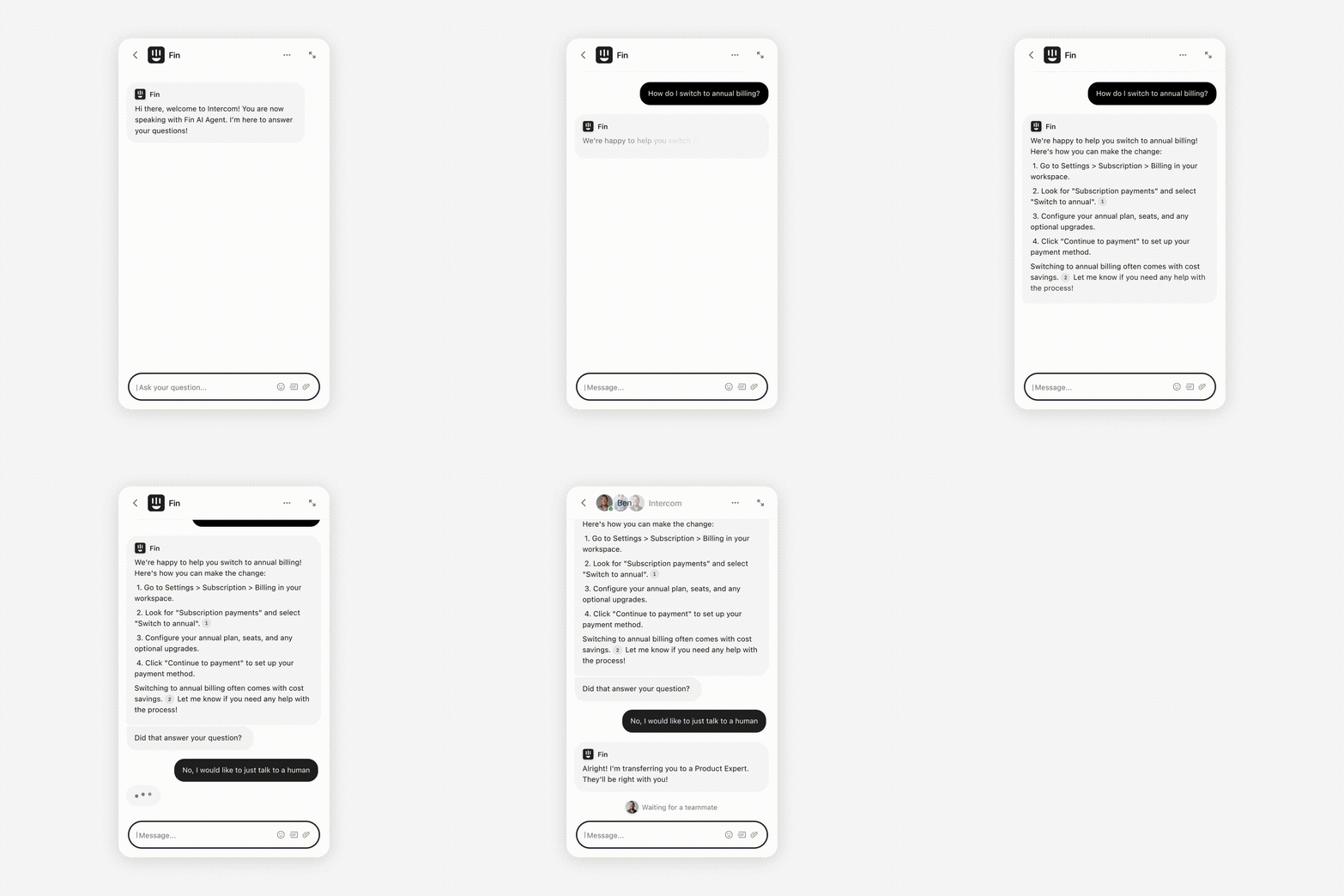
Sweo determines when to offer or directly escalate based on the category of the customer’s message:
Category | Sweo Behavior |
Escalation Rule / Guidance | Escalation Rules and Guidance take precedence over other categories.
For example, if your Escalation Rule states to do so, Sweo escalates directly instead of offers to escalate. |
Request | If the customer clearly requests human support, Sweo escalates directly. |
Angry | If the customer is angry, Sweo will offer to escalate. |
Loop | If the customer is stuck in a loop, Sweo will offer to escalate.
Note: A loop is considered to be 3 rounds of replies, where a customer repeats themselves without adding additional information. |
How | If the customer asks how to speak to the human support team, Sweo will offer to escalate. |
Keyword | If the customer says things like “agent” or “support” Sweo will offer to escalate. |
Escalation will not be offered if
The customer asks about phone support or requests a phone number. In this case, Sweo will respond based on the information available in your knowledge base, like any other informational query.
Sweo has already offered to escalate in the previous AI answer. In this case, Sweo will either escalate if the customer confirms the request, or continue with a regular response otherwise.
Tip: You can still control and customize when Sweo must handover to a teammate using Escalation Rules and Guidance. These will take precedence over other escalation pathways mentioned above. For example, you can configure keywords such as "bug" or "urgent issue" to trigger immediate escalations, allowing better handling of critical customer needs.
Source links will now show inline
Sweo will include source links directly in the answer it gives, so customers can quickly review the information and trust where it’s coming from, without needing to scroll to the bottom of the message.
Note:
Inline sources will appear over Sweo Messenger (chat) and email.
Sources will not be shown in Sweo's answers over social channels (including WhatsApp, Instagram, and Facebook).
Email responses have been further refined to remove static footers, enhancing the overall natural and conversational tone.
Sweo can follow up with customer conversations
If a customer hasn’t responded after Sweo provides an answer, Sweo will check in if the customer has been inactive for 4 minutes and see if they still need help.
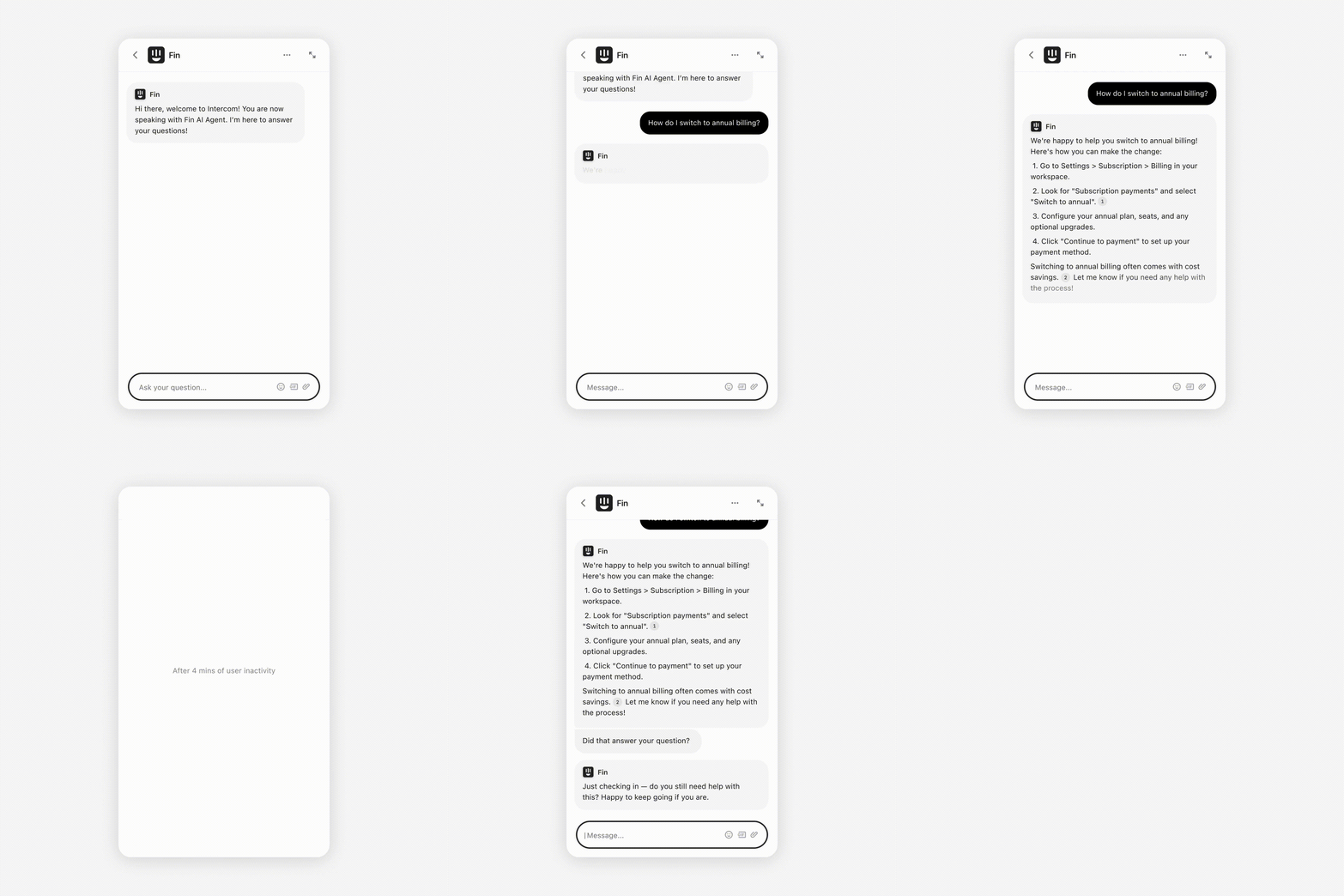
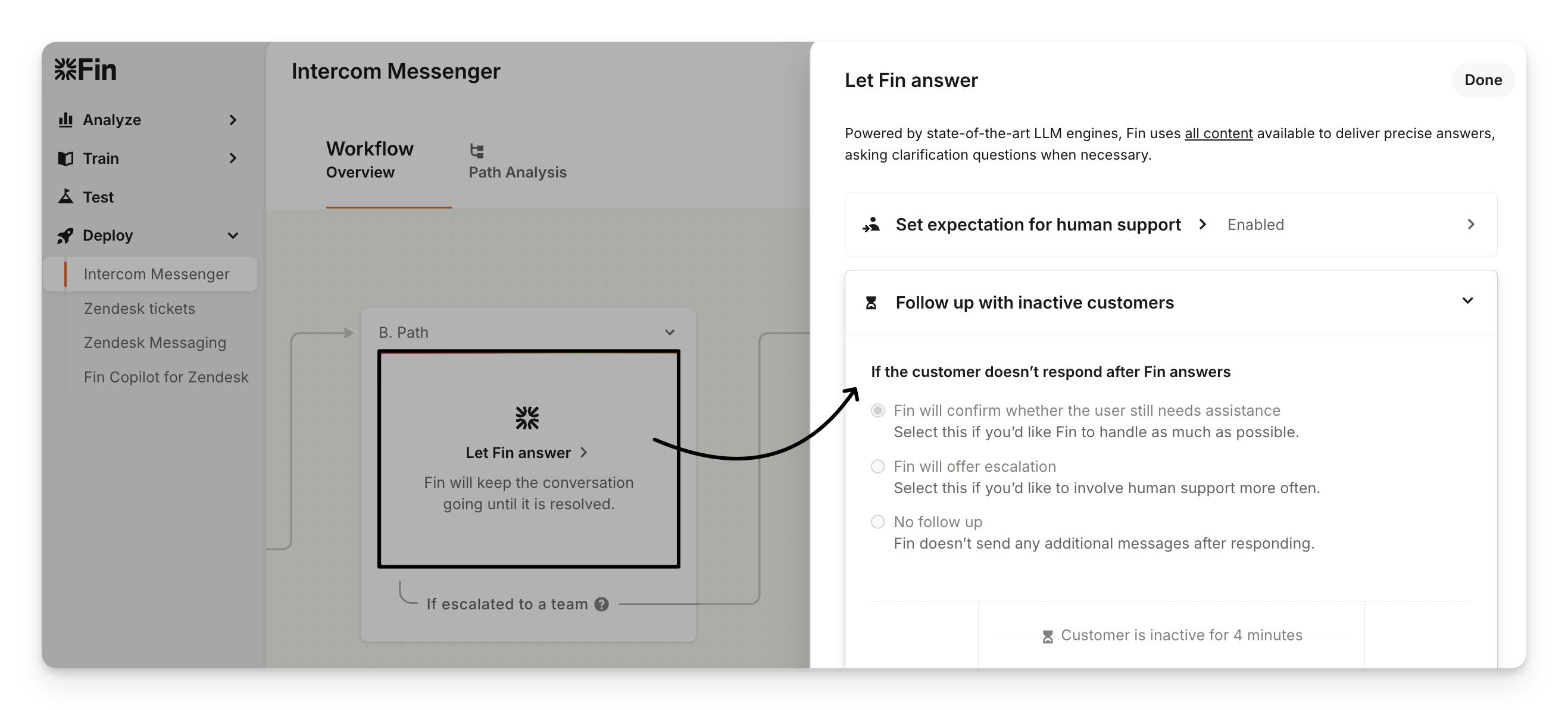
By default, Sweo will check in with the customer, but this is fully configurable. You can:
Follow up configuration options | Reason to use |
Option 1: Have Sweo check in with the customer (Default Setting)
| Select this if you’d like Sweo to handle as much as possible. |
Option 2: Have Sweo check in with the customer and offer escalation to human support as part of this message | Select this if you’d like to involve human support more often. |
Option 3: Turn it off entirely | Select this if you don’t want Sweo to send any additional messages after responding. |
This setting is configured in the Let Sweo handle step in workflows.
If the customer still hasn’t replied after Sweo has followed up, Sweo can send a close out message if you’ve configured this in your settings.
FAQs
Why have quick reply buttons been removed?
Why have quick reply buttons been removed?
Sweo’s conversational design works best without rigid button flows, helping customers share more context and receive more relevant answers. (Workflow reply buttons remain available.)
How are resolutions counted?
How are resolutions counted?
A resolution is counted when a customer either confirms their question was answered by replying to Sweo (a confirmed resolution, such as 'That helped, thanks'), or exits the conversation without requesting further assistance (assumed resolution).
Resolutions will not be counted if the customer indicates their issue is not resolved, such as follow-up questions or requests to speak with a person.
How does Sweo make conversations feel more human?
How does Sweo make conversations feel more human?
Sweo now uses a more natural, empathetic tone and responds in its own words. It may ask occasional follow-up questions to better understand the customer’s situation, creating a more human experience. Sweo also remembers the context of the conversation, so customers don’t have to repeat themselves.
What happens if a customer doesn’t respond after Sweo’s answer?
What happens if a customer doesn’t respond after Sweo’s answer?
By default, if a customer doesn’t respond after Sweo answers their question, Sweo will gently check in after 4 minutes to ensure they received the help they needed. If there’s still no reply, Sweo may send a closing message or offer to connect the customer with a human agent, depending on your setup.
How to configure:
Go to the Deploy section and edit your Sweo workflow.
Click the Let Sweo handle step and look for the "Follow up with inactive customers" section.
Can I still configure Sweo Escalations?
Can I still configure Sweo Escalations?
You can still control and customize when Sweo must handover to a teammate using Escalation Rules and Guidance. For example, you can configure keywords such as "bug" or "urgent issue" to trigger immediate escalations, allowing better handling of critical customer needs. This allows you to refine escalation processes for specific scenarios or thresholds.