The Box content integration enables you to import existing content from Box into Intercom. In just a few clicks, you can empower Sweo and Copilot with the knowledge your team already relies on.
Fast & Easy Sync – Seamlessly import your Box content into Intercom in minutes, so your team and AI tools can start using it right away.
Choose What Matters – Stay in control by selecting exactly which documents to sync, ensuring Sweo taps into only the most relevant information.
Always Up to Date – Keep everything fresh with simple resyncs, so any updates in Box are automatically reflected in Sweo.
Note: Synced content from Box will be added as external content and will be made available to Sweo and Copilot by default.
Sync content from Box
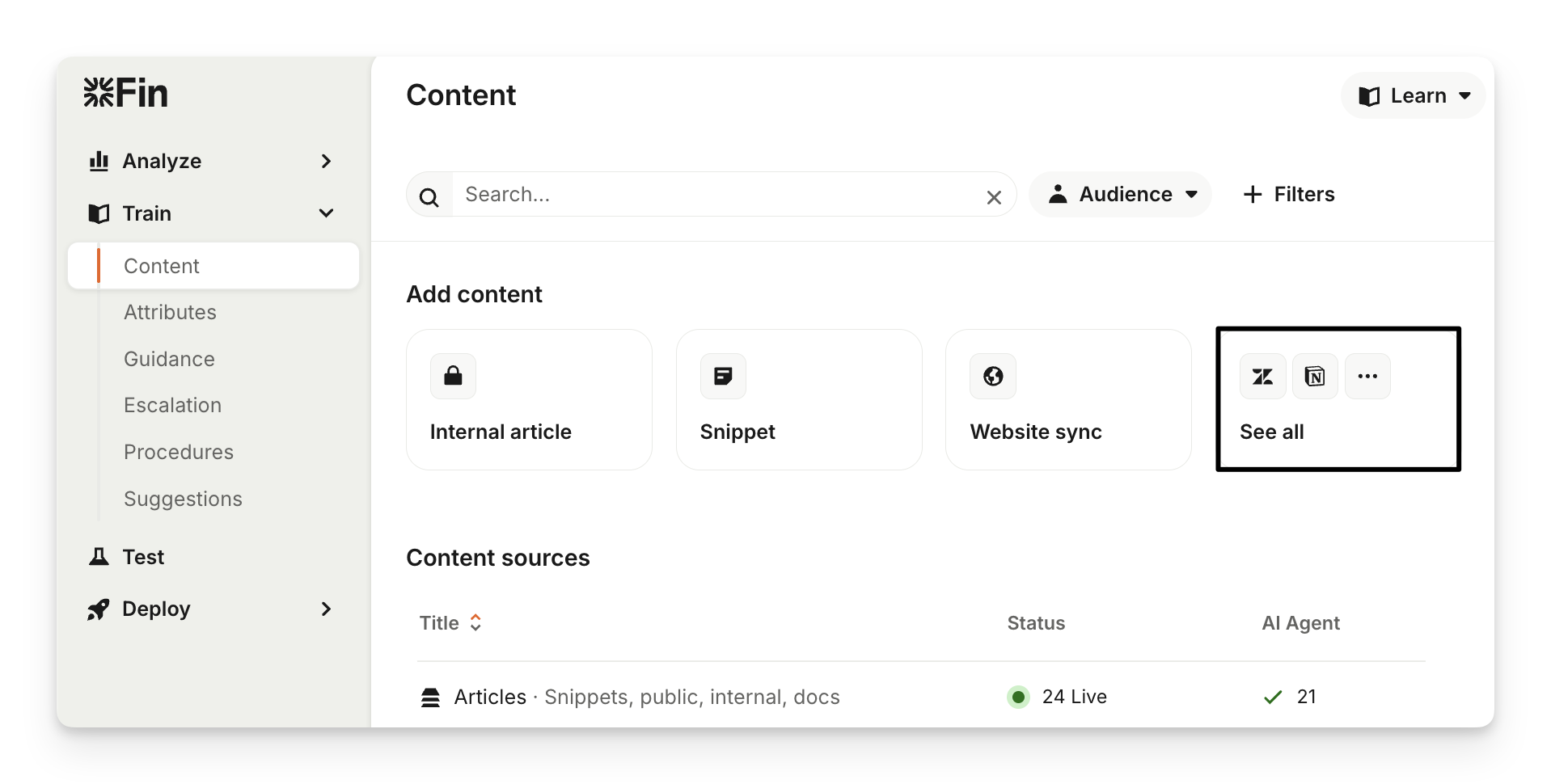
To set up your Box content sync, go to Train > Content and click See all then choose From Box.
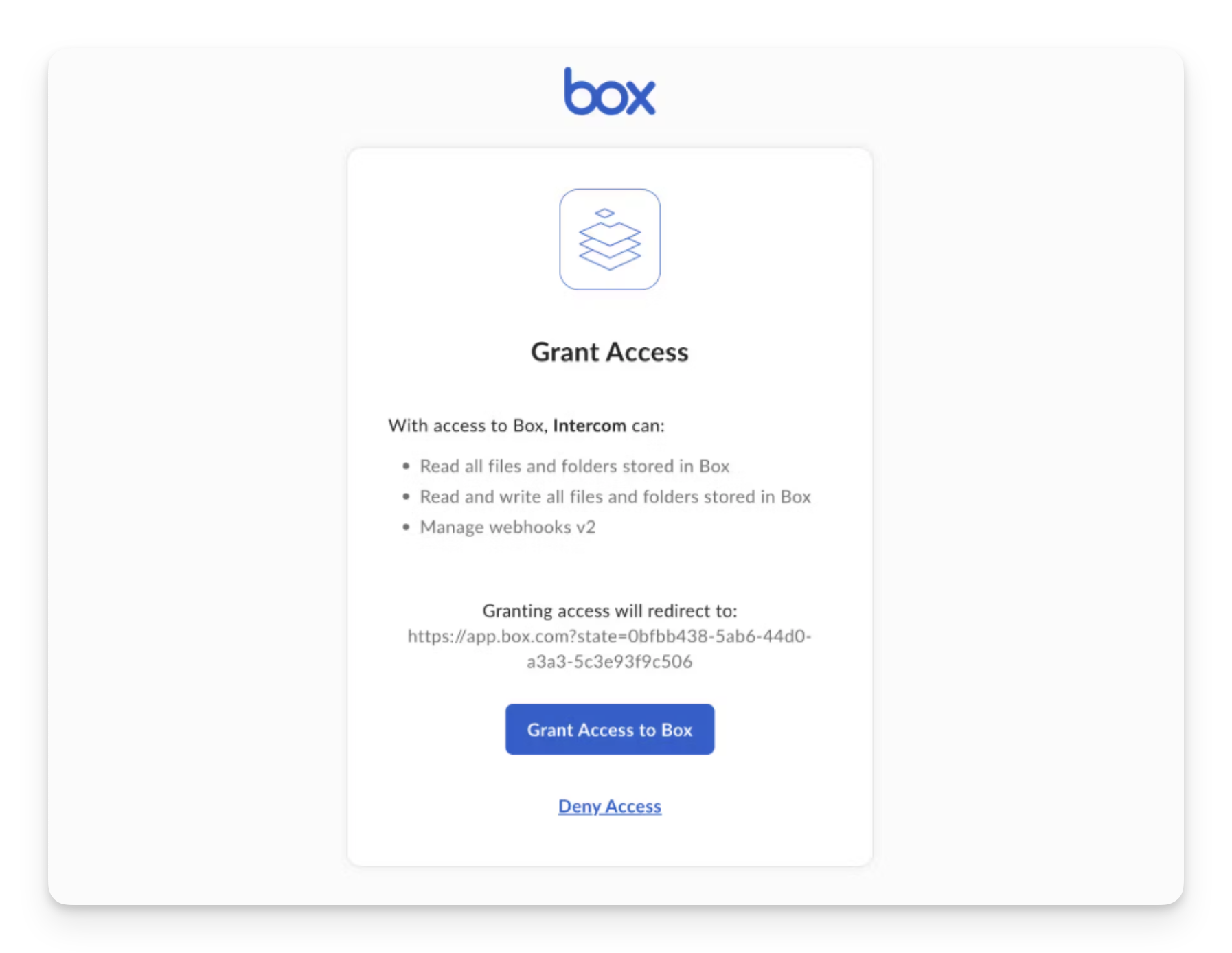
You'll need to log in to your Box account and then select Grant Access to Box.
Next, you can choose folders and files you'd like to import.
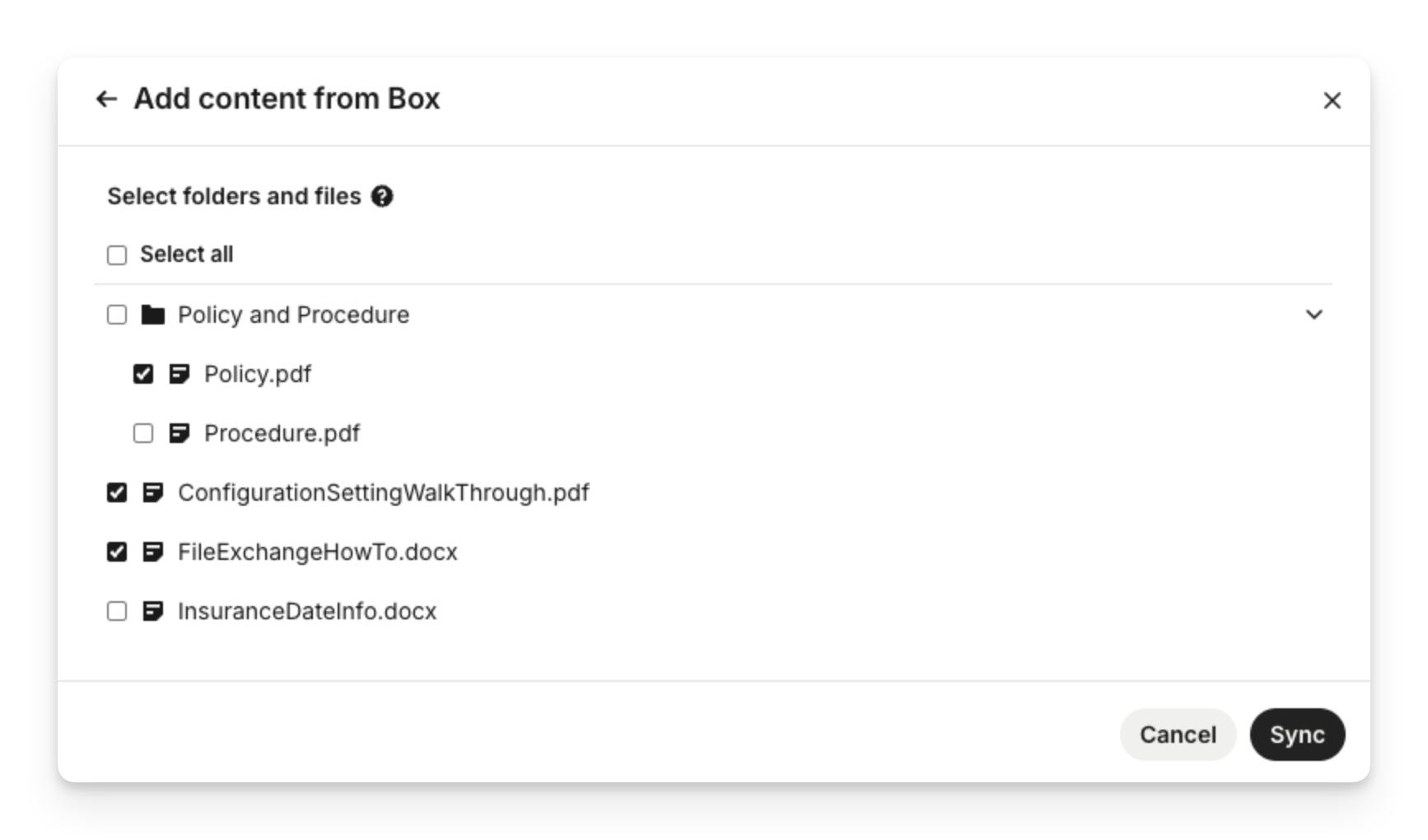
Tip: Use "Select all" or "Unselect all" to easily select all your content in bulk.
Supported Box file types
Sweo currently only supports syncing the following file types from Box:
docx
pdf
md
txt
html
json
csv
Once done, click Sync and your content will start syncing.
Manage synced Box content
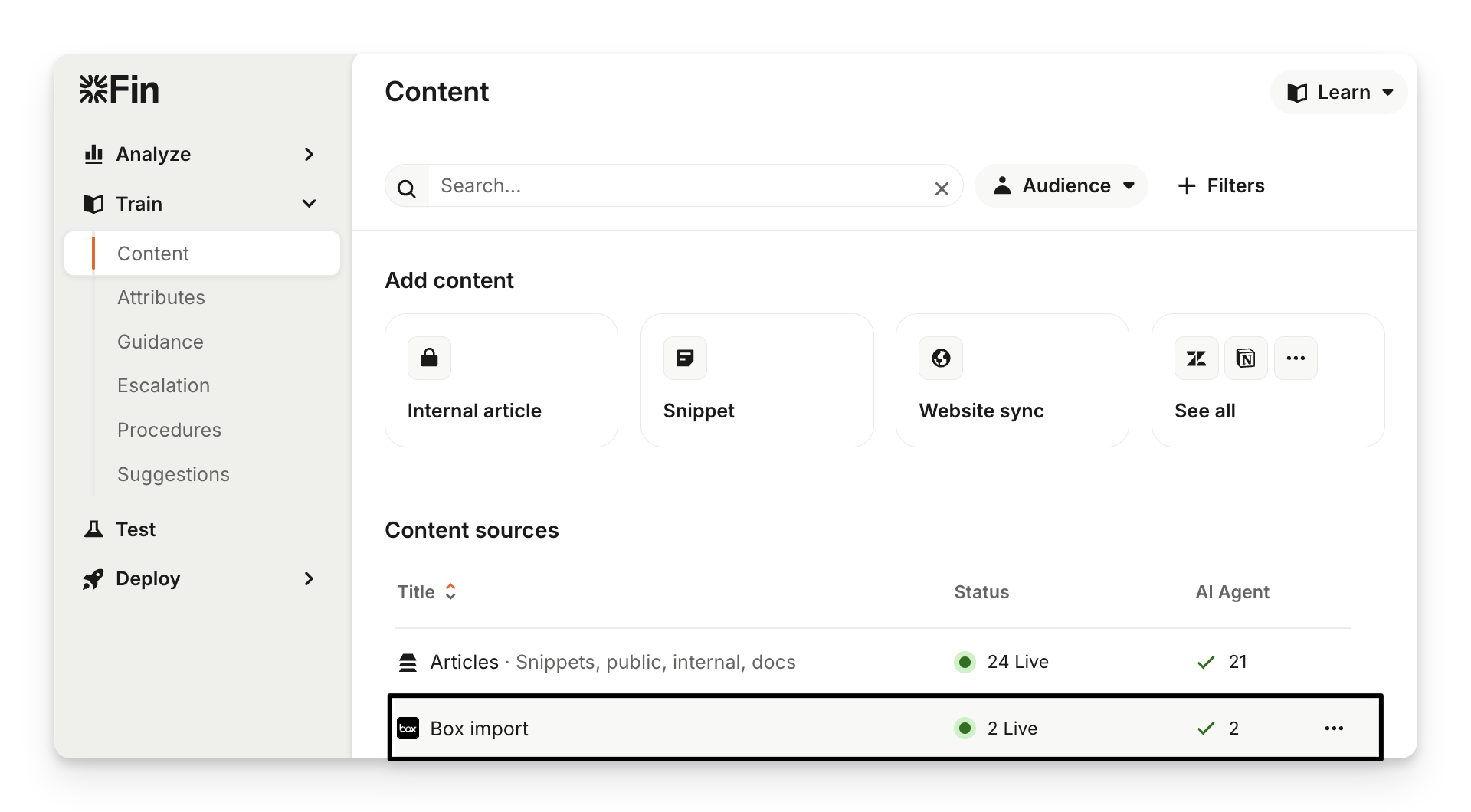
Once the sync is complete, you’ll receive an email notification. All of your Box files will appear in Train > Content below the "Content sources" section.
Configure the settings
To manage Box content, go to Train > Content and click on your Box source under the "Content sources" section, then open the file you want to manage.
There's a "Details" panel on the right which contains:
Data: View the content type, language, creation date, last updated (date it was last synced with Box).
Sweo: Enable/disable for Sweo Agent and Sweo Copilot. When enabled, the content becomes available to customers and teammates, respectively.
Audience: Target your content at a specific audience, so Sweo Agent only shares content that is relevant for them.
Reports: Tracks how often this content is involved and used to resolve conversations by Sweo Agent .
Tags: Add a tag to group files together and keep content organized.
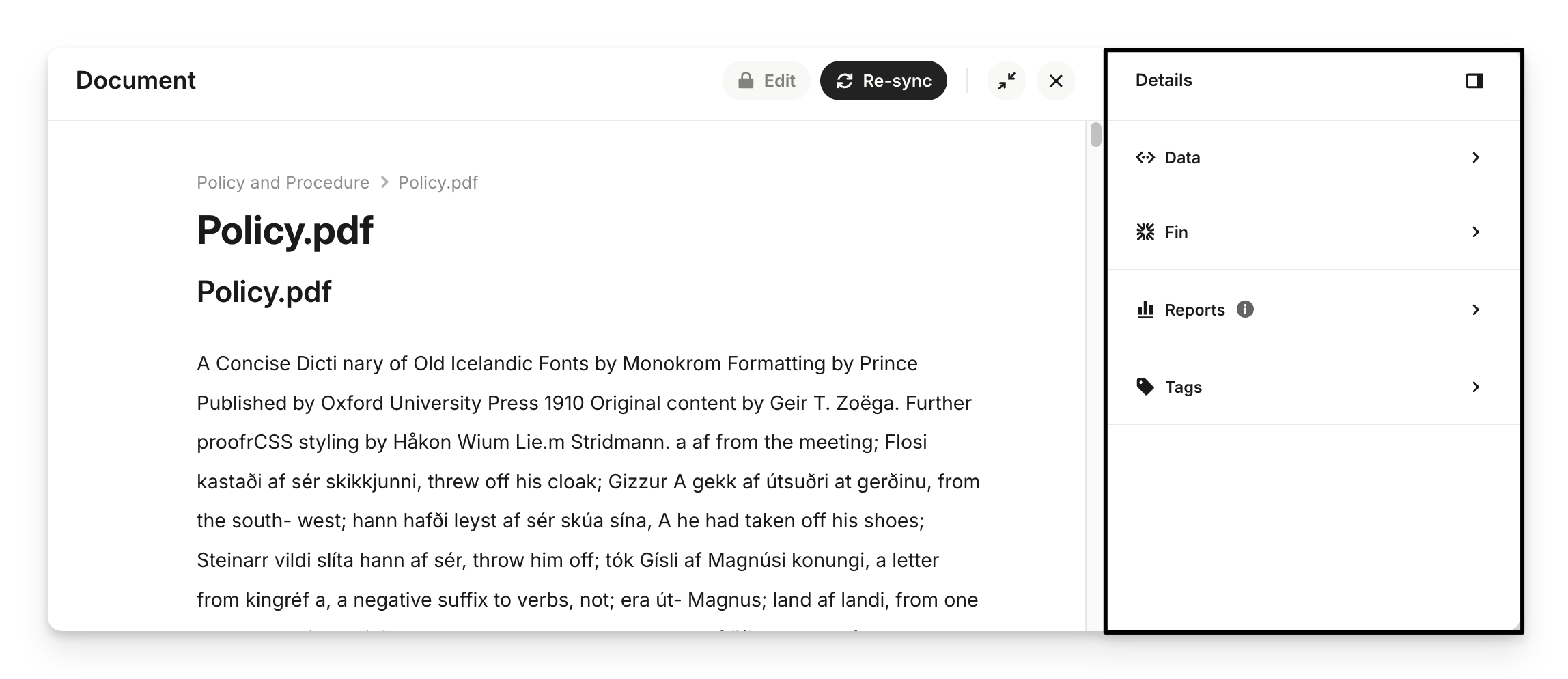
Note: Imported content from Box appears as external content in Sweo which can't be edited, you'll need to edit it from Box.
Re-sync or remove Box content
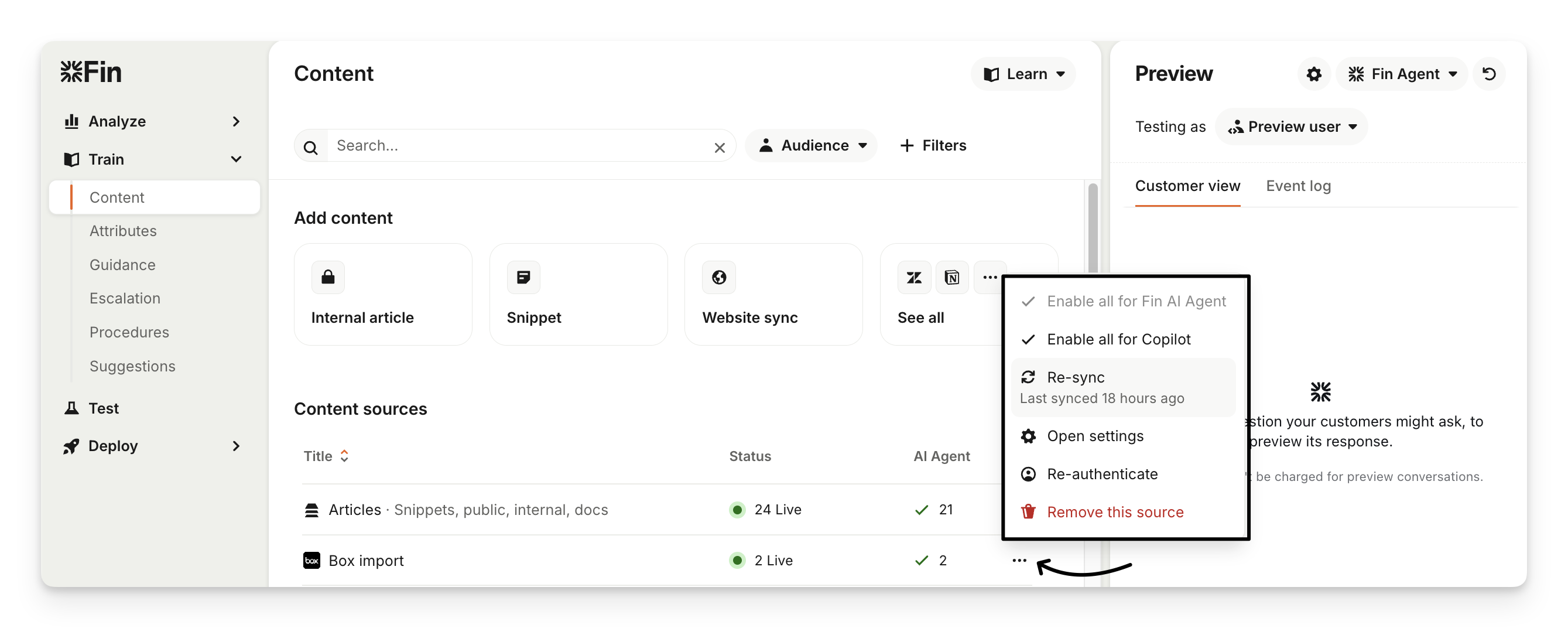
Box files are currently not auto-synced, however, you can manually trigger a re-sync or remove Box content from Train > Content by clicking the 3 dot menu next to this source and selecting Re-sync or Remove this source.