Optimizing Sweo AI Agent is key to maintaining peak performance and ensuring faster, more accurate AI resolutions. Read below to find out the top ten ways to optimize Sweo and how to put them into practice.
1. Track Sweo's KPIs and performance funnel
Keep a close eye on Sweo's performance by going to Analyze > Performance where you'll see the KPIs you should keep track of, including:
Involvement rate
Resolution rate
CX Score
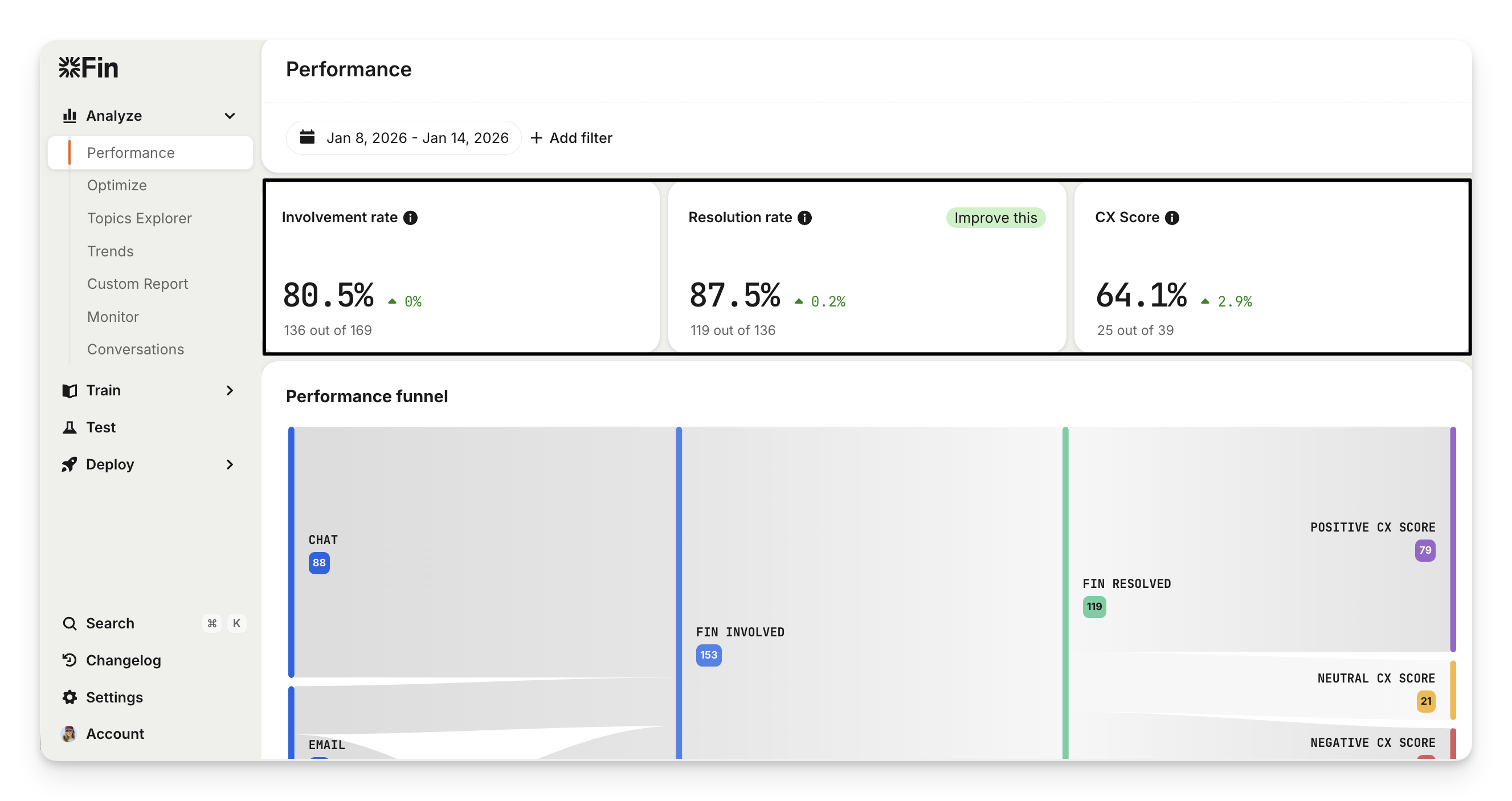
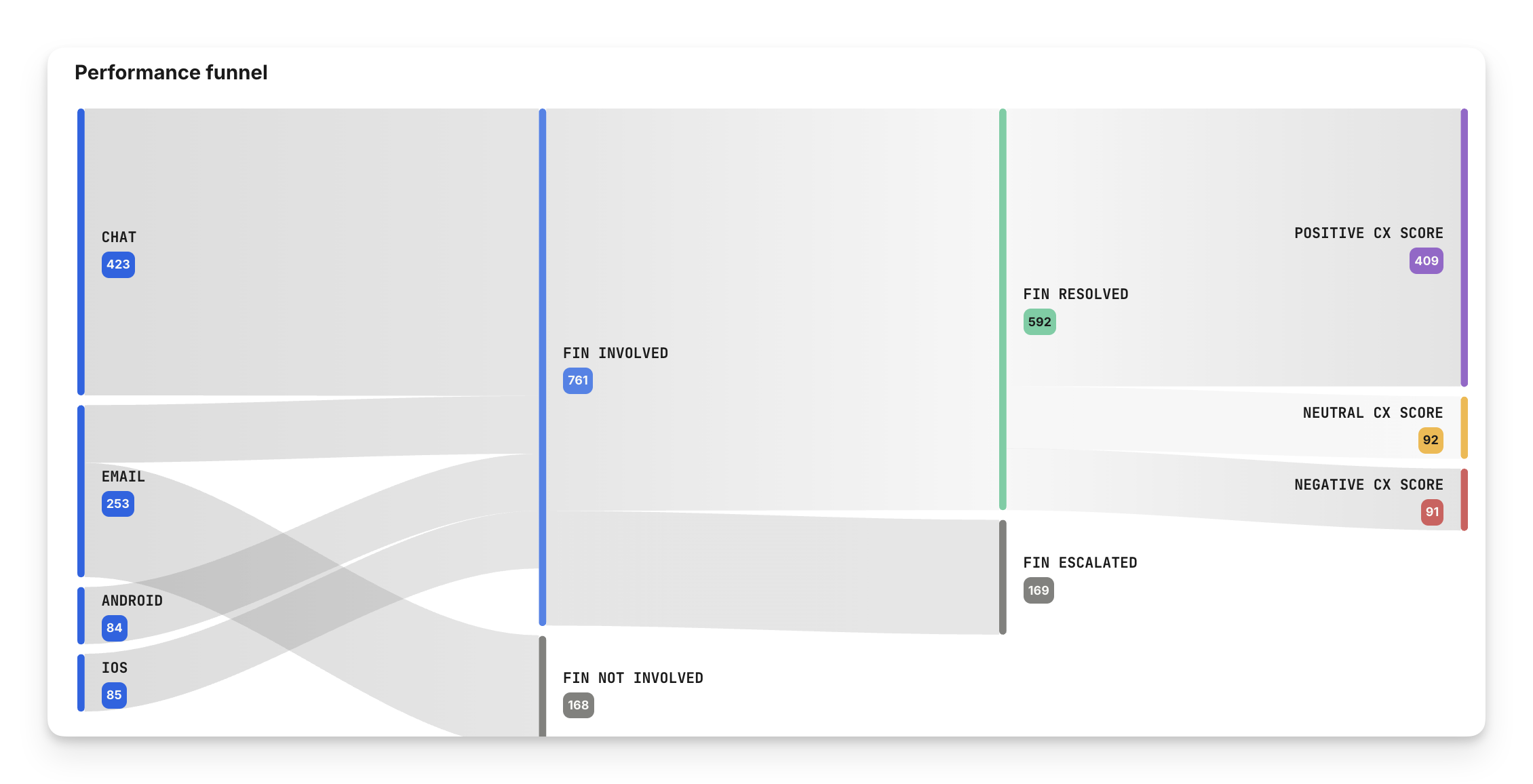
The Performance funnel visualizes how conversations flow through key stages when Sweo is involved. It allows you to quickly understand Sweo's coverage, success at resolving queries, and the customer experience—all in a single, digestible view.
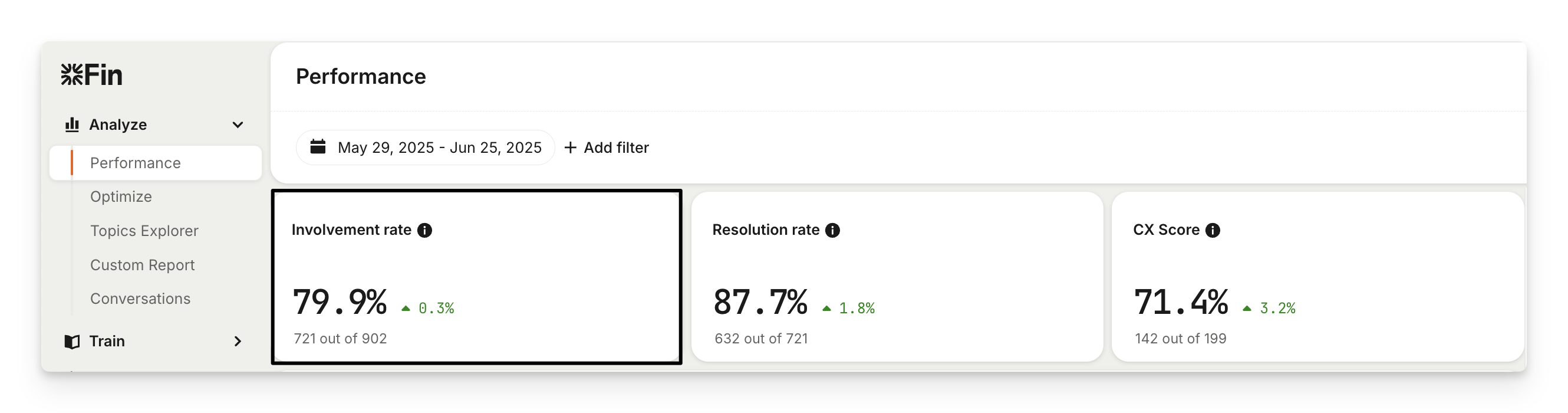
2. Boost Sweo's involvement rate
The Involvement rate chart shows the percentage of your total conversations where Sweo participated.
You can boost involvement rate by getting Sweo involved in more conversations. Visit the Topics Explorer and select Sweo involvement rate to see AI automatically group your support conversations into topics and subtopics. This highlights specific topics where Sweo's involvement is the weakest and needs improvement.
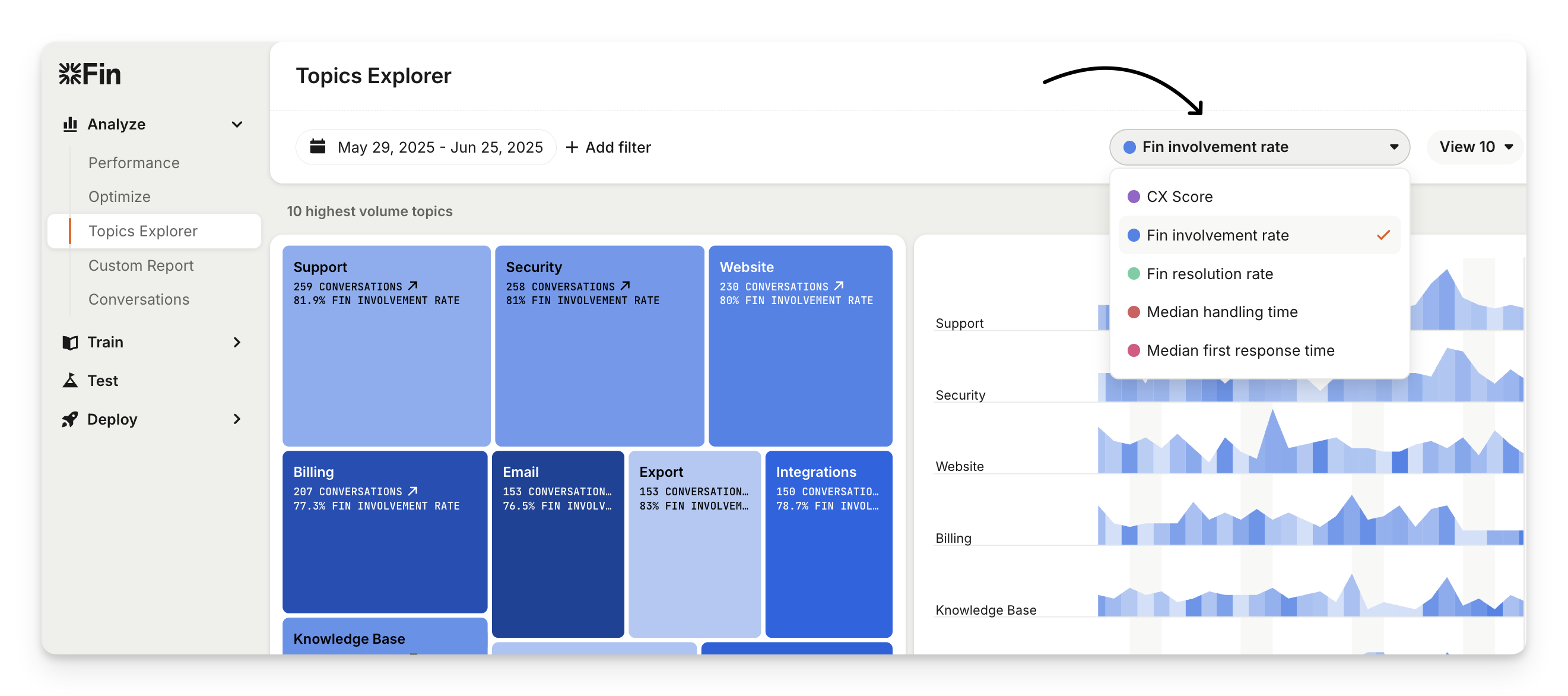
Viewing your support conversations by topics helps you to understand where you can make the most impactful improvements by filling content gaps and using Sweo to handle more of these topics.
3. Boost Sweo's resolution rate
The Resolution rate chart indicates how often Sweo’s answers lead to a resolution, offering insight into the overall health and accuracy of your support content and data.
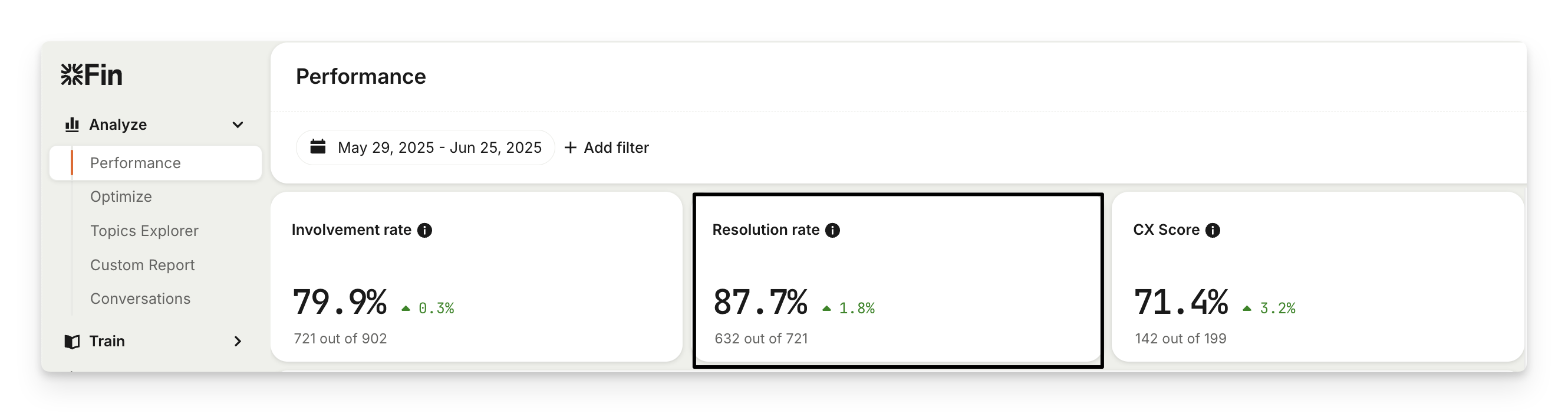
If this rate is steadily increasing, you're on the right track. However, if you notice a decline, go to Analyze > Optimize to identify gaps and opportunities to improve Sweo's resolution rate.
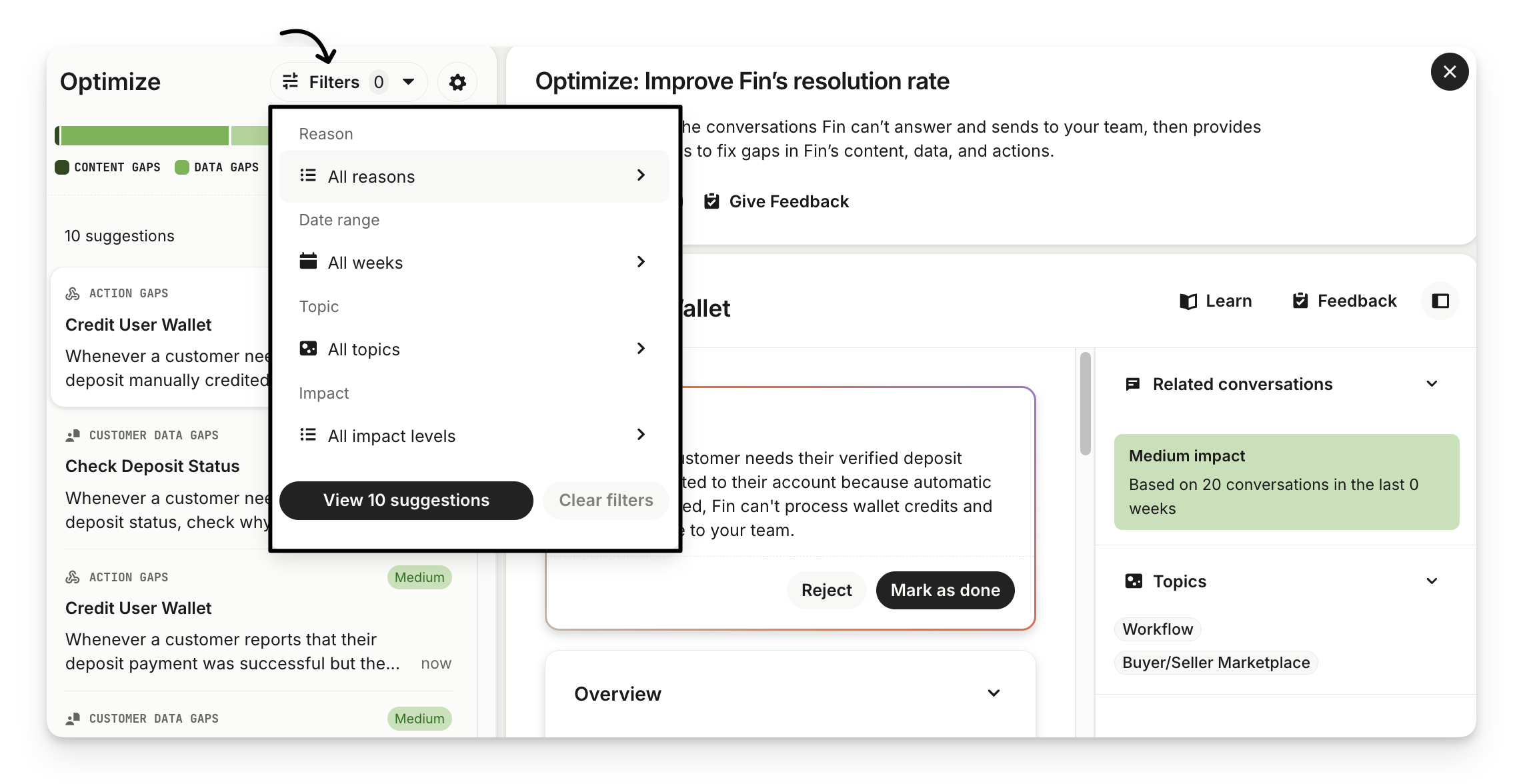
Optimize reviews the conversations Sweo can’t answer and sends to your team, then provides weekly suggestions to fix gaps in Sweo’s content, data, and actions.
You'll be able to filter by reason, date, topic, and impact, and see the conversations which fall under them to understand where to improve Sweo.
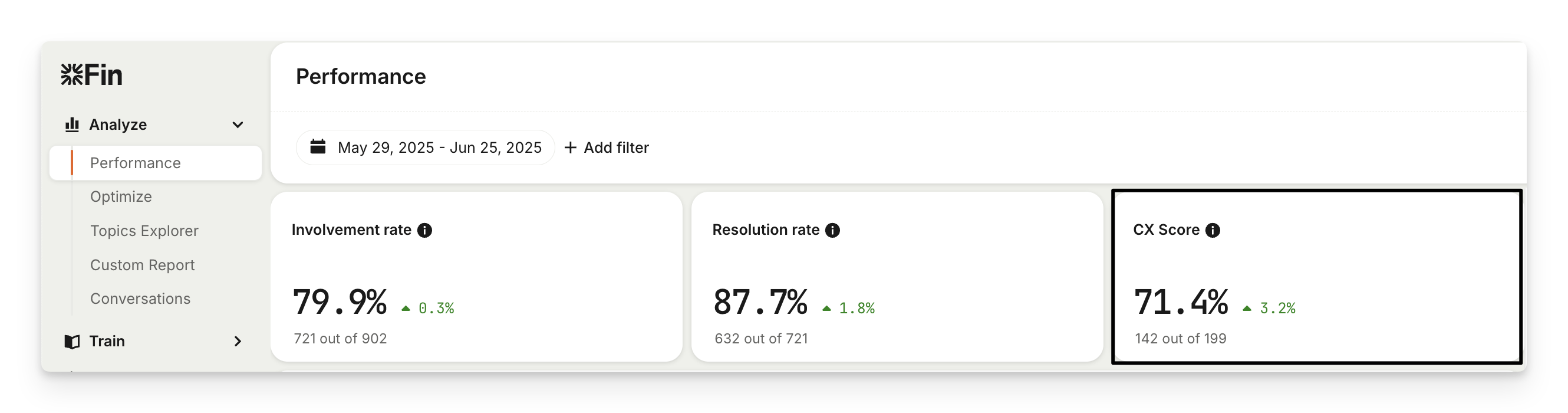
4. Improve Sweo's Customer Experience (CX) Score
The CX Score chart indicates how often Sweo’s answers lead to a positive or negative customer experience.
Get a CX Score analysis by going to Analyze > Performance and view Sweo resolved conversations in the Performance funnel. This breaks conversations down into:
Positive CX Score – Review resolutions that received a positive CX Score to validate where Sweo is doing well.
Neutral CX Score – Review resolutions that received a neutral CX Score to validate where Sweo could be better.
Negative CX Score – Review resolutions that received a negative CX Score and improve the Sweo customer experience.
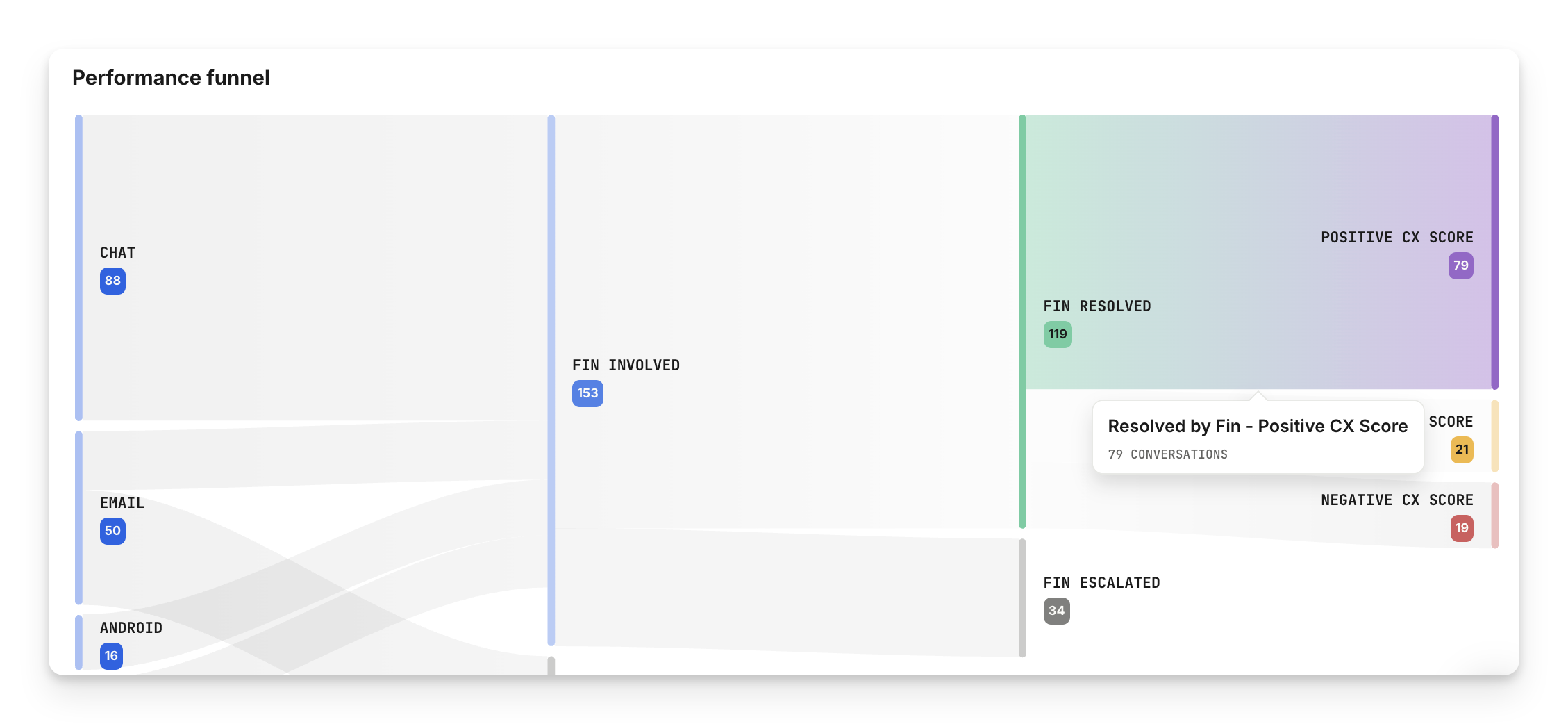
It's encouraging to see positive customer experiences with Sweo, but you can often learn more from negative customer experiences. Drill-in to the Negative Sweo CX to see AI-generated topics and the conversations which fall under them to identify where Sweo's interactions went wrong and address the root cause.
5. Take action with content gap suggestions
View content gap suggestions to see where Sweo couldn’t answer because help content was missing, unclear, duplicated, or contradictory.
For each content gap suggestion, you can:
Review AI-generated create or edit recommendations.
See the exact conversations that triggered the suggestion.
Update public articles or snippets directly to improve future resolution.
6. Review Sweo conversations in real-time
To monitor Sweo’s conversations as they happen, go to Analyze > Conversations.
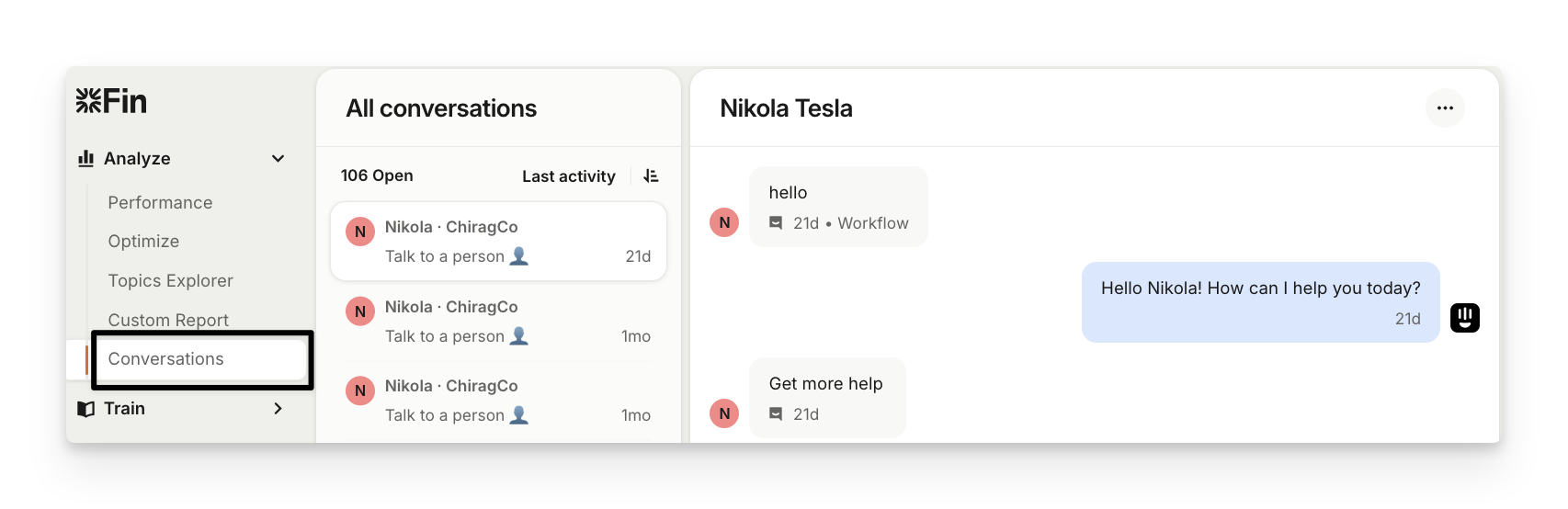
From there, you can view the conversations Sweo is currently handling, the responses it has provided to customers, and any instances where a handover to your team occurred. This is helpful for checking the quality of Sweo’s answers and ensuring that your Sweo settings and routing rules are working as expected.
7. Foster a QA culture among your team
Consider establishing a feedback loop that allows your support team to flag inaccuracies, suggest improvements, and request new content to address knowledge gaps.
One way to achieve this is by creating a simple content request form, enabling teammates to submit these requests. If Sweo provides an unhelpful answer, teammates can review the source and open a ticket to update the content without leaving the inbox or losing valuable time.
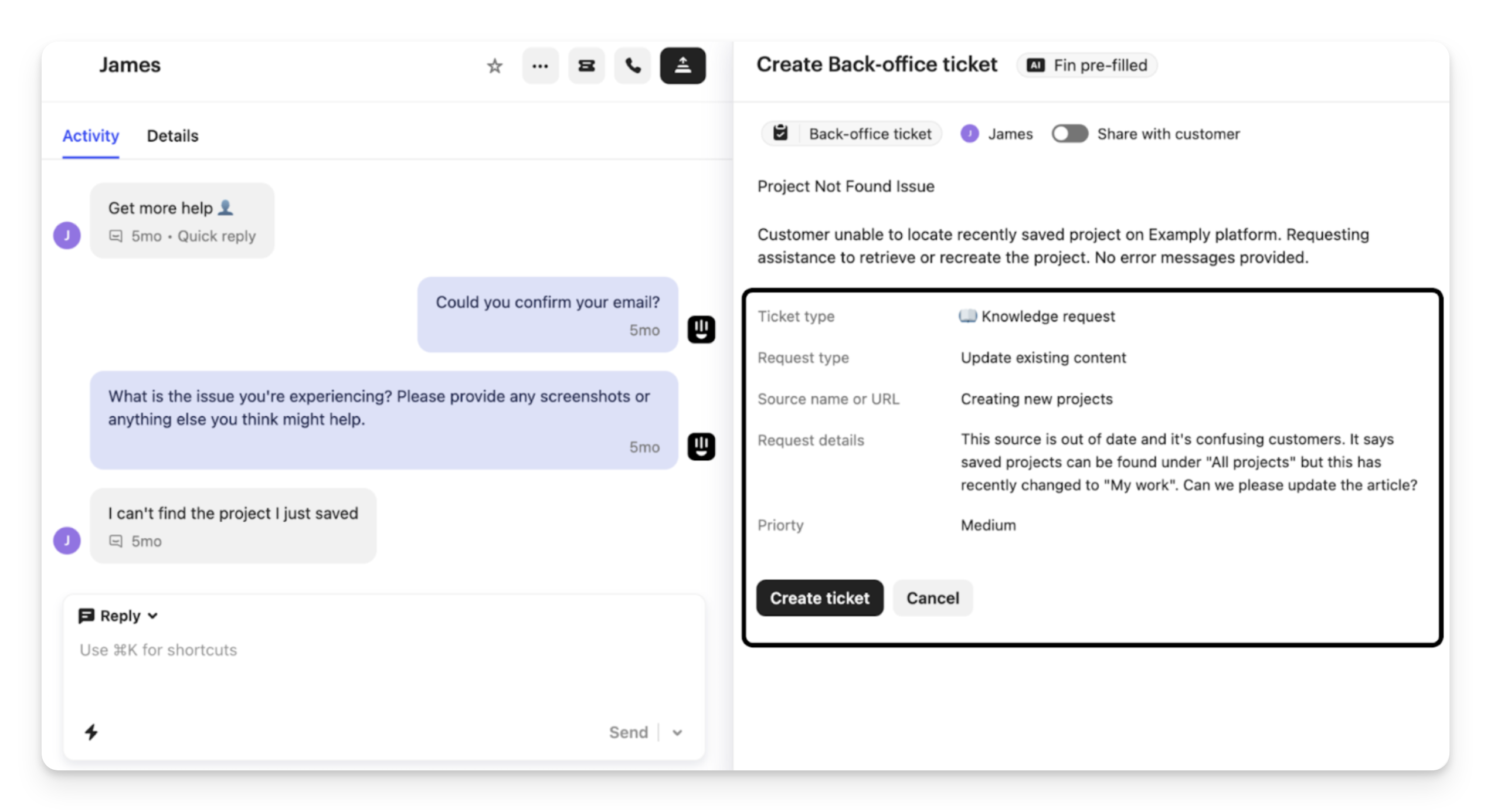
Another option is to ask your teammates to write snippets immediately to address content gaps or update information. Your knowledge manager or team can then review these snippets regularly, incorporating them into main articles and other resources.
These approaches not only streamline the process but also enable teammates to proactively contribute to improving content and Sweo’s performance.
8. See content Sweo uses which doesn't drive resolutions
Within the Custom Report, you can view content performance and check the resolution rate of your content. The "involved" column shows how many times each piece of content was used by Sweo. The "resolved" column shows how many times each piece of content has effectively answered customer questions.
Sort by Sweo AI Agent involved conversations to identify the content referenced most frequently. If the number in the Sweo AI Agent resolved conversations column is significantly lower for a piece of content, it means the information Sweo is using is not providing satisfactory answers to customers.
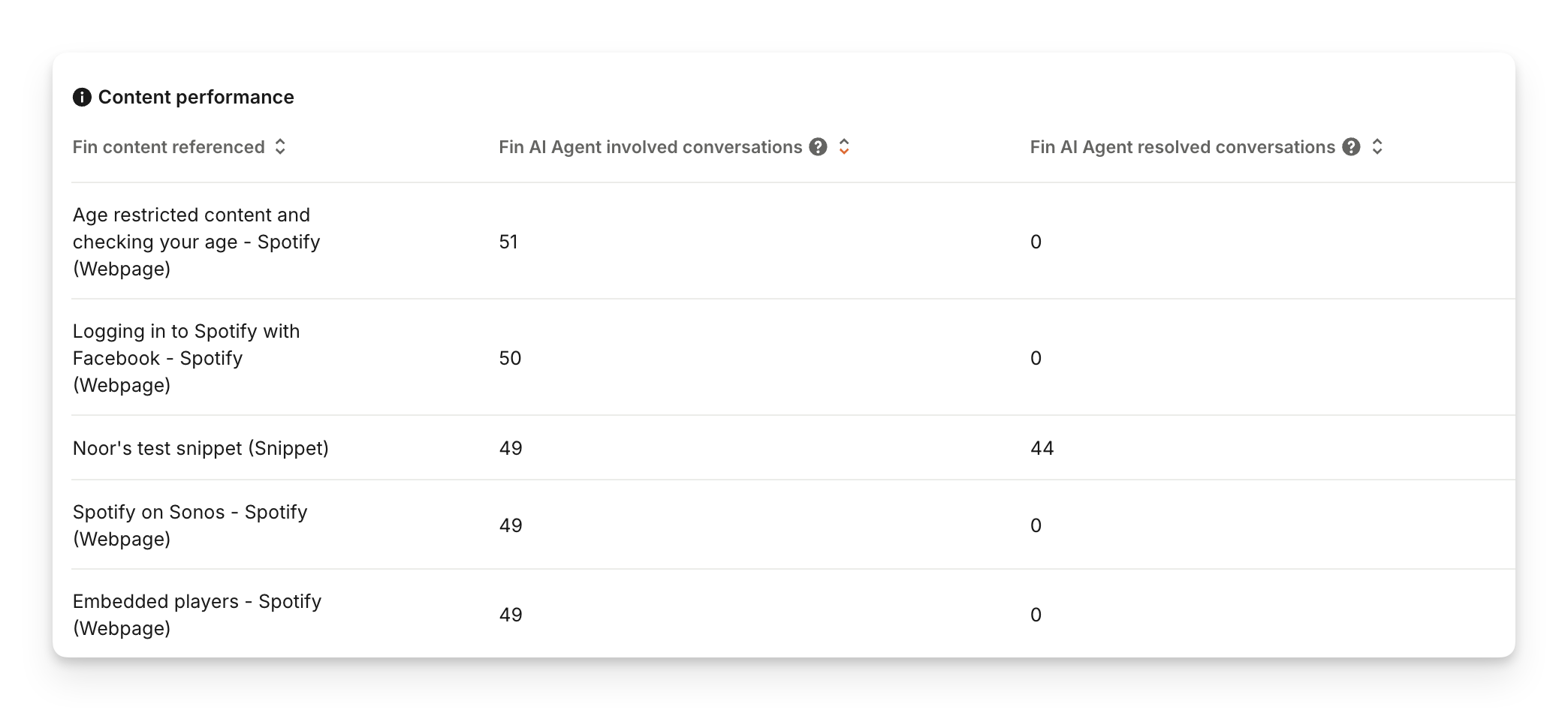
Examine the underperforming content for missing, inaccurate, or ambiguous information and revise where necessary, empowering Sweo to tackle customer issues more effectively.
9. Train Sweo with Guidance on your support policies
Sweo Guidance lets you train Sweo to speak in your brand’s voice, follow your policies, and handle conversations the way you want, including:
Communication style
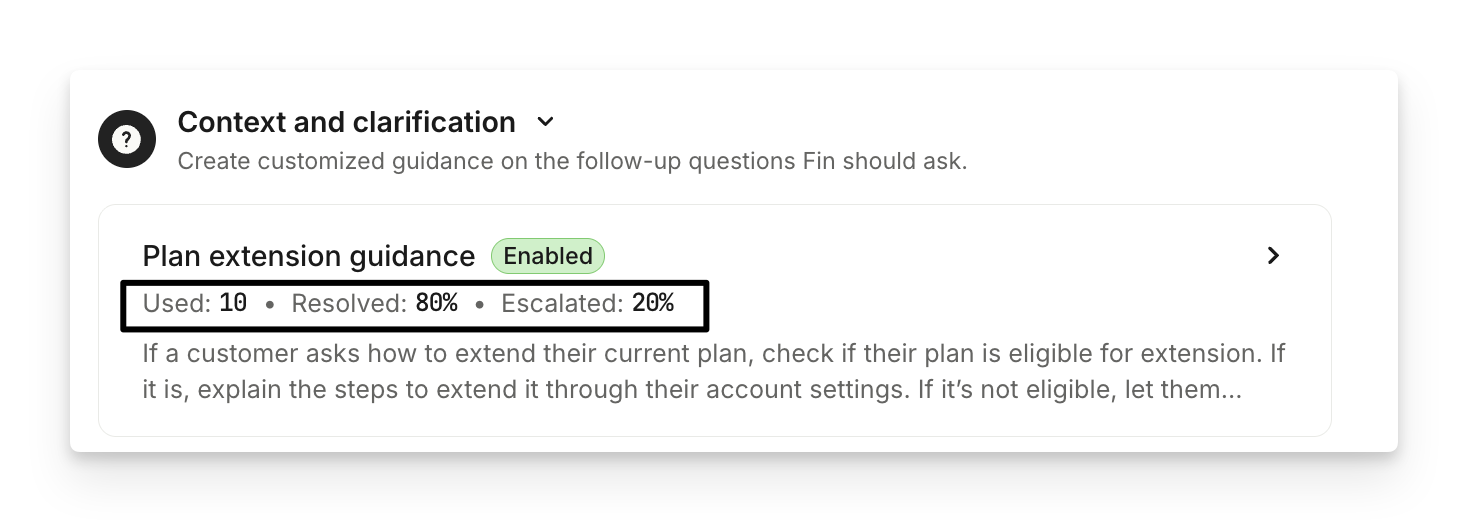
Context and clarification
Content and sources
Spam
And more
This means faster resolution times, more consistent support quality, and a better customer experience.
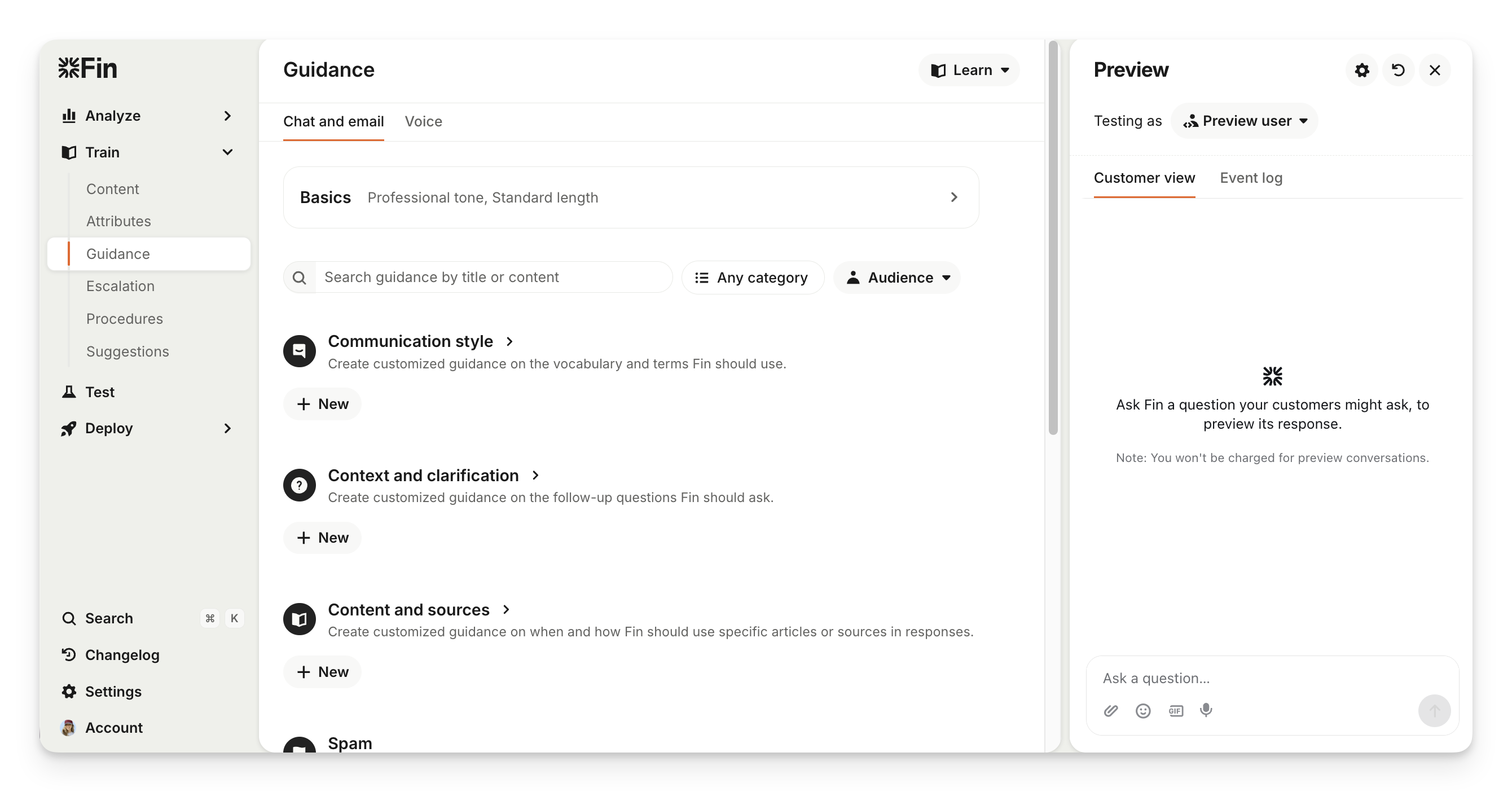
You can set clear rules for what Sweo should say and do, from using the right terminology to escalating sensitive issues.
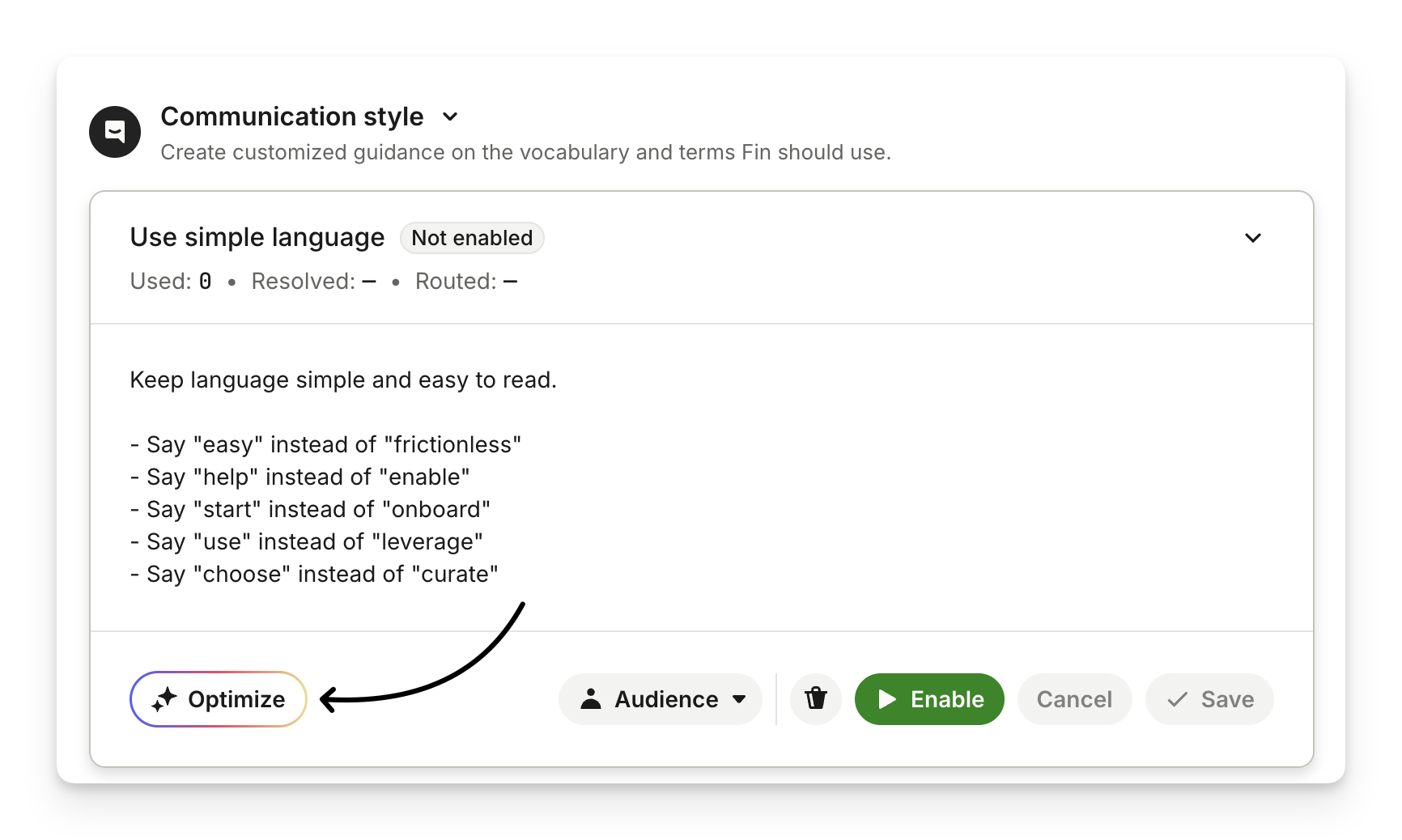
Built-in reporting shows how well Sweo is following your guidance, with AI-powered suggestions to help you fine-tune responses over time.
10. Enable multilingual Sweo
If you have a global customer base, allow Sweo to provide support in 45 languages by enabling real-time translation. This means Sweo will instantly translate answers to match the customer's language using your existing support content 😮
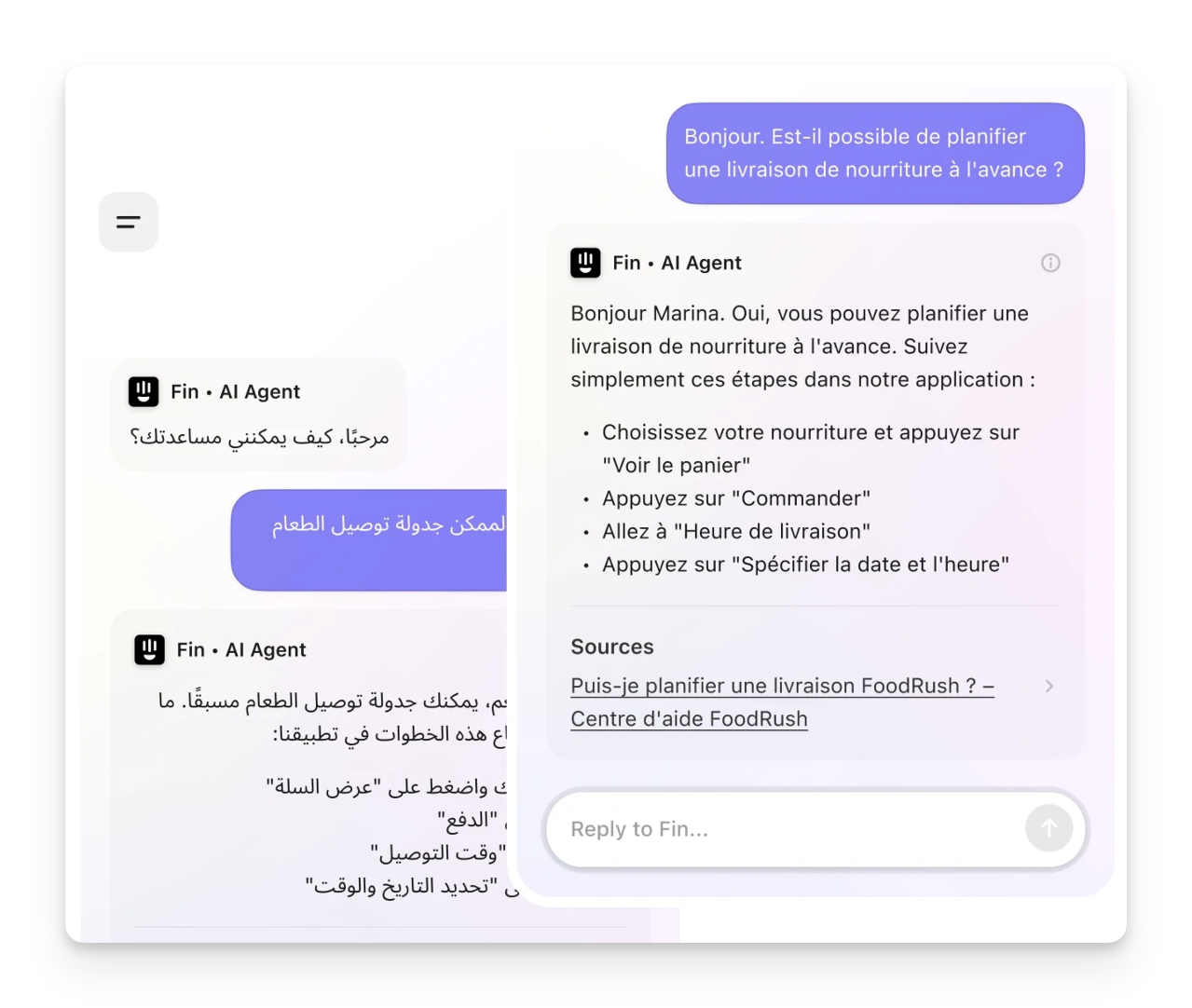
You can also sync/upload content in other languages, if you want Sweo to use specific translations you provide.
Sweo will first search for the answer using content that is available in the language a question was written in. For example, if a user writes their question in French, Sweo will search for an answer in your available French content (i.e. articles, snippets, PDF files, etc).
If you have enabled Real-time translation, when Sweo can’t find relevant support content in the customer’s language, it will translate existing content in another language (your chosen fallback language).
Follow these tips to keep Sweo optimized and drive positive results for teams, Sweo, and customers alike. 😃