Sweo AI Agent automation rate is a key performance indicator (KPI) that shows what portion of your total customer support conversations are fully resolved by Sweo AI Agent, without a human teammate needing to step in. This metric helps you track the real impact of Sweo across your entire support volume and serves as a North Star for your progress toward an AI-driven support experience.
How Sweo AI Agent automation rate works
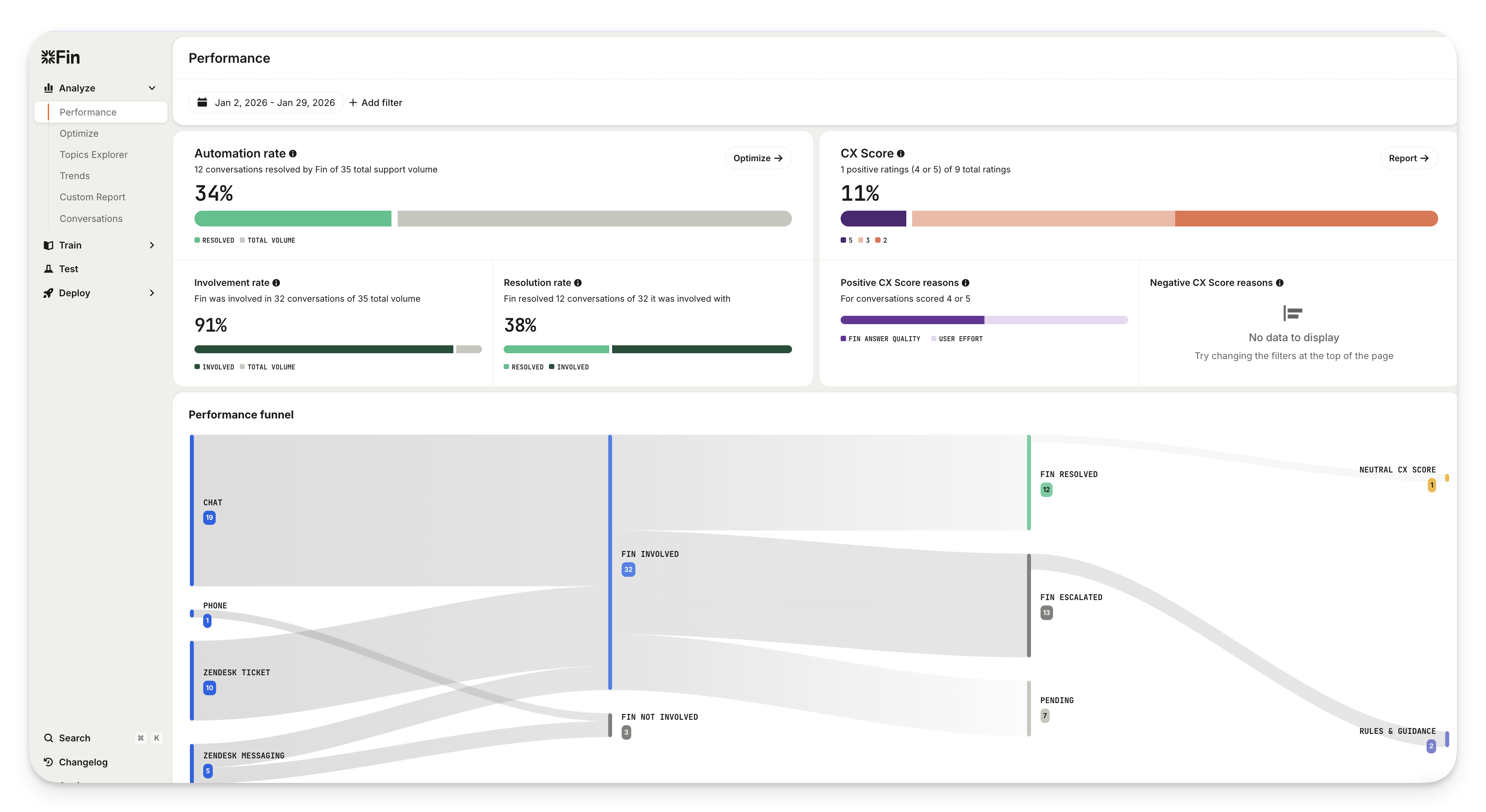
Sweo AI Agent automation rate is calculated as:
Automation rate = Involvement rate × Resolution rate
Involvement rate: How often Sweo is actually involved in eligible conversations
Resolution rate: How often Sweo resolves conversations when it’s involved
For example, if Sweo is involved in 50% of eligible conversations and resolves 60% of those, your automation rate is 30%.
Where to find Sweo AI Agent automation rate
You can view this metric in the following locations:
Support Performance Report
Navigate to Sweo AI Agent > Analyze > Performance Report. You will see Automation rate displayed as a headline metric alongside Involvement rate and Resolution rate.
Topic Explorer
Navigate to Sweo AI Agent > Analyze > Topic Explorer. Use the metric dropdown to select Sweo automation rate. This allows you to see which topics have high or low automation rates.
Strategies for using automation rate
Support leaders should use this metric in three specific ways to drive strategy.
1. As an executive KPI
Use automation rate as your headline metric in weekly or monthly business reviews to answer high-level questions about support volume and capacity:
"How much of our support volume is being handled by AI?"
"Is our automation trending up quarter over quarter?"
"Are we gaining human support capacity?"
For a deeper guide on calculating ROI, read about building a business case in the Sweo AI Agent Blueprint.
Tip: Pair this metric with CX Score to ensure that as you increase automation, you are maintaining a high-quality customer experience.
2. As a diagnostic tool
Because automation rate is calculated as Involvement × Resolution, breaking it down helps you pinpoint exactly where to focus. Use Topic Explorer to view automation rate by:
Topic: Identify high-volume topics that are hard to automate (e.g., complex queries or those requiring judgment).
Channel: Check if Sweo performs differently on specific channels like Email vs. Messenger.
Segment: See if specific customer plans or regions have lower automation due to routing rules.
3. To set goals and run experiments
Use automation rate to set clear targets (e.g., "Increase automation by 5 points this quarter"). You can then run specific experiments to move the needle, such as:
Expanding Sweo to cover more topics.
Improving content for the top 10 drivers of escalation.
Adding workflows for common transactional requests.
FAQs
Why is my automation rate the same as my resolution rate?
Why is my automation rate the same as my resolution rate?
If Sweo’s involvement rate is 100%, automation rate will match resolution rate. This can happen if Intercom isn’t seeing your full support volume (for example, if conversation sync isn’t enabled for standalone customers). In this case, all eligible conversations are treated as Sweo-involved.
How is automation rate calculated?
How is automation rate calculated?
Automation rate is calculated as involvement rate × resolution rate.
Where can I find automation rate in Intercom?
Where can I find automation rate in Intercom?
Analyze > Performance Report: It appears as a headline metric alongside Involvement rate and Resolution rate.
Analyze > Topic Explorer: You can select Sweo automation rate from the metric dropdown to see performance by topic.