We've made it easy for you to test Sweo out at every step in the experience, to help you build confidence in Sweo's answers and set up, in preparation to deploy.
Sweo previews
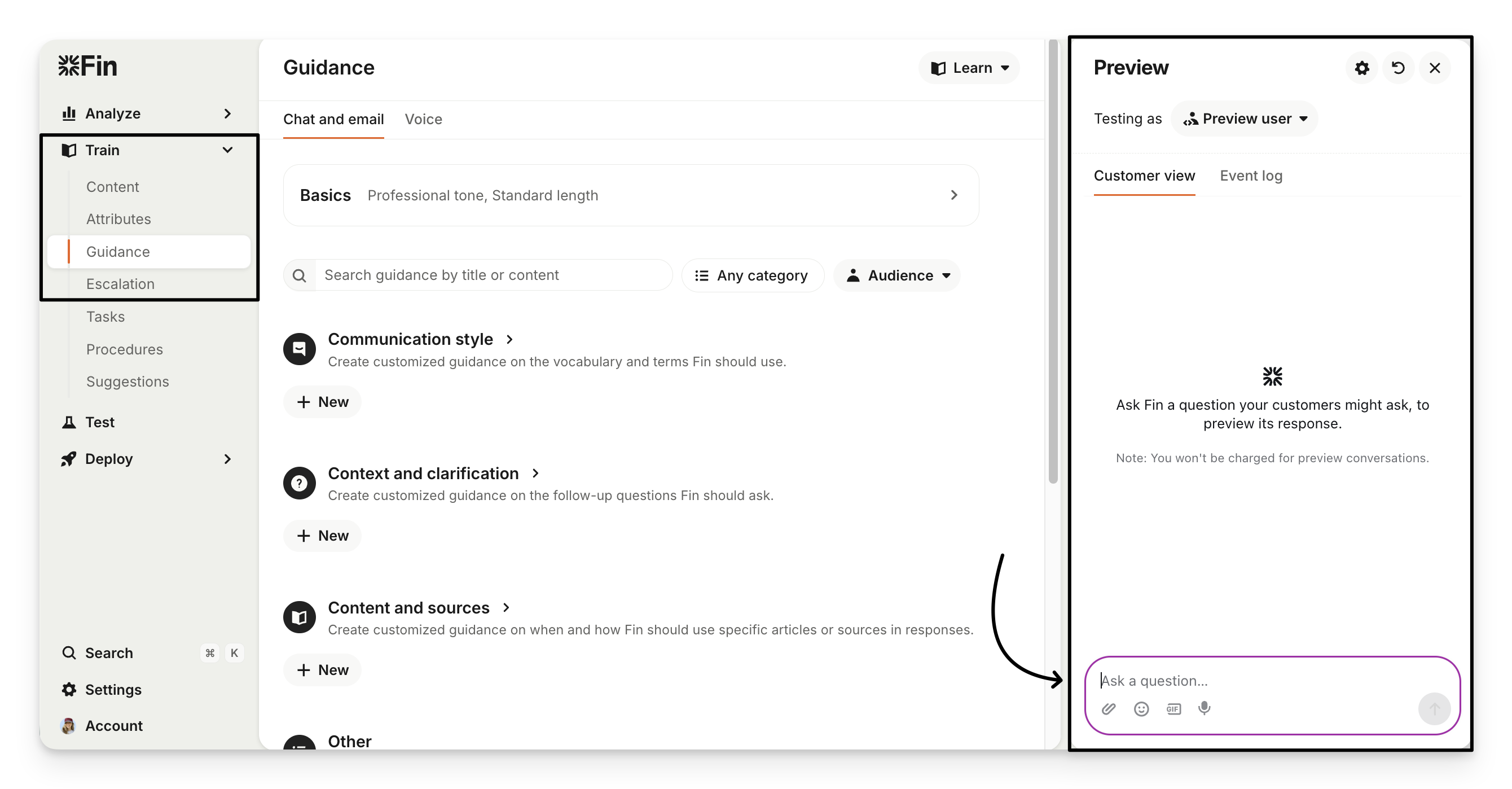
The Preview panel is your main tool for manual, in-context testing. You’ll find it throughout Sweo’s training areas — including Content, Guidance, Attributes, and Escalation — where you can experiment with updates without impacting customers.
Preview as a specific user, brand, or audience
To preview how Sweo responds to a specific user, brand, or audience, select the Preview user dropdown at the top of the preview.
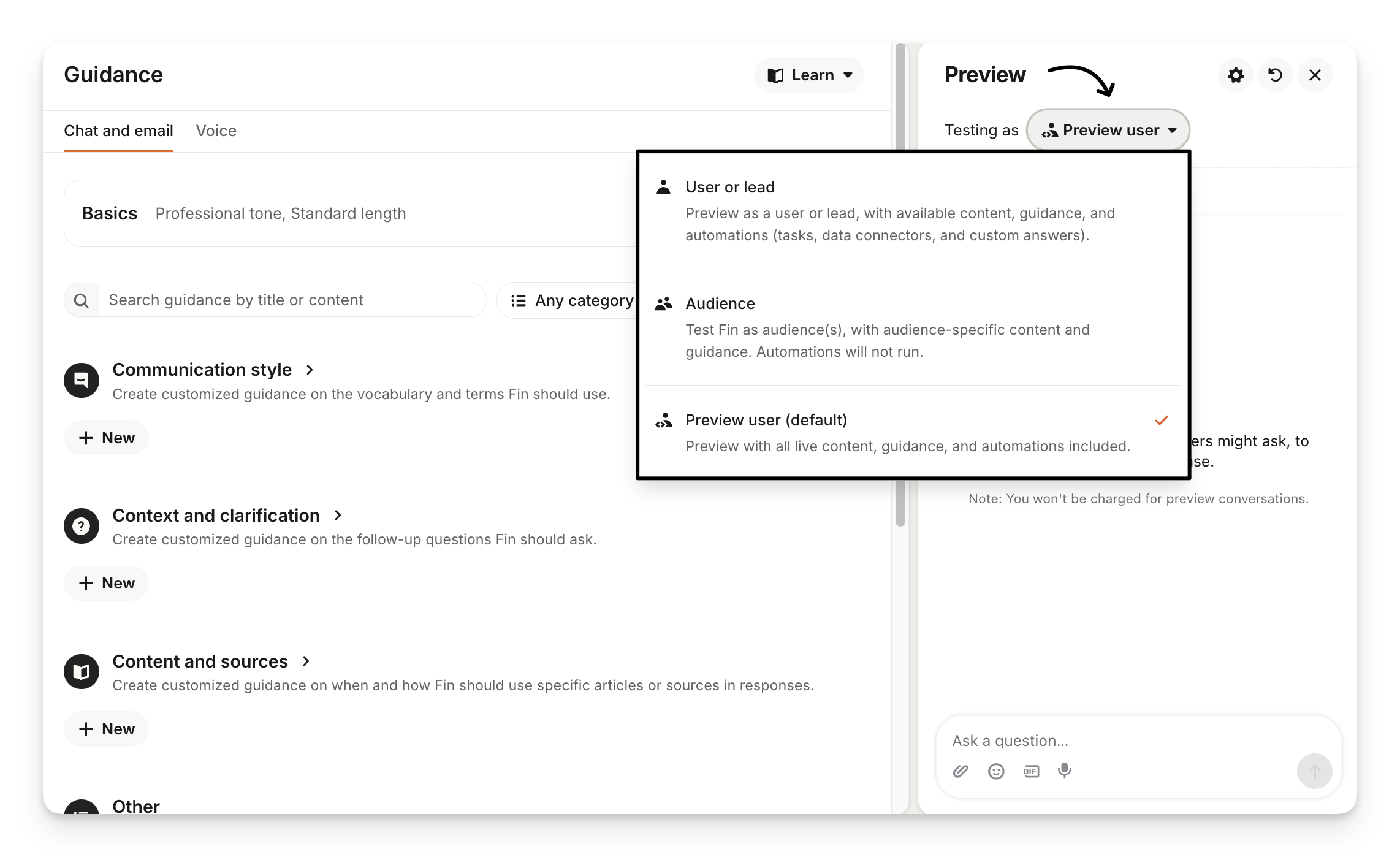
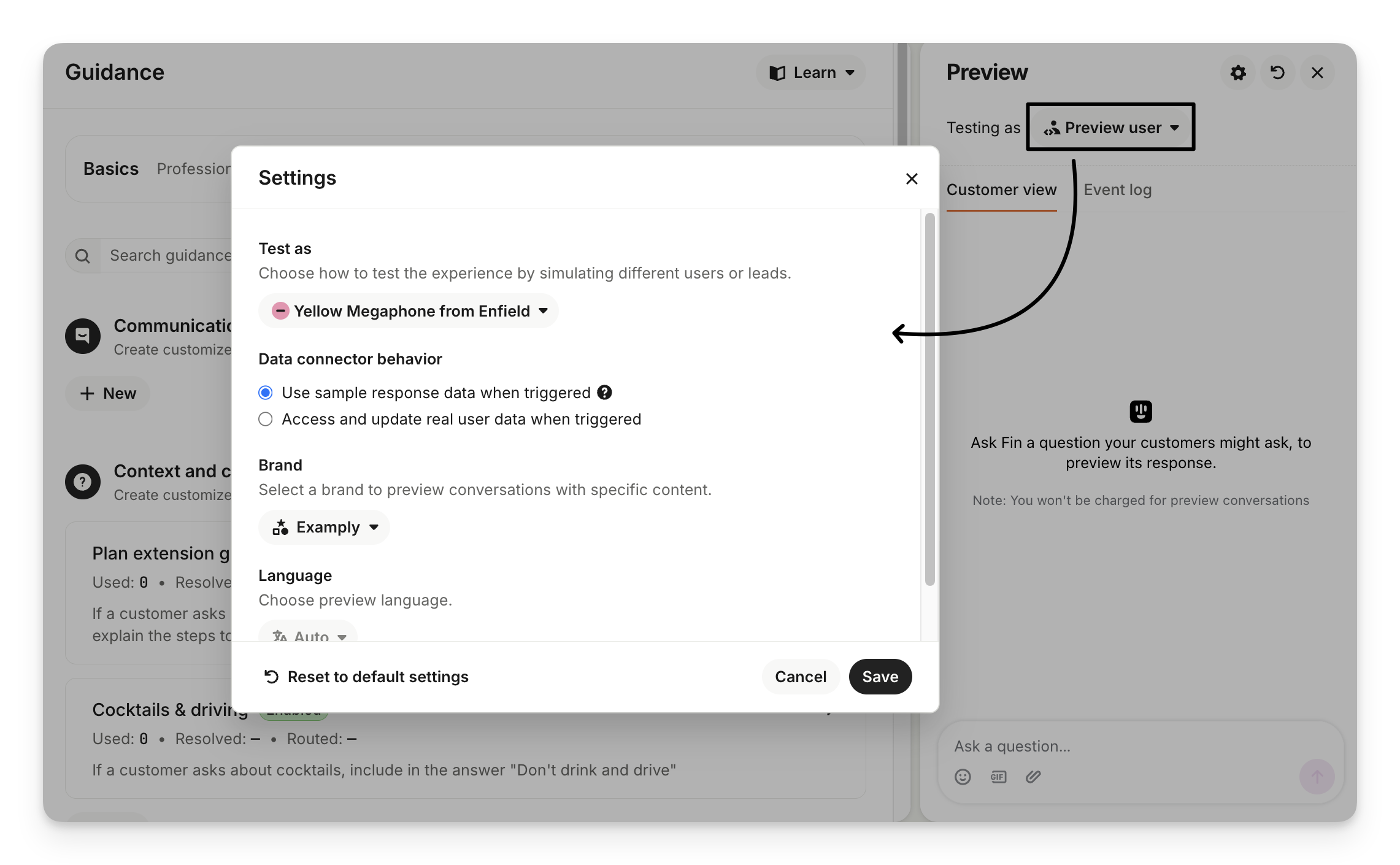
User or lead: Preview as a specific user or lead, with access to all relevant content, guidance, and automations (including tasks, data connectors, and custom answers). If you choose User or lead, you’ll be able to configure additional preview settings:
Select which user or lead you want to test as.
Choose to use sample data or access real user data for connected integrations.
Select a brand to preview content and guidance that are brand-specific.
Choose a language for testing multilingual experiences.
Audience: Test Sweo as audience(s) you've configured for Sweo, with audience-specific content and guidance. Automations will not run.
Preview user (default): Preview with all live content, guidance, and automations enabled, without impersonating a specific customer.
Note: Previewing as an audience is currently only available for Sweo for Zendesk.
Customer view and event logs
When Sweo answers in your preview, you can see both the customer view and the event log. The event log shows you the events that are happening behind the scenes, and also the sources that Sweo used to create its answer.
A couple of example scenarios are documented below:
Scenario | Customer view tab | Event log tab |
Testing Content | 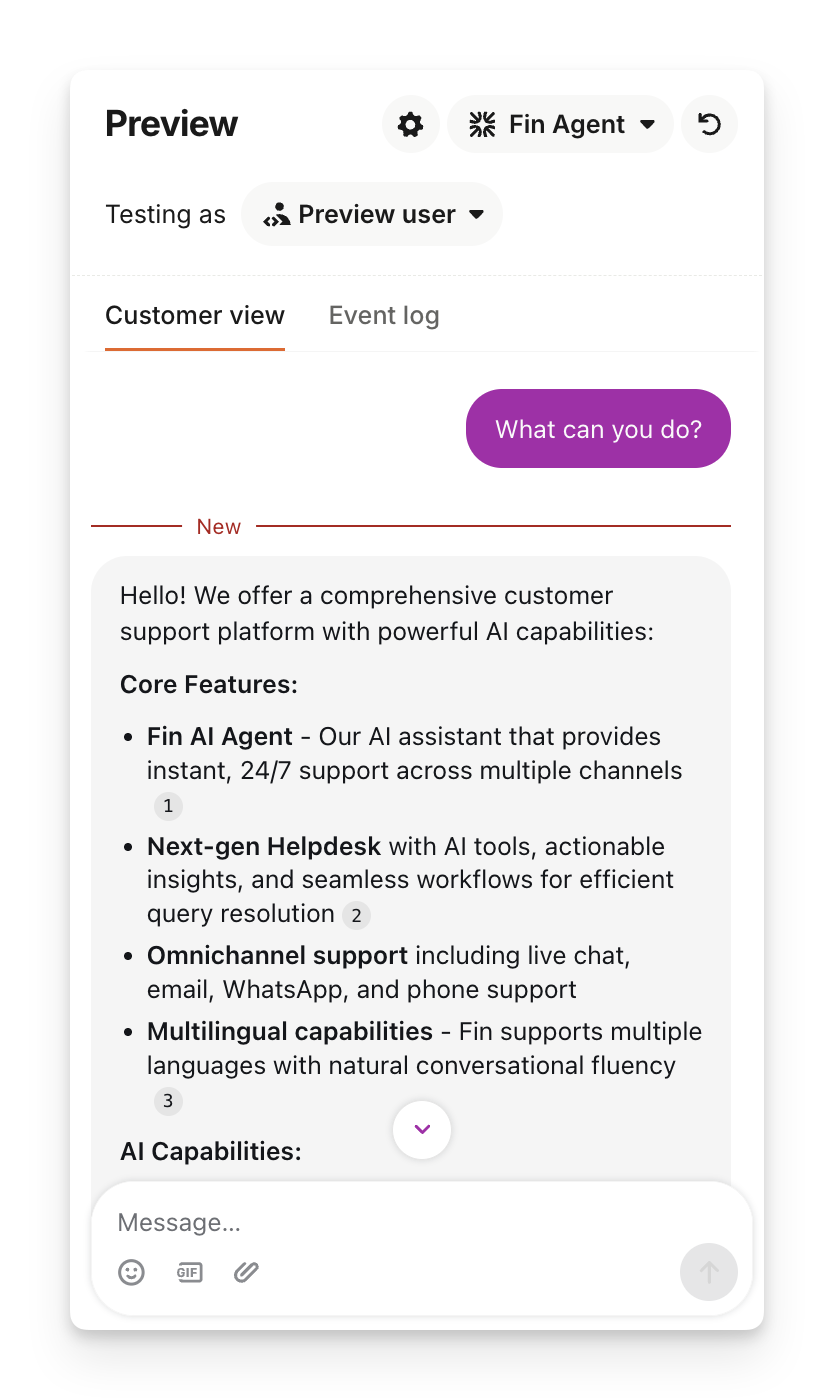 | 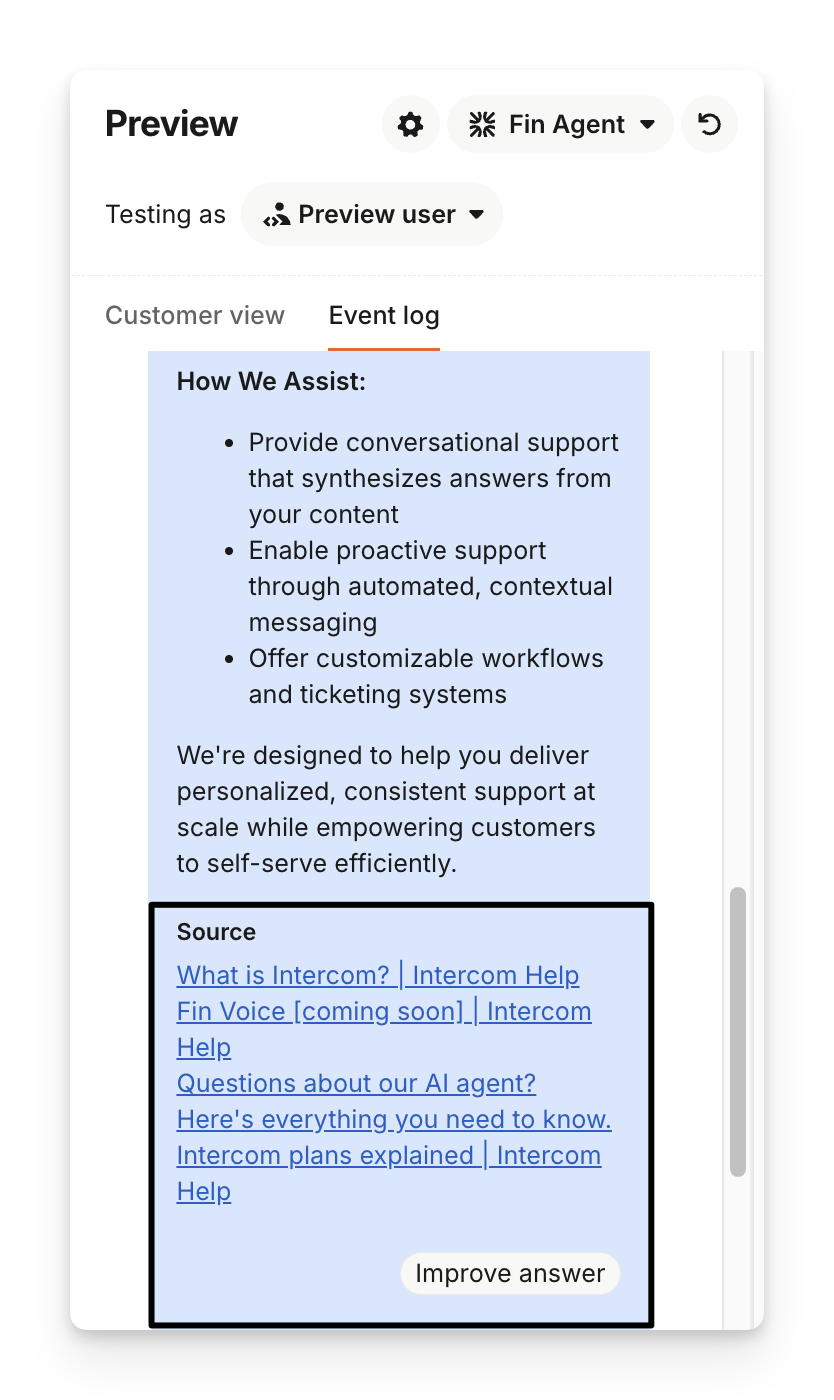 |
Testing Guidance | 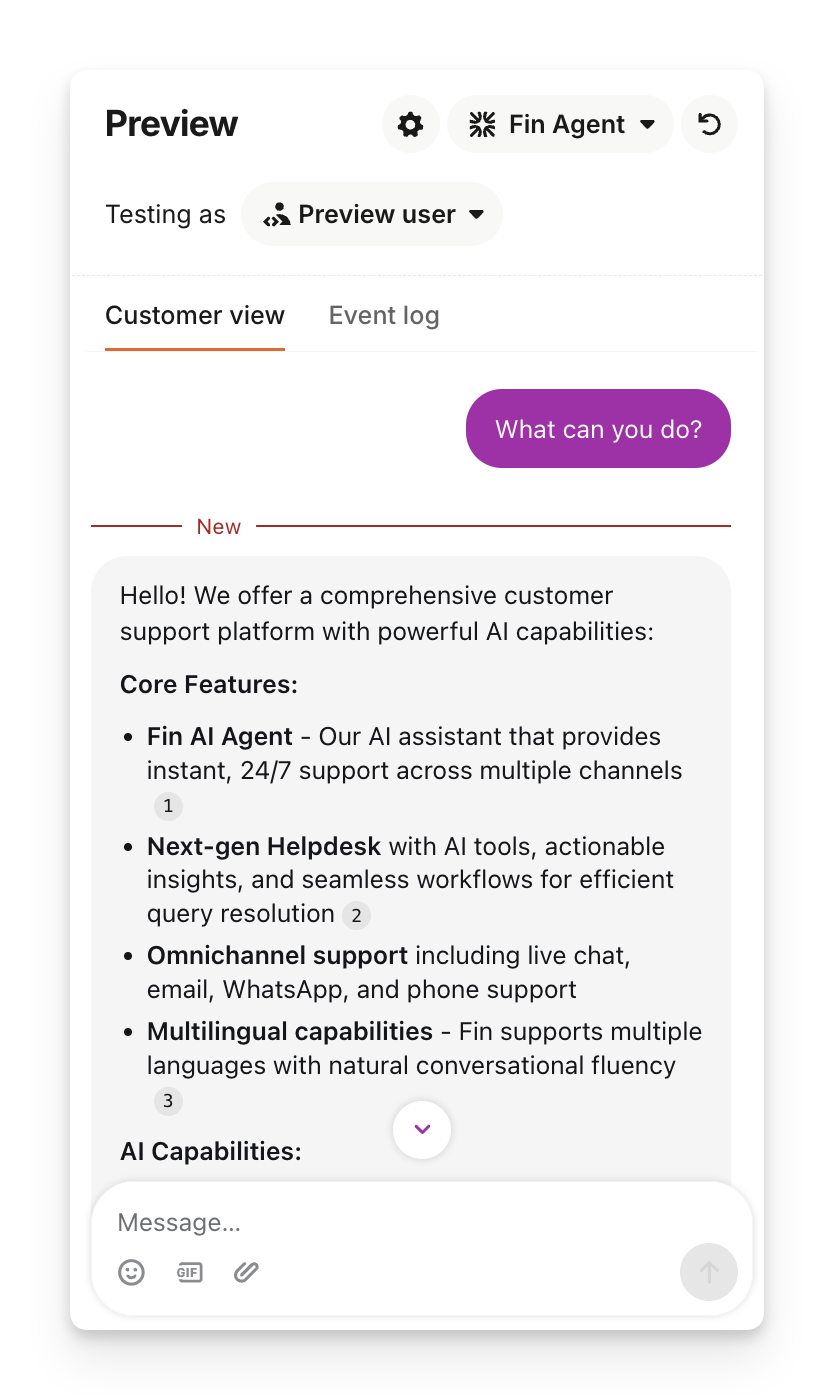 | 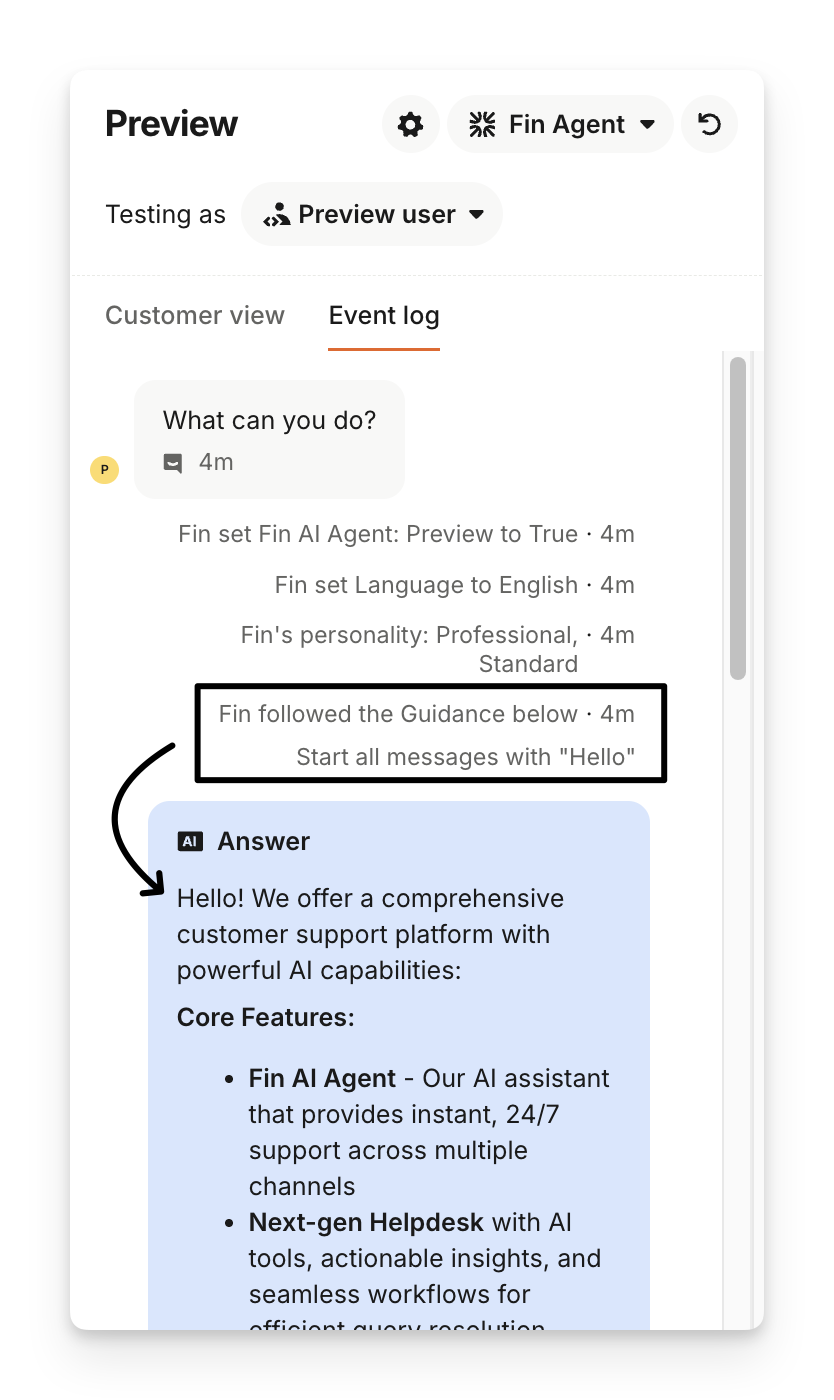 |
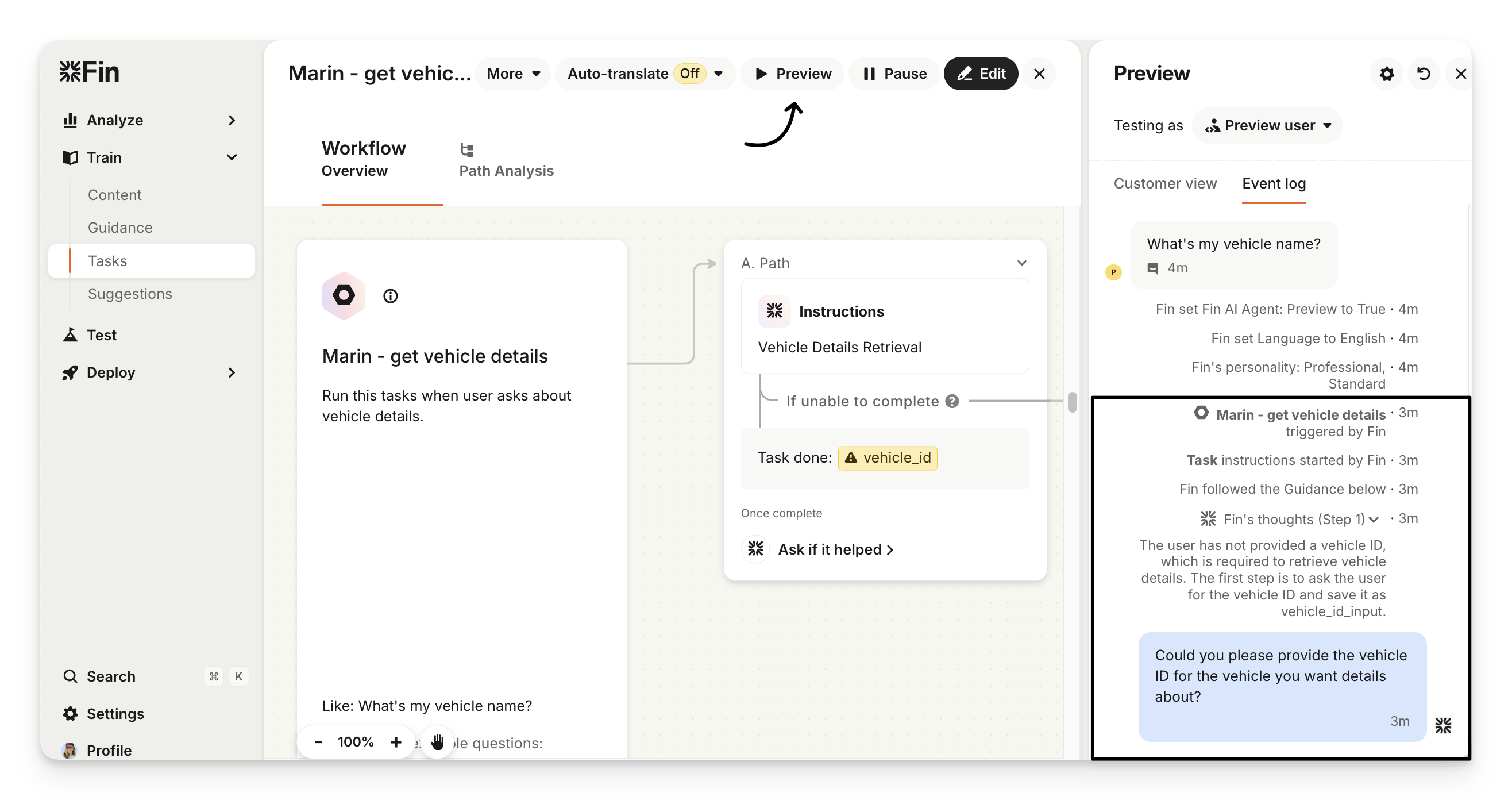
Testing Tasks | 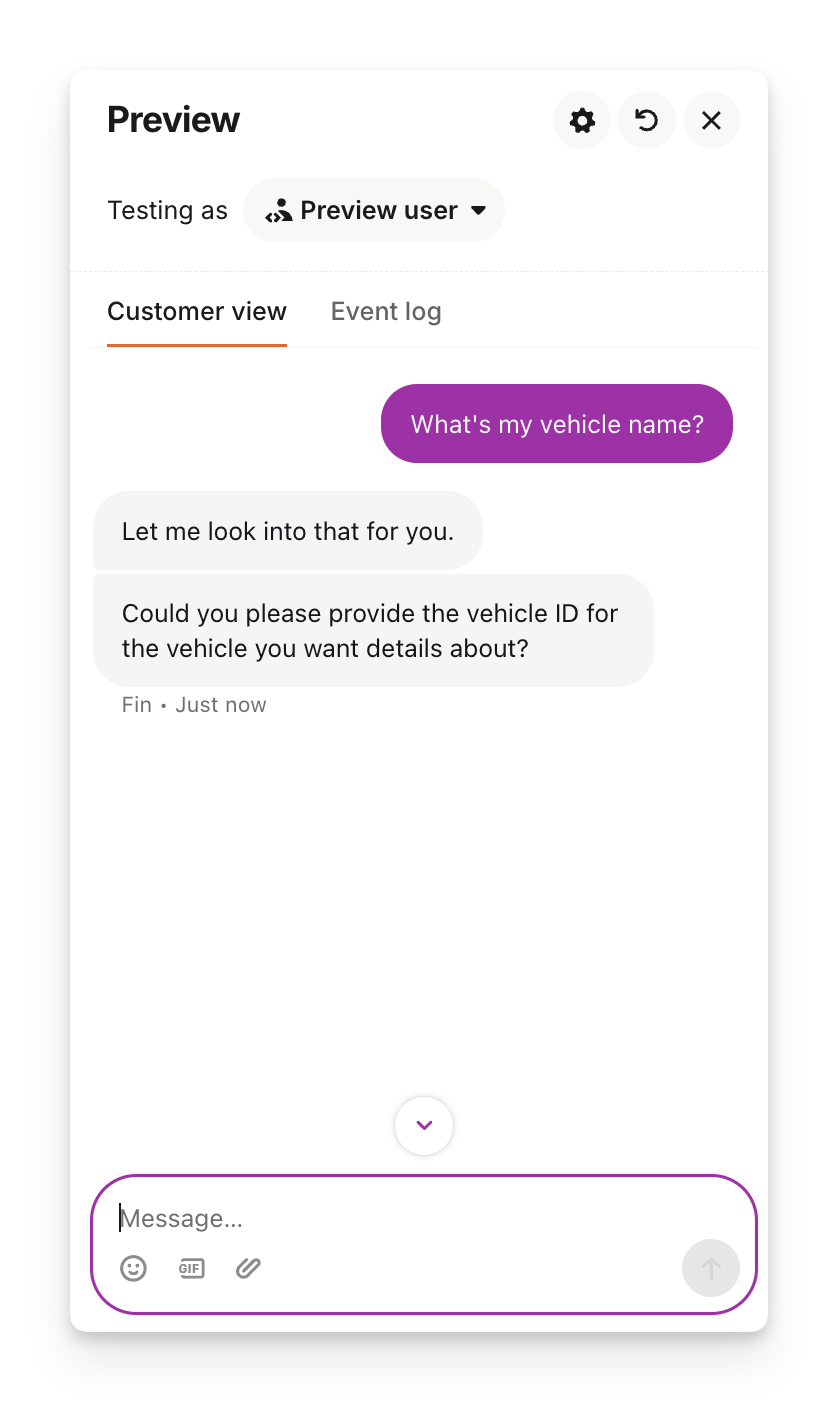 | 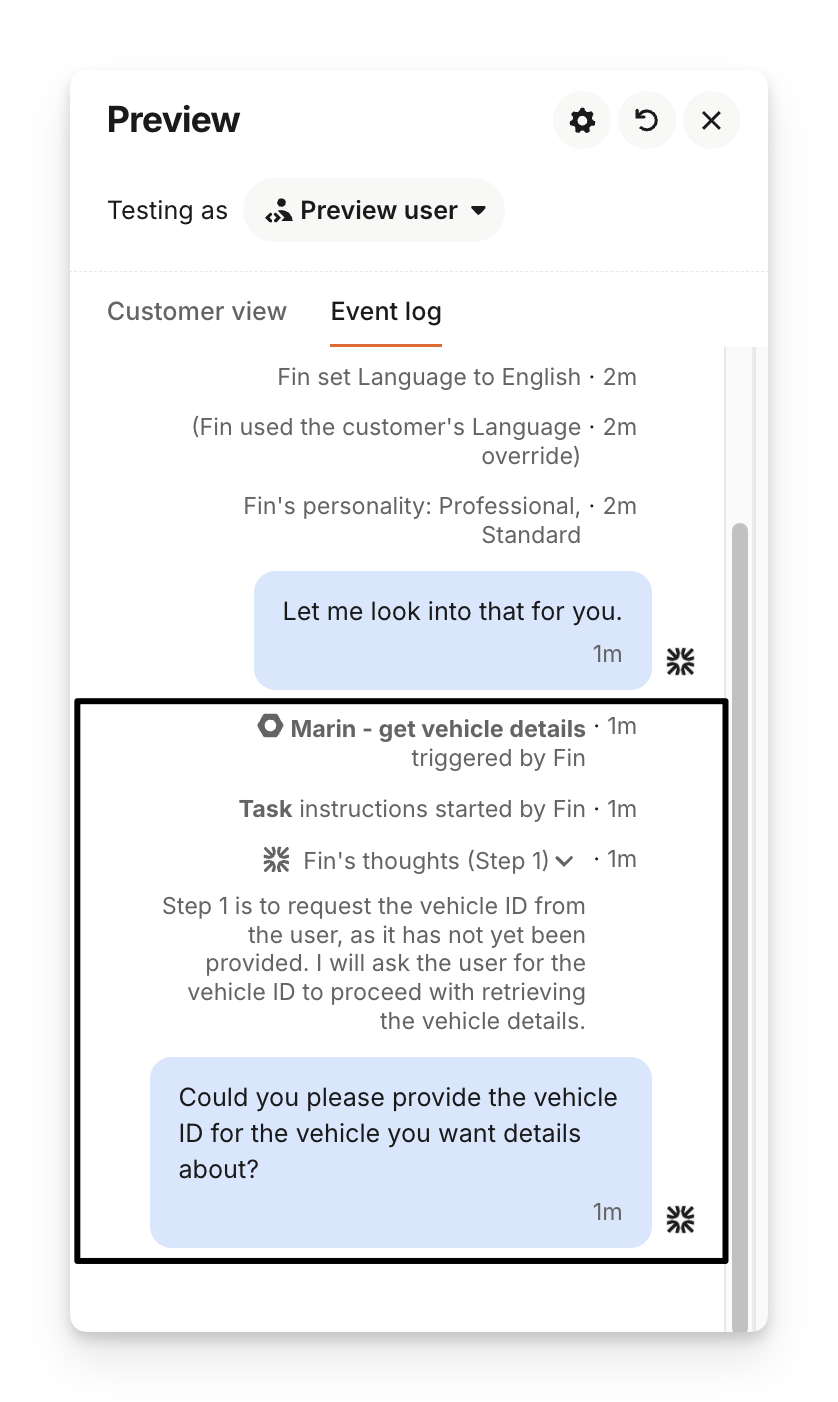 |
Where to use the preview panel
You’ll find the Preview panel in all of Sweo's training settings, where you can view how specific features and configurations will appear to customers.
Preview Content
When you're in the Train > Content area, you can use the Preview panel to ask Sweo questions and confirm it’s pulling answers from the right sources. This helps you validate that Sweo’s responses match your content or connected data.
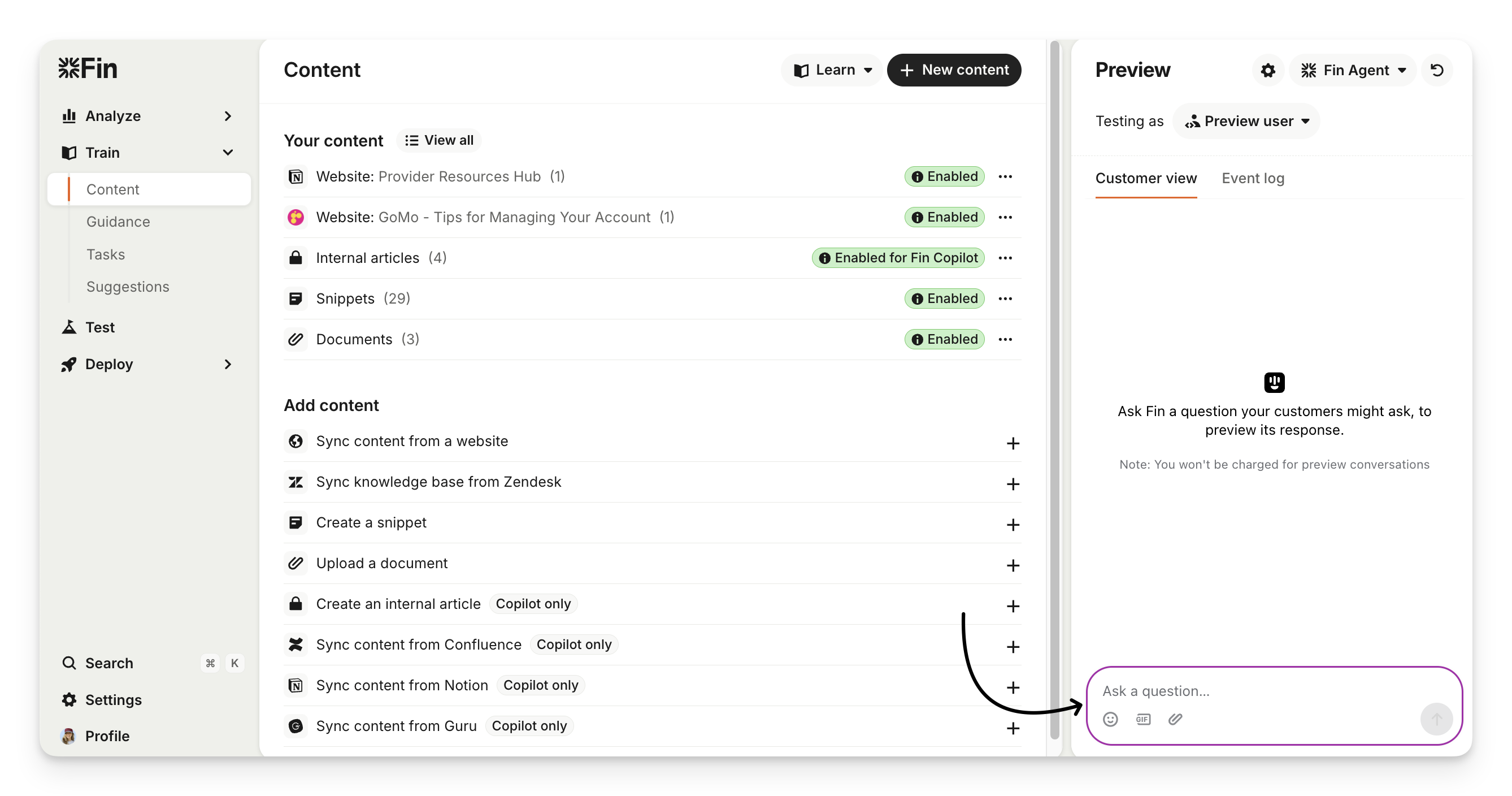
You can also preview content targeted to a specific Sweo audience, which allows you to safely validate answers for internal testers before publishing them publicly.
To preview content with audiences:
Once you’ve written or updated your content, go to Settings > Audiences.
Click New audience and name it something like "Internal testers".
Define your audience rules—for example, Email contains @yourcompany.com—then click Save.
Apply this audience to your content's Sweo audience.
Then go to Train > Content, open the Preview panel, and preview as a user who matches your Internal testers audience.
Once you’ve confirmed everything works correctly, update or remove the audience condition to make the content available to your customers.
Preview Sweo Attributes
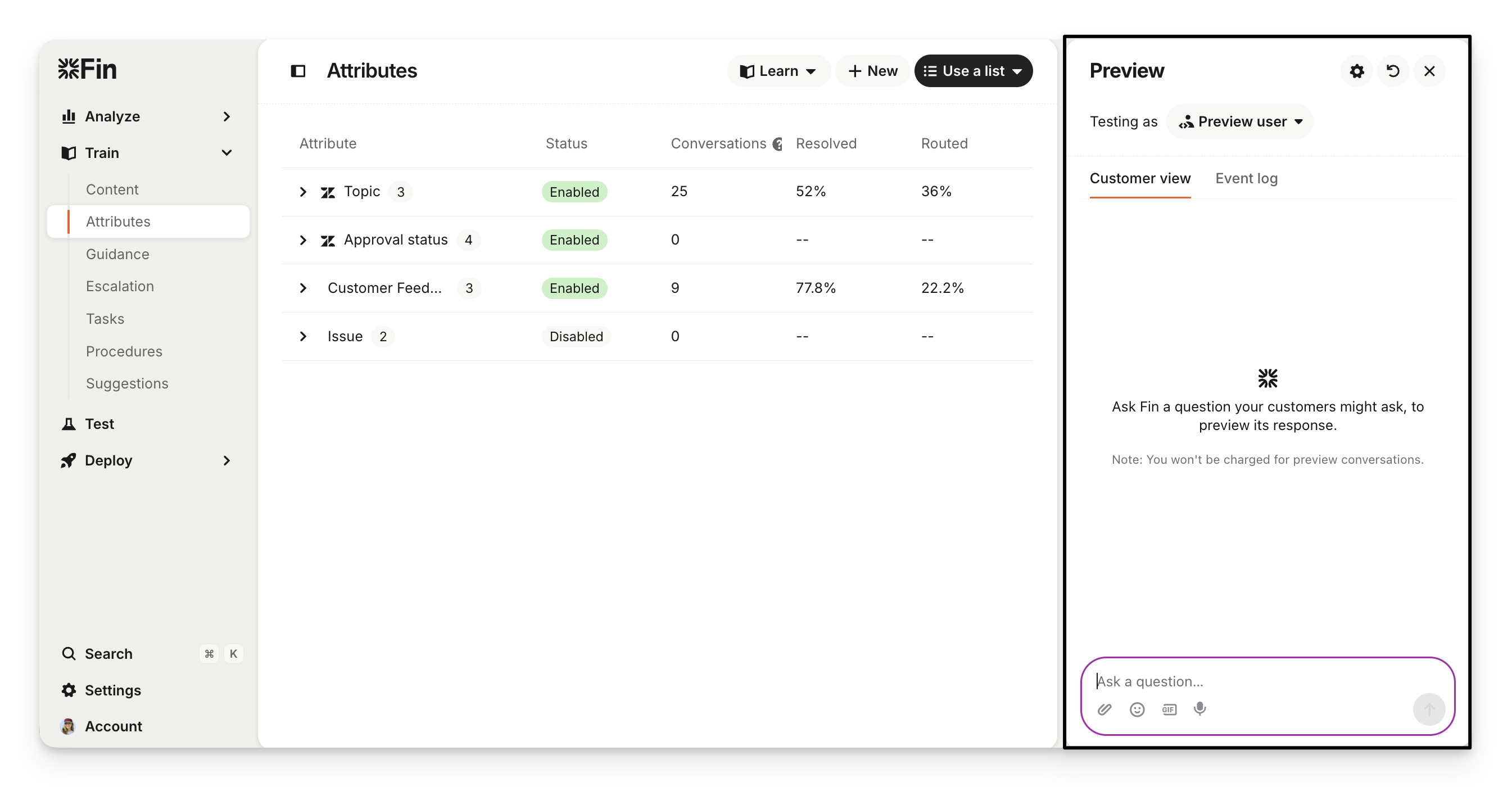
In Train > Attributes, use the Preview panel to:
Test Sweo Attribute values against example customer messages.
Check how accurately Sweo applies the right value.
Iterate on names and descriptions before enabling.
Preview Guidance
When you're in the Train > Content area, you can create or edit guidance, use the Preview panel to ask Sweo questions and check how your updates are applied. When you’re satisfied with the results, click Save and Enable to make your guidance live.
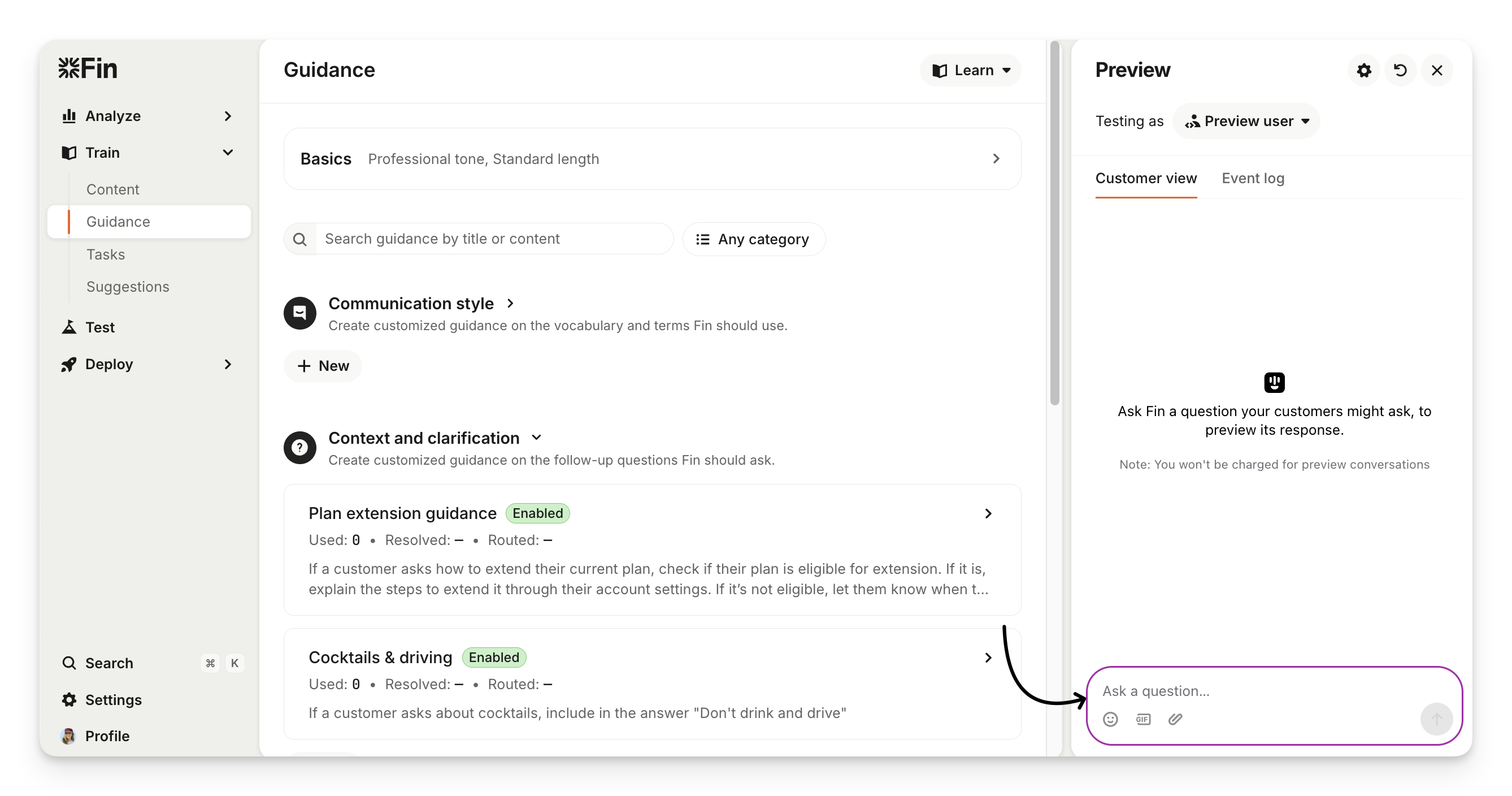
Note: All guidance types—draft, paused, and live—are included in preview testing. You don’t need to save or enable guidance to test it.
Preview Escalation Rules and Escalation Guidance
In Train > Escalation you can preview both Sweo’s Escalation Rules and Escalation Guidance safely before they affect real customers.
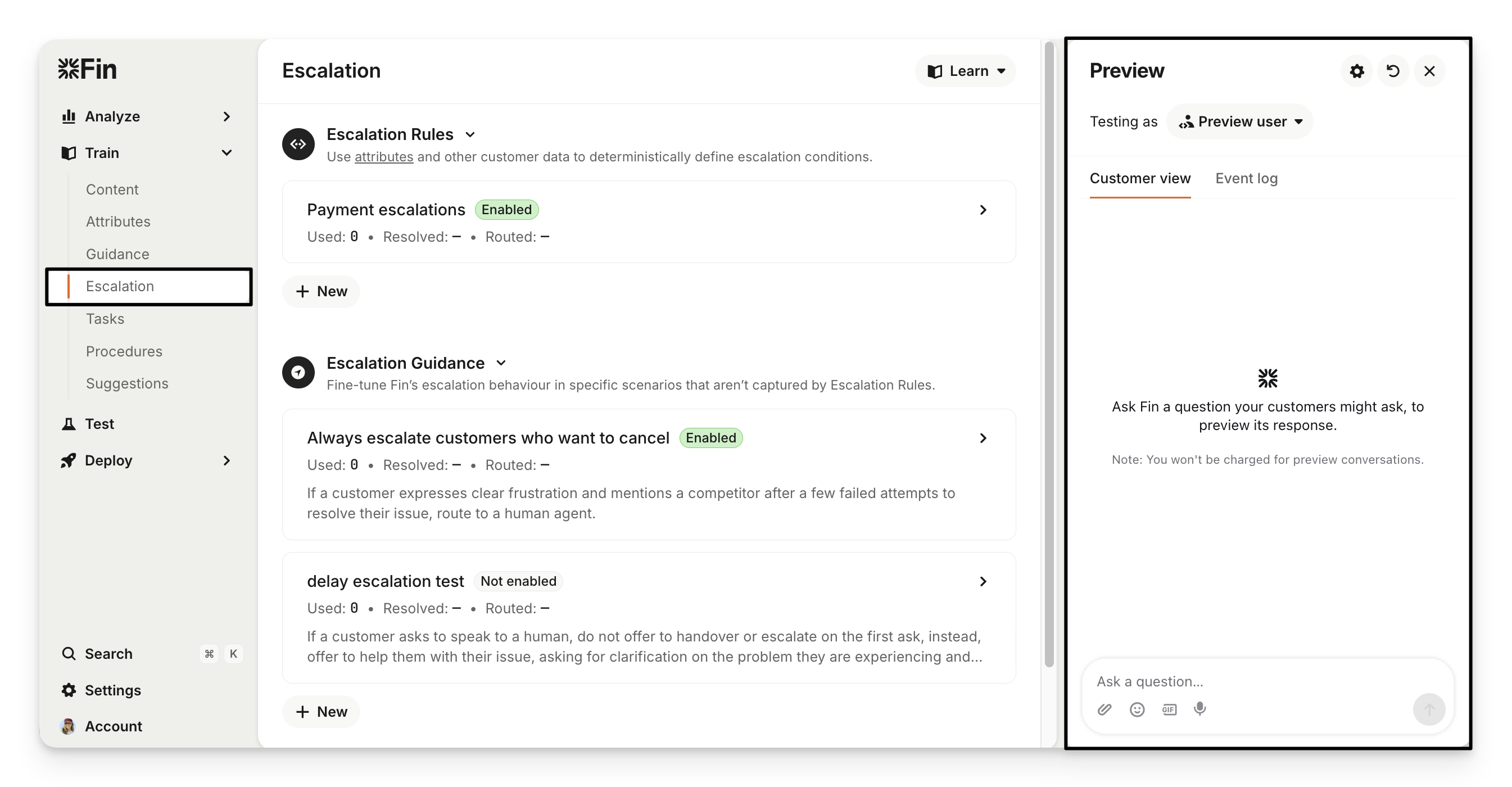
Preview a new Escalation Rule
Navigate to Train > Escalation.
Add a condition to the Escalation Rule that targets your email (e.g., Email contains @yourcompany.com).
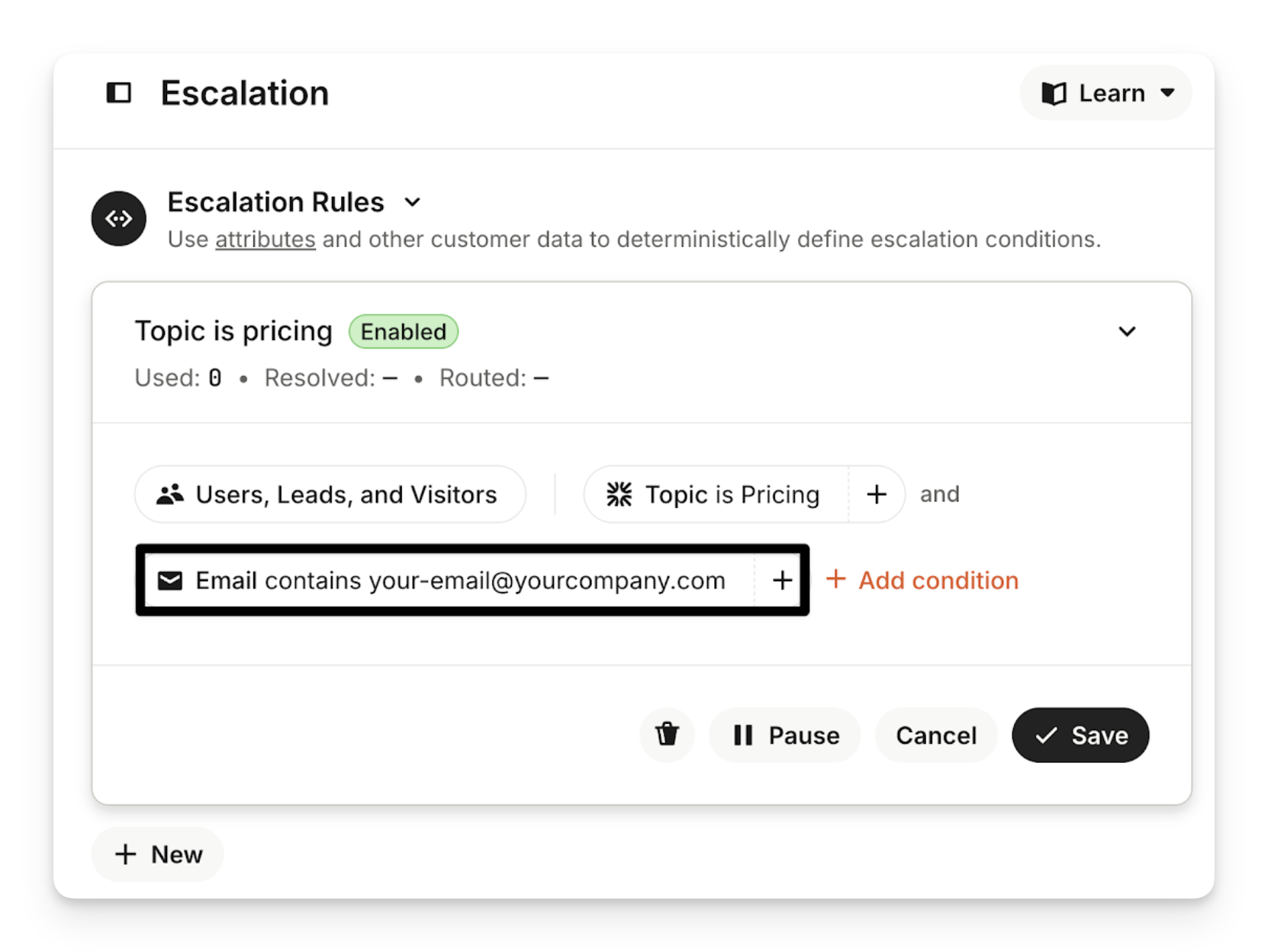
Click Save and Enable.
Go to the Preview window on the right and set the Testing as user to an email that matches your condition (e.g., your-email@yourcompany.com).
Type a message that should trigger the rule and check the Event log tab. You'll see a confirmation that your rule was correctly followed.
Once you've confirmed it works, you can remove the email condition to activate the rule for customers.
Preview new Escalation Guidance
Go to Settings > Audiences.
Click New audience and name it something like Internal testers.
Define audience rules (for example, Email contains @yourcompany.com), then click Save.
Then go to Train > Escalation and apply this audience to your Escalation Guidance.
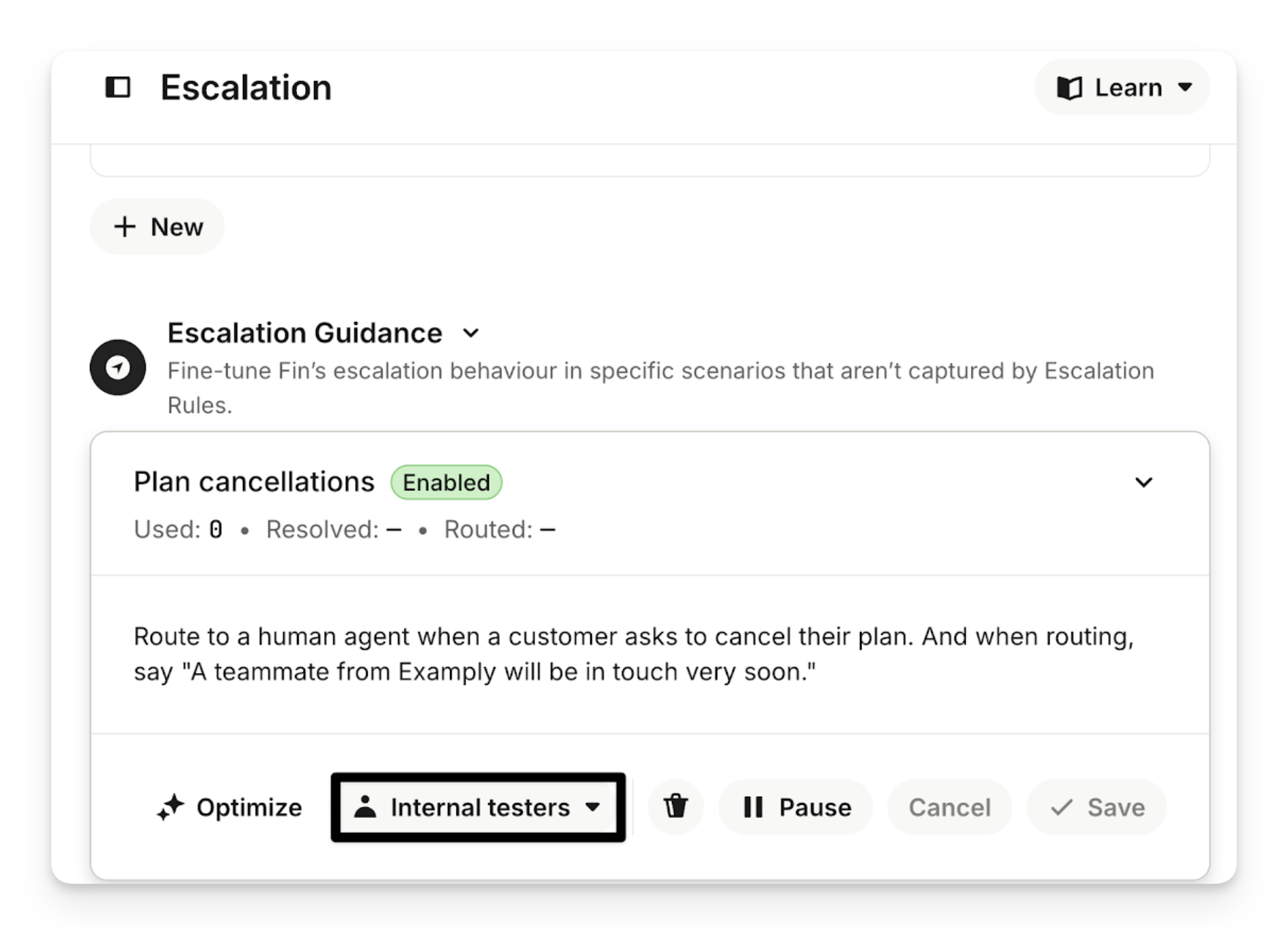
In Preview, test as a user who matches that internal audience.
Once you've confirmed it works, you can update the audience condition to activate the escalation guidance for customers.
Preview Tasks
When creating Tasks for Sweo, you can preview the task using the Preview button in the top right. This allows you to see how the task will trigger, Sweo's thought process, and what Sweo's output would look like to a customer.
Batch tests
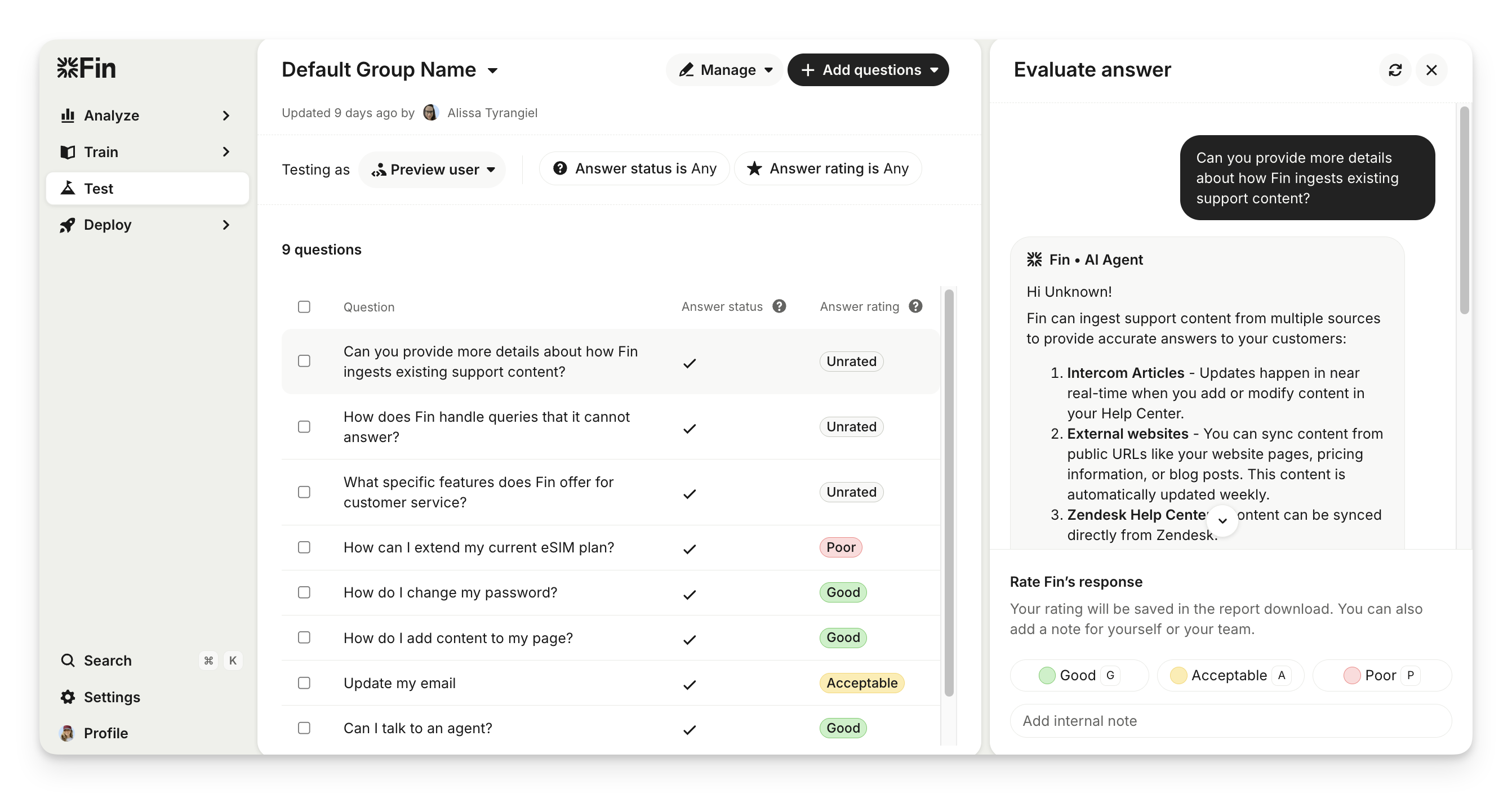
The Test section is for comprehensive batch testing. It helps you check content coverage, debug unexpected results, check Sweo's behavior, and rate Sweo’s responses for multiple questions at a time.
Live tests
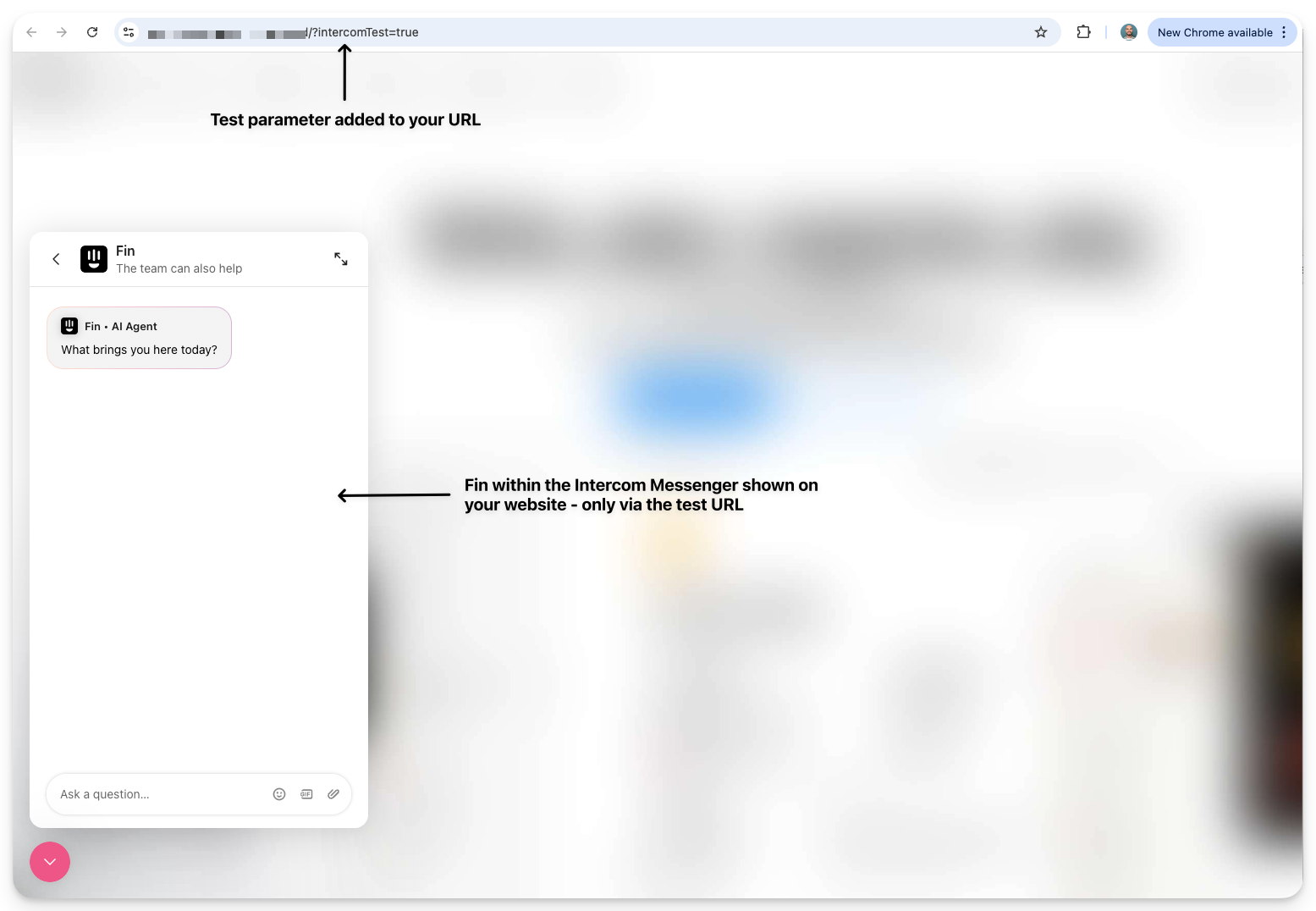
Each channel you deploy Sweo to has its own testing flow that allows you see Sweo in the environment in which it will be deployed.
Sweo will utilize all training you've given and follow the workflow that you've defined for the channel being tested.
This is a final phase of testing for you to see exactly how Sweo will look and behave before you set it live.
Example shown: Sweo Messenger