Salesforce Account data sync lets you sync Account attributes both ways between Salesforce and Sweo. You can pull Account data from Salesforce into Sweo and any updates made to synced fields in Sweo are automatically pushed back to Salesforce.
Once synced, these attributes can enable branching based on Account data in Sweo workflows, personalize messages using synced Account fields, and control Sweo Messenger visibility using Account-based rules.
Set up Salesforce Account data sync
Navigate to Settings > Salesforce integration in Sweo.
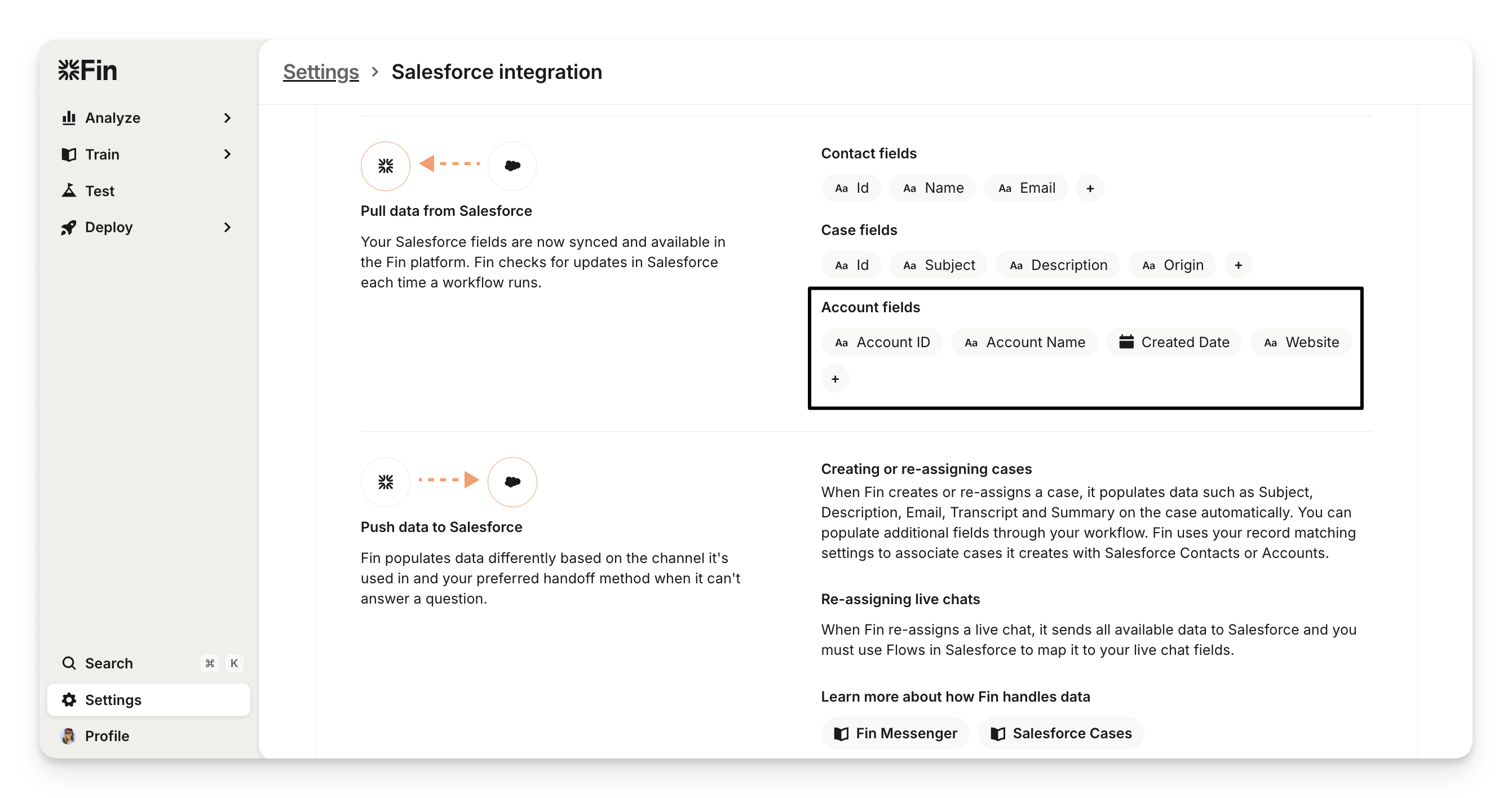
In the "Pull data from Salesforce" section, choose which field on the Account should be matched with the company ID provided via the JWT token.
Add the Account fields you want to sync into the company object in Sweo.
Note:
You can enable bidirectional sync for Salesforce Account fields. When this is turned on, updates to synced company fields in Sweo will be written back to the matching Salesforce Account.
This is also configurable via the Data step when deploying Sweo.
Use Salesforce Account attributes in workflows
Open your Sweo workflow in the editor.
Add branches based on Account attributes (e.g., industry, plan type).
Use Account field values in message templates for personalization.
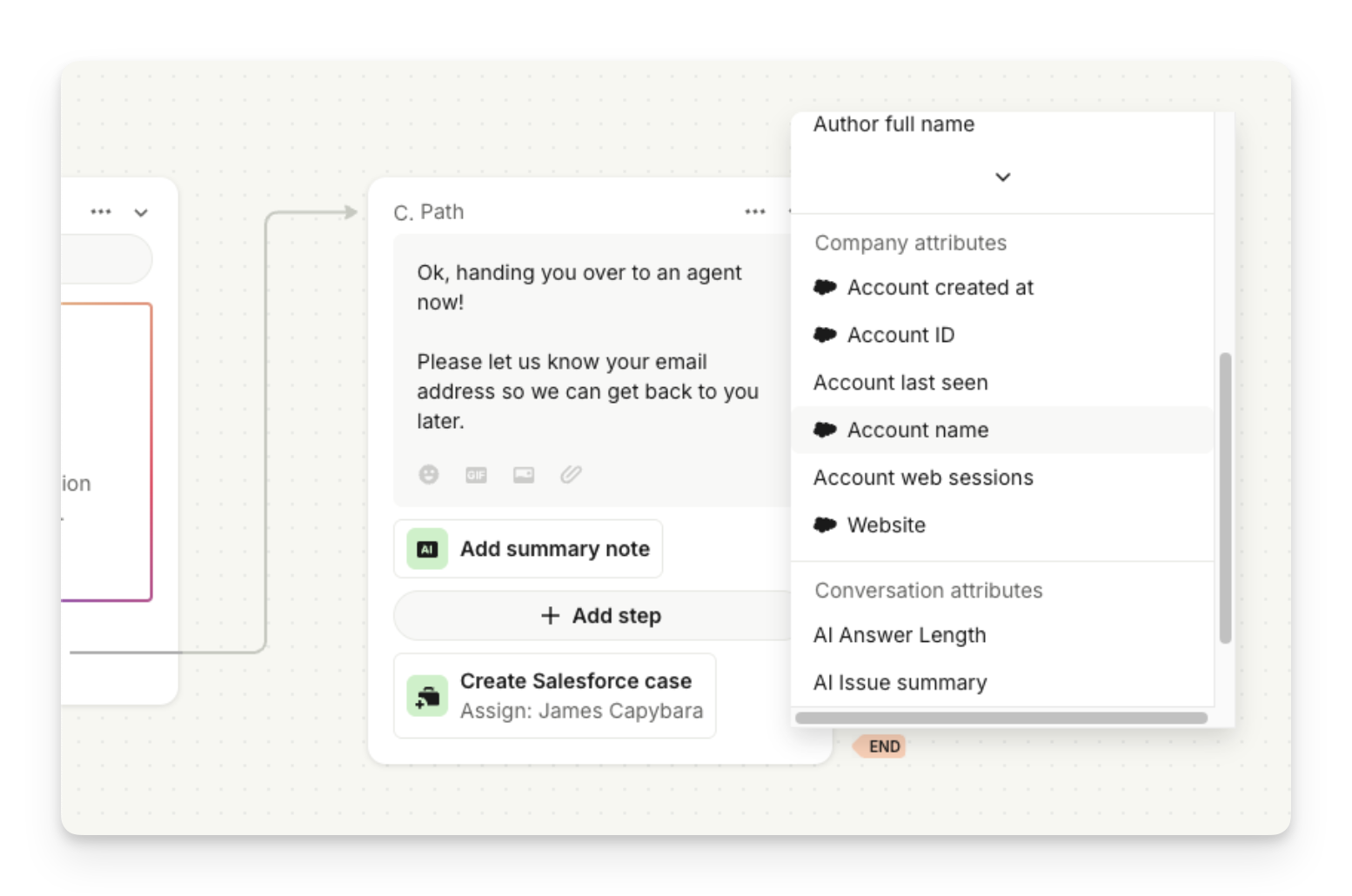
Note: Salesforce Account field sync now supports bidirectional updates for the fields you’ve selected in your integration settings. Updates made in Sweo — for example, via workflows or the API — will also update the matching fields in your primary connected Salesforce workspace.
Authenticate with JWT
To securely sync Salesforce account data with Sweo Messenger, you must use JWT authentication.
For primary Salesforce accounts, include the Account ID (configured in settings) in the JWT payload under the key:
company.id.For non-primary Salesforce accounts, include the external ID of the target Salesforce account in the JWT payload under the same key:
company.id. This tells Sweo which account’s data to sync.
Example JWT (Ruby):
JWT.encode({ email: "user@example.com", user_id: "this_is_an_example_contact_external_id", company: { id: "this_is_an_example_account_external_id" }}, exp: Time.now.to_i+3600}, "your_jwt_secret_goes_here", "HS256")
Note:
Using Account fields in Sweo Messenger visibility rules requires the company to be set in the JWT token.
You can include new Account field values in the JWT payload to sync them back to Salesforce automatically. Alternatively, any update method supported by Sweo (such as API updates) will trigger the same sync.
JWT is not required when syncing through Salesforce Case events.
Best practices and troubleshooting
Sync timing
Messenger opened → triggers a sync from Salesforce of the associated Salesforce Account.
Salesforce Case sync → triggers a bidirectional sync of the associated Salesforce account.
Launcher rules → will sync the Account from Salesforce only if a synced attribute is used.
Salesforce handoff -> triggers a sync to Salesforce of any updated Salesforce Account data fields.
Tip: Using Account fields in Sweo Messenger visibility rules can slightly delay visibility. To improve performance, use branching inside workflows instead.
FAQs
What Account data is synced from Salesforce?
Only the primary Account associated with the Contact is synced into Sweo, and only the fields you specify in the Salesforce integration settings.
Is the Salesforce Account data sync bidirectional?
Yes. Salesforce Account data now syncs both ways between Salesforce and Sweo. Updates to synced Account fields in Sweo can be pushed back to Salesforce automatically.