This will guide you through deploying Sweo for Salesforce Cases. You must train Sweo on your content before deploying.
1. Connect to Salesforce
For Sweo to be able to handle your cases in Salesforce, it needs a connection to the Salesforce API.
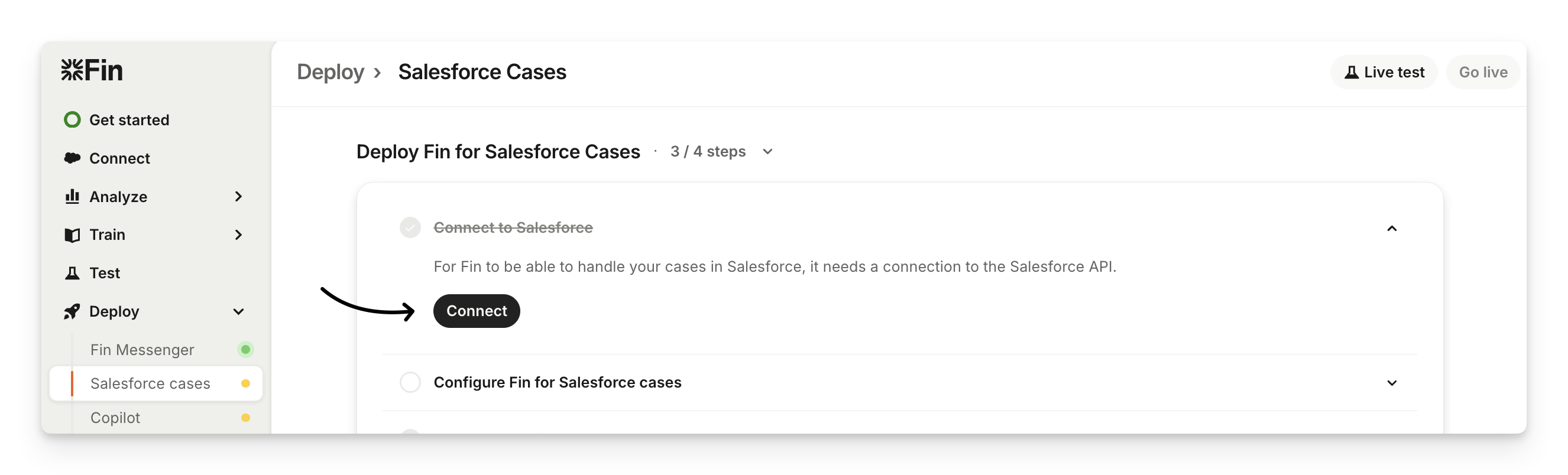
Go to Deploy > Salesforce cases > Connect to Salesforce and click Connect.
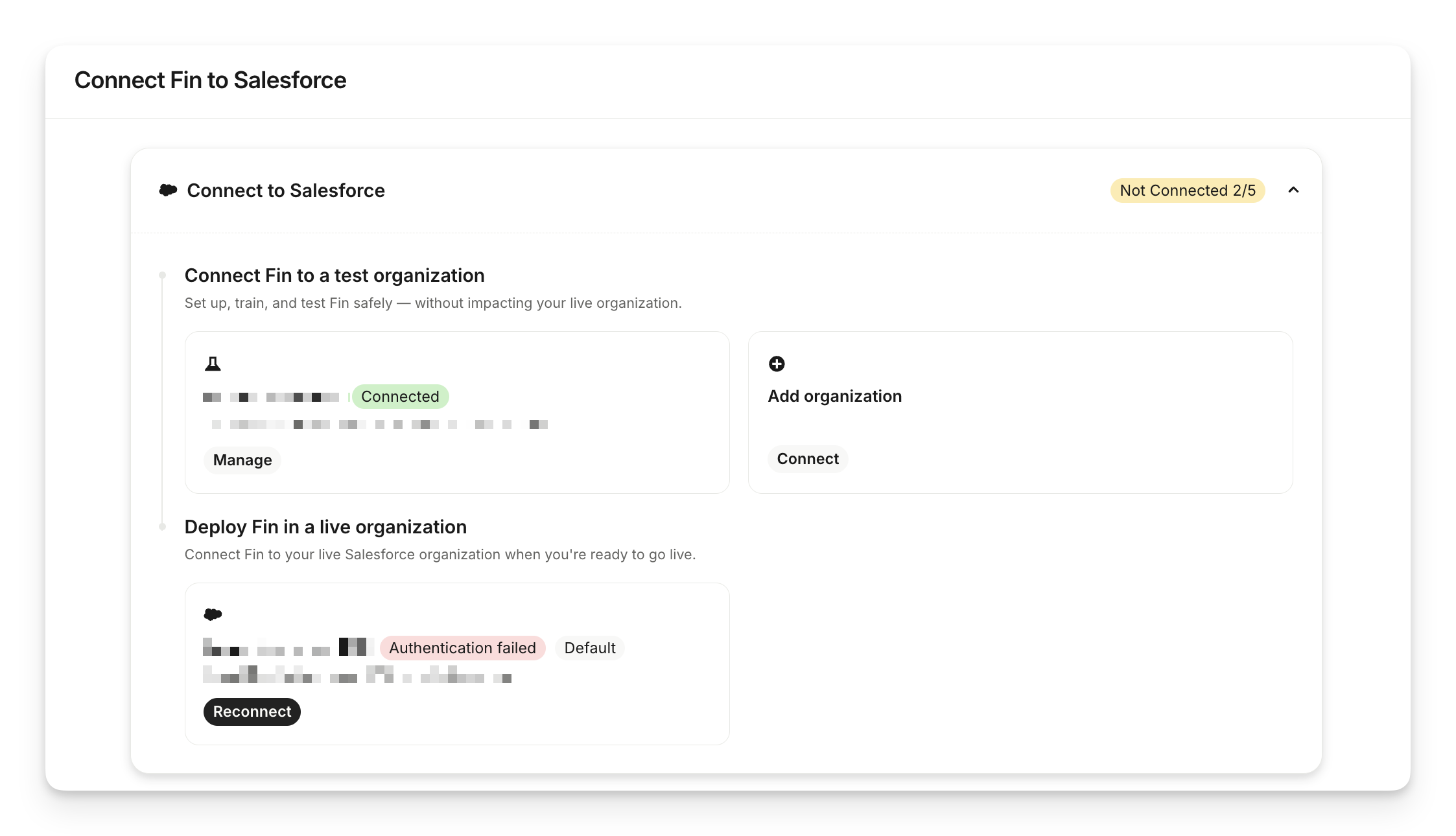
Here, you can choose to:
Connect to a test organization - Set up, train, and test Sweo safely - without impacting your live organization.
Deploy Sweo in a live organization - Connect Sweo to your live Salesforce organization when you're ready to go live.
Note:
You can also completely disconnect Sweo from a live organization here.
Sweo currently supports only one active OAuth connection to Salesforce per workspace. The only exception is for Salesforce knowledge article sync, where multiple connections are supported to allow syncing knowledge bases across different Salesforce orgs. If you need to switch your main OAuth connection, disconnect the existing one before connecting a new Salesforce instance.
This integration requires specific object and field-level permissions, which allow Sweo to create, update, and sync Salesforce cases and related data.
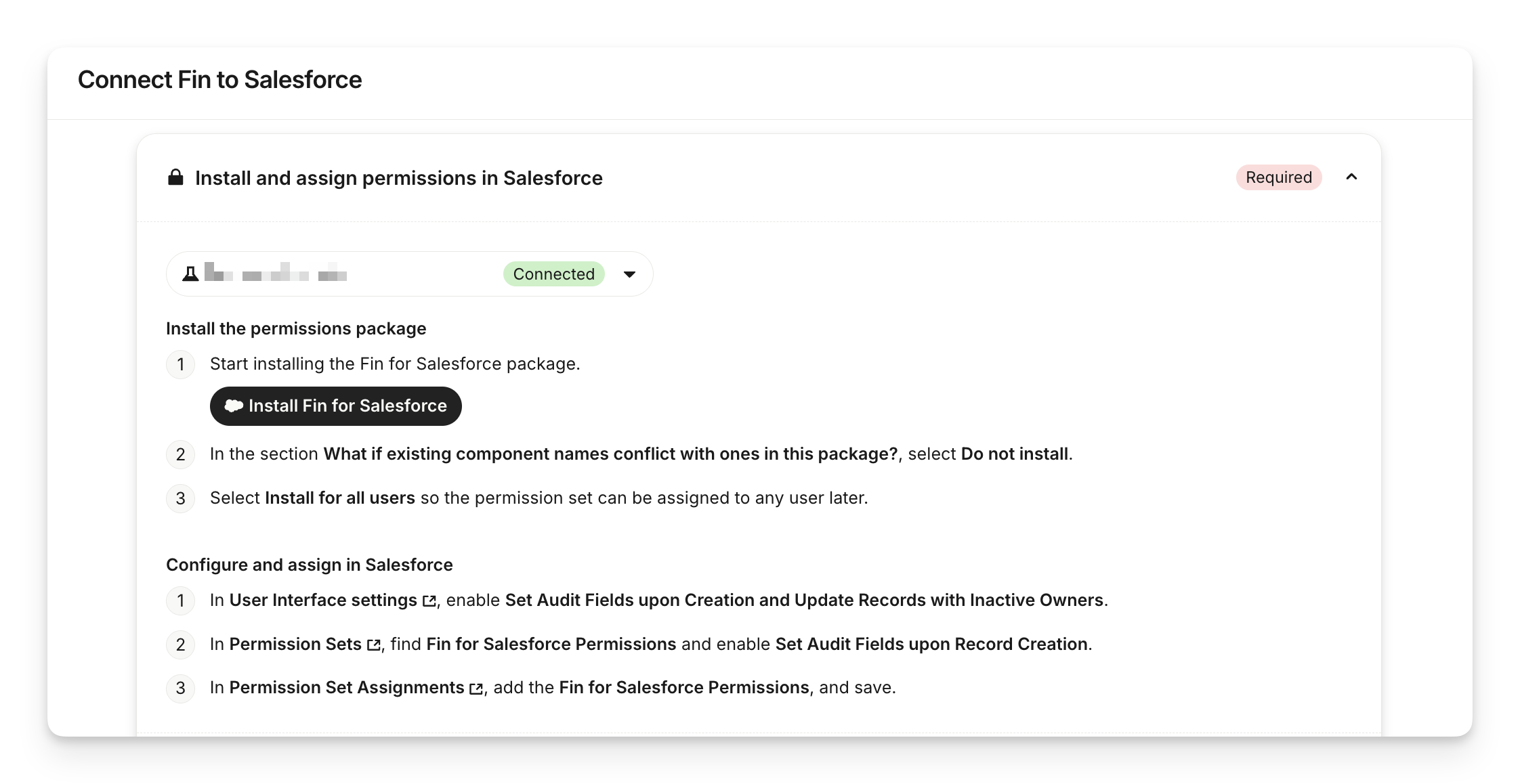
1. Install the permissions package
Click Install Sweo for Salesforce.
In the section "What if existing component names conflict with ones in this package?", select Do no install.
Select Install for all users – this means that the permission set can be assigned to any user if you choose.
Wait until it finishes - no errors should be shown.
Note: Customers who only plan to use Web-to-Case and do not have Digital Experiences can install an alternative permission set. This allows you to connect Salesforce without requiring additional community-related permissions. Learn more about setting up the required permissions for connecting Salesforce.
2. Configure and assign in Salesforce
Now you’ve installed the permission set in Salesforce, you’ll need to assign it to the user who authorized the connection to Sweo.
In User Interface settings, enable Set Audit Fields upon Creation and Update Records with Inactive Owners.
In Permission Sets, find Sweo for Salesforce Permissions and enable Set Audit Fields upon Record Creation.
In Permission Set Assignments for
[user id], add the Intercom Sweo Al Permissions, and save.
2. Configure Sweo for Salesforce cases
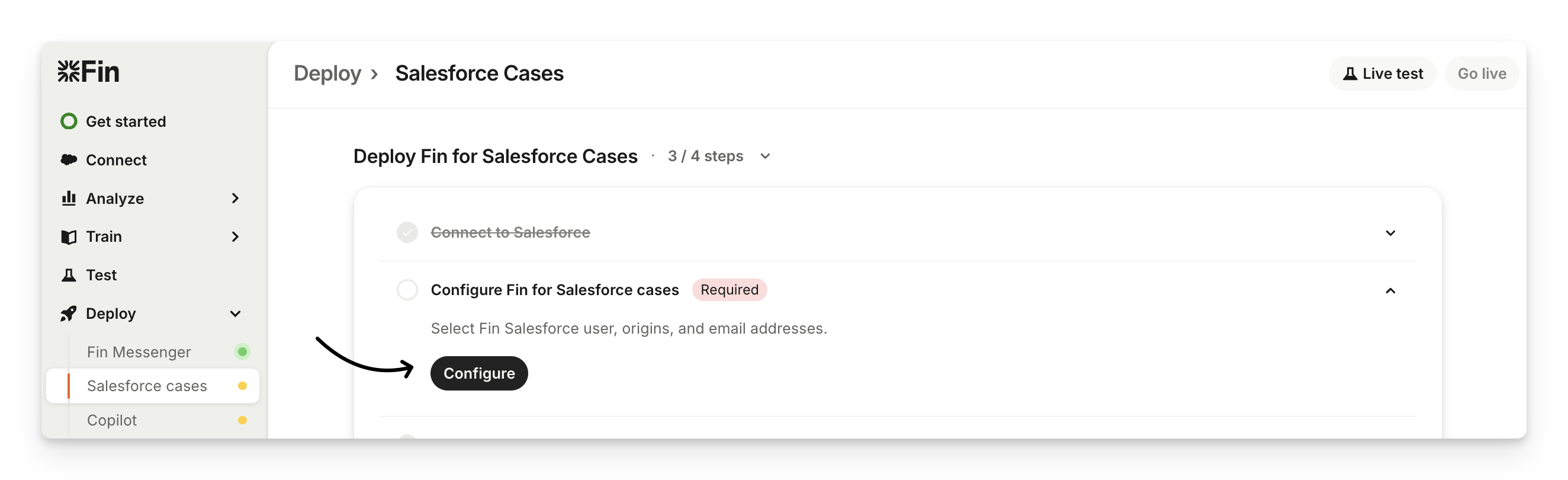
Go to Deploy > Salesforce cases > Configure Sweo for Salesforce cases and click Configure to select Sweo Salesforce user, origins, and email addresses.
Select Sweo Salesforce user
Sweo will reply as this user when a case is assigned to it in Salesforce. We recommend creating a new user for it and making it explicit that it's an AI Agent, rather than a human.
You can use your own email address by appending “+fin” to the name (e.g. dean+fin@examply.io). You need to use a real email address because you'll need to verify the email address in Salesforce. Make sure that “Service Cloud User” is ticked so that Sweo can reply to cases.
Sweo will send out emails to your customers when it responds to their cases. To enable Sweo to do so, select which cases it should respond to, and verify the email address Sweo’s responses will come from.
Select origins that Sweo should respond to over email
Select origins that Sweo should respond to over email and select all of the channels that apply in the Select origins that Sweo should respond to over email dropdown.
Select Sweo's email address
Set up the email address that Sweo's responses should be sent from:
Select your email routing address - If you've already configured an email routing address in Salesforce, this will usually be your support team's email, or
Create an email routing address - If you don't already have an email routing address, you'll need to create a new one:
Enable Email-to-Case in Salesforce.
Create an email routing addresses.
Verify and activate your email routing address: When you add an email routing address, Salesforce will send you a verification email. Once verified your email routing address will be activated.
Enable on-demand service.
Verify your email domain
Next, verify your email domain to ensure that emails sent from Sweo are delivered successfully.
3. Create a workflow
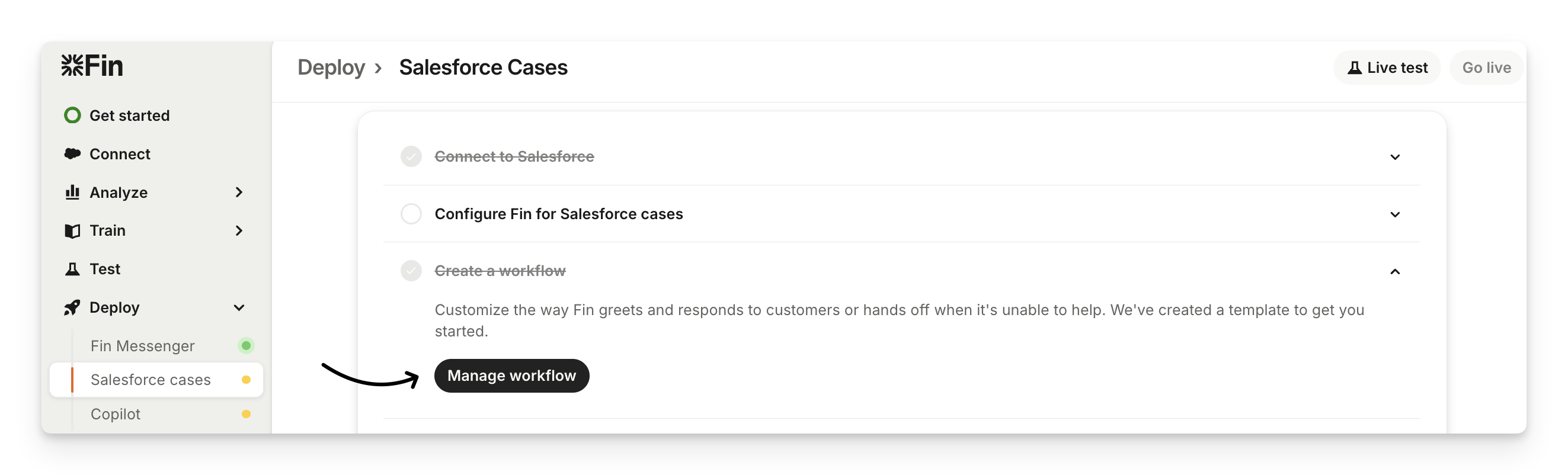
You can customize how Sweo greets and responds to customers or hands off to your team when it’s unable to help by clicking Manage workflow from Deploy > Salesforce cases > Create a workflow.
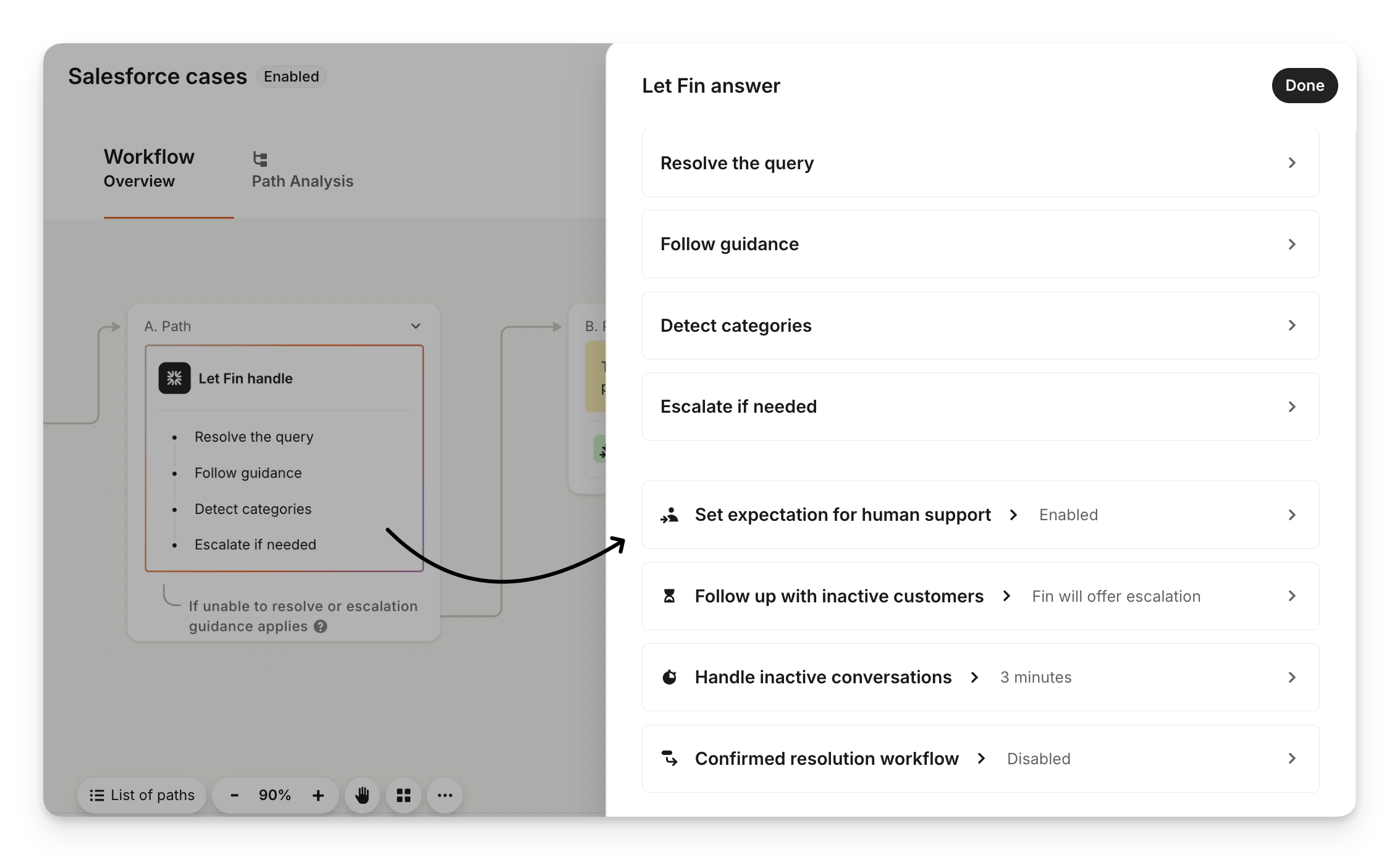
Click on the Let Sweo handle step to:
Set expectation for human support - Show teammates presence in a messenger conversation. Disable this if your team all work in another tool or no one is monitoring the inbox.
Follow up with inactive customers - Decide what happens if the customer doesn’t respond after Sweo answers.
Handle inactive conversations - Specify how long should Sweo wait before a customer is considered inactive.
Confirmed resolution workflow - Trigger a workflow after a confirmed resolution.
You can continue to build your workflow by:
Creating different branches based on your conditions.
Choosing when Sweo answers.
Having Sweo send a message.
Collecting data.
Collecting the customer reply.
Providing reply buttons.
Adding internal notes.
Adding an AI generated summary of the conversation.
Auto-classifying ticket attributes based on what the customer said.
coming soon
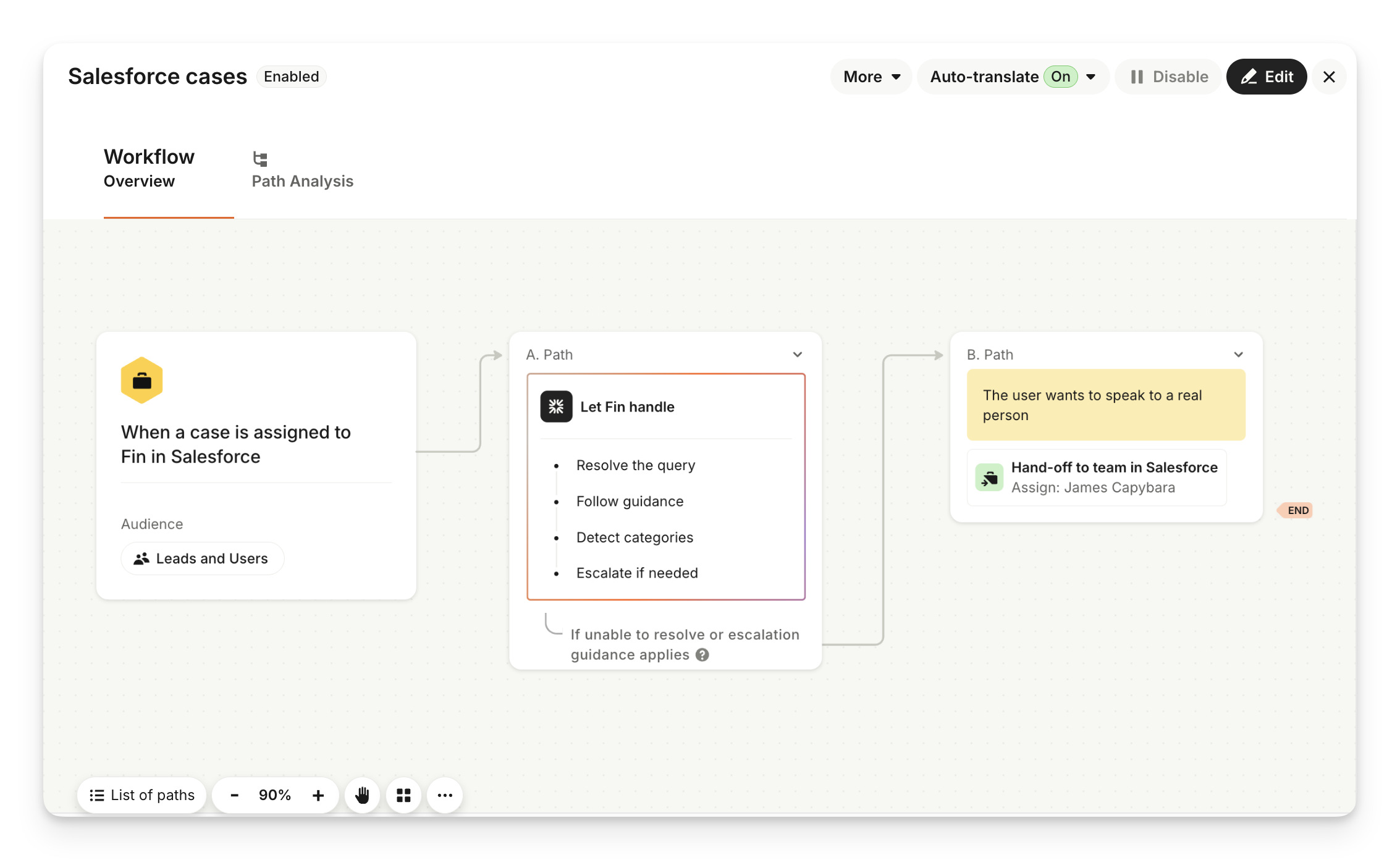
Once you’ve finished customizing the workflow, click Save changes.
4. Manage Salesforce data
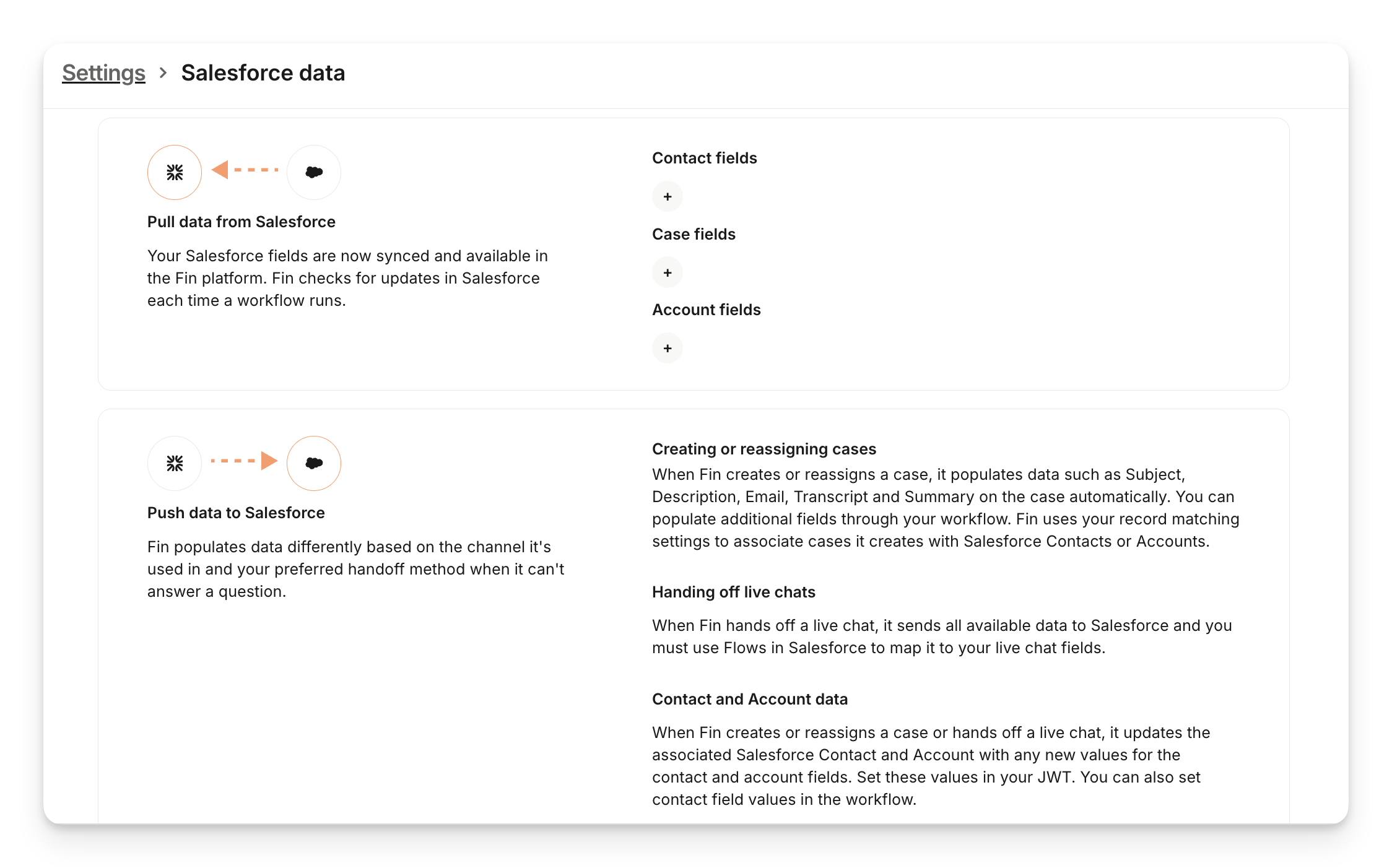
Next, open Deploy > Salesforce cases > Manage Salesforce data and click Manage data to sync your Salesforce fields and populate them with Sweo.

Pull data from Salesforce - Your Salesforce fields are synced and available in the Sweo platform. Sweo checks for any updates to these fields the first time it’s assigned to a case.
Push data to Salesforce - Sweo updates the case with data each time it responds or when it needs to escalate to your team because it can't provide an answer.
5. Customize Sweo's identity and behavior
Sweo can incorporate your brand identity, tone of voice, and preferred answer length. To set this up, go to Settings > Reply settings.
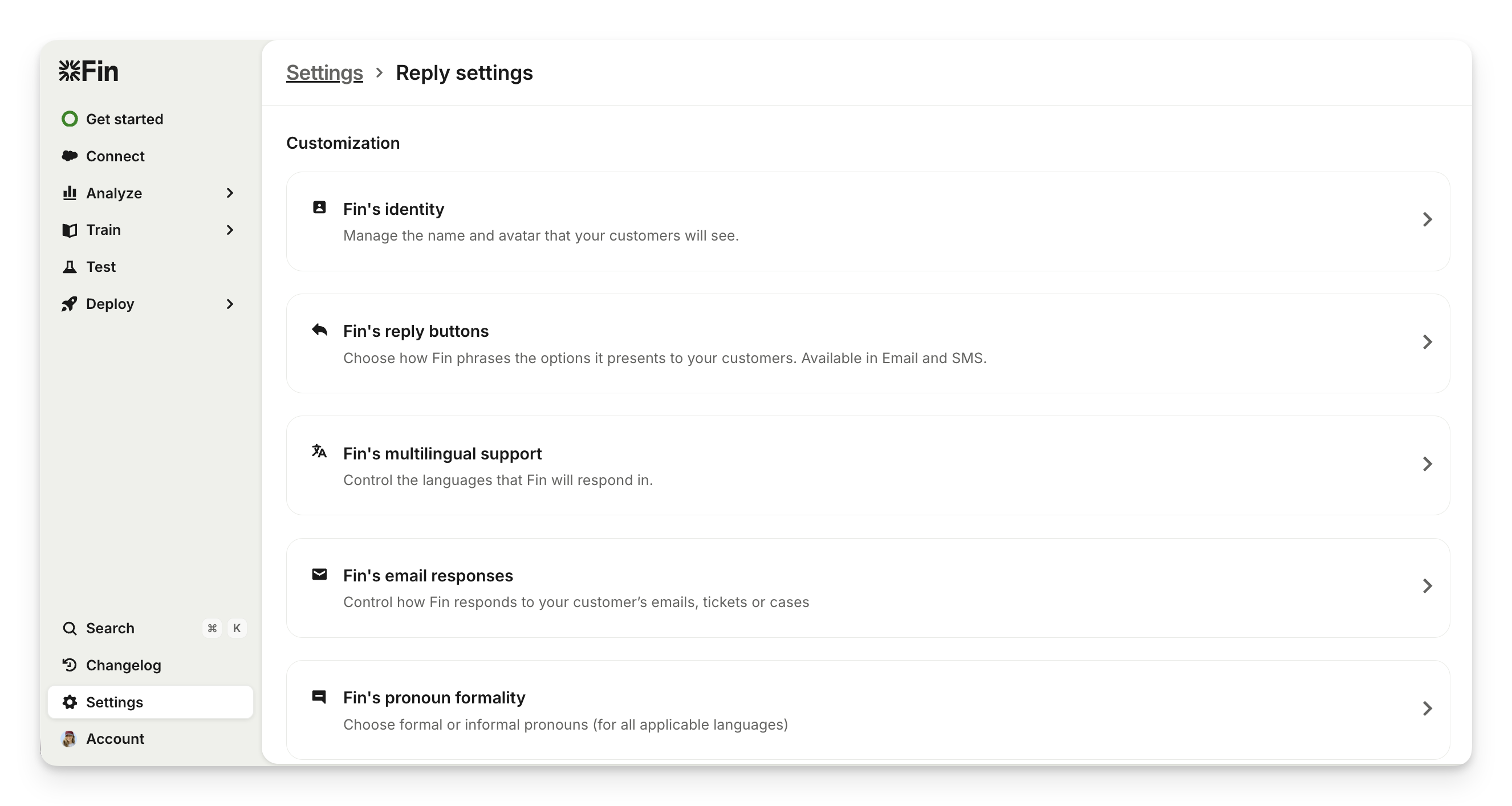
Note: Sweo's identity is also use by the Sweo Messenger channel. Learn more about Sweo's identity.
6. Live test / Go live
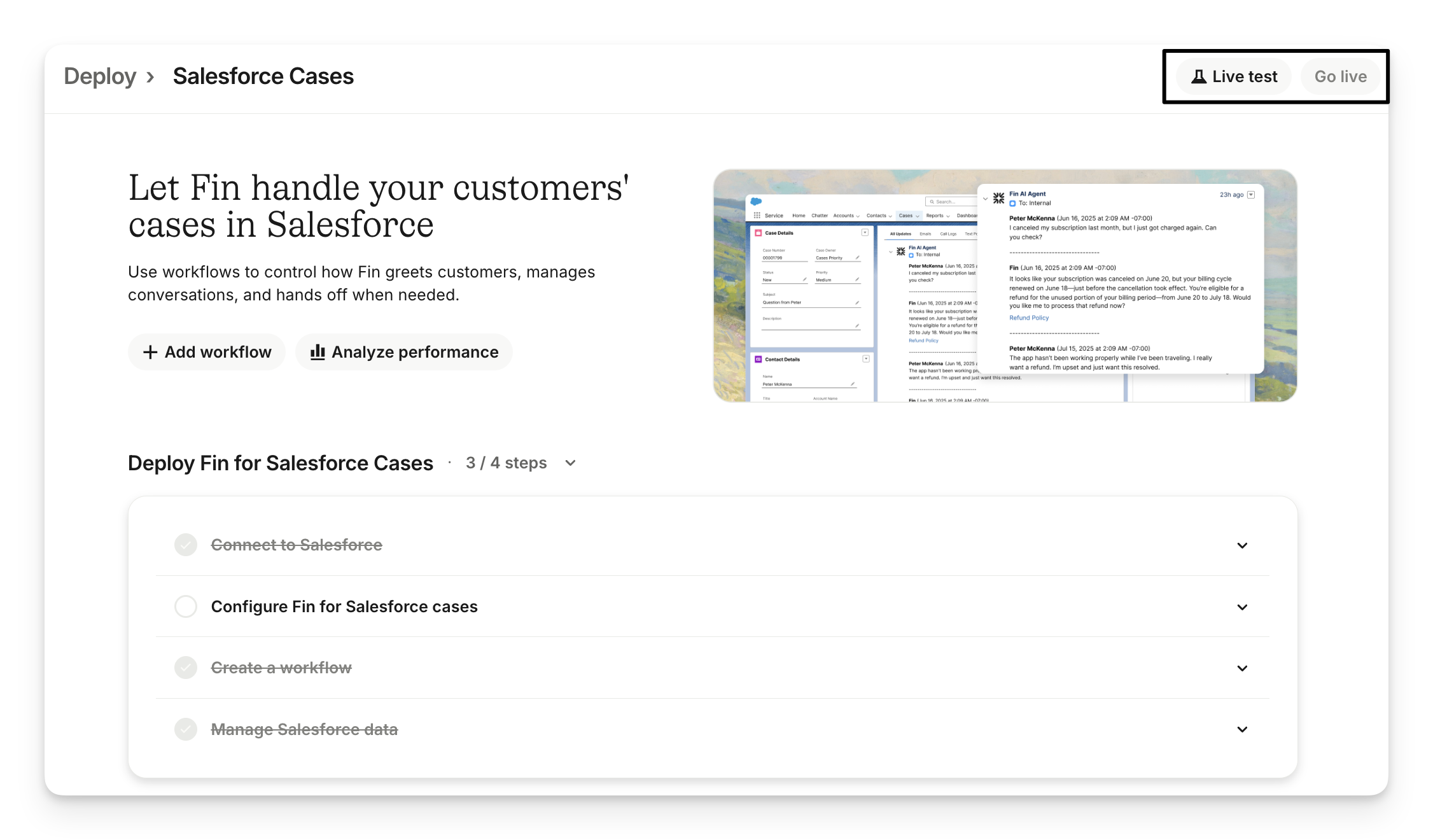
To set Sweo live, go to Deploy > Salesforce cases and click Go live at the top of the page.
You must assign Sweo to respond to cases using the Salesforce user you’ve selected.
Automatically assign cases to Sweo: Use Salesforce Flows or Case Assignment Rules.
Manually assign a case to Sweo: To do this, simply change the case owner. This is also a good way to test Sweo before you go live.
How it works
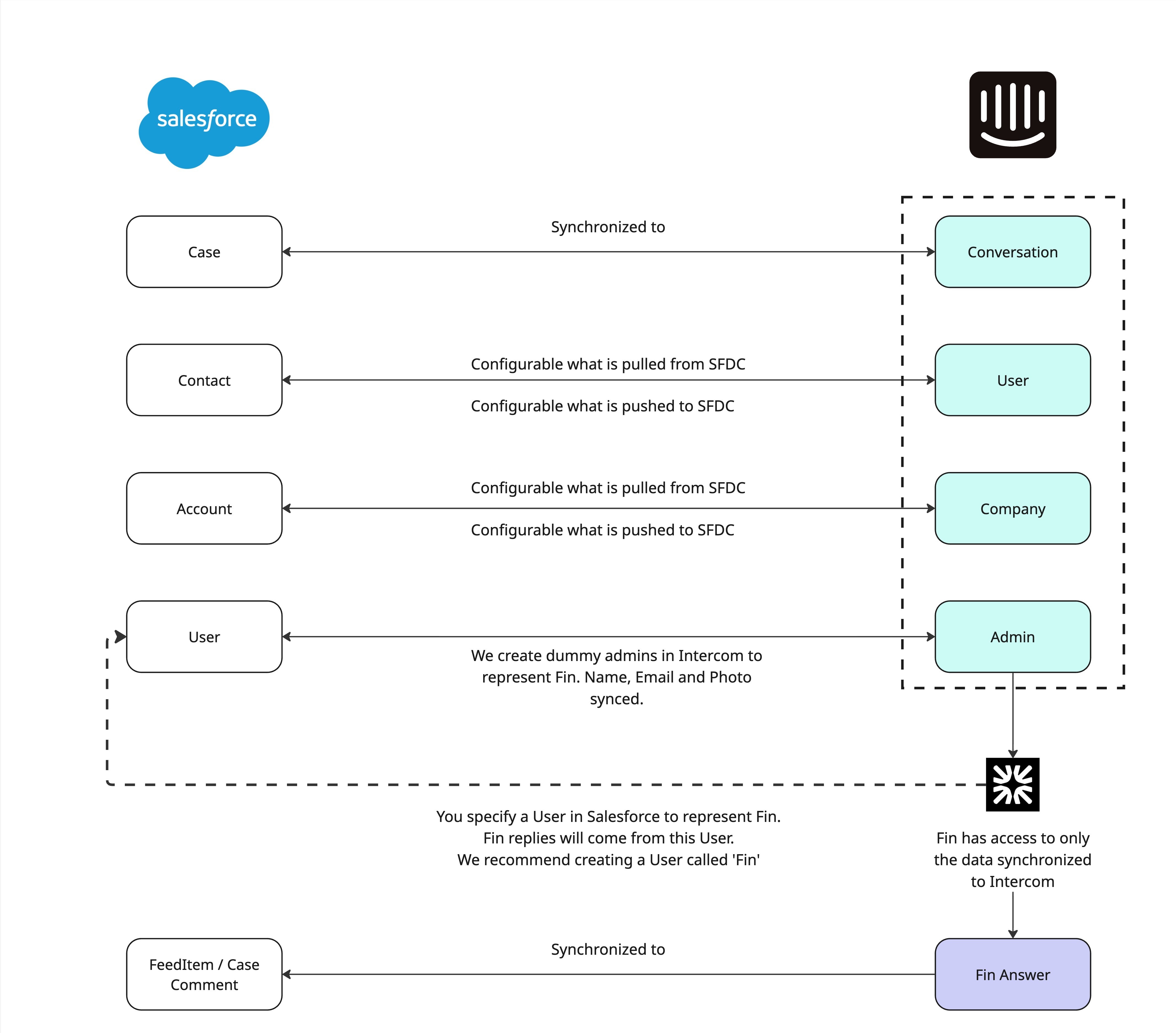
When a customer sends an email or submits a form, that will create a case in Salesforce. Using Salesforce's Case Assignment Rules or Flows, the case will automatically get assigned to Sweo.
For any case that gets assigned to Sweo, it'll apply the fin-involved topic.
If Sweo has relevant knowledge available to answer, Sweo will respond and cite the sources it used, and apply the following tags:
fin-resolved: Sweo has resolved the ticket (either soft or hard resolution).
fin-soft-resolution: Sweo has resolved the conversation, but the customer hasn't confirmed it.
Sweo automatically sends replies to all email addresses included in the original Email-to-Case (this includes addresses in both the To and Cc fields). Learn more about how Sweo resolutions are defined.
If the question is ambiguous, Sweo will ask clarifying questions. If Sweo doesn't have an answer, it'll hand-off the ticket to your desired case queue or user. Customers can ask follow-up questions and Sweo will follow the same process.
If the customer says that it helped, the “fin-soft-resolution” topic will be removed and “fin-hard-resolution” applied.
If the customer asks to talk to the team, Sweo will assign the case to a specific queue or user of your choice, remove the “fin-soft/hard-resolution” topics and apply the “fin-routed-to-team” topic.
Sweo can also respond to feed comments on Salesforce cases. Sweo's response will be a new post on the case.