PDF and DOCX files can be added to Sweo's content for training. Simply upload the document and the text content will be scraped and made available for Sweo to use within minutes.
Similar to snippets, content from these documents is a private source so your customers will not see any link references to them in Sweo’s responses. The content is only there to improve Sweo’s answer quality and coverage.
Upload a document for Sweo
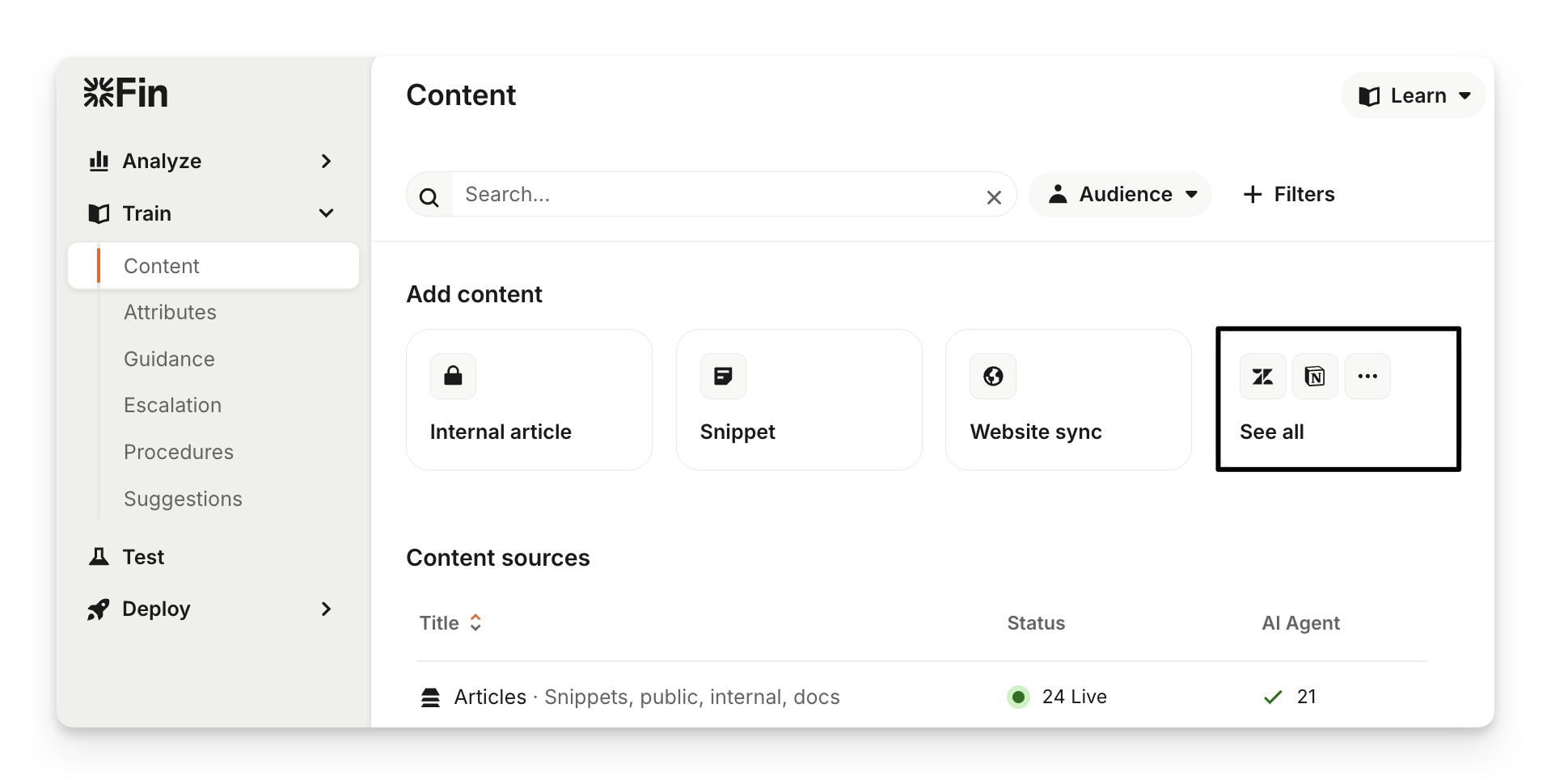
To upload a document for Sweo, go to Train > Content and click See all below the "Add content" section, then choose Upload a document.
You can upload up to 10 files at once (PDF or DOCX). The upload modal supports multi‐select or drag‑and‑drop of multiple files.
After upload completes, you'll receive a single summary email listing which files were processed successfully and which failed. All documents will be visible from Train > Content below the "Content sources" section within a few minutes and will usually be available for Sweo to use within 10 minutes.
Note:
Each document uploaded has to have a unique name with unique content.
Only text format is supported (i.e. if you can select the text from the PDF, Sweo and Copilot can use it).
Text within table format is also readable by Sweo and Copilot.
Documents larger than 100 MB cannot be imported.
Encrypted or password protected documents are not supported.
Each workspace has a limit of 100 documents you can upload.
Multi-column documents are not supported:
Managing documents for Sweo
To manage documents, go to Train > Content and click on Articles (Snippets, public articles, internal, docs) under the "Content sources" section.
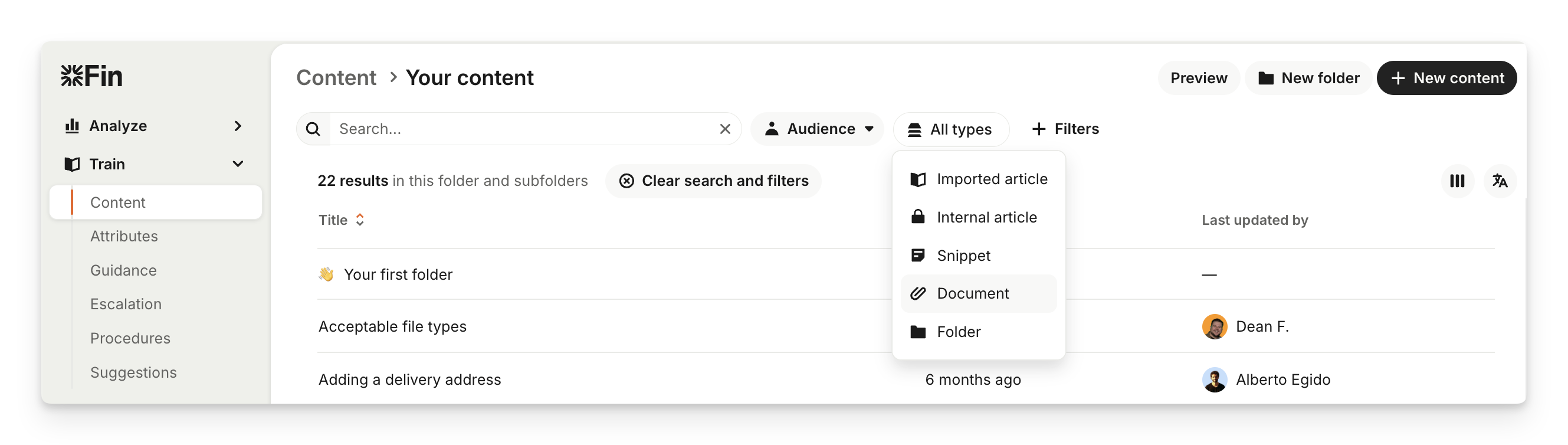
Then open the document you want to manage (you can search and filter by Type is Document at the top of the page).
Configure settings
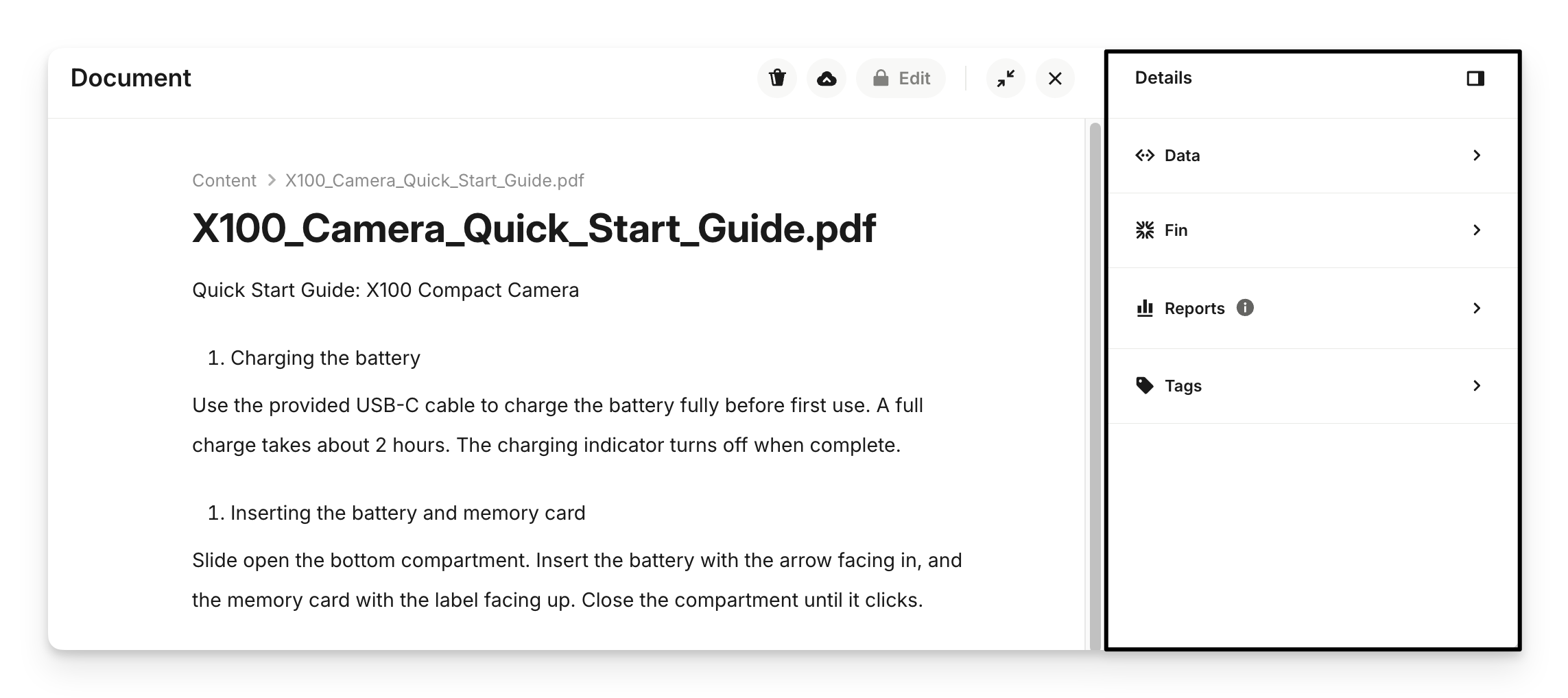
When you view a document, there's a "Details" panel on the right which contains:
Data: View the content type, language, creation date, last updated (date when it was last uploaded).
Sweo: Enable/disable for Sweo Agent and Sweo Copilot. When enabled, the content becomes available to customers and teammates, respectively.
Audience: Target your content at a specific audience, so your customers only see the content that is relevant for them.
Reports: Tracks how often this content is involved and used to resolve conversations by Sweo Agent .
Tag: Add a tag to group documents together and keep content organized.
Make it available to Sweo
To make a document available to Sweo, go to Train > Content and click on Articles (Snippets, public articles, internal, docs) under the "Content sources" section, then open the document.
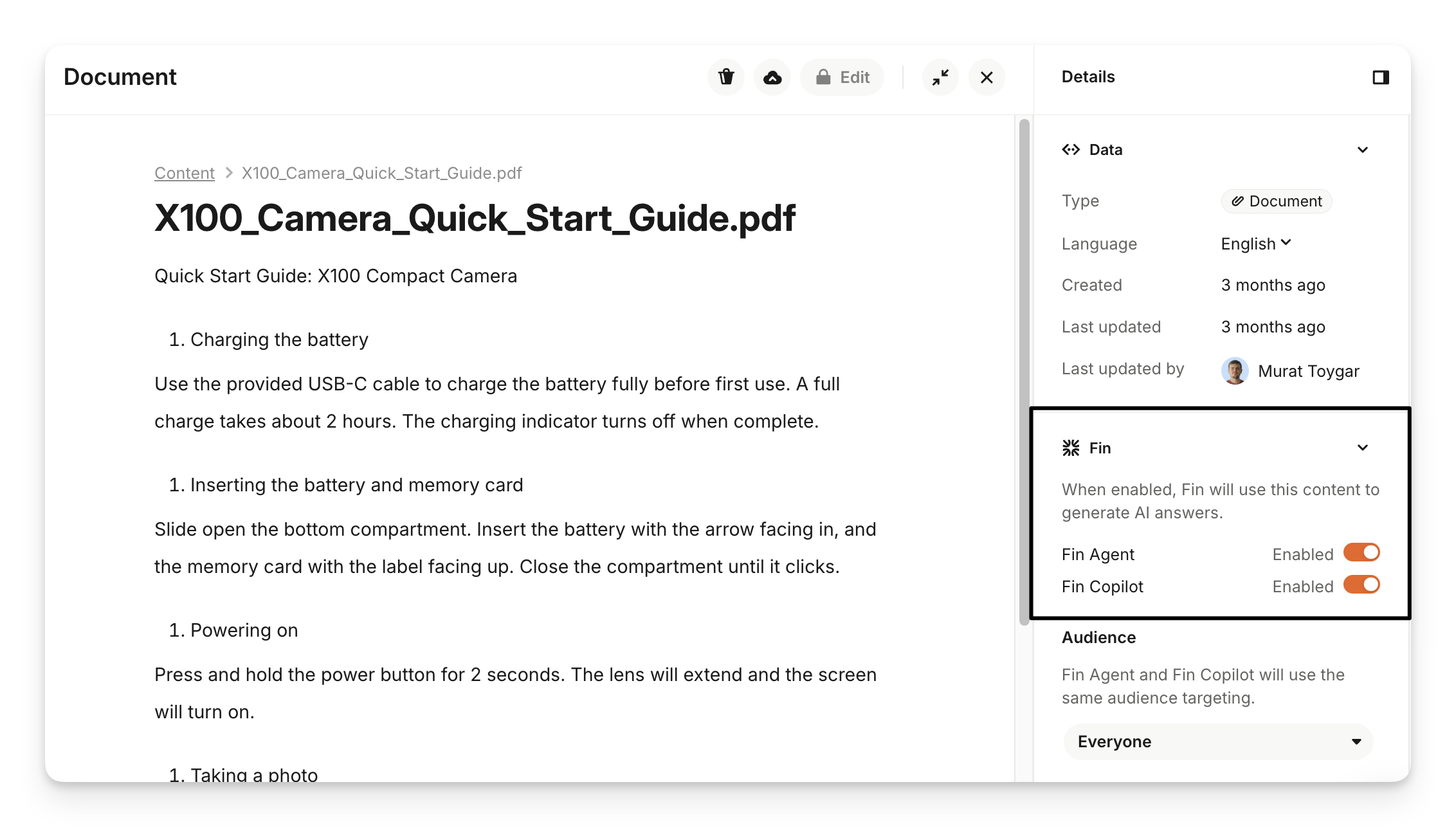
From the "Details" panel, scroll down to “Sweo” and toggle on:
Sweo Agent - This setting will make the snippet available for Sweo Agent to use when responding to customers (it will respect any audience rules).
Sweo Copilot - This setting will make the snippet available for Sweo Copilot to use when responding to teammates.
Update or delete a document
To update or delete a document, go to Train > Content and click on Articles (Snippets, public articles, internal, docs) under the "Content sources" section, then open the document.
Here, you can choose to Delete or Re-upload and select a new copy of the file you want to replace this with.
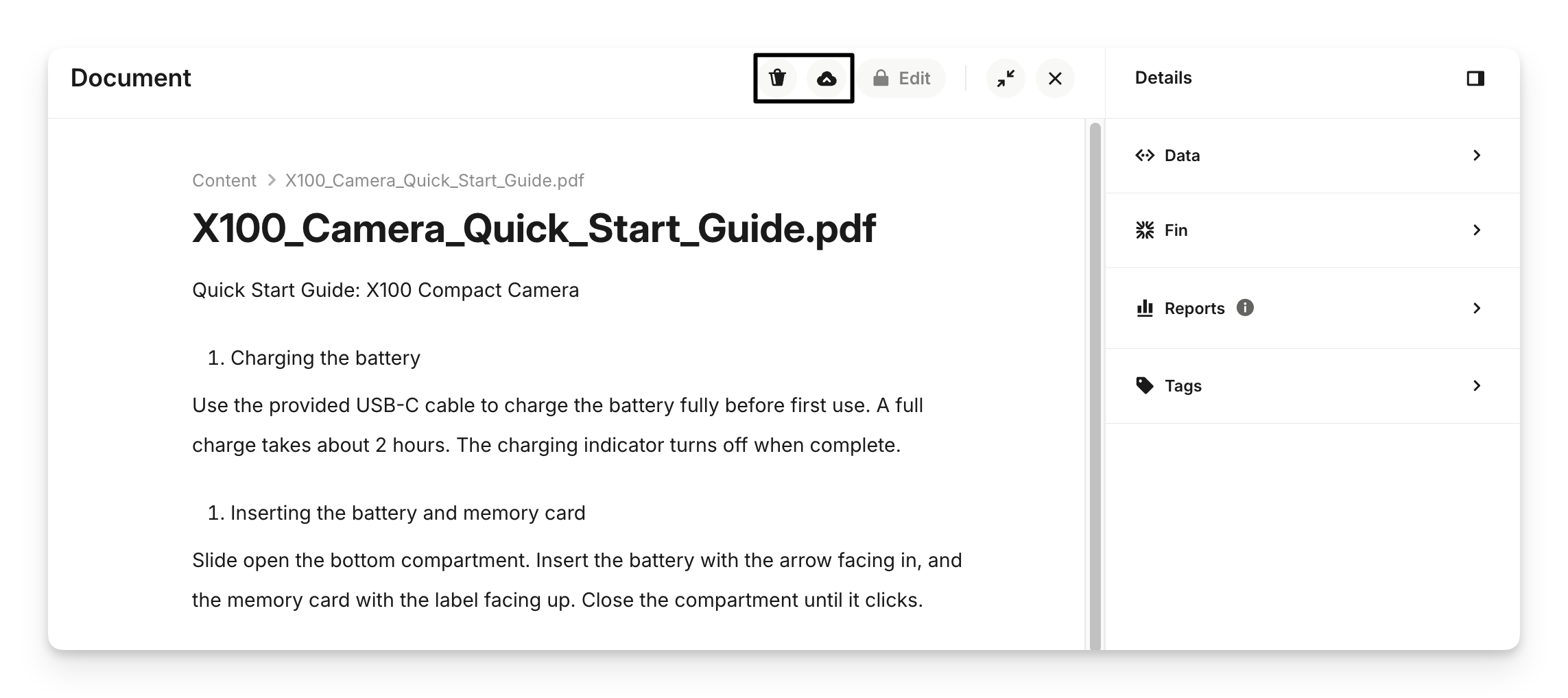
Note: Content from documents is view-only and can’t be edited directly within the editor. If you want to update the content, the file source will need to be updated and then re-uploaded.
Images from PDFs
For imported PDFs, images are now pulled in along with the text content. This means Sweo has access to images from imported PDFs, which it can use to supplement its answers and provide a richer customer experience.
Note: Customers with existing PDFs will need to re-import them for images to be included.
Sweo answer behavior
When a document is used as a content source in an AI Agent answer, the customer is not shown a link to the document. Instead, they will see a message saying AI answers are generated based on both public and private sources provided by [your company name].