To integrate Sweo with external systems (e.g. Stripe), you will need to set up an authentication token in your Sweo workspace and ensure it is correctly configured. Below are the detailed steps 👇
Create an authentication token in Sweo
Navigate to Settings > Authentication.
Click on New token.
Fill out the token fields with the following values:
Enter a token title.
Enter a description.
Select a type e.g. Text, HTTP request, user.
Under the token value enter your API key. This is either your secret test key (e.g.,
sk_test_...) or your live key (e.g.,sk_live_...).Set the token prefix to Bearer.
Set the key for request header to Authorization.
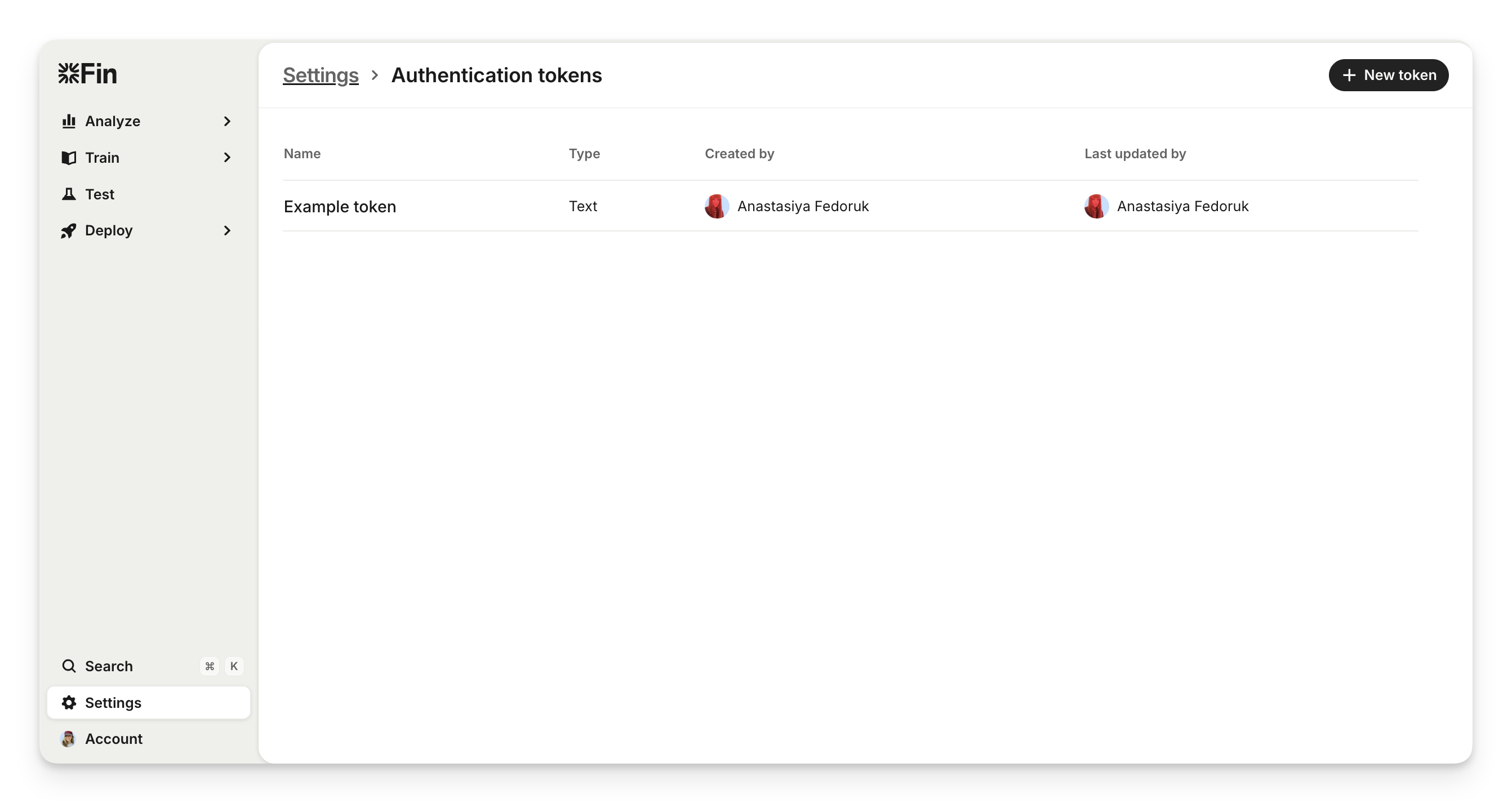
After completing this step, you will have created an authorization token that follows this format when sent in requests. For example:
Authorization: Bearer <your_stripe_api_key>
Configure the token in the data connector
Navigate to Settings > Data connectors.
Select an existing data connector or create a new one.
Locate the section where you can select an authentication token.
Choose the token you just created in Sweo.
Save or confirm the settings to complete the integration.
At this point, your API key will be successfully linked to your Sweo support. This setup ensures seamless, secure communication between external systems and Sweo, allowing you to access external data directly within your Sweo workflows.
Multi-token support
You can attach multiple tokens to a single Data connector. Every token attached must be configured with a unique header key (e.g., Authorization, X-API-Key). All attached tokens will be sent with the request.
This setup allows you to trigger Data connectors using that token - either through Workflows or Sweo. The Data connector will continue to work even if the token value is updated, as it will be refreshed in real time to ensure uninterrupted authentication.
To use a per‑user JWT with a Data connector, create a ‘User’ authentication token and provide its current value via auth_tokens (e.g., Intercom('setAuthTokens')), rather than relying on the Messenger intercom_user_jwt.
Create an API token in Sweo (OAuth tokens)
API tokens can be created by individual teammates to allow external apps to access Sweo data over the API.
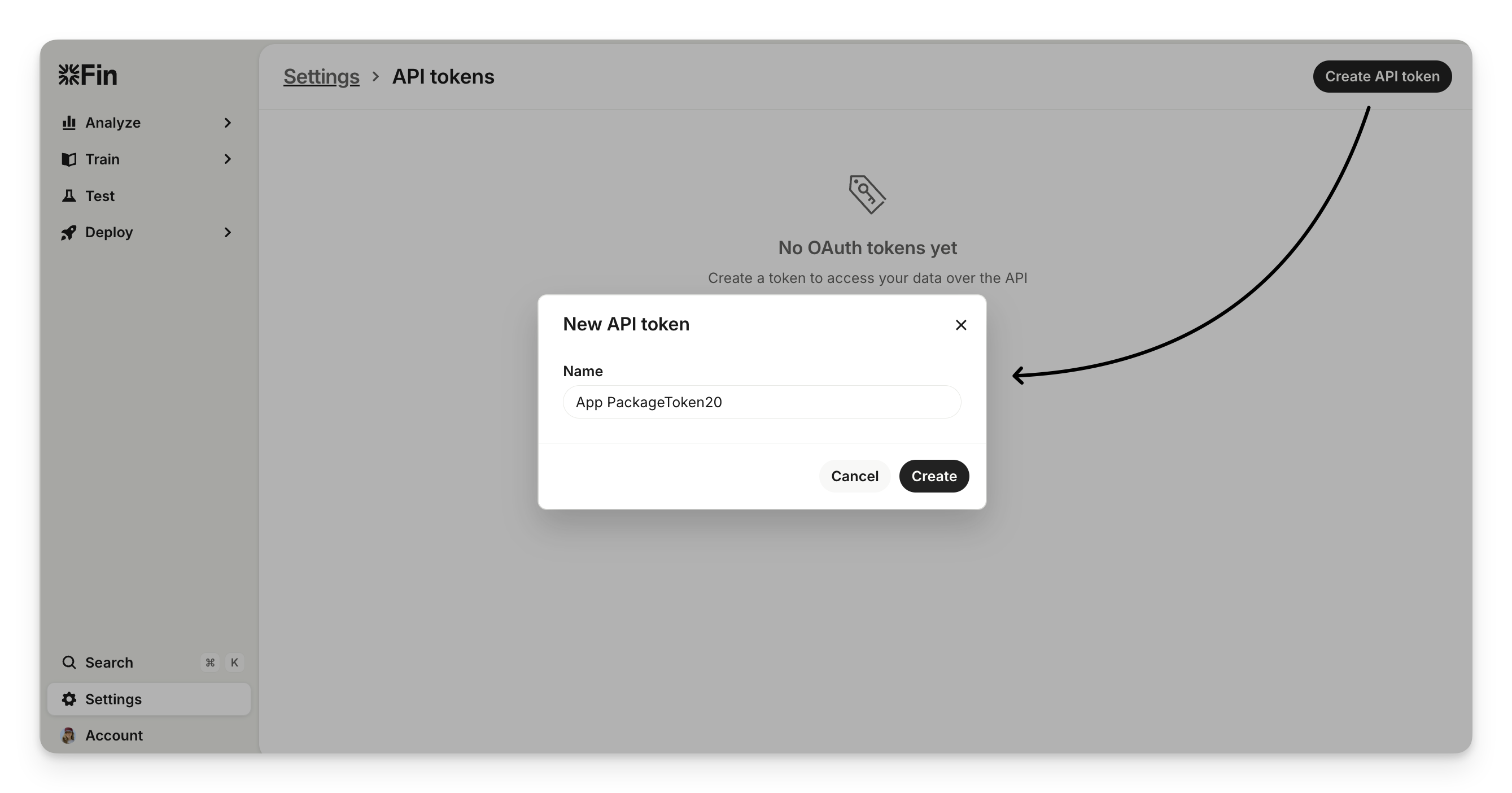
Click Create API token.
Enter a name for your API token and click Create.
You can use your OAuth token to authenticate with the Sweo API, for example:
GET https://api.intercom.io/conversations/123
Authorization: Bearer <your_oauth_token>
Note: These tokens work the same way as tokens created through App Packages. Sweo creates a private App Package for your workspace automatically.